

An image may be worth a thousand words, but a video is worth a thousand messages. Screen recording software applications have become essential tools for teams and individuals who communicate complex ideas, demonstrate software products, or troubleshoot issues quickly. After evaluating and testing 15 of the top screen capture utilities, this article shares the best options for every scenario, such as creating online courses, creating software tutorials, capturing software glitches, and more.

Key Takeaways
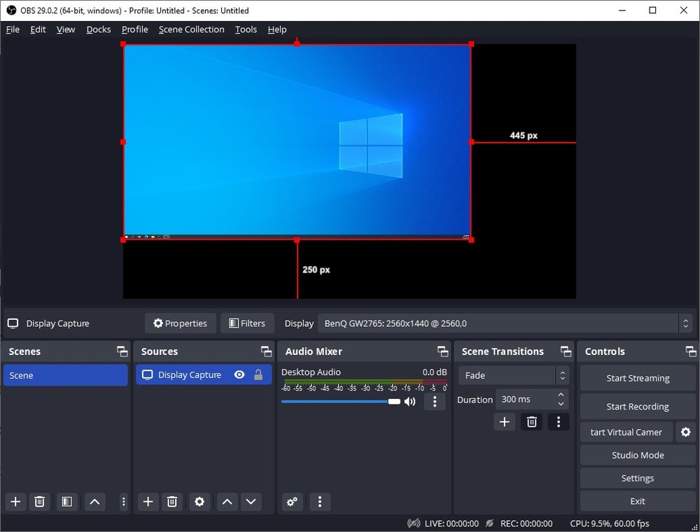
OBS Studio is one of the best screen recorders on Windows, macOS, and Linux. Because it is open source, it is completely free to use. Moreover, it offers a wide range of customization options to achieve desired effects.
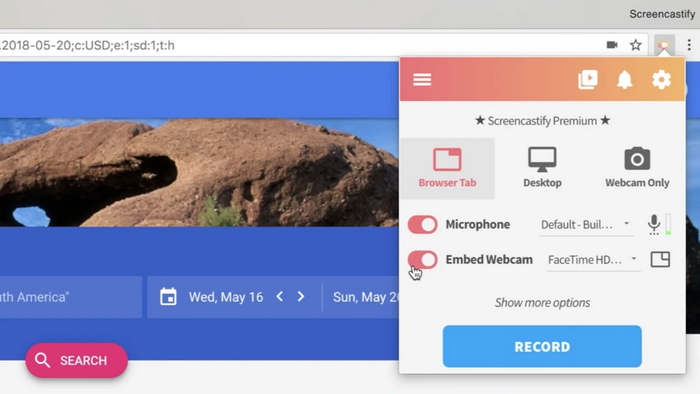
Loom Screen Recorder is the best option for multi-device users since it is available on Windows, macOS, iOS, and Android. Plus, it offers a screen recorder Chrome extension.
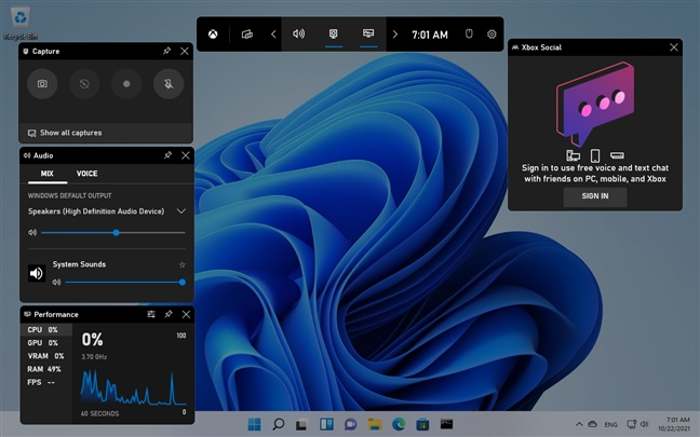
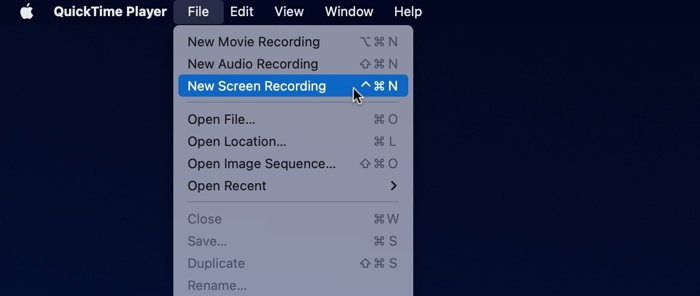
Game Bar and QuickTime Player are the built-in screen recorders in Windows 11/10 and macOS. Users can capture their screen without installing extra software. Of course, they only provide basic screen-capture features and options.
If downloading software is inconvenient, Clipchamp Screen Recorder is a good option for capturing your screen online.
Part 1: How We Tested the Screen Recording Software
We researched the best screen recording software and apps through a comprehensive real-world test that simulated typical usage scenarios. Rather than merely checking features, we evaluate them in a standardized environment, across diverse recording tasks, and in terms of core performance.
Test Environment
Operating System: Windows 11 64-bit
CPU: Intel Core i7-14700K
RAM: 32GB
GPU: NVIDIA RTX 4070
Monitor: 1920x1080 resolution
Storage Type: SSD
Free Storage: 1TB
Mobile Devices: iPhone 16 Pro and Samsung Galaxy S25
Test Objects
Recording a static desktop is not enough to test and compare the top screen recorders. We stress-test each program and app in scenarios that mirror how users actually work:
Scenario 1: Record desktop and activities, including the cursor movement.
Scenario 2: Capture online video playback to assess image quality and stability.
Scenario 3: Record Minecraft gameplay on a desktop to learn frame-rate stability and the impact on system resources.
Scenario 4: Record webcam and microphone to check the quality and synchronization.
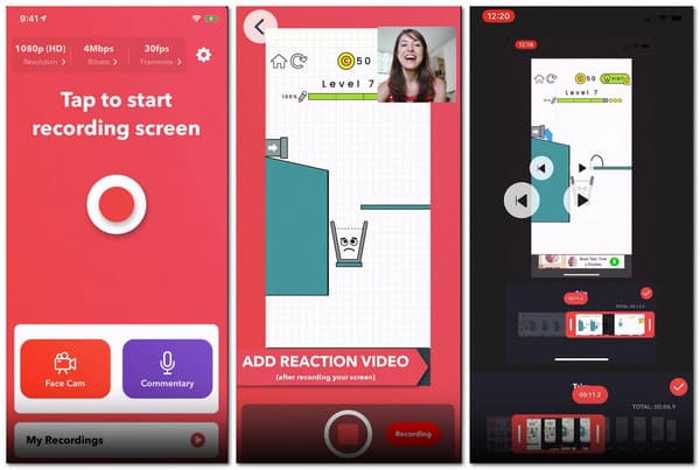
Scenario 5: Screen record on smartphone.
Test Software/Apps and Version
| Software | Last Version | Support Platforms |
|---|---|---|
| Tipard Screen Capture | 2.1.58 on Windows 1.1.56 on macOS | Windows and macOS |
| OBS Studio Screen Recorder | 32.2.2 | Windows/macOS/Linux |
| Loom Screen Recorder | 1293.0.0 on iOS 283.1.0 on Android | iOS and Android |
| Clipchamp Screen Recorder | 4.5.10740.0 | Web |
| Movavi Screen Recorder | 24.8.0 | Windows and maOS |
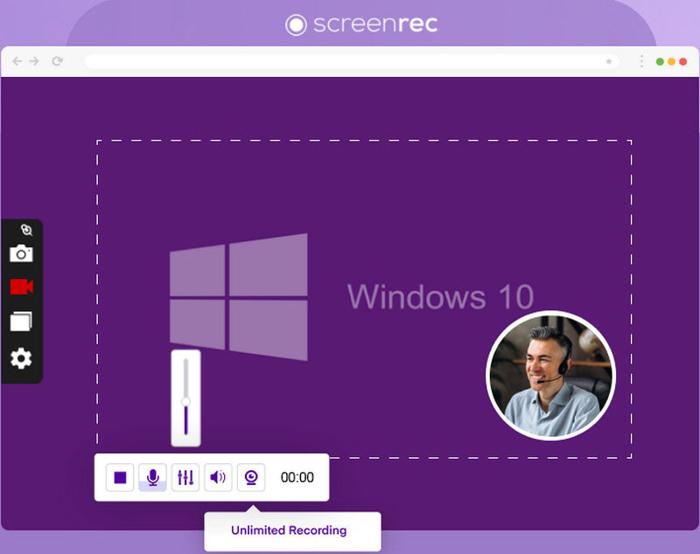
| ScreenRec | 5.0.13 | Windows |
| Game Bar | 7.326 | Windows 11/10 |
| QuickTime Player | 10 | macOS |
| ShareX | 21.0.0 | Windows |
| ScreenFlow | 10.5.2 | macOS |
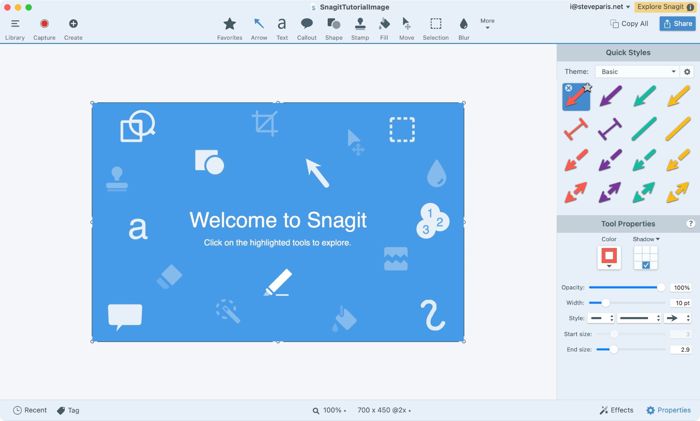
| Snapgit | 2026.3.1 | Windows and macOS |
| Screencastify | 4.24.3 | Chrome Extension |
| ScreenPal | 3.27.0 | Windows/Android/iOS |
| AZ Screen Recorder | 6.9.10 | Android |
| Record It | 4.9.9 | iOS |
| Show MoreShow Less | ||
Part 2: Screen Recorder Performance Benchmarks
When evaluating the top 15 screen recording programs on macOS, Windows, Linux, iOS, and Android, we consider several key criteria:
- Recording quality, including resolution, frame rate, bitrate, and codec.
- Performance impact, such as CPU/GPU usage and battery drain.
- Audio capture and synchronization, including system audio and microphone.
- Ease of use, including the user-friendly interface, recording control, and setup time.
- Feature set, including recording modes, webcam overlay, editing, and more.
- Output formats and sharing.
- Reliability and stability, such as crash recovery.
- Compatibility and supported platforms.
Recording Quality Benchmark
| Software | Max Resolution | Max Frame Rate | Audio Quality | Notes |
|---|---|---|---|---|
| Tipard Screen Capture | 4K | 60FPS | Depend on hardware | |
| OBS Studio Screen Recorder | 4K | Up to 320 kbps | 160 kbps may cause noise | |
| Loom Screen Recorder | 4K | 30FPS | Good | Audio may cut out or become choppy |
| Clipchamp Screen Recorder | 1080p | Background noise reduction | ||
| Movavi Screen Recorder | 4K | 60FPS | AI noise reduction | System audio capture may fail |
| ScreenRec | 4K | Moderate | Audio sync issues | |
| Game Bar | 1080p | 60FPS | Good | Choppy game audio and excessive background noise |
| QuickTime Player | 4K | 30FPS | Apple hardware encoder | Cannot capture system audio natively |
| ShareX | FFmpeg-based | Audio may miss | ||
| ScreenFlow | Full resolution | Lossless audio recording | ||
| Snapgit | 4K | Moderate | Audio lag reported | |
| Screencastify | 30FPS | Moderate | Choppy audio | |
| ScreenPal | 1080p | Moderate | No noise reduction | |
| AZ Screen Recorder | 1080p | 60FPS | Good | Audio missing or syncing delays of 10-20 sec |
| Record It | 4K | Good | Muffled audio and pitch distortion | |
| Show MoreShow Less | ||||
Key Findings
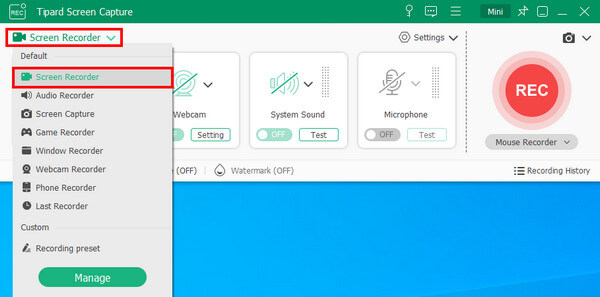
1. For the absolute best quality and full control, OBS Screen Recorder and Tipad are the top picks. Both come with fine-tuned encoding settings and deliver near-lossless recordings.
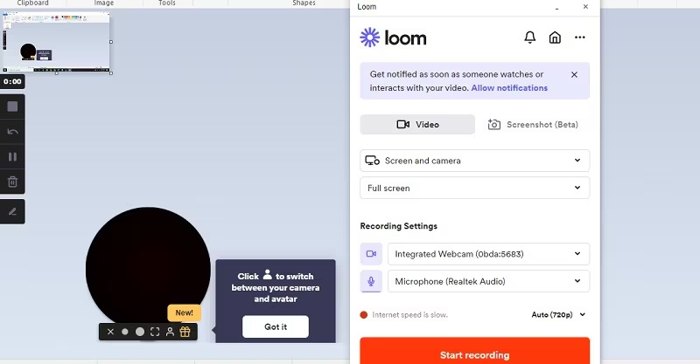
2. For quick sharing with good enough quality, Loom Screen Recorder and Screencastify are ideal. They are optimized for fast cloud sharing, but be aware that compression may reduce quality.
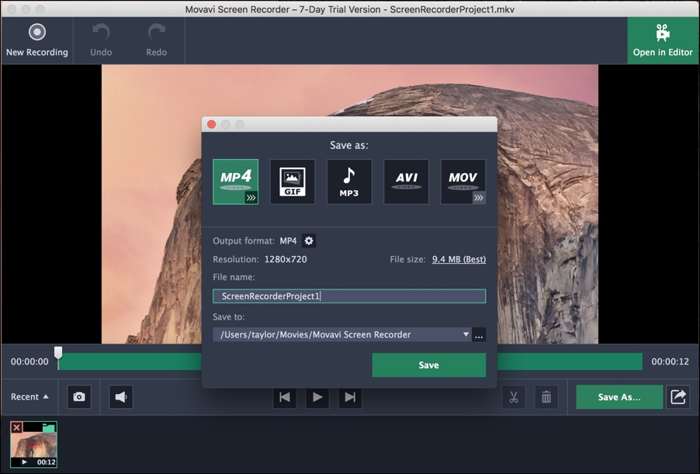
3. Movavi Screen Recorder features AI noise reduction that can be enabled even during recording. It supports 48 kHz stereo audio. Users report clear video and audio quality, but some have experienced missing system audio.
Frame Rate Stability Benchmark
| Software | Dropped Frames Rate | Frame Time Stability | Over 10-minute Recording Stability |
|---|---|---|---|
| Tipard Screen Capture | 0 | Good | Good |
| OBS Studio Screen Recorder | 1-5% | Moderate | Mixed, lags appear after 15-20 minutes |
| Loom Screen Recorder | 1-5% | Low | Poor |
| Clipchamp Screen Recorder | Over 5% | Low | Poor |
| Movavi Screen Recorder | 1-5% | Moderate | Good |
| ScreenRec | Lower than 1% | Good | Mixed, interruptions every 15 minutes |
| Game Bar | Over 5% | Good | Good |
| QuickTime Player | 1-5% | Good | Mixed, video freezing after 10-22 minutes |
| ShareX | 1-5% | Moderate | Mixed |
| ScreenFlow | Lower than 1% | Good | Good |
| Snapgit | 1-5% | Moderate | Good |
| Screencastify | Over 5% | Low | Poor |
| ScreenPal | 1-5% | Moderate | Poor |
| AZ Screen Recorder | Over 5% | Moderate | Mixed |
| Record It | 1-5% | Moderate | Poor |
| Show MoreShow Less | |||
Key Findings
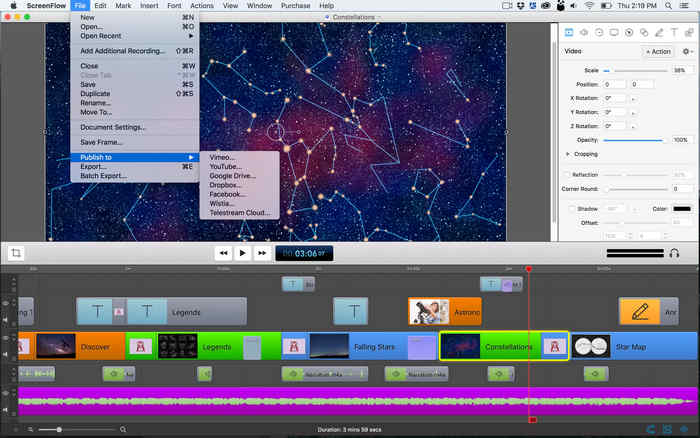
1. Tipard Screen Capture, Movavi Screen Recorder, Snagit, and ScreenFlow are the most reliable for long recordings. They generally receive positive stability ratings for extended sessions.
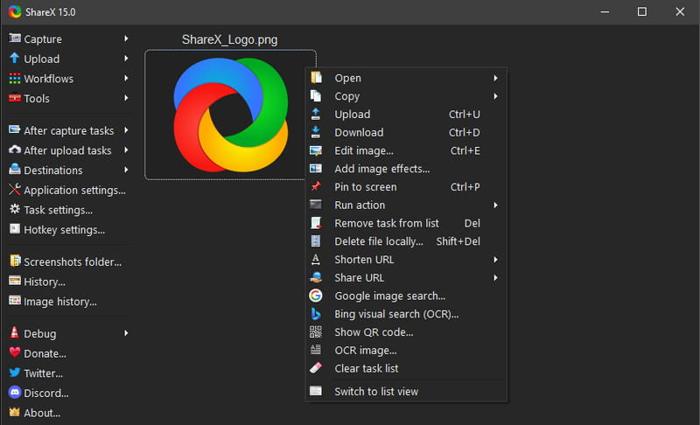
2. OBS Studio and ShareX require careful configuration. They can handle long recordings but require proper settings to avoid lag or corruption.
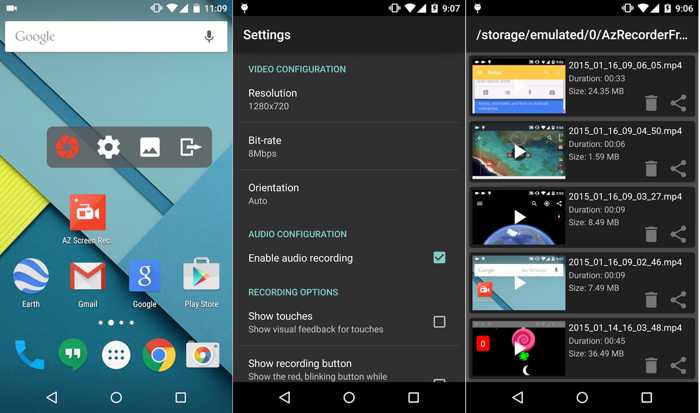
3. AZ Screen Recorder is a mixed Android screen recorder. It is stable on high-end smartphones and tablets.
Game Recording Benchmark
| Software | Over 10-minute Recording Stability | Multi-track Audio | A/V Sync | Game Compatibility |
|---|---|---|---|---|
| Tipard Screen Capture | Good | System audio + Microphone | Excellent | Dedicated Game Recorder mode |
| OBS Studio Screen Recorder | Mixed, lags appear after 15-20 minutes | Up to 6 tracks | Common issue | Configurable |
| Loom Screen Recorder | Poor | Support | Occasional | Limited |
| Clipchamp Screen Recorder | Poor | Support | Common issue | Primarily for screen recording |
| Movavi Screen Recorder | Good | Double tracks | Occasional | Good |
| ScreenRec | Mixed, interruptions every 15 minutes | No | Occasional | Good |
| Game Bar | Good | No | Occasional | Excellent |
| QuickTime Player | Mixed, video freezing after 10-22 minutes | Support | Good | Basic |
| ShareX | Mixed | No | Occasional | No design for game recording |
| ScreenFlow | Good | Support | Excellent | Excellent |
| Snapgit | Good | Support | Occasional | Good |
| Screencastify | Poor | No | Occasional | Limited |
| ScreenPal | Poor | No | Occasional | Good |
| AZ Screen Recorder | Mixed | No | Good | Good |
| Record It | Poor | No | Common issue | Good |
| Show MoreShow Less | ||||
Key Findings
1. For serious game recording, OBS Studio, Game Bar, Tipard, and ScreenFlow offer the best combination of performance and stability.
2. For mobile and tablet gaming, AZ Screen Recorder and Record It are reliable options.
CPU and GPU Usage Benchmark
| Software | CPU Usage | GPU Usage | Hardware Acceleration |
|---|---|---|---|
| Tipard Screen Capture | 5-25% | Moderate | Level-3 Hardware Acceleration |
| OBS Studio Screen Recorder | Up to 70% | 50-60% | Support NVIDIA NVENC, Intel, QuickSync, and AMD AMF |
| Loom Screen Recorder | 30-40% | Moderate | GPU Acceleration |
| Clipchamp Screen Recorder | 40-50% | Moderate | Support |
| Movavi Screen Recorder | 15-20% | Moderate | Intel, NVIDIA and AMD Acceleration |
| ScreenRec | 15-22% | Moderate | NVENC and QuickSync Acceleration |
| Game Bar | 12-25% | Low | NVENC and QuickSync Acceleration |
| QuickTime Player | 3-5% | Low | Support |
| ShareX | 3-6% | Depend on Settings | NVENC, AMF, and QuickSync Acceleration |
| ScreenFlow | 10-18% | Low | Intel and QuickSync Acceleration |
| Snapgit | 45-60% | High | Support |
| Screencastify | 40-50% | High | |
| ScreenPal | 8-20% | Moderate | CPU+GPU Acceleration |
| AZ Screen Recorder | 5-20% | Low | GPU Acceleration |
| Record It | 3-8% | Low | |
| Show MoreShow Less | |||
Key Findings
1. All in all, most screen recording software integrates hardware acceleration. Once acceleration is enabled, it can significantly reduce CPU load and make the recording process smoother.
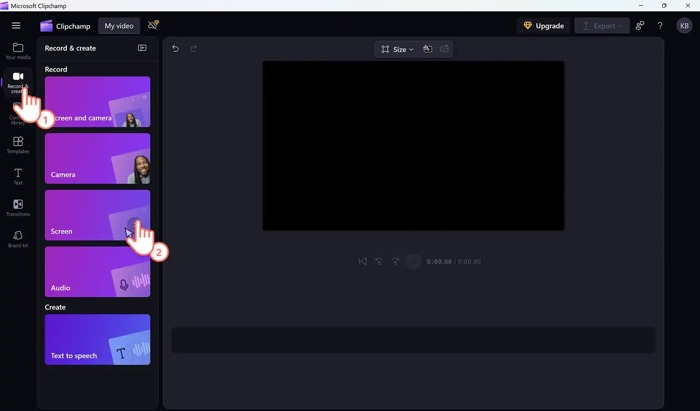
2. If you encounter problems when recording the screen, Loom, Clipchamp, and Snagit allow users to turn off hardware acceleration. That can fix compatibility issues.
Output Option Benchmark
| Software | Output Formats | Supported Codecs |
|---|---|---|
| Tipard Screen Capture | Over 500 video and audio formats | H.264, H.265 (HEVC), AV1, MPEG-4, MJPEG |
| OBS Studio Screen Recorder | MP4, MKV, FLV, MOV | H.264 (x264), HEVC (H.265), AV1 |
| Loom Screen Recorder | MP4 | H.264 |
| Clipchamp Screen Recorder | MP4, MOV, GIF, M4A, and MP3 | H.264, MPEG-4 |
| Movavi Screen Recorder | MP4, AVI, WMV, MOV, GIF, MP3, MKV | H.264, MPEG-4, WMV |
| ScreenRec | MP4 | H.264, H.265 (HEVC) |
| Game Bar | MP4 | H.264 |
| QuickTime Player | MOV, MP4, AND AVI | H.264, HEVC (H.265), Apple ProRes |
| ShareX | MO4, AVI, GIF | x264, x265, NVENC, VP9 |
| ScreenFlow | MP4, MOV, M4V, WebM, WMV, GIF, AIFF, APNG | H.264, HEVC (H.265), ProRes, VP8, VP9, MPEG-4, GoPro CineForm |
| Snapgit | MP4, GIF, AVI | H.264, x264, NVENC |
| Screencastify | MP4, GIF, MP3, WebM | VP8, H.264 |
| ScreenPal | MP4, AVI, FLV, GIF | H.264 |
| AZ Screen Recorder | MP4, MOV, GIF | H.264 |
| Record It | MP4, GIF | H.264 |
| Show MoreShow Less | ||
Key Findings
1. Advanced codecs, such as H.265 and AV1, can produce small file sizes while maintaining recording quality. Tipard Screen Capture, OBS Studio Screen Recorder, and ScreenRec are the best options.
2. ScreenFlow provides rich, professional codecs such as ProRes and DNxHD. It is the best choice for post-production.
Recording Features Benchmark
| Software | External Device Recording | Live Streaming | Drawing Tools |
|---|---|---|---|
| Tipard Screen Capture | iPhone and Android device | Limited | Real-time drawing tools |
| OBS Studio Screen Recorder | Capture cards, USB devices | YouTube, Twitch, Facebook | No |
| Loom Screen Recorder | Limited | No | Only in desktop app |
| Clipchamp Screen Recorder | Limited | No | No |
| Movavi Screen Recorder | External cameras, microphones | Limited | Real-time drawing tools |
| ScreenRec | External monitors | Limited | Only for screenshots |
| Game Bar | Limited | No | No |
| QuickTime Player | iPhone | Limited | No |
| ShareX | Limited | No | 18 annotation tools |
| ScreenFlow | External cameras | YouTube, Facebook, Vimeo | An annotation editor |
| Snapgit | Limited | Limited | A set of annotation tools |
| Screencastify | Limited | Limited | Real-time drawing tools |
| ScreenPal | External cameras | No | Real-time drawing tools |
| AZ Screen Recorder | No | YouTube, Facebook, Twitch | Draw on screen while recording |
| Record It | No | YouTube | Rich annotation tools |
| Show MoreShow Less | |||
Key Findings
1. Tipard and OBS are all-in-one screen recorders on macOS and Windows. They fully support capture cards and other professional features.
2. For basic everyday use, tools like Game Bar and QuickTime Player can handle common screen recordings.
Ease of Use Benchmark
| Software | Installation & Setup | User Interface | Control during Recording |
|---|---|---|---|
| Tipard Screen Capture | Very Easy | Intuitive | Very Easy |
| OBS Studio Screen Recorder | Complex | Steep learning curve | Easy |
| Loom Screen Recorder | Very Easy | Intuitive | Very Easy |
| Clipchamp Screen Recorder | Very Easy | User-friendly | Easy |
| Movavi Screen Recorder | Easy | Clean | Very Easy |
| ScreenRec | Easy | Clean | Easy |
| Game Bar | Pre-installed | Simple | Easy |
| QuickTime Player | Pre-installed | Simple | Easy |
| ShareX | Easy | Outdated | Easy |
| ScreenFlow | Moderate | User-friendly | Very Easy |
| Snapgit | Moderate | Intuitive | Very Easy |
| Screencastify | Very Easy | Simple | Very Easy |
| ScreenPal | Easy | Clean | Very Easy |
| AZ Screen Recorder | Very Easy | Clean | Very Easy |
| Record It | Very Easy | Simple | Very Easy |
| Show MoreShow Less | |||
Key Findings
1. For the ultimate zero-setup experience, Game Bar and QuickTime Player are unbeatable, the best options since they come with Windows 11/10 and macOS.
2. Tipard, Screencastify, and Record It can be installed and ready to go in seconds.
3. OBS Studio stands out as the most complex. The installation and configuration require technical skills.
Part 3: Screen Recording Software Benchmark Results
Benchmark Category Weight Distribution
| Category | Weight | Source Benchmark |
|---|---|---|
| Recording Quality | 15% | -Recording Quality Benchmark |
| Recording Stability | 30% | -Frame Rate Stability Benchmark |
| Feature Set | 20% | -Recording Features Benchmark |
| User Interface | 20% | -Ease of Use Benchmark |
| CPU Usage | 15% | -CPU and GPU Usage Benchmark |
Top 15 Screen Recorders Quantitative Master Scoreboard(on a scale of 1.0-10.0)
| Rank | Software | Quality | Stability | Features | Interface | CPU Usage | Final |
|---|---|---|---|---|---|---|---|
| #1 | Tipard Screen Capture | 10 | 10 | 9.6 | 10 | 10 | 9.92 |
| #2 | ScreenFlow | 9.4 | 9.7 | 9.1 | 9.5 | 9.6 | 9.48 |
| #3 | ScreenRec | 9.6 | 9.9 | 9.2 | 9.1 | 9.2 | 9.45 |
| #4 | Loom Screen Recorder | 10 | 9.8 | 8.5 | 9.8 | 8.5 | 9.38 |
| #5 | Movavi Screen Recorder | 9.8 | 9.6 | 9.1 | 9.1 | 9.2 | 9.37 |
| #6 | Record It | 9.5 | 9.4 | 8.9 | 9.3 | 9.8 | 9.36 |
| #7 | Snapgit | 9.6 | 9.5 | 8.9 | 9.6 | 8.4 | 9.25 |
| #8 | ScreenPal | 8.9 | 9.4 | 9.1 | 9.2 | 9.1 | 9.18 |
| #9 | AZ Screen Recorder | 9.2 | 9.2 | 8.9 | 9.1 | 9.5 | 9.17 |
| #10 | Clipchamp Screen Recorder | 9.5 | 9.5 | 8.4 | 9.6 | 8.3 | 9.12 |
| #11 | QuickTime Player | 9.6 | 9.5 | 7.8 | 8.7 | 9.9 | 9.08 |
| #12 | Game Bar | 9.6 | 9.6 | 7.5 | 8.7 | 9.3 | 8.96 |
| #13 | OBS Studio Screen Recorder | 10 | 9.8 | 9.6 | 7.2 | 7.5 | 8.93 |
| #14 | ShareX | 8.9 | 9.5 | 8.5 | 7.8 | 9.9 | 8.93 |
| #15 | Screencastify | 8.5 | 9.1 | 9.2 | 8.9 | 8.5 | 8.90 |
| Show MoreShow Less | |||||||
Part 4: FAQs of Screen Recorder Benchmark
What screen recorder do most YouTubers use?
OBS Studio is a popular screen recorder among YouTube users. Moreover, Game Bar and QuickTime Player are widely used.
What screen recorder is commonly used by streamers?
Many streamers use Look for screen recording, as it offers a streamless recording experience.
Is it illegal to screen record streaming?
While it is legal to record your own screen, there are exceptions. It is illegal to record copyrighted material without permission.
Conclusion
Now, you should learn the top 15 best screen recorders on Windows, macOS, Linux, iOS, and Android. Some of them are completely free to use. Others require you to subscribe to a plan or purchase a license. Tipard Screen Capture is a good option for beginners.

Record full screen, portion, window, game, and phone seamlessly without lag
100% Clean & Safe
100% Clean & Safe

More Reading


About the Author


 Tipard Screen Capture