

Within your smartphone, you can choose among thousands of messaging apps to reach your loved ones, whether they are in other parts of the world. The Viber app is a popular option not only for your loved ones, but also for different reasons like work and study. But you might ask, "Can I record Viber calls?" It is common to ask this, especially if you would like to capture important calls. Here, you can learn more about it and how to record on different platforms such as Windows, Mac, Android, and iPhone.

Part 1. Can You Record Viber Calls
Viber is a popular messaging app that allows you to make and receive calls from around the world. While many people are into mainstream messaging apps like Messenger and WhatsApp, Viber is still popular because of its intuitive features. The problem is, does Viber record calls?
No, or in other words, it does not have a built-in recording tool to capture video calls. Still, the good news is you can use your Android or iPhone's built-in screen recorder. "But can I record Viber video calls without a native phone screen recorder?" Of course, yes. A third-party screen recording app from Google Play or App Store will be a big help. Unlike other messaging apps with sensitive privacy settings, Viber will not block a third-party app from recording a call.
Naturally, if you are using a desktop version of the app, there are tons of ways that Viber calls can be recorded. For one, if you are using a Mac, QuickTime Player and the Screenshot Toolbar are available. Likewise with Windows, you can use XBox Game Bar and Snipping Tool for screen recording. Although some of the built-in recorders must meet certain system requirements, there are still third-party software as your alternatives. With that said, let's get into the steps on how to record a call on Viber on different devices.
Part 2. How to Record Viber Calls on iPhone
If you are an iOS user, your mobile's built-in screen recorder is a tremendous solution for recording Viber. Not only don't you need to download a third-party app, but the screen recorder captures in the best quality. The only limitation is your phone's battery and storage space.
Unfortunately, you can still encounter issues with the native screen recorder on iOS. For one, the call audio is not recorded. Many users find the recordings to be muted or some parts of the audio are missing, which may be due to privacy reasons of iOS. This issue varies by region or iOS version, but it is a common experience for many users. You can still learn how to record a Viber video call on an iPhone by following the steps below:
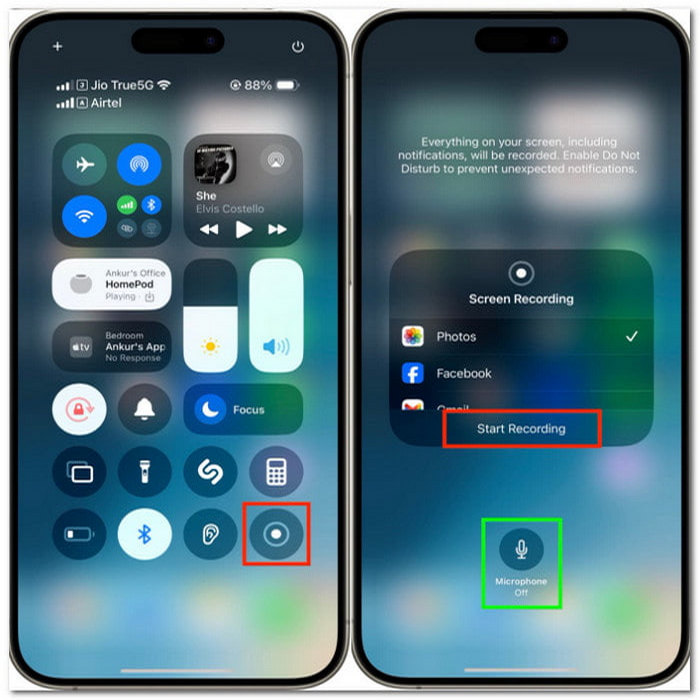
Step 1 Open your phone and swipe down from the upper-right of your screen.
Step 2 Look for the gray Record button. If there is none, go to the Control Center settings, then scroll down to More Controls. Under Screen Recording, tap the Plus button to add.
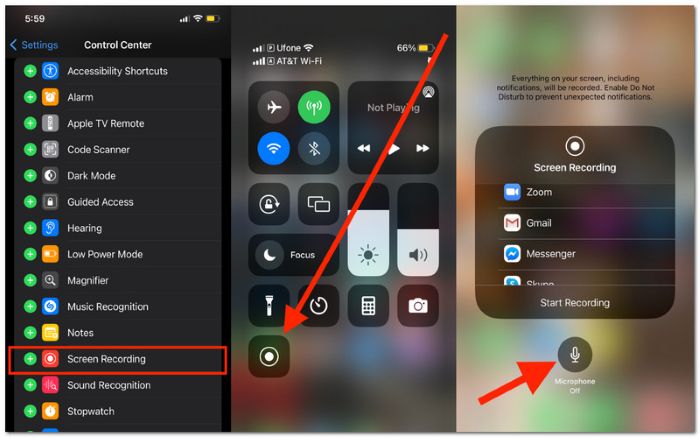
Step 3 Start the Viber call and tap the Record button from the Control Center. Once done, tap the Stop button at the top of the screen. You can find the recording in the Photos app.
Part 3. How to Record Viber Calls on Android
Can Viber calls be recorded on Android? If you are a user, you might already know that there is a wide selection of Android devices on the market. But having the native screen recording tool is limited, depending on the model unit, brand, and operating system version. But mostly, you can find the built-in recorder on Android 11 version and newer, allowing you to screen record. You can follow the steps below on how to record Viber video calls on Android easily:
Step 1 Pull down Quick Settings from the top of your screen and find the Recorder. You can tap the Pencil button to customize the Quick Panel and add the Recorder if it's not on the menu.
Step 2 Open the Viber app and tap the Start Recording button to start recording. Upon tapping this, you need to choose what to capture if you would like media, mic, or none.
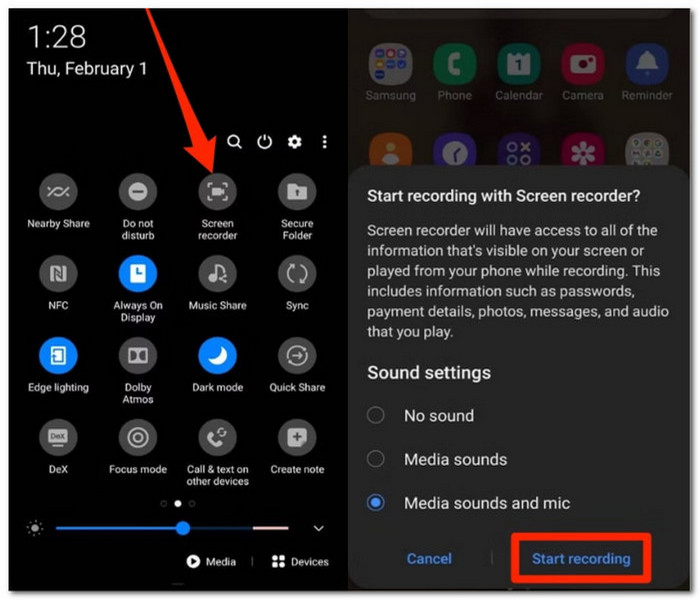
Step 3 After recording, tap the Stop button. Your phone will notify you of the captured video, which will be saved on the Gallery app.
Part 4. How to Record Viber Calls on Windows and Mac
How to record calls on Viber easily on Windows and Mac? Tipard Screen Capture is the ideal screen recorder because of its audio and video high quality. It supports a lengthy call without interruption, allowing you capture both video and audio from both ends. Meanwhile, the screen capture has an immersive setting, which you can tweak to activate the float panel, change the video output format (MP4, MOV, WMV, etc), codec (H.264, HEVC, AV1), and so on. What makes Tipard a great way to record Viber video calls is that it also supports capturing from mobile devices like Android and iPhone. In this way, call recording is limitless with a bonus of great sound and video quality. Try Tipard Screen Capture and follow the steps on how to get started:
Step 1 Download and install Tipard Screen Capture. Go through the instructions to install the software successfully.
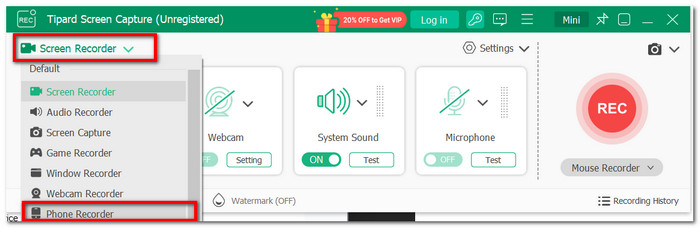
Step 2 Open the Screen Capture and the Viber app on your computer. Simply set up the webcam and audio options. Click the REC button to capture the call.
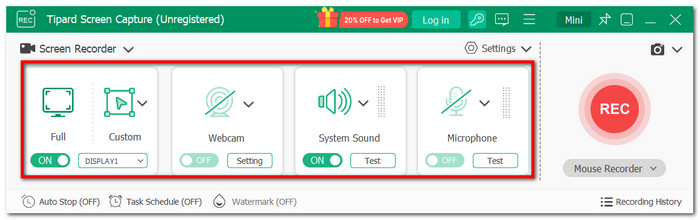
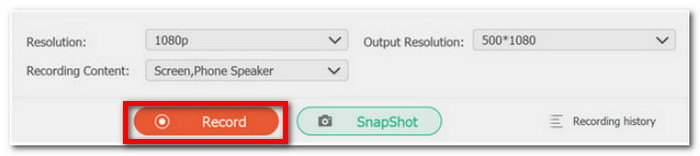
Step 3 How to record Viber audio calls on iPhone or Android? Change from Screen Recorder to Phone Recorder. You will need to cast your mobile screen to your computer, then set up the desired resolution, recording content, etc
Step 4 Once done, start recording Viber calls. The float panel will allow you to pause or stop the recording, or take a screenshot during the call. Click the Stop button once done. Review the recording or do a simple edit by trimming the video.
Conclusion
Recording Viber calls on different devices can be tricky if you are unaware of the best way to record. Now that you have read this article, you don't need to worry and ask, "Can I record Viber voice calls?" There are many ways to capture calls on devices, especially using the easier Tipard Screen Capture. The software not only captures screen and audio on PC, but also on Android and iPhone with the best quality. Get the free version of the screen recorder to try on Windows and Mac.
More Reading


About the Author


 Tipard Screen Capture