Ever wondered how to record Skype calls on your computer or mobile device? This guide explains step-by-step methods using the built-in recorder of Skype, top third-party tools like Tipard Screen Recorder, and reliable mobile apps. It also covers tips for saving, sharing, and managing recordings safely, plus essential legal and privacy considerations.

Part 1. The Official & Easiest Way - Built-in Recorder of Skype
Key Feature
Skype has a recording feature that does not require any additional programs to record audio and video from a conversation, as well as participants and screens that are being shared.
How It Works & The Notification System
System notifications inform everyone involved in a call that a recording has started or stopped, as well as that the recording will be available to download for all participants for 30 days and how they will be able to download the recording.
Steps
Step 1 Please open Skype and initiate a call with your desired contact person.
Step 2 You will see a More button and a Start Recording button.
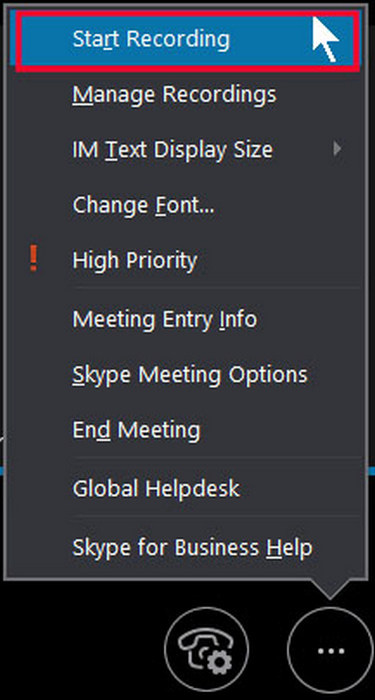
Step 3 Please note this step is for notifying some, in case it is a large number of subscribers to your call. In this step, you will see a summary of all recipients and the estimated delivery time for the notifications.
Step 4 You can go on and execute the call as you normally do within the Skype software.
Step 5 Please note that the recording was and will be automatically saved to the agenda of the conference call within the document after you click the Stop Recording button.
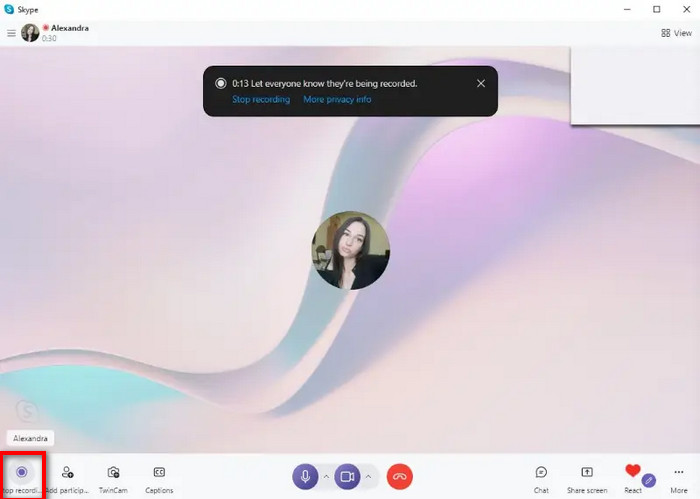
Step 6 Please select the document saved, and you will see the Download button.
Part 2. Using Third-Party Screen Recording Software
1. Tipard Screen Capture
If you are looking for a reliable screen recording tool, Tipard Screen Capture is a great option, as it lets you record and edit videos on a computer, along with computer screens, audio, webcams, and even phones, all simultaneously. It is great for screen recordings because it offers a smooth recording experience and has tons of features.

- Record full screen, a specific window, or a custom area.
- Capture system sound, microphone voice, or both simultaneously.
- Record iPhone, Android, and other external devices via computer.
- Draw on screen, display keystrokes, and show mouse actions while recording.
Step 1 Download and Install
Go to the company's main page and install the latest iteration of Tipard Screen Capture and install the program on your laptop or computer.
Step 2 Select the Video Recording Mode
Open the app, and to set up your recording for Skype, choose Screen Recorder.
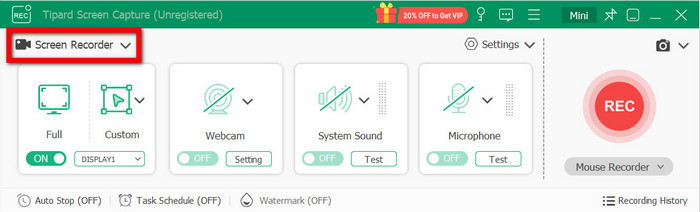
Step 3 Choose and Set Up Recording Area
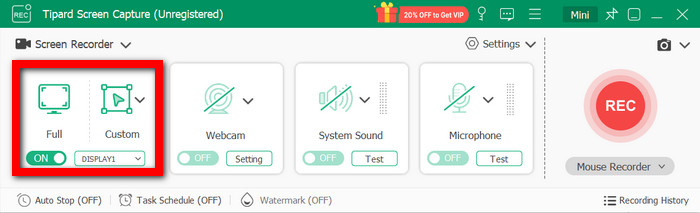
By clicking Full, you will record the entire screen, or you can select Custom to schedule only the window for the Skype call.
Step 4 Turn on Selected Audio Sources
Enabling System Sound will record the voice of the other attendee, and for your voice to be recorded, you will need to turn on the Microphone.

Step 5 Hit Record
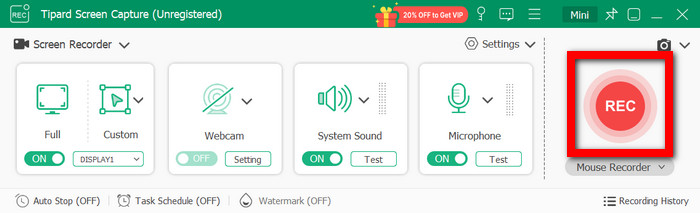
To record, click the REC button during the call. There is the option of drawing, annotating, or webcam overlay.
Step 6 Save the Recording and Exit the App
When your call is done, click Stop. You will be able to preview the video you have recorded, and once done, you can save it to your computer or share it with other people.
2. OBS Studio
OBS Studio is a screen recording and live streaming software that is free and open-source. Most people use this software to record video gameplay, tutorials, and video calls.
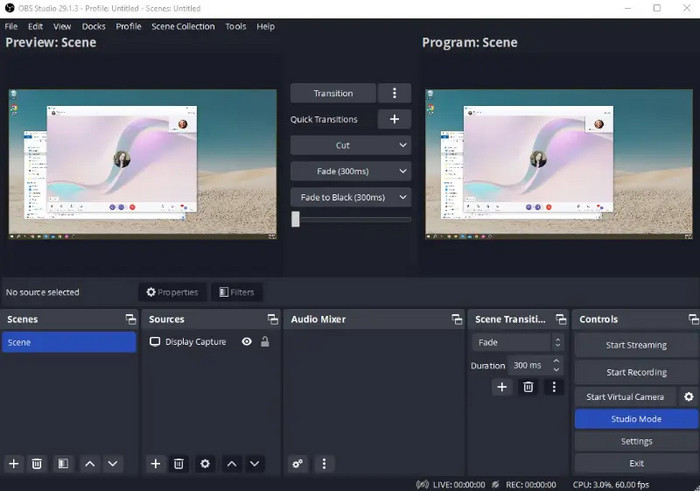
Step 1 Go to the website and download OBS Studio. Install the software once the download process is complete.
Step 2 After the installation has finished, open the software and set up your Scene and Source. If you want to set up a source and capture your display or a specific window, you can use Display Capture or Window Capture, respectively.
Step 3 Change the video and audio Settings to your desired recording resolution.
Step 4 Hit the Start recording button, and your screen or video call will begin to be captured.
Step 5 After you are done recording something, hit the Stop Recording button.
3. Camtasia
If you want to use professional software for screen recording and editing for Windows or Mac, you can use Camtasia. Using Camtasia editing tools and features, you can make high-quality tutorials or presentations, making it a strong option if you frequently record video on Mac.

Step 1 Go to the Camtasia website and download the software.
Step 2 Open Camtasia and click on New Recording to begin a recording session. Decide whether you want to record your screen in full, record a custom section, capture webcam video, and/or record audio.
Step 3 When you are ready to capture something and you want to start the recording, hit the Start Recording button.
Step 4 When you are finished recording, hit the Stop Recording button.
4. QuickTime Player
The QuickTime screen recording application on macOS allows you to record the screen and audio, and is perfect when you need to do something fast.
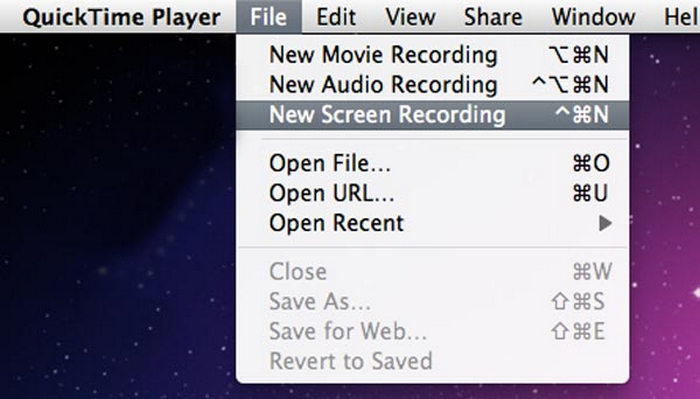
Step 1 Launch QuickTime Player and click on File and then select New Screen Recording.
Step 2 Click the Record button to start your recording.
Step 3 Go ahead and do the activities on your screen or on the video call. You can also give a step-by-step guide if you want.
Step 4 When you are done, click on the Stop button on the menu bar. Save your recording in the folder you want.
Part 3. How to Record Skype Calls on Mobile
1. Rev Call Recorder (iPhone / iPad)
Rev Call Recorder lets you record phone calls, including Skype audio calls, and is also free to use, although transcribing the calls costs a fee. The app is user-friendly, and you can export or edit the audio recording, which is saved as an MP3.
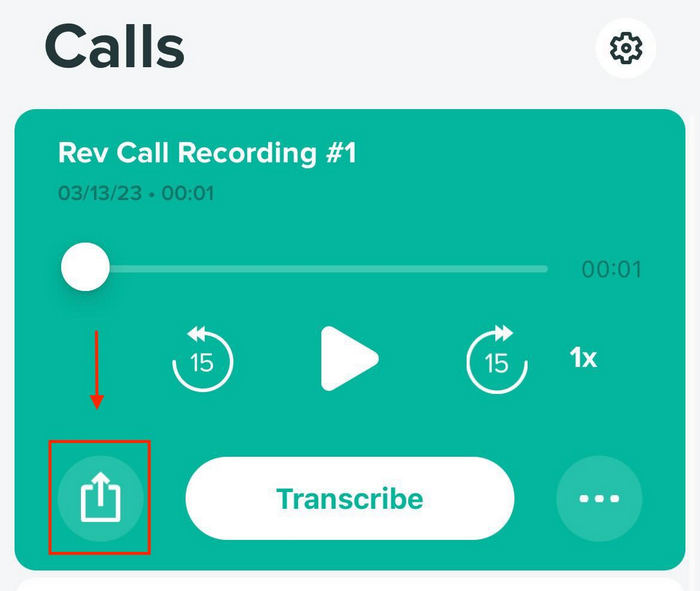
Step 1 Download Rev Call Recorder on the App Store.
Step 2 Open your app and press the Start New Recording button; this will start the call to the Rev recording line.
Step 3 Once the recording line picks up, go ahead and launch your Skype call, or you can just join the call normally.
Step 4 Once the call is finished, Rev stores the recording within the app.
2. Cube Call Recorder ACR (Android)
Cube АCR is a widely utilized Android app for recording calls along with other VoIP applications like Skype, WhatsApp, and Viber. It offers options for automatic and manual recording, and it offers simple organization, management, and exporting of recordings.
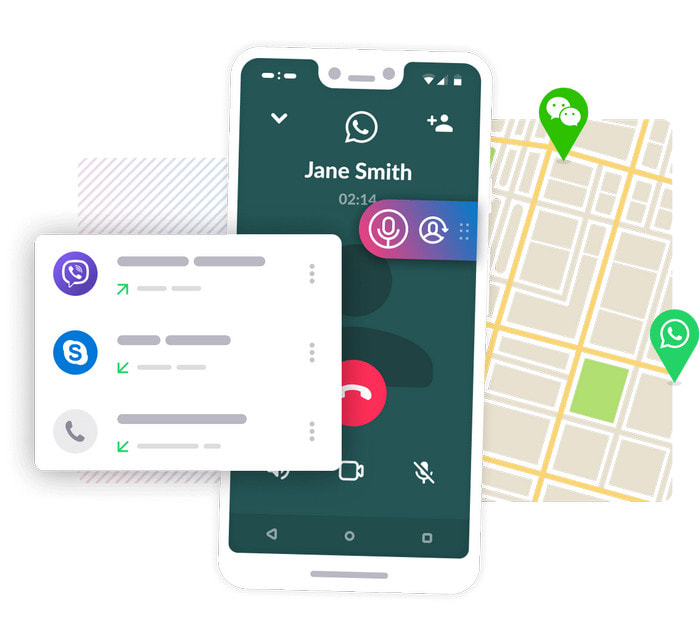
Step 1 Open the Google Play Store and install the app.
Step 2 Open the app and provide the app with permission to access the microphone, storage, and overlays/ accessibility options.
Step 3 In the app settings, activate recording for VoIP/Skype calls (if applicable).
Step 4 When you are finished with the call, open Cube ACR, and you will be able to access the recording of the call.
Part 4. Critical Legal & Privacy Considerations
There are legal and privacy issues with recording Skype calls, and following rules and taking some precautions is a way to protect all parties involved.
• 1. Consent Requirements: Know if your region requires one-party or all-party consent before recording.
• 2. Notify Participants: Always inform others that the call is being recorded to maintain transparency.
• 3. Secure Storage: Keep recordings safe using encryption or secure cloud storage.
• 4. Sensitive Information: Avoid recording confidential data unless necessary and properly secured.
• 5. App Privacy Policies: Review how third-party recording apps handle, store, or share recordings.
• 6. Sharing & Distribution: Never share recordings without participants' consent to avoid legal issues.
Conclusion
The Skype call recorder makes capturing calls simple and efficient across devices. By following the right tools, steps, and safety measures, you can record, manage, and share calls effectively while staying compliant with legal and privacy requirements.
More Reading




About the Author