

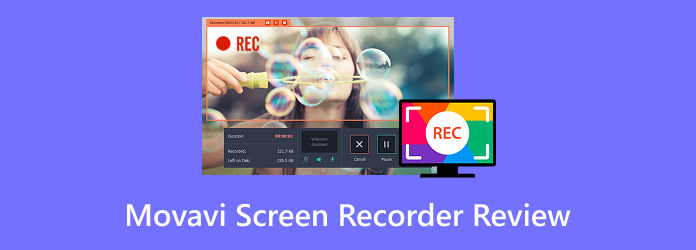
Movavi Screen Recorder is among the most reliable programs you can access on your computer to capture any content on your screen effectively. It can even give a simple layout and high-quality video, resulting in satisfying video playback. So, if you are interested in learning more about the overall capabilities of this software, it would be better to read this honest review. We will offer its key features, pros, cons, and more. You will also discover another recorder you can access for better recording. Thus, read this review and get more information about the discussion.
Part 1. Key Features of Movavi Screen Recorder
Movavi Screen Recorder is among the most powerful recording programs you can utilize on your Windows and Mac computers. It ensures to capture your screen, export the recorded video, and offer all the functions you need. If you want to learn more about the capabilities of this recorder, you can check its key features below.
Record Screen
The core feature of the Movavi Screen Recording software is to record any content from your screen. You can record gameplay on PC, capture meetings, instructional videos, webcam, anime, text-based information, and more. What we like here is that recording your screen is simple, thanks to its easy-to-understand interface.
Record Audio
Besides recording the screen, the program is also capable of recording your audio. It is ideal if you want to capture both audio and video of your screen. It can even record both the mic and internal speaker, making it more reliable and helpful for users.
Screenshot Tool
What makes the software perfect is that during the recording process, you can access its Screenshot feature. This feature is useful if you want to take a screenshot of any information on the screen. You can capture the text, a highlight from the video, or the numerous names from the webinar.
Part 2. Detailed Review of Movavi Screen Recorder
The Movavi Screen Recorder for Mac and Windows has more to offer. To get more information, you can proceed to this section.
Good Things about Movavi Screen Recorder
- Simple User Interface - The recorder has a comprehensive user layout. This lets the user capture any information from the screen easily and instantly.
- Offers Trimmer Function - The good thing about the software is that it can trim the captured file. It is ideal if you want to remove an unnecessary part from the video.
- Offers Customization Settings - the customization settings allow you to choose your preferred cursor setup, highlight clicks, and mouse sound clicks.
- Fast Export Process - It can export and save the video smoothly and quickly, helping you to save more time during the saving process.
Drawbacks of Movavi Screen Recorder
- Lacks Editing Tools - The recorder can only offer its trimmer function. It doesn't offer some of the basic editing tools, such as effects, filters, split, and more.
- Resource-Intensive - The program requires a high-spec computer. Using a low-spec computer can result in poor performance.
- Watermark in Free Trial - When using the program's free version, the watermark will appear on the video after the export process. To eliminate the watermark from the video, using the paid version is recommended.
Price
To see the pricing plans of Movavi Screen Recorder for Windows and Mac, check the table below.
| Plan | Price |
|---|---|
| Monthly Subscription | $19.95 |
| Annual Subscription | $64.95 |
| Lifetime Personal License | $39.95 |
| Business License | $49.95 |
| Video Suite Bundle | $719.95 |
| Screen Recorder + Video Editor Plus Bundle | $99.95 |
| Show MoreShow Less | |
User's Review
Movavi Screen Recorder for PC is an exceptional program when it comes to recording your screen. It has a smooth recording process, making it an ideal tool for all users. The good thing here is that it has a simple user interface, a trimmer tool, and a fast export procedure. The only drawback here is that you need to access the plan to save the captured output without any watermark.
Part 3. How to Use Movavi Screen Recorder
To get more insight into how to use Movavi Screen Recorder, you can follow/check the simple guide we have provided in this section.
Step 1 Download Movavi Screen Recorder on your computer. After that, install and run it to start the recording process.
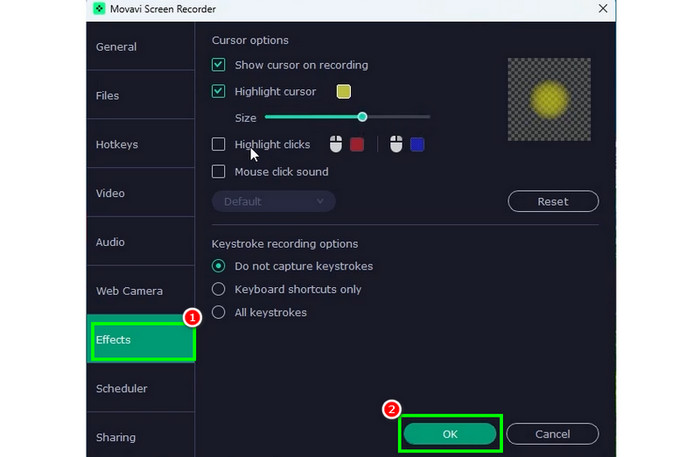
Step 2 Then, from the primary interface, you must customize everything based on your preferences. You can go to the Effects section and check the box you need. Once done, hit OK.
Step 3 You can now proceed to the screen you want to capture and tick the Record button. The process will begin after the three-second countdown.
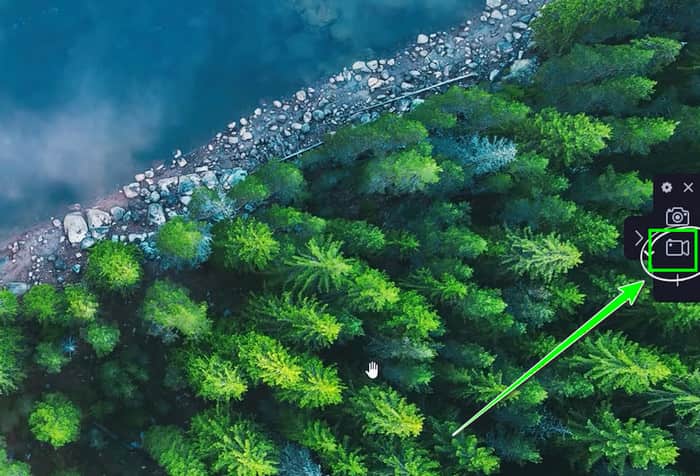
Hit the Stop function to finish the recording.
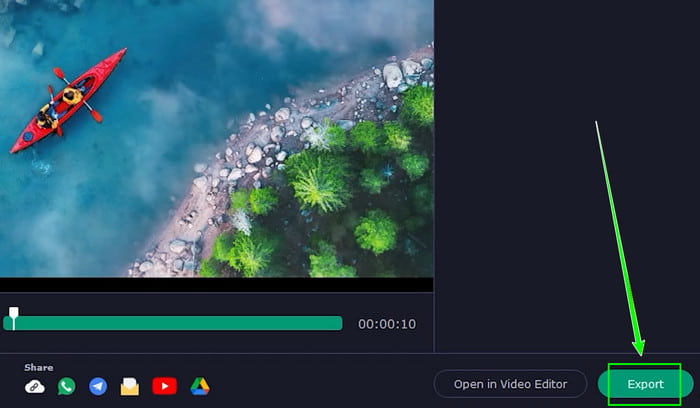
Step 4 For the final step, tap the Export button below. After that, you can start watching the captured screen from your computer.
Part 4. Best Alternative to Movavi Screen Recorder
When using Movavi's free version, there are various limitations you can encounter. Its paid version is also pricey for some users. Thus, if you need the best alternative that can give you a smooth recording process, we recommend using Tipard Screen Capture. Compared with Movavi, this program is lightweight, so even if you are using a low-spec computer, you can still capture anything from your screen. It also has a simple UI so that you can use all the features easily. What we like here is that it can support HEVC and AV1 codecs, letting you compress footage while retaining the original quality of the captured content. Plus, after the recording process, you can share them on other platforms, such as Email, YouTube, TikTok, and more. Thus, if you need the best replacement for Movavi Screen Recorder, consider using Tipard Screen Capture.
Key Features:
- The recorder can offer a smooth recording procedure.
- It offers high-quality video for up to 4K for better video playback.
- It supports various output formats, including MP4, MKV, WMV, MOV, etc.
- The program can offer its Snapshot feature for taking screenshots.
To learn how to record using this software, use the instructions below.
Step 1 Download Tipard Screen Capture on your Windows or Mac. Run it after the installation.
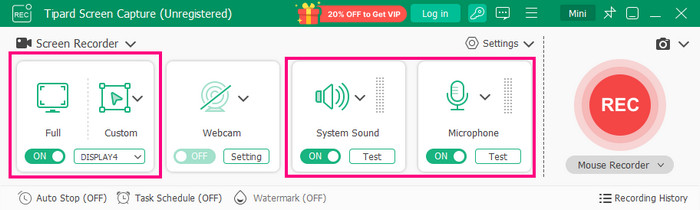
Step 2 After that, you can choose how you want to record your screen by clicking the Full or Custom button. You can also turn on the System Sound and Mic feature if you want to.
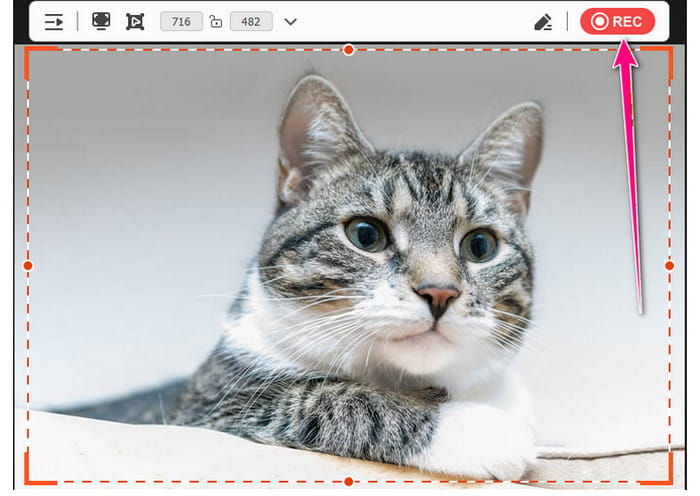
Step 3 To begin the recording, hit the Rec button. The process will start after the countdown. To finish the recording, click the Stop button.
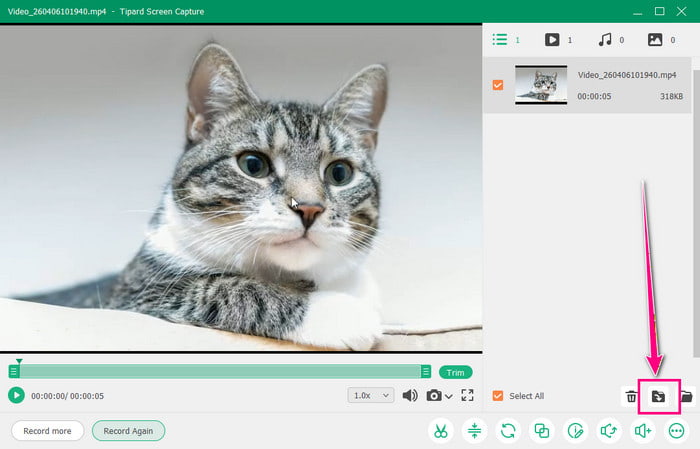
Step 4 Hit the Export function below to start exporting and saving the captured screen on your computer.
To get more insights about the two screen recorders, view the table below.
| Tipard Screen Capture | vs. | Movavi Screen Recorder |
|---|---|---|
| Save output up to 4K | Video Quality | Save output up to Full HD |
| Simple | Ease of Use | Simple |
| Windows and Mac | Platform | Windows and Mac |
| • Ideal for users who want to capture any content from the screen with the best quality. • Perfect for beautifying captured screen by using basic editing tools. |
Best for | • Ideal for users who want a simple recording process. |
| It can record the screen smoothly on both low-spec and high-spec computers. | Performance | Since it is resource-intensive, this software can only perform well on high-spec computers. |
| Show MoreShow Less | ||
Part 5. FAQs about Movavi Screen Recorder Review
Is Movavi Screen Recorder any good?
Absolutely, yes. Movavi Screen Recorder is among the best recorders you can access to capture your computer screen. It can even offer a simple interface for a smooth recording process.
Is Movavi safe and legit?
After using the program, we can tell that it is a legit and safe software. It ensures that all your information is secured and won't be shared without your consent.
Which one is the best screen recording software?
If you want the best recording software, we suggest using Tipard Screen Capture. This recorder ensures to record your screen with the best quality. You can even access basic editing tools for improving the output for a better viewing experience.
Conclusion
With this honest review of Movavi Screen Recorder, you have explored its overall capabilities. You even learned how to use it to capture any information from your screen. Also, if you need the best replacement for the program, it is best to use Tipard Screen Capture. This recorder is far superior since you can save the video with the best quality. It also ensures that you won't get any watermark on the video when using its free version, making it an ideal recorder for all users.
More Reading



About the Author


 Tipard Screen Capture