
Beginning as a file-sharing service, Jumpshare has rebuilt itself around screen recording. Today, almost everyone needs a screen recording tool for troubleshooting, making video tutorials, generating vlogs, capturing gameplay, and more. However, the quality of the result is determined by the tool you use. This article reviews Jumpshare screen recorder for beginners to capture the screen, webcam, and other sources. Thus, you can make the best decision before downloading it.

Part 1: What Is Jumpshare
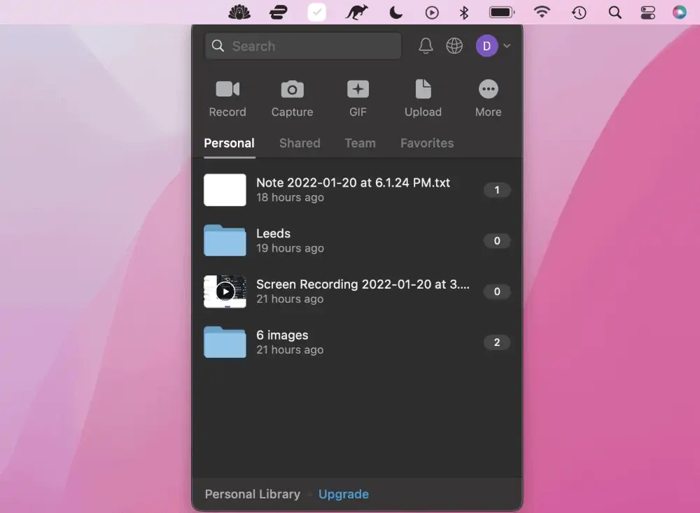
As mentioned previously, Jumpshare is a capture, recording, and file-sharing tool. It is an all-in-one solution to help you instantly make shareable screen recordings, screenshots, and GIF captures on your desktop or in Google Chrome.
Core Features of Jumpshare
- Record the entire screen, a particular window, and the webcam.
- Edit captions, transcription, and recordings.
- Generate titles, summaries, and chapters with AI.
- Screenshot capture with basic annotation.
- Record GIFs for quick demos.
- Save recordings and screenshots with cloud storage.
- Share files, recordings, and screenshots quickly.
- Come with a Chrome extension and an iPhone app.
- Render recordings in 4K resolution on paid plans.
- Built-in trimming and drawing tools.
Pricing
This screen recorder offers a free tier with 2GB of storage, but you need to log in to Jumpshare with an account. However, the advanced features are only available on paid plans. The Plus Plan costs $12 per month, which includes features such as password protection and advanced analytics. The Business Plan costs $25 per month, offering additional features. It also offers Enterprise Plans with custom pricing for large teams.
Is Jumpshare Legit?
Jumpshare is legit and is generally considered a reputable and secure tool.
Is Jumpshare Safe?
Yes, Jumpshare is safe. It uses AES-256 encryption, TLS in transit, SOC 2 Type II compliance, and strong authentication options.
Part 2: Jumpshare Review
Jumpshare Review on Trustpilot
Jumpshare is a very highly recommended service. It is amazingly fast, really well designed, cheap, and easy to use. This service is now part of my office tools.
Generally, my experience with Jumpshare is very positive. It does what it says on the tin. It is easy to record the screen and is fully featured.
Jumpshare Review on G2
I like it because it allows me to share files with other users through a link immediately, and the screen recording is an innovative function because I can explain what I want to say about each title in a better way.
It has multiple tools that have been very useful in my work because they have made it easier for me to explain a tutorial or something that I want to explain on the screen through video recordings.
Jumpshare Review on Capterra
The screen recording feature that uploads instantly saves me so much time with my reports and has even improved the communication with my clients.
Our Review of Jumpshare
- Available on Windows, macOS, and iPhone.
- Fast launch to record the screen seamlessly.
- Offer advanced features, like AI-powered features.
- Instantly share files or save recordings to the hard drive.
- Built-in basic editing features.
- Report viewer analytics on who actually watched.
- The free plan is limited to 2GB of storage.
- Screen recording length and quality are limited on the free plan.
- Fewer features than competitors.
- Video editing is limited.
Part 3: How to Use Jumpshare
Step 1 Click the Jumpshare tool in the system tray to open it on your desktop.
Step 2 Click the Record button.
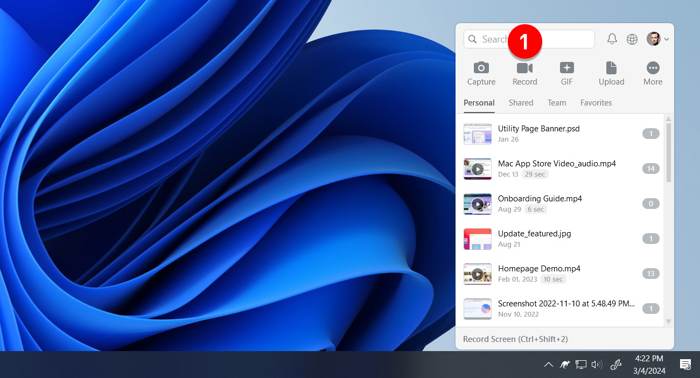
Step 3 Drag the recording area or click the entire screen.
Step 4 Click the Audio button.
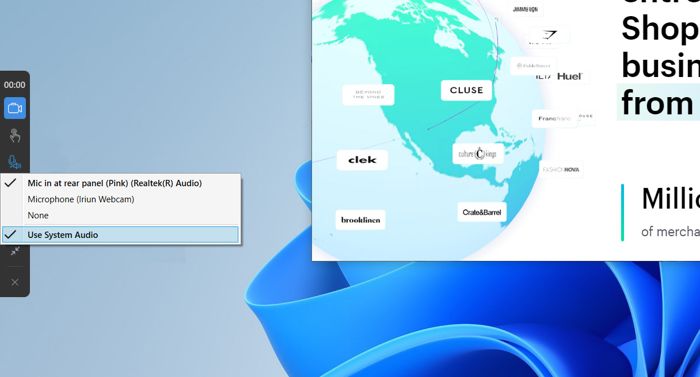
Step 5 Enable Use System Audio to capture system sound.
Step 6 If you want to add your voice to the recording, enable your microphone and test the Jumpshare mic.
Step 7 To add your face to the recording, click the Webcam button and select your webcam.
Step 8 When screen recording is done, click the Record button again on the toolbar.
Part 4: Top Jumpshare Alternative
Jumpshare is a quick way to record your screen and other sources. However, it lacks advanced features, such as scheduling. Therefore, you may need an alternative to Jumpshare. Tipard Screen Capture, for example, is a versatile screen recording program on Windows and macOS. It offers extensive features so that everyone can learn instantly.

- Record screen, video, audio, and more with one click.
- Save screen recordings in 4K resolution.
- Support a wide range of recording sources.
- Offer video editing tools, such as trimming and video compression.
- Preview screen recordings with the built-in video player.

How to Record Screen with Jumpshare Alternative
Step 1 Install Jumpshare Alternative
Download the Jumpshare alternative from the official website and install it on your PC. There is another version for Mac. Launch it when you want to record the screen. Choose the Screen Recorder mode to continue.
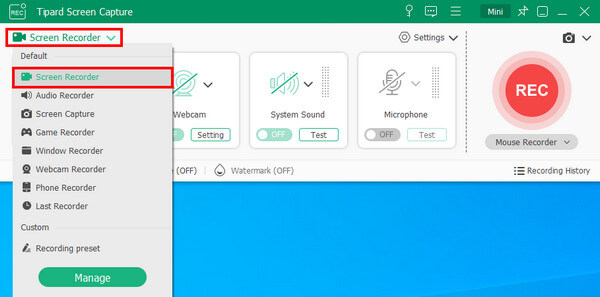
Step 2 Set up for screen recording
Set the recording area accordingly. Toggle on the System Sound option and adjust the volume. If you wish to add your reactions to the recording, turn on the Webcam and Microphone options. Click the Settings button and set the custom options, such as output path, output format, and more. Click the REC button to begin recording your screen.
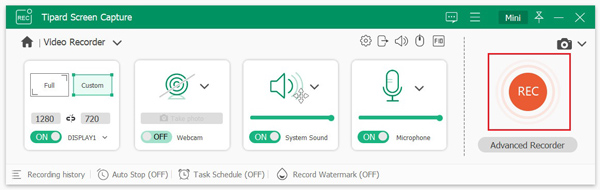
To automatically record your screen, click the Task Schedule button and set it up.
Step 3 Save the recording
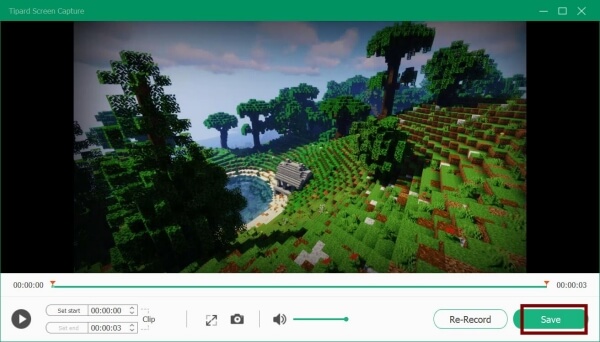
During the process, draw on the recording with the toolbar. When you are done, click the Stop button. Then, preview the recording. If you are satisfied, click the Save button to export the recording. The Clip tool allows you to remove unwanted frames.
Conclusion
Now, you should understand what Jumpshare Screen Recorder is and other important information, such as the pricing. Moreover, we shared the reviews on popular websites, and our review is based on our lab testing. This information can help you make a better decision. Furthermore, you should learn the basic steps to record your screen with Jumpshare. To help you get more features, we recommend Tipard Screen Capture as an alternative solution to record the screen, videos, gameplay, and more.

Record full screen, portion, window, game, and phone seamlessly without lag
100% Clean & Safe
100% Clean & Safe

More Reading

About the Author

 Click here to join the discussion and share your comments