

Screen recorders are a handy tool ideal for capturing and recording your screen. It can help you save meetings, videos, tutorials, gameplay, and other content. However, there are times when you encounter a black screen issue, which can be frustrating. This often results from compatibility issues, outdated drivers, incorrect settings, and protected content. The good thing here is that there are various ways you can solve the issue. Read this guide as we give you all the best ways on how to fix the screen recorder black screen issue.
Part 1. Why Is My Screen Recorder Showing a Black Screen
Wondering why there is a black screen on your screen recorder? Well, there are various reasons behind this issue. To explore some of them, start by reading everything in this section.
Graphics Card Conflicts
Some of the screen recorders rely on GPU rendering. However, hardware acceleration can block the capture process. Every time the recorder tries to hook into a graphics pipeline, the GPU may prevent duplication of frames for security or performance reasons, leading to the black screen issue.
Permissions and Privacy Settings
Some operating systems, especially the modern ones, include privacy controls that may restrict the app from capturing the screen. If the screen recorder doesn't have permission, you can still capture, but you will only get a black screen.
Incorrect Capturing Mode
During the recording process, you must know how to record and capture the screen appropriately. Some tools differentiate between capturing a browser, tab, desktop screen, gameplay, or a specific window. If the wrong mode is selected, the recorder may fail to detect the active display, resulting in a black screen.
Outdated Drivers
You might experience a black screen issue if you have an outdated driver on your device. Always remember that DPU and display drivers are necessary for a smooth rendering and screen recording. If the drivers are corrupted and outdated, the recorder might not be able to provide its overall capabilities.
Protected Content
Some streaming platforms don't allow screen recording, especially the subscription-based ones, like Disney+, Netflix, Amazon Prime, and more. It ensures that some people can't get the content without paying a penny.
Part 2. How to Fix the Screen Recorder Black Screen
Want to learn how to solve the black screen recording issue? In that case, you can discover the best solutions below.
Method 1. Update Graphics Driver
Another way to fix a black screen on video is to update your graphics driver. As mentioned, outdated or corrupted drivers can result in a black screen issue. So, always ensure that your graphics are in the latest version. To start updating your driver, right-click the Start button on your desktop and click the Device Manager option. After that, go to the Display Adapter section and begin updating your graphics.
Method 2: Disable Hardware Acceleration
Some of the apps, like the browser and games, use hardware acceleration to enhance performance. However, this feature can interfere with screen recorders by blocking duplications. So, the best thing you can do is to turn off the hardware acceleration in the app or recorder settings. This method often solves the black screen issue.
Method 3. Change Recording Mode
You can also change the recording mode before proceeding with the screen recording process. Almost all the screen recorders offer multiple recording modes. It includes Window Capture, Game Recorder, Display Capture, and more. Using the wrong mode can lead to a black screen issue. Thus, always use an appropriate recording mode to ensure that you can capture any content from your screen without any problem.
Method 4. Use a Different Screen Recorder
There are times when the screen recorder is the main problem. Some recorders might not perform well, giving you some problems. It's best to use another paid or free screen recorder. This way, you can check if the issue is with your recorder, device, or settings.
Part 3. Why Is Saved Recorded Video Black
Did you record your favorite video or any content only to find out that you have saved a black screen? This might be because of codec issues, inappropriate format, GPU, and restrictions. To get more insights about the problem, along with the simple tips, see the information below.
- Codec Issues - If the codec is unsupported or corrupted, the whole recording will be black after the export process. It's best to re-export the recording using a standard format and codec.
- Player Limitations - The recording may be fine, but your media player cannot decode it. Ensure that your media player is capable of dealing with your recordings for smoother playback.
- Protected Videos - If you tried recording videos on Netflix, Disney +, or any paid streaming platforms, you will encounter a black screen after the process. It is because the platforms ensure that no one can steal the content.
Part 4. How to Prevent a Black Screen on the Screen Recorder
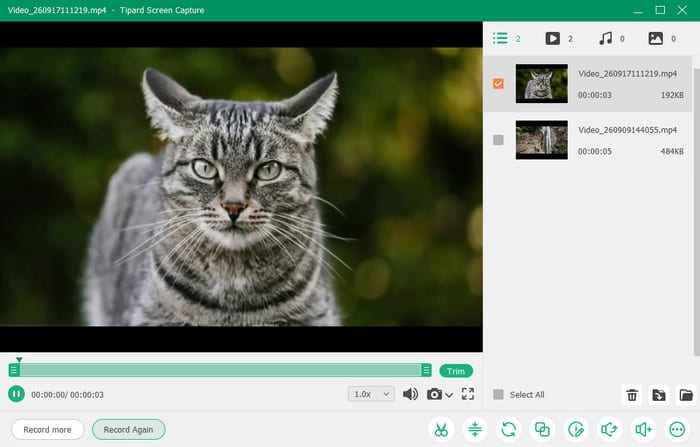
Want to learn how to record protected videos without a black screen? In that case, we highly recommend using Tipard Screen Capture. This recorder ensures a smooth recording process, thanks to its simple user interface and stability. What we like here is that it can capture everything on your screen, such as movies, documentaries, gameplay, and more. Plus, it offers reliable video encoding to record a good video. You can even save the video with the original quality or with 4K resolution, leading to better video playback. The best part here is that you can choose your desired video format for better compatibility. Thus, to record videos and any content without encountering black screen issues, instantly access Tipard Screen Capture.
Part 5. FAQs about Screen Recording Black Screen Fix
How to bypass the black screen when recording?
Bypassing means you are adjusting settings rather than overriding restrictions from the videos. There are various methods you can use, such as disabling hardware acceleration, changing the capture mode, and using the latest version of the GPU.
Why is my TikTok recording screen black?
It is because TikTok restricts recording a particular video. If you want to obtain the video, it would be best to press the Save Video or Share function.
How to screen record Netflix without a black screen on the phone?
Due to DRM, you can't record any content from Netflix. If you want to save the video from the platform, you can use its Download feature. This way, you can still watch the video even if you are offline.
Conclusion
Now you have explored how to fix the screen recording black screen issue. Check all the methods in this guide and learn how to deal with black screen recordings. Plus, if you want to record any content from your desktop screen without any problem, always rely on Tipard Screen Capture. With its various capturing modes, you can ensure to record videos, gameplay, and any content smoothly. You can even choose your quality, format, and codec, making it the best screen recorder out there!

Record full screen, portion, window, game, and phone seamlessly without lag
100% Clean & Safe
100% Clean & Safe

More Reading




About the Author

 Click here to join the discussion and share your comments
 Tipard Screen Capture