

iTop Screen Recorder is a popular tool for capturing screen activity, webcam, and audio with ease. This review explores its features, performance, and limitations while comparing it with professional alternatives like Tipard Screen Capture, helping creators choose the best solution for high-quality recordings.
Part 1. Key Features of iTop Screen Recorder
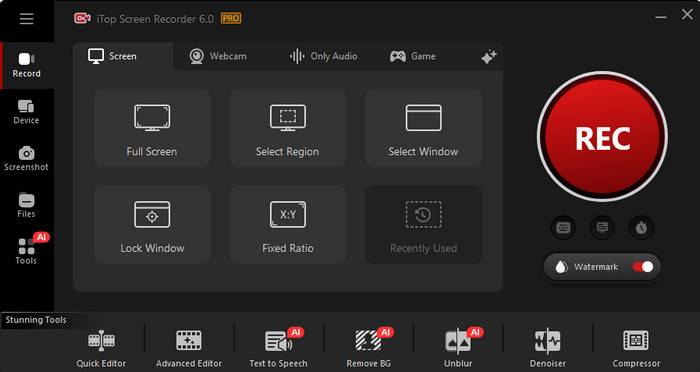
Having a sense of what iTop Screen Recorder brings to the table will allow for a better comparison of its overall value to its performance and pricing. This software specializes in streamlined screen capture while also offering solid features for other kinds of content makers.
iTop Screen Recorder has several features, including the following:
1. Multiple Modes for Screen Recording: Screen recording modes let you capture your entire screen, a specific window, or an area of your choosing. You even have the option to turn on a webcam to capture tutorials, reactions, or presentations.
2. Various Options for Audio Recording: Recording your system sound, audio from your microphone, or a combination of both is possible to ensure you get better recordings.
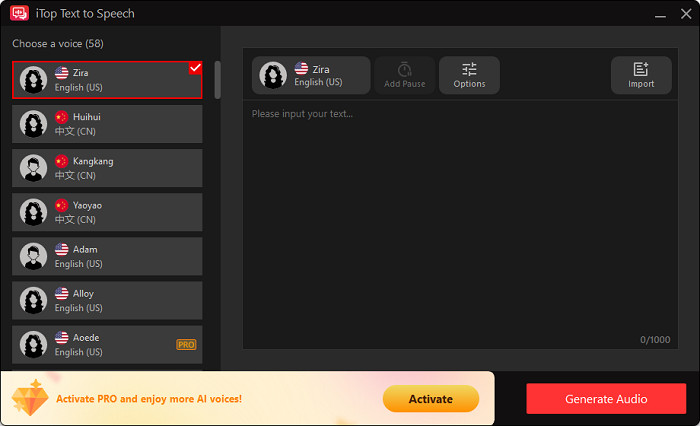
3. Tools Powered by AI: Enhancing recorded videos can be done with AI tools such as AI Voice Changer, AI Text-to-Speech, AI Background Remover, and AI Blur.
4. Screenshot and Annotation: With the tools of iTop Screen Recorder, you can take full, custom, or even scrolling screenshots and make some quick notes on the screenshots before you save them.
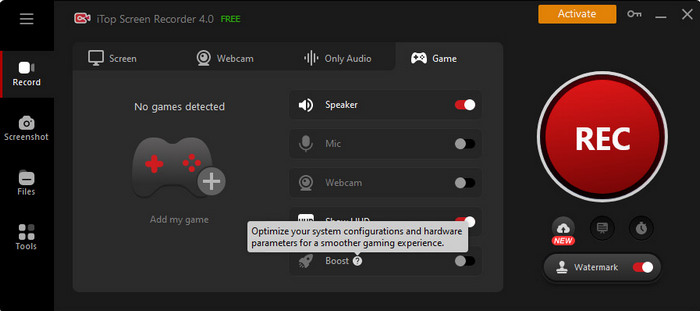
5. Game Mode: With Game Mode, you have the option to capture your computer screen while you play to help ensure a fluid recording.
6. Encoding and Recording in Various Formats: You can save your recordings in various formats such as MP4, AVI, MOV, and MKV, using the H.264 codec, which is a good balance between quality and low file size.
Part 2. Detailed Review of iTop Screen Recorder
This section looks at the features of the iTop Screen Recorder and how they help or hinder the everyday user experience. Here are the pros, cons, and features of the user experience as a whole.
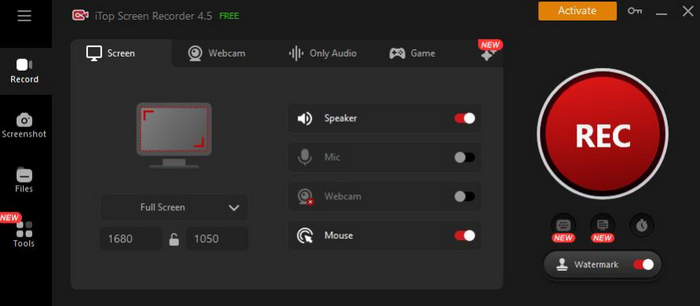
Pros:
- The layout of the software is user-friendly, making it a good choice for new users looking to start recording tutorials.
- Users have the option of selecting to record the full screen, a specific window, or a defined region. Webcam and audio recording are optional.
- Recordings are high definition, making them suitable for recording tutorials, gameplay, or presentations.
- It is able to run smoothly on a good number of mid-range PCs, especially those with GPU acceleration.
Cons:
- The built-in editor offers only the most basic of features, such as simple cut, trim, and editing.
- To use the features of longer recordings, watermark-free exports, and special tools, users are required to upgrade to the pro version.
- The full version of the desktop software is mostly tailored towards Windows users.
- Users recording fast-paced gameplay may experience a drop or two in recording performance.
Limitations:
The free version is designed with a good number of limitations. Most notably, recording will have watermarks, and the built-in editor only offers the most basic features. Advanced features such as multi-track editing and advanced annotations are locked to the paid version.
Performance:
iTop Screen Recorder is solid for basic tasks like recording tutorials and presentations or casual gameplay. It is lightweight and runs easily on most PCs. It is also able to take a screenshot on Mac. Of course, system requirements and record settings can lead to different performance.
User Reviews & Ratings:
1. G2
- Rating: ⭐ 4.6/5 on G2 based on 4 user reviews.
- Featured G2 User Review:
Simple to use, has several features, and video quality is also very good. - Verified user on G2.
2. ProductReview.com.au (User‑Generated Rating)
- Rating: ⭐ 1.7/5 on ProductReview.com.au based on 7 reviews.
- Featured User Review:
I have used it (free version) for over a year now and am really happy with it. … It works GREAT! - Rylan S. (ProductReview.com.au)
3. Trustpilot
While Trustpilot does not host many dedicated iTop Screen Recorder reviews, a user comment associated with the product says:
- I have an iTop Screen Recorder, and they limit the key… support takes ages to respond. - Trustpilot reviewer (critical support experience).
Part 3. Professional Alternatives to iTop Screen Recorder
Tipard Screen Capture is a complete screen recording software for both Windows and Mac. It can record the entire screen, a specific window, and external devices like iPhones and Androids. It is completely built for tutorials, gameplay, presentations, and even professional video making, as you can record system sound, mic, and webcam.
Your recordings can be in MP4, MKV, MP3, FLAC, or GIF, which means you can edit or share recordings to social media without having to convert them.
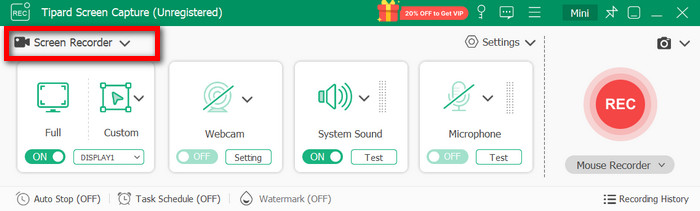
Key Features:
- Your PC can run it easily as it uses little CPU and RAM.
- High-quality, professional video recording is possible.
- High-quality recordings can be compressed.
- You can record full screen, a window, a custom area, or a webcam.
- You can highlight and add callouts as well as interactive whiteboard notes.
Pros:
- Capture custom areas or the entire screen in HD with little lag; HD recording is smooth.
- Record captures from PC, mobile, and webcam.
- Edit, preview, and save captures after recording.
- Record videos, audio, and images, and all file types for the best flexibility.
Cons:
- Some features are only available for premium users.
Performance:
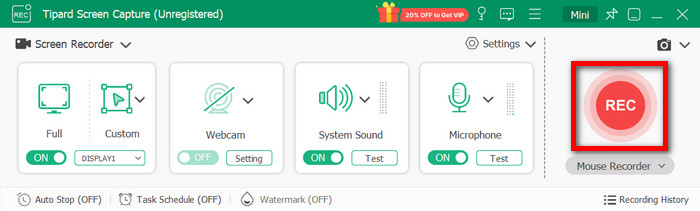
Tipard Screen Capture is designed for conducting smooth recordings and is highly optimized even for high-performance game captures or videos. It utilizes low amounts of the CPU and RAM, enabling recording to be done without system performance being affected. Exporting and previewing are fast, and the software handles long recording sessions efficiently, making it also one of the best GIF recorder tools available.
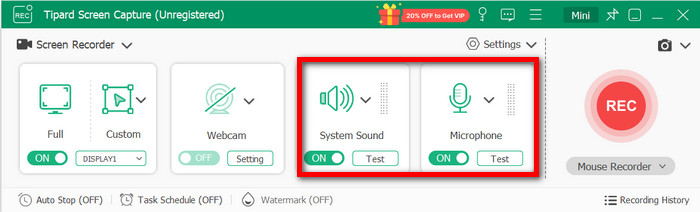
User Reviews and Ratings:
1. (G2)
- Rating: ⭐ 4.8/5 based on user reviews on G2, where users highlight ease of use and recording flexibility.
- User Review: Very easy to capture screenshots, webcam content, and video. Choosing a custom recording size is simple, and saving videos as MP4 is straightforward. - Verified user on G2.
2. Trustpilot
- Rating: ⭐ 4.5/5 from 72 reviews, reflecting overall satisfaction with the company's software quality and support.
- User Review: Assistance received, fast and useful. The software is useful and also fast. - Trustpilot reviewer expressing satisfaction with performance and support.
Comparison Table
| Feature / Comparison | iTop Screen Recorder | Tipard Screen Capture |
|---|---|---|
| HD/4K Recording |  |
|
| Lightweight & Stable | |
|
| AV1 / HEVC Codec Support |  |
|
| Multiple Recording Modes | |
|
| On-Screen Drawing / Annotations | |
|
| Webcam + Microphone Capture | |
|
| Output Format Options | |
|
| Free Version Limitations | |
|
| Ease of Use | |
|
| Performance for Gameplay | |
|
Conclusion
Is the iTop Screen Recorder safe? Yes, it is generally safe for Windows users. While suitable for basic recording tasks, creators seeking higher quality, advanced features, or multi-device support may prefer professional alternatives like Tipard Screen Capture for better performance and flexibility.
More Reading

About the Author


 Tipard Screen Capture