
Technology giants, such as Microsoft, develop and release software services for their hardware products. These services are usually free and highly integrated into their devices. Clipchamp Screen Recorder, for example, is a new visual toolkit released by Microsoft for Windows 11/10 and other operating systems. Before you download and use the application, you’d better read our unbiased review and comprehensive introduction to make the best decision.
Part 1: What Is Clipchamp Screen Recorder
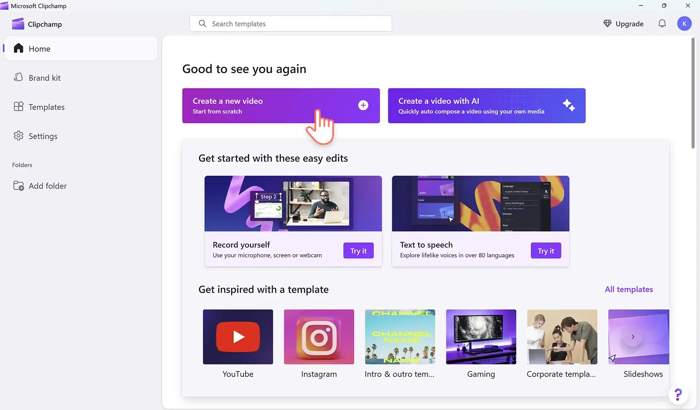
Clipchamp Screen Recorder with audio is a comprehensive video-making and editing toolkit designed for content creators, educators, marketers, and vloggers of all skill levels. Currently, many users on YouTube, TikTok, Instagram, and Facebook are using Clipchamp across these platforms.
Core Features of Clipchamp Screen Recorder
- Record screen with audio in high definition.
- Produce clear and sharp screen recordings.
- Capture webcam and microphone alongside the screen.
- Record voiceover from internal and external microphones.
- Instantly trim, cut, and enhance recordings with the built-in video editor.
- Support various export formats and resolutions, including HD.
- Output videos to fit YouTube and other social media.
- Offer a desktop app and an in-browser app.
Clipchamp Screen Recorder Pricing
| Free | Premium (Microsoft 365 Subscription) | |
|---|---|---|
| Basic Features | Record screen, webcam, microphone | Record screen, webcam, microphone |
| Output Resolution | 1080p | 4K UHD |
| Watermark | No | No |
| AI Integration | AI caption and voiceover | AI video editing AI transcription |
| Video Editor | Cut, trim, and rotate | Full video editor |
| Bonus Features | No | Advanced video, audio, and image library Back up to OneDrive |
| Show MoreShow Less | ||
Part 2: Clipchamp Screen Recorder Review
User Reviews on Reddit and Trustpilot
Clipchamp is one of the worst programs I have ever used. It keeps crashing or freezing. Every time I load it up, everything says file not found and asks me to locate the folder.
I’m absolutely delighted with this program. I had been looking for something easy to manage, fast, and with a low learning curve, and this was exactly what I needed. I just finished recording, and I’m very happy with the result.
Clipchamp can do everything here. I love it so much. The quality is the slightest bit blurry, but it‘s so good. Just amazing. I never give reviews for anything, even if I like it, but this is so amazing, I just had to.
Clipchamp Screen Recorder Review
- Easy to use.
- Export videos and recordings up to 4K resolution.
- Offer a free version.
- Include a good collection of stock assets.
- Provide a free video editor.
- Integrate a slick interface.
- Built-in stylish effects and transitions.
- No standalone plans.
- Cannot generate AI videos from prompts.
- A premium video editor is available with a Microsoft 365 subscription.
- Limited control over effects.
- Templates need to be improved.
- Cannot export to H.265.
Part 3: How to Use Clipchamp Screen Recorder
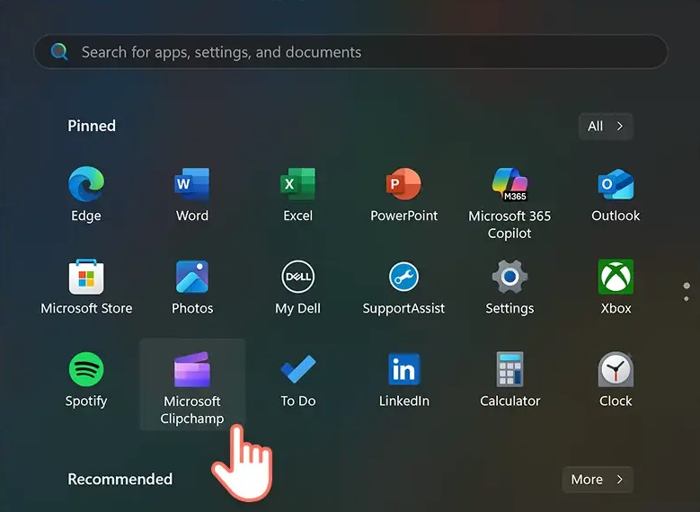
Currently, you can find the Clipchamp Screen Recorder in the Start menu on Windows 11 or download it for Windows 10 from the Microsoft Store. Furthermore, you must have a Microsoft 365 subscription to use the premium video editing features.
Step 1 Open the Clipchamp app. If installing an app is inconvenient, visit the Clipchamp online screen recorder in a browser.
Step 2 Sign in with your Microsoft account or create a new Clipchamp account.
Step 3 Click on the Create a new video button to start the screen recorder.
Step 4 To access the screen recorder, choose the Record & create tab on the toolbar.
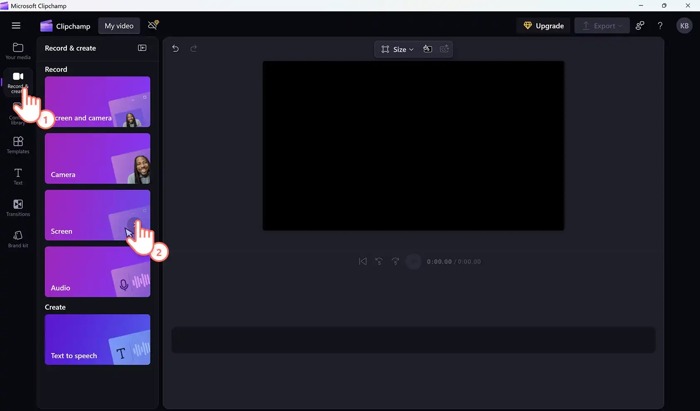
Step 5 Click the Screen option.
Step 6 Next, set the audio source.
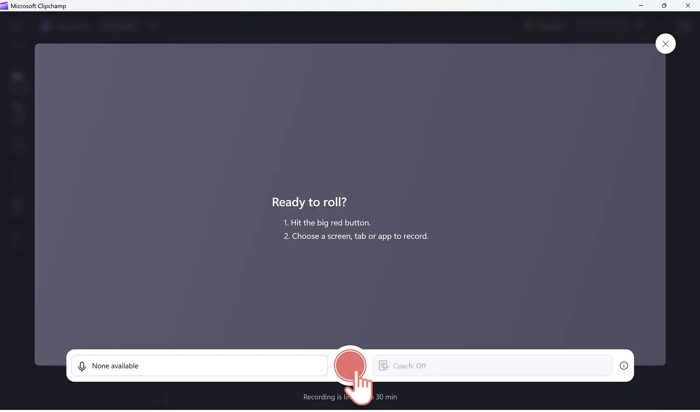
Step 7 Once you are ready, click the big Record button to continue.
Step 8 Select which window you would like to record. If you want to capture the entire screen, switch to Entire Screen.
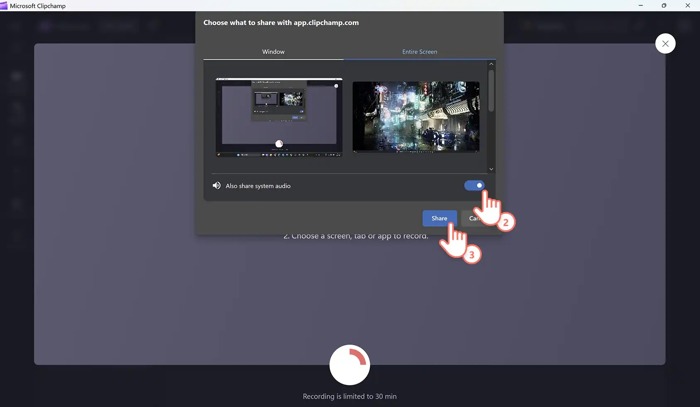
Step 9 The screen recording will initiate immediately.
Step 10 When it finishes, click the Stop button.
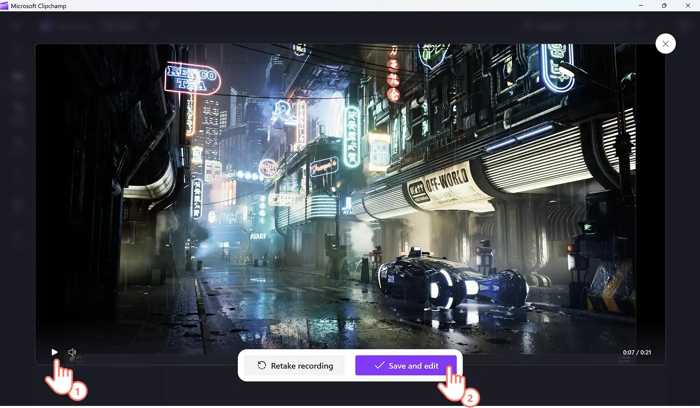
Step 11 Finally, click on the Save and edit button to open the video editor.
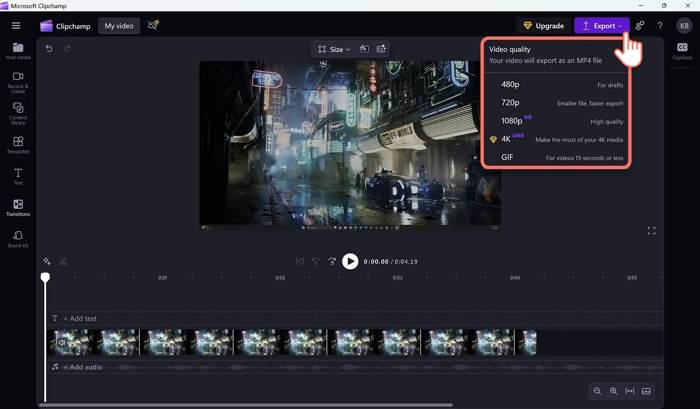
Part 4: Top Clipchamp Screen Recorder Alternative
If you don’t have a Microsoft account or Clipchamp doesn’t save screen recording, you will need an alternative solution, such as Tipard Screen Capture. It offers more custom options and re
- Record screen, video, and audio with the best quality.
- Capture the entire or partial screen or a specific window.
- Make schedules and automatically record the screen.
- Enhance recording output quality with AI.
- Preview recordings and edit video easily.
How to Use Clipchamp Screen Recorder Alternative
Step 1 Install the alternative
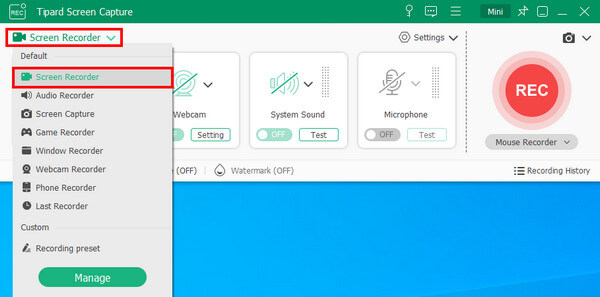
Launch the alternative to Clipchamp Screen Recorder after you install it on your PC. It is compatible with Windows 11/10/8/7. There is another version for macOS 10.13 and later. Choose the Screen Recorder mode. If you want to record a game, choose Game Recorder.
Step 2 Record your screen
Turn on the Recording area option and set the recording area on your desktop. Turn on the System Sound option and adjust the volume. If you wish to add your reaction to the recording, turn on the webcam recorder and microphone. To get other custom options, click the Settings button. When you are ready, click the REC button to start recording.
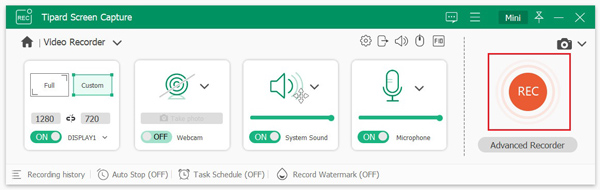
To automatically record your screen, click the Task Schedule button and set it.
Step 3 Save the screen recording
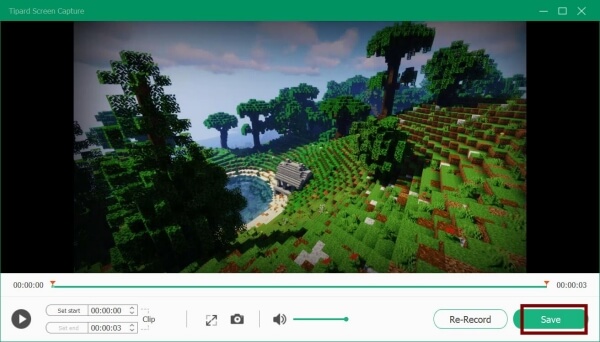
During the process, you can draw on the recording in real time with the toolbar. When you are done, click the Stop button on the widget. After rendering, the preview window will pop up. View the recording and click the Save button if you are satisfied. The Clip option enables you to remove unwanted frames.
Conclusion
Now, you should understand what Clipchamp Screen Recorder is, what it can do, its strengths, and weaknesses. Moreover, you should learn the detailed steps to capture your screen using the MS Screen Recorder app. If it is unavailable on your computer or laptop, try Tipard Screen Capture as an alternative solution.

Record full screen, portion, window, game, and phone seamlessly without lag
100% Clean & Safe
100% Clean & Safe

More Reading

About the Author

 Click here to join the discussion and share your comments