

- First Things First: Check Which Audio Is Missing
- Fix 1. Screen Recording Has No Sound on iPhone
- Fix 2. Android Screen Recording Has No Sound
- Fix 3. FaceTime Screen Recording Has No Sound
- Fix 4. No Sound in QuickTime Screen Recording on Mac
- Fix 5. Screen Recording Has No Sound on Windows
- Prevent Silent Screen Recording in the Future
Why does your screen recording have no sound? In most cases the device itself is fine, and you just need some small changes to your settings.
Read this guide for the most common reasons screen recordings come out silent, and simple steps to fix it on iPhone, Android, FaceTime, Mac QuickTime, and Windows.

- First Things First: Check Which Audio Is Missing
- Fix 1. Screen Recording Has No Sound on iPhone
- Fix 2. Android Screen Recording Has No Sound
- Fix 3. FaceTime Screen Recording Has No Sound
- Fix 4. No Sound in QuickTime Screen Recording on Mac
- Fix 5. Screen Recording Has No Sound on Windows
- Prevent Silent Screen Recording in the Future
First Things First: Check Which Audio Is Missing
Why is there no sound when you screen record? Before you dig into settings, the first thing you need to do is figure out what sound is missing. Screen recording audio isn't one single thing. The two audio tracks come in separate paths.
Microphone audio is your voice or any external mic. That's what you need for tutorials and commentary.
System audio is the sound your phone or computer plays, such as app sounds, music, game audio, video playback, etc.
Fix 1. Screen Recording Has No Sound on iPhone
Step 1Open Control Center and turn the mic on
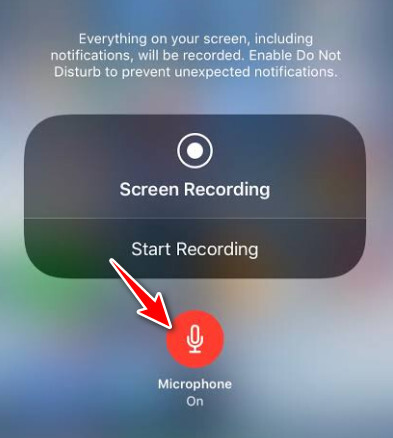
Swipe down from the top-right corner and find the Screen Recording button. But don't just tap it. You need to press and hold the Screen Recording button until a panel shows up, then tap the Microphone button so it turns red and says Microphone On. Then you can start the recording.
Step 2Test and check common blockers
Do a short test. If it's still silent, disconnect your Bluetooth if any, make sure the volume isn't at zero, and the app doesn't block recording. Netflix and some banking apps do this on purpose.
Fix 2. Android Screen Recording Has No Sound
Step 1Open the screen recorder from Quick Settings
Swipe down twice to open the full Quick Settings panel, then tap Screen Recorder or Screen Record.
Step 2Choose the right audio source
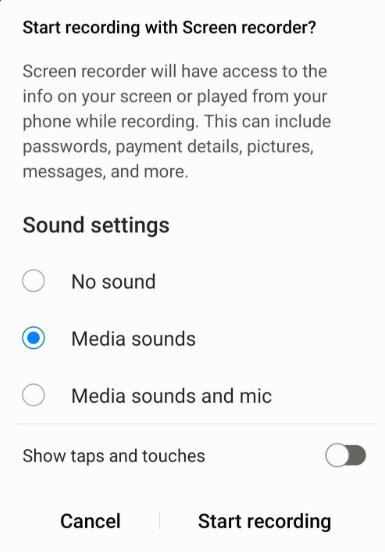
Before you hit Start, look for the sound options. Pick Device audio/Media sounds for internal audio, Microphone for your voice, or both if you want to let everything in. On Samsung it's often labeled Media or Media and mic.
Step 3Check permissions and Bluetooth
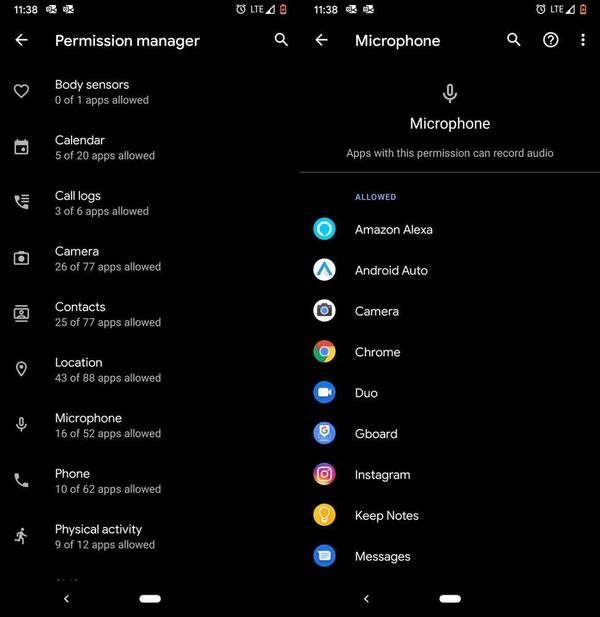
Go to Settings > Apps > Permission Manager and make sure Microphone is allowed for the app you're recording. And remember to turn off Bluetooth if audio is routing to headphones.
Fix 3. FaceTime Screen Recording Has No Sound
Step 1Enable the microphone before the call
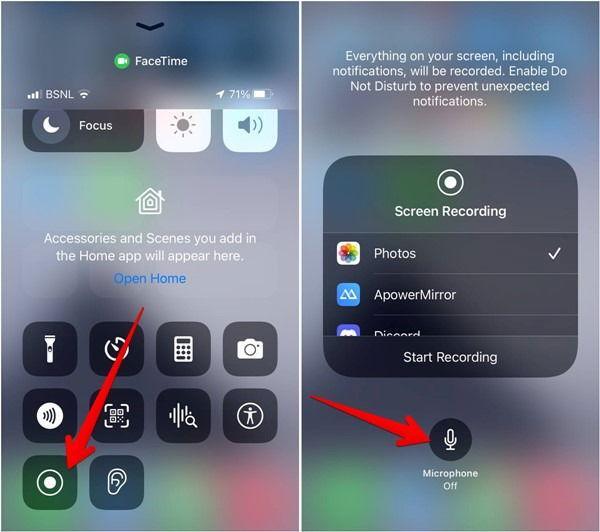
Press and hold the Screen Recording button in Control Center, turn Microphone On.
Step 2Use speaker instead of headphones
Unfortunately, the built-in iPhone sound recorder can't capture both sides of a call. So if you want to record both sides, you need to put the call on speaker so the phone's microphone can pick up the other person's voice too.
Fix 4. No Sound in QuickTime Screen Recording on Mac
Step 1Select a microphone
Open QuickTime > File > New Screen Recording, and click Options or the arrow next to the record button. Choose your built-in mic or external microphone. If it says None, your voice won't be captured.
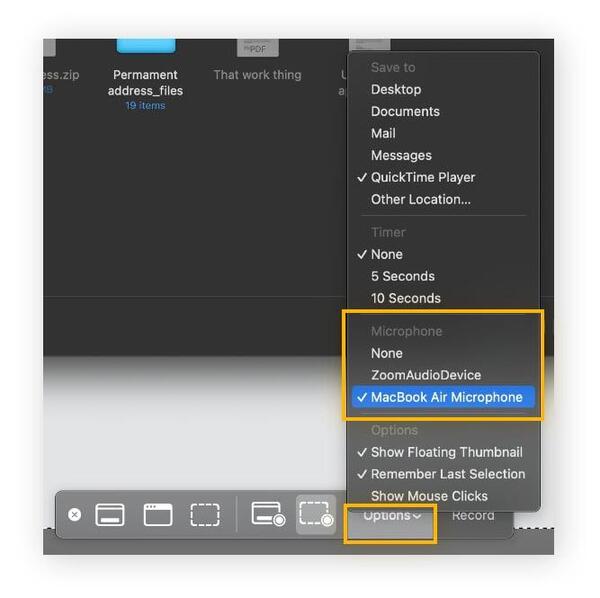
Step 2Capture system audio if you need it
On macOS 27 Golden Gate or later versions, there's a built-in Include System Audio option for recording system sound. But on older ones you'll need to install a third-party tool to do this.
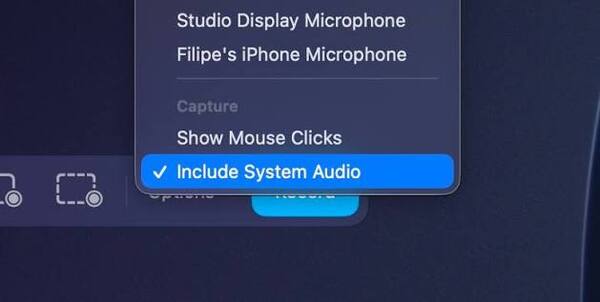
Step 3Check Privacy settings
You can go to System Settings > Privacy & Security > Microphone to make sure QuickTime or the screenshot tool has permission.
Fix 5. Screen Recording Has No Sound on Windows
Step 1Configure Xbox Game Bar
Press Windows + G to open Game Bar.
- Win + Alt + M toggles your mic on/off while recording.
- Win + Alt + R starts and stops the clip.
Step 2Verify Windows permissions
Open Settings, select Privacy & security, and find Microphone, and then make sure the microphone is on for the apps. Also, see if Windows is using the right input device.
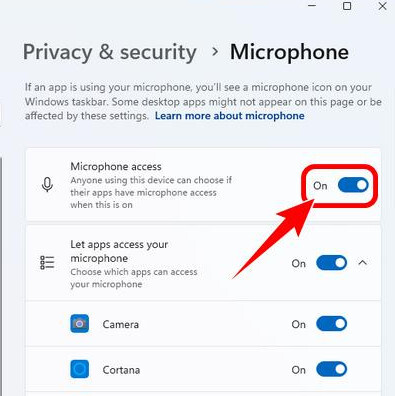
Prevent Silent Screen Recording in the Future
Use a Dedicated Screen Recorder
When you need to capture both system audio and your mic on a Mac or want more control over what gets recorded, a dedicated screen recorder might be worth a try. Tipard Screen Capture is one option that handles this cleanly.
- Turn system sound and microphone on or off separately.
- Can record sound independently without capturing the screen.
- Record the full screen, a selected area, a specific window, or a webcam.
- Useful for tutorials, gameplay, reactions, and other screen recordings.

Test Before You Start the Actual Recording
It'd be intimidating to finish a whole recording only to find out there's no audio. So, always do a short test first. Record about 10-15 seconds, play something on your device, and say a few words into the mic. Then stop and play it back. If the audio meters are moving and you can hear everything in the playback, you're good to go.
Check the Audio Source After Device Changes
Check the audio source before you start, especially when you've just plugged in or disconnected headphones or a Bluetooth device, because your recorder might've switched to a different input path by itself.
Conclusion
Screen recordings with no sound are annoying, but they're not hard to fix. Most of the time you just forgot to turn on the right audio toggle, need to enable a permission, or have the wrong audio source selected. When you need more flexible recording, Tipard Screen Capture is worth a try.

Record full screen, portion, window, game, and phone seamlessly without lag
100% Clean & Safe
100% Clean & Safe

More Reading

About the Author


 Tipard Screen Capture