

- Part 1. How to Record on YouTube TV with DVR
- Part 2. How to Record a Show on YouTube TV That Is Already Airing
- Part 3. How to Find Your Recordings on YouTube TV
- Part 4. Does YouTube TV Have Unlimited DVR
- Part 5. How Long Does YouTube TV Keep Recordings
- Part 6. Why Can't I Record a Program on YouTube TV
- Part 7. How to Record YouTube TV on Your Hard Drive
Want to keep and save your favorite movies, shows, or live sports on YouTube? Well, learning how to capture your favorite video is an ideal way for later viewing. Thanks to YouTube's built-in DVR feature, you can capture the content without worrying about a physical storage device. In this simple guide, we will teach you how to capture the video from YouTube with or without a DVR. Thus, read this tutorial and learn how to record on YouTube TV.

- Part 1. How to Record on YouTube TV with DVR
- Part 2. How to Record a Show on YouTube TV That Is Already Airing
- Part 3. How to Find Your Recordings on YouTube TV
- Part 4. Does YouTube TV Have Unlimited DVR
- Part 5. How Long Does YouTube TV Keep Recordings
- Part 6. Why Can't I Record a Program on YouTube TV
- Part 7. How to Record YouTube TV on Your Hard Drive
Part 1. How to Record on YouTube TV with DVR
Some people might ask: Can you record on YouTube TV? The good thing here is that you can record/capture your favorite content, thanks to its built-in Cloud DVR feature. This lets you capture your favorite series, movies, and sports directly to your account without using any extra hardware. What we like here is the feature's simplicity. You can record any content without any trouble. The recordings will also be saved to your Library and can be accessed from any device logged into your YouTube TV account.
To learn how to record shows on YouTube TV, see the instructions provided below.
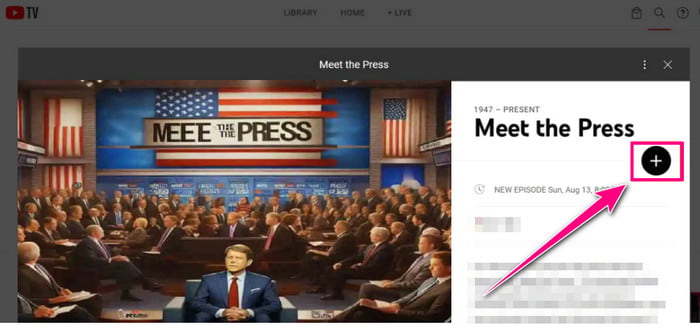
Step 1 First, open your YouTube TV account on your computer, TV, tablet, or smartphone. Ensure that you already have the subscription account.
Step 2 You can start searching for the shows, sports events, or series you want to record. Then, after selecting a certain video, open its information page.
Step 3 Click or tap the Plus symbol button. If the Plus is not available, hit the Add to Library option. It will now be scheduled to record.
Step 4 After the recording process, you can start watching the video in your Library section.
Part 2. How to Record a Show on YouTube TV That Is Already Airing
Don't you know that even if the show has already started, you can still add it to your Library while it is airing? Yes, you've read it right! The Cloud DVR feature will continue capturing the program from the time you add it and may also provide access to earlier portions through available on-demand videos or future re-runs. This makes it simple to save any series or shows without waiting for the next broadcasts. To learn more about the process, you can check the guide below.
Step 1 Open the YouTube TV app on your preferred device.
Step 2 After that, find the live show that is currently airing. Then, select the program to check and open its entails page.
Step 3 Now, you can hit the Plus or Add to Library button. YouTube will start recording the show immediately. Once done, you can start watching your recordings.
Take note that if you want to stop recording on YouTube TV, all you need to do is remove it from the Library section. This helps you get rid of the shows, movies, and broadcasts.
Part 3. How to Find Your Recordings on YouTube TV
Now you know how to record something on YouTube TV. However, some users don't have any idea where they find their recordings. If you want to find all your recordings, you can find all of them in the Library section of YouTube TV. Open the platform and select the Library section from the top part of the menu. Then, start browsing the recorded content, like movies, sports events, series, and more. If you have numerous recordings, you can use the available filters and categories to locate certain content easily and quickly.
Part 4. Does YouTube TV Have Unlimited DVR
Wondering if YouTube TV can offer an unlimited DVR? Well, if you have the subscription plan, you can enjoy the unlimited Cloud DVR storage. With this feature, you can save and collect as many series, movies, live events, and other content as you want to your Library. The recordings are saved and stored online rather than on a physical device, so there is no need for you to handle storage space yourself.
However, you must know that there are some limitations you must be aware of. Some of them are:
- To save and access VR recordings and the recorder feature, your subscription plan must always be active.
- Your recordings are not stored permanently. The saved recordings will only last up to nine months. You must re-record them if you want them to stay in your Library as long as you want.
- There is no local download of DVR recordings. The plan only allows saving the recording to the cloud.
- It requires/demands a stable and fast internet connection for a smoother recording process.
- Some YouTube videos are not playing in the Library section due to licensing agreements.
- If your subscription plan expires, all the recordings will also be eliminated.
Part 5. How Long Does YouTube TV Keep Recordings
YouTube TV keeps Cloud DVR recordings for up to nine months from the time they are saved and recorded. During that moment, you can play, access, and watch the contents anytime from your Library as long as the subscription plan remains active. So, always ensure that you are watching all the recordings in your Library section before they get deleted so that you won't miss anything.
How do you delete recordings on YouTube TV?
Technically, YouTube TV does not let you delete individual VR recordings like a traditional DVR. You can remove/eliminate series, shows, and other content from your Library section. Existing recordings may remain accessible and available until they expire according to YouTube's policies.
Part 6. Why Can't I Record a Program on YouTube TV
There are times when you can't record a program on YouTube TV. If you want to get some of the reasons why you can record, see the information in this section.
- Your YouTube TV subscription is inactive. It prevents access to Cloud DVR features. You can try using an online screen recorder if you want to capture your favorite video.
- You can't capture a program on YouTube TV if the program is unavailable in your area due to regional broadcasting or licensing restrictions.
- There are some instances when the 'Ad to Library' is not performing or functioning well. It can be because of a temporary account or app issue.
- If you have an unstable internet connection, the recording process will also be affected. Always have a good internet connection for better results.
- If the content is no longer available, you can't save it to your account.
Part 7. How to Record YouTube TV on Your Hard Drive
The DVR feature of YouTube TV is ideal if you want to record your favorite content. However, you can only access this feature if you have the subscription plan. Plus, you can only save the content on the Cloud. So, if you are looking for another recorder that can give you better recording performance and save videos on your hard drive, it would be best to use Tipard Screen Capture.
What makes this program ideal is that you can have all the recordings on your hard drive. You can even capture shows and other videos smoothly with their original color and resolution, leading to a satisfying viewing experience. You can also record the audio from the video, along with the microphone, making it more powerful. Lastly, you can save the recordings in various formats, such as MP4, MKV, AVI, MOV, and more.
See the steps below and learn how to record YouTube videos effectively.
Step 1 Download Tipard Screen Capture on your computer and launch it to begin the recording process.
Step 2 After you launch the recorder, click the Screen Recorder mode. Then, choose the Full or Custom option. This lets you record the whole screen or a certain screen area.
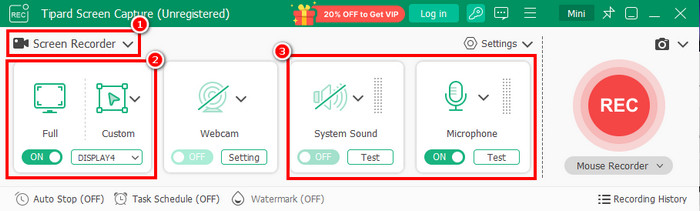
Turn on the System Sound and Microphone to record the audio and your voice if you want to.
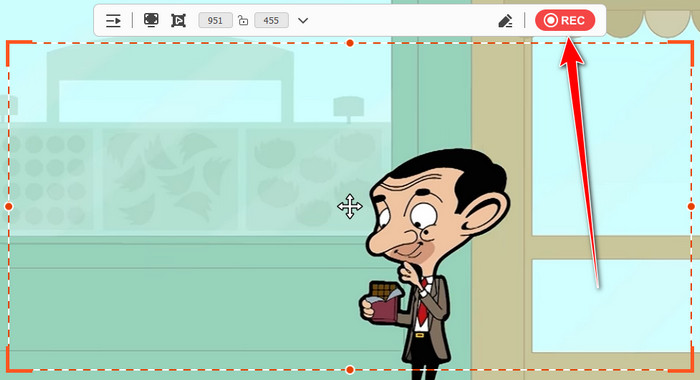
Step 3 You can now prepare the video you want to capture. Then, start the recording process by hitting the REC button. Hit Stop after the process.
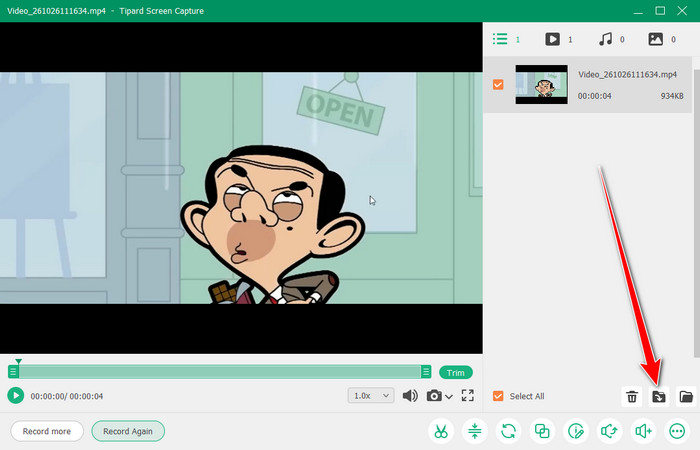
Step 4 Once the preview shows up, you can check the recordings. Then, tap Export to save it on your device.
Conclusion
How do you record on YouTube TV? Well, after reading everything in this guide, we can tell that recording any content from YouTube would be a simple task. So, follow the provided steps to achieve the result you need. Also, if you want to save your recordings on your hard drive for offline viewing, you can access Tipard Screen Capture. This program can offer a smoother recording process. It is also free to use, so you can record all content without spending a penny, making it the best recorder you can access on your computer.

Record full screen, portion, window, game, and phone seamlessly without lag
100% Clean & Safe
100% Clean & Safe

More Reading




About the Author

 Click here to join the discussion and share your comments

 Tipard Screen Capture