

- Part 1. How Does Recording Work on Spectrum TV?
- Part 2. How to Record Shows/Series/Movies/Live/Sports on Spectrum TV
- Part 3. Where to Find the Spectrum TV Recordings
- Part 4. Limitations of Spectrum TV DVR
- Part 5. Can You Record Spectrum TV Without a DVR
- Part 6. Spectrum DVR vs Screen Recording: What's the Difference
Learning how to record on Spectrum TV? Capturing on Spectrum is an effective way to save your favorite movies, shows, and sports events. With this method, you can watch all your favorite videos as many times as you want. With Spectrum's DVR feature, recording and managing saved content is possible. So, do you want to learn how to capture everything on Spectrum TV? Then, check this tutorial and explore all the methods.

- Part 1. How Does Recording Work on Spectrum TV?
- Part 2. How to Record Shows/Series/Movies/Live/Sports on Spectrum TV
- Part 3. Where to Find the Spectrum TV Recordings
- Part 4. Limitations of Spectrum TV DVR
- Part 5. Can You Record Spectrum TV Without a DVR
- Part 6. Spectrum DVR vs Screen Recording: What's the Difference
Part 1. How Does Recording Work on Spectrum TV
Recording on Spectrum TV works through the Digital Video Recorder, also known as the DVR feature. It lets you save TV series, movies, and sports, and watch them later. The good part here is that you can schedule recordings directly from the TV guide, whether you want to capture a single episode or the entire series. Then, the recordings will also be kept on your DVR and can be accessed and watched on your saved recordings list.
Moreover, the Spectrum DVR also lets you fast forward, rewind, and pause recorded content for better control and a flexible viewing experience. Depending on your DVR service, you can keep numerous recordings and handle them by deleting content you no longer need. This makes it better to keep up with your favorite videos without thinking about the missing broadcast times.
Part 2. How to Record Shows/Series/Movies/Live/Sports on Spectrum TV
Many people ask: Can you record on Spectrum TV? The answer is yes. Thanks to the DVR feature, you can capture your favorite series, TV shows, and sports without any problem. Plus, the recording process is simple. You can just press the Record button on your Spectrum remote to capture live events. You can also record all the episodes from a certain series in just a single process.
So, how do you record a TV show on Spectrum? To learn the process, you can check the instructions below.
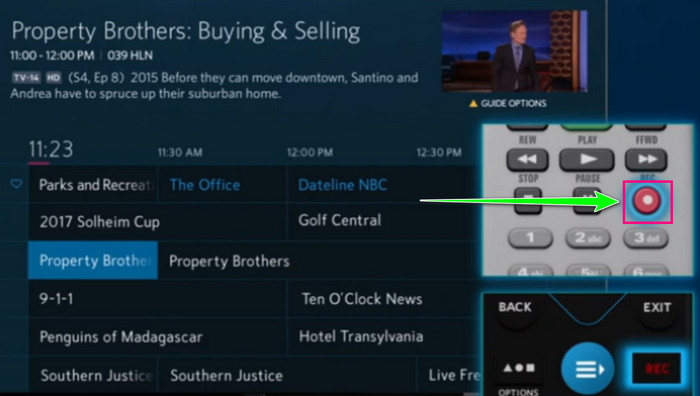
Step 1 Press the Guide button/option on your Spectrum remote. Then, start browsing the TV listings.
Step 2 Choose the program or TV live you want to record and press the Record button. For recording TV series and movies, you can hit the Record Series option.
Step 3 Then, the recording will begin. Once done, you can now check your recordings.
Part 3. Where to Find the Spectrum TV Recordings
After recording your favorite shows, sports, and series, you might be wondering where you can find them. Well, Spectrum recordings are typically saved on your DVR device or through Spectrum's cloud-based recording service, depending on your subscription. Plus, you can access the videos/recordings from the DVR menu on your cable box or supported Spectrum TV apps. Take note that your recordings will remain available until you delete them or your subscription expires.
Part 4. Limitations of Spectrum TV DVR
Now, you have learned how to record a program on Spectrum TV. However, you must know that there are various limitations you might encounter. To discover some of the limitations of the Spectrum TV DVR, you can check the details in this section.
- DVR requires a Spectrum TV plan that includes DVR service to access the Record button.
- The storage of the DVR is limited. So, if you want to add more recordings, it would be better to delete some files you no longer need. This can help you free some space.
- You can't save the recordings on your device. You can only watch them on your Spectrum TV with a plan.
- If the subscription plan expires, all the recordings will also be removed. It is ideal to use another video recorder for capturing the content from Spectrum.
- Due to licensing agreements, some of the shows or programs have recording restrictions.
The Spectrum TV DVR can let you record your favorite content. However, you must take note of these limitations so you can have a smooth recording process.
Part 5. Can You Record Spectrum TV Without a DVR
Spectrum can let you record your favorite shows, series, and sports. However, it doesn't support offline viewing. So, if you are looking for an exceptional recorder that can help you record all the content you want from Spectrum TV, it would be best to utilize Tipard Screen Capture.
This program is perfect if you want a smoother recording process without encountering any limitations. You can record any content while maintaining the original quality. Plus, it ensures that you can export all your recordings to your device for offline viewing. What we like here is that you can also capture both video and audio without any lag. It also has a comprehensive user interface, making it ideal for skilled and non-professional users. Thus, if you want to record Spectrum TV without a DVR, look no further than Tipard Screen Capture.
More Features:
- The program can offer basic editing tools to improve the recordings.
- It can offer its Snapshot feature to take a screenshot during the recording process.
- The screen size is customizable, ideal for recording the entire screen or a selected screen area.
- It can record various content, such as meetings, webinars, gameplay, videos, audio, and more.
See the detailed instructions below and learn how to record Spectrum TV without a DVR.
Step 1 Start downloading Tipard Screen Capture on your Windows or Mac computers. After that, open the Spectrum TV in your browser and enter your account.
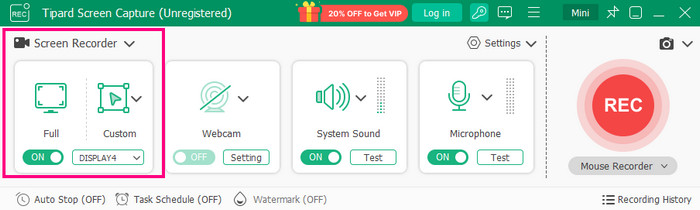
Step 2 From the recorders interface, select the Screen Recorder mode. Then, customize your screen by clicking the Full or Custom button.
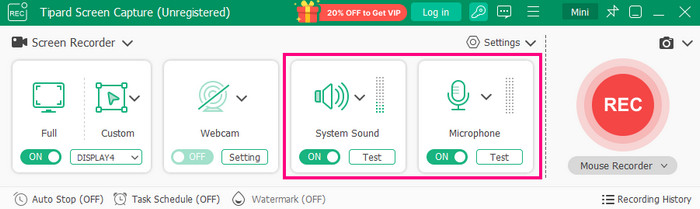
Step 3 Turn on the System Sound option to record the audio from your device. You can also turn on the Microphone if you want to capture your voice.
Step 4 Tick REC to start the recording procedure. Ensure that the content from Spectrum is ready to play for smoother recording.
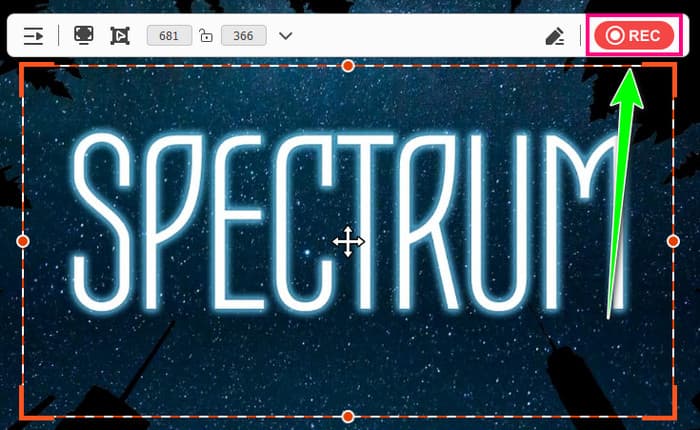
Tap Stop to finish the recording.
Step 5 After the process, the preview will pop up on your screen. Click the Play button to check your recordings. Lastly, click Export to start saving it on your device.
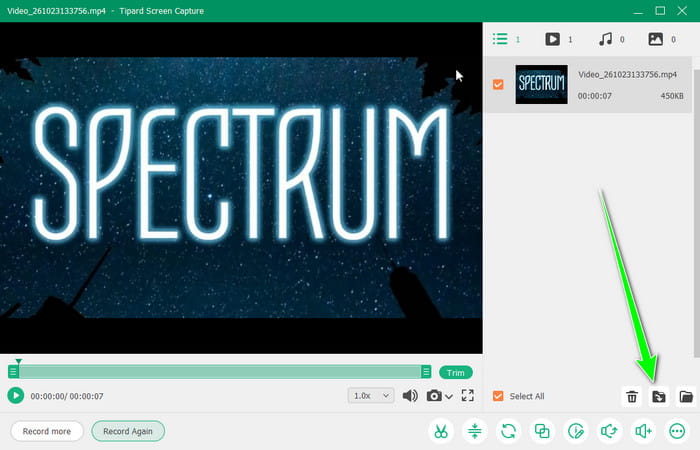
Thanks to this recorder, you can capture anything from the Spectrum without any restrictions. So, use this free screen recorder and get the result you need.
Part 6. Spectrum DVR vs Screen Recording: What's the Difference
Want to know the differences between Spectrum DVR and Screen Recording? Then, check the table below.
| Spectrum DVR | Feature | Screen Recording |
|---|---|---|
| Records TV programs directly through Spectrum's DVR service. | How it Works | Captures video playing on your screen using recording software. |
| Requires a Spectrum TV subscription with DVR service. | Setup Required | Requires a computer, mobile device, or screen recording application. |
| Maintains the original broadcast quality. | Video Quality | Quality depends on screen resolution, recording settings, and device performance. |
| Saved on a DVR device or cloud DVR storage. | Storage Location | Saved as video files on your computer, phone, or external drive. |
| Regularly recording TV shows, movies, and live sports. | Best For | Creating personal copies, clips, tutorials, presentations, or archived recordings. |
Conclusion
To capture on the Spectrum TV app with and without DVR, you can use the methods from this guidepost. We even provided some details on where you can watch your recordings and the limitations when recording on the Spectrum TV DVR. Also, if you want to record shows, series, or sports, and watch them offline, it is best to use Tipard Screen Capture. With this recorder, you can record the content better and save it on your computer without any restrictions, making it a must-have recorder.

Record full screen, portion, window, game, and phone seamlessly without lag
100% Clean & Safe
100% Clean & Safe

More Reading



About the Author

 Click here to join the discussion and share your comments

 Tipard Screen Capture