

- Part 1: Does Sling TV Have a DVR
- Part 2: How to Record a Show on Sling TV
- Part 3: How to Record Sports on Sling TV
- Part 4: How to Find and Watch Your Recordings on Sling TV
- Part 5: Can You Record Live TV on Sling TV
- Part 6: More Information About Sling TV Recordings
- Bonus: How to Record Sling TV on Windows and Mac
Recording on Sling TV can help you save and capture your favorite shows, movies, and live events. This way, you can watch/play them anytime and anywhere. With Sling TV's Cloud DVR feature, you can instantly record any content from the guide and access it in your library. So, do you want to learn the eBay recording methods you can use to capture any videos from Sling TV? In that case, read this guidepost as we teach you the best ways to record on Sling TV.

- Part 1: Does Sling TV Have a DVR
- Part 2: How to Record a Show on Sling TV
- Part 3: How to Record Sports on Sling TV
- Part 4: How to Find and Watch Your Recordings on Sling TV
- Part 5: Can You Record Live TV on Sling TV
- Part 6: More Information About Sling TV Recordings
- Bonus: How to Record Sling TV on Windows and Mac
Part 1: Does Sling TV Have a DVR
Wondering if Sling TV has a DVR? Well, the answer is yes. Sling TV includes a Cloud DVR feature. This lets subscribers record live TV programs and watch them later. Spending on the subscription plan, users may receive a certain amount of DVR storage or an option to upgrade for additional space. This great feature makes it easy to save your favorite shows, movies, and sports for on-demand viewing.
Part 2: How to Record a Show on Sling TV
Can you record from Sling TV? Well, the answer is obvious. Recording on Sling TV is a possible task. Sling TV's Cloud DVR feature lets you save and record TV shows, movies, and live events for watching them later. Plus, the process of recording on Sling TV is simple, making it ideal for all users. You can get the result you need in just a few clicks. To start recording on Sling TV, use the steps below.
Step 1 Open the Sling TV app or website and create your account. Then, from the main layout, click the Guide option.
Step 2 Various shows will appear on your screen. Select the show or any content that you want to record.
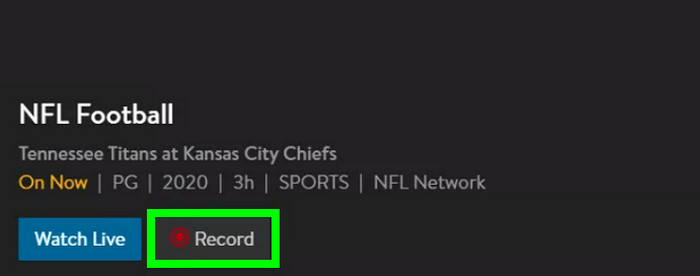
Step 3 Then, hit the Record button. You can even choose whether you want to record all the episodes or a certain episode.
Recording on Sling TV is simple if you know the right process. So, if you want an effective online screen recorder, especially for capturing TV shows, movies, and live events, you can use Sling TV and follow the provided instructions from this section.
Part 3: How to Record Sports on Sling TV
Sling TV's Cloud DVR lets you capture eligible live sports events, letting you watch them later. Take note that if the sporting events support DVR recording, then you will see the Record button option on the information page. To start the recording process, see the steps below.
Step 1 Launch the Sling TV app or web version. Then, navigate to the Sports section to search for the sport you want to record.
Step 2 After selecting the sport, hit the Record button to begin the recording process. Once done, stop the recording.
Step 3 You can now start watching the recorded sports from your device.
Take note that recording sports on Sling TV is different from recording TV shows or movies. It is because live games can run longer than scheduled due to overtime, extra rounds/innings, or delays. Thus, it is ideal to verify whether the event is eligible for DVR recording and check your recording afterward to ensure that you recorded the entire game.
Part 4: How to Find and Watch Your Recordings on Sling TV
Do you wonder where you can find and watch the recordings on Sling TV? Well, after the recording process, Sling TV stores/keeps them in your Cloud DVR library. This lets you watch the contents anytime you want. To check your recordings, you can go to the My DVR, Recordings, or Library section. Then, start selecting the recording you want to watch.
Part 5: Can You Record Live TV on Sling TV
Absolutely, yes. You can capture live TV on Sling TV using its Cloud DVR feature. But you must know that you can only record live if the channel or programs support recording. A recordable live will give you the Record button you can click for an effective recording process.
Part 6: More Information About Sling TV Recordings
Do you want to learn more about the Sling TV recordings? If so, you can check the information we have provided in this section.
- Most of the Sling TV plans include 50 hours of Cloud DVR storage without extra cost.
- Users who need a larger space can upgrade to DVR Plus.
- Recordings are stored in the cloud. Note that once the subscription expires, all the recordings will be removed.
- Not all programs can be recorded. Due to licensing restrictions, you can't capture some of the shows, movies, or live events.
- You can record multiple episodes in a single click, making the process faster.
Bonus: How to Record Sling TV on Windows and Mac
Are you looking for another way to record Sling TV, especially on your Windows and Mac? In that case, we recommend using Tipard Screen Capture. As mentioned, Sling TV can only keep your recordings if your subscription is active. So, if you want to record and save any TV shows, live events, and movies on your device, using Tipard is the right choice. What makes it more ideal is that it can keep the original quality of the content, resulting in a satisfying viewing experience. It also supports scheduled recording, perfect for recording content based on your preferred time.
To start the recording process, see the steps below.
Step 1 Download and launch Tipard Screen Capture on your computer. Then, open the content you want to record on Sling TV.
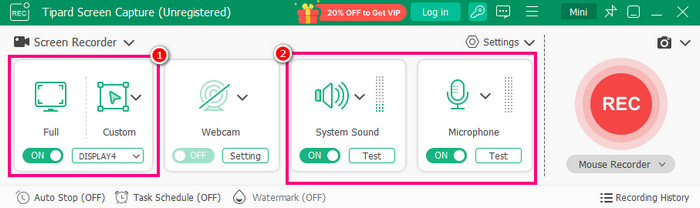
Step 2 From the interface, select the Screen Recorder mode. Then, click the Full or Custom option to choose the screen you want to record. You can also turn on the Sound System and Microphone to capture audio.
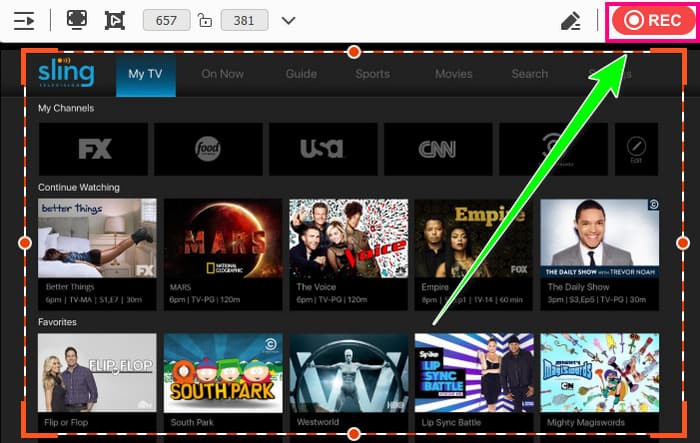
Step 3 Then, hit the REC button to begin the recording process. After the recording, tick the Stop button.
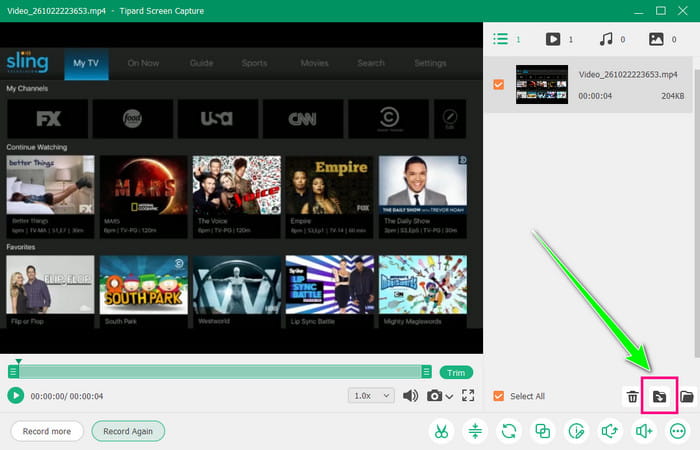
Step 4 Finally, once the preview appears on your screen, you can check it by clicking the Play button. Once satisfied, hit Export to save the recording on your device.
If you need the best desktop recorder that can record anything from Sling TV, there is no doubt that Tipard can give you the result you need. Therefore, if you want to record anything with the best quality and a smoother recording process, consider accessing this software.
Conclusion
Now you have learned how to capture Sling TV shows, movies, and live events. Thanks to the provided methods from this guide, you can now record your favorite content effectively. Plus, if you want to keep your recordings on your desktop, you can always access Tipard Screen Capture. With its smooth recording process, simple layout, and good output quality, you can ensure that you achieve the result you want. Thus, use this recorder and record all your favorite content!

Record full screen, portion, window, game, and phone seamlessly without lag
100% Clean & Safe
100% Clean & Safe

More Reading

About the Author

 Click here to join the discussion and share your comments

 Tipard Screen Capture