

Want to convert JPG to MP4? Converting your images into a video is a simple method for transforming static images into a dynamic video format. It makes it easier to edit, share, and upload the file across modern platforms. In addition, this process allows you to create an engaging slideshow, preserve memories, and prepare visual content for professional presentations and social media. To learn how to convert your JPF files into an MP4 format, start reading everything in this tutorial.

Part 1. Quick Comparison: Best JPG to MP4 Converters
If you want to get a simple insight into the best JPG to MP4 converters, you can check the table below.
| JPG to MP4 Converters | Ease of Use | Features | Output Quality | Best For |
|---|---|---|---|---|
| Tipard Video Converter Ultimate | Beginner-Friendly | Slideshow maker, themes, transitions, music | High-quality export (HD/4K, customizable) | Polished slideshows with professional templates. |
| CapCut | Intuitive | Filters, trendy transitions, stickers, social media export | Optimized for MP4, good quality for sharing | Quick, stylish slideshows for TikTok/YouTube. |
| FFmpeg | Complicated | Precise control over frame rate, bitrate, and codecs | Excellent quality, customizable | Professionals need batch automation and exact settings. |
| Magic Hour AI | Simple | AI-driven motion, cinematic pans, parallax, atmosphere | Dynamic, creative MP4 animations | Turning static JPGs into cinematic storytelling videos. |
Part 2. Convert JPG to MP4 by Creating a Photo Slideshow
Method 1. Convert JPG to MP4 Using Tipard Video Converter Ultimate
Are you looking for an excellent program that can help you turn your JPG into an appealing slideshow? In that case, we would like to introduce Tipard Video Converter Ultimate. This program can offer its MV feature, allowing you to turn your images into a video. What makes it ideal is that the process is simple. You can even arrange the images based on your preferred output.
Plus, it ensures to produce seamless and smooth video without any stutter or lag. It can even provide standard and popular MP4 settings, letting you play the video on any platform. Aside from that, the program can offer a ready-made theme. With that, you can make your images better and more satisfying to watch. Thus, always use this program if you need a reliable JPG to MP4 converter.
Step 1 Download Tipard Video Converter Ultimate on your Mac or Windows. Then, launch it to begin the process.
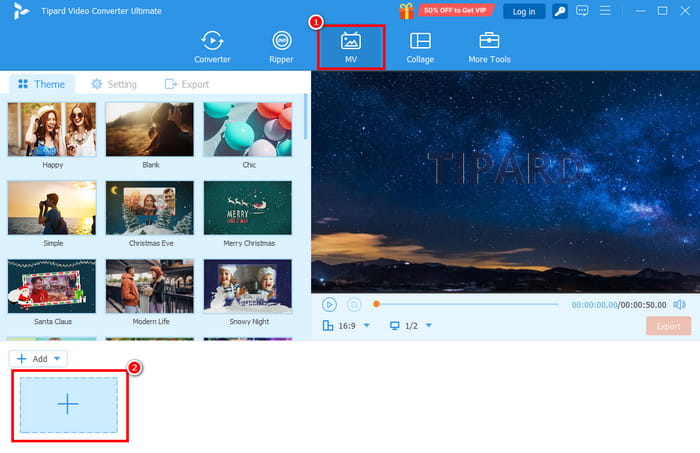
Step 2 After you open the program, go to the MV feature and start adding the JPG files by clicking the Plus button.
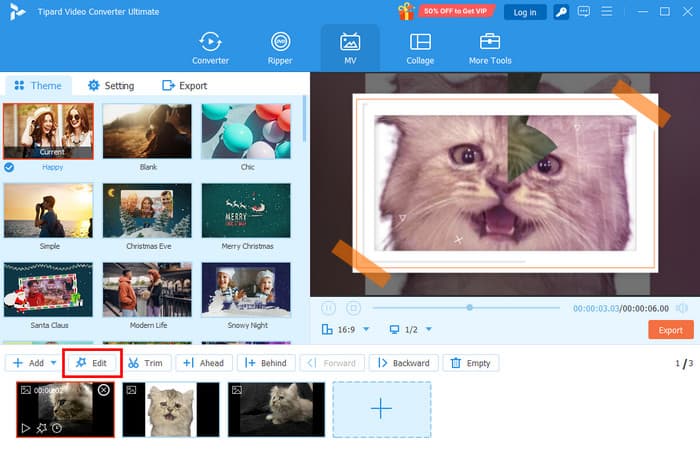
Step 3 You can also arrange the images based on your preferred order. Then, you can proceed to the Edit section to add flavor to your images.
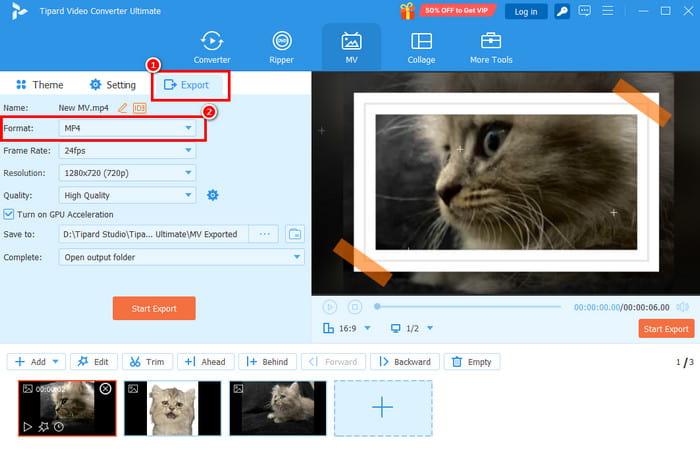
Step 4 Navigate to the Export section and choose MP4 as your output format. You can also adjust some parameters, such as resolution, frame rate, quality, and more.
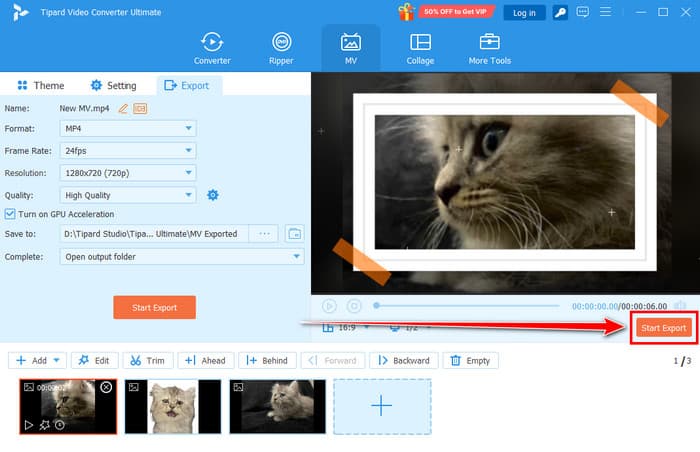
Step 5 Finally, go to the right interface and hit the Start Export button. This way, you can save your MP4 file on your computer.
Method 2. Convert JPG to MP4 Using CapCut
CapCut is another program you can use to turn your image files into an excellent slideshow. The good thing about this editor is that you can add as many images as you want. You can even access more editing tools to improve your masterpiece. You can trim the video, adjust the speed, insert effects, and more. So, start using the steps below and learn how to convert JPG to MP4 format.
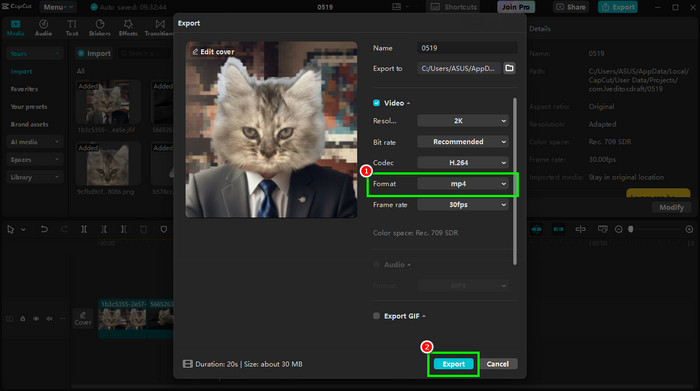
Step 1 Download CapCut on your desktop. Then, install and run it to start the process.
Step 2 From the primary interface, tap the Create Project button. Then, start uploading the images you want to convert.
Step 3 Insert all the images into the Timeline section below. After that, hit the Export button above.
Step 4 Proceed to the Format section and select MP4. Finally, click Export to start the saving process.
Part 3. Convert JPG to MP4 via Command Line
FFmpeg is a robust, open-source multimedia framework that is well known for its speed and adaptability. This tool is perfect for building MP4 slideshows from JPG files. It is because FFmpeg is excellent at converting photos into video formats. Plus, frame rate, resolution, and encoding parameters can all be precisely controlled with its command-line interface. It can even convert more formats, such as JPG to GIF, MP4 to PNG, MOV to AVI, etc. The best part is that it's lightweight, cross-platform, and totally free, making it ideal for both novice users and experts seeking dependable outcomes. See the instructions below and learn how to change JPG to MP4.
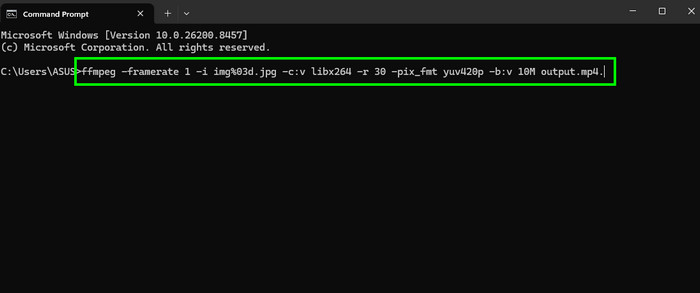
Step 1 Download and set up FFmpeg on your desktop. After that, run the CMD.
Step 2 From the interface, attach or type the command ffmpeg -framerate 1 -i img%03d.jpg -c:v libx264 -r 30 -pix_fmt yuv420p -b:v 10M output.mp4.
Step 3 Press Enter to begin the process. Once done, you can check the file in your folder.
Part 4. Convert JPG to Animated MP4 Videos via AI
Do you want to convert a JPG to an animated video using AI? In that case, we suggest using Magic Hour AI. This tool is perfect if you want to create an animated video from your JPG files. The best part here is that you can add a prompt, allowing you to get the result you want. It can also offer you the best video quality, leading to a satisfying video playback.

Step 1 Go to your browser and access the Magic Hour AI tool. Then, you can connect your Gmail to create an account.
Step 2 Click the Upload button to insert the JPG file you want to convert. Once done, start adding your prompt.
Step 3 After that, you can start clicking the Generate button below. After the process, you can hit the Download symbol above to save the animated video on your device.
Part 5. Pro Tips: Best Settings for Converting JPG to MP4
See the table below and learn some tips for the best settings for converting JPG to MP4.
| Parameter | Suggested Value |
|---|---|
| Resolution | 1920×1080 (Full HD) or 3840×2160 (4K) |
| Bitrate | 8–12 Mbps (1080p) / 20–40 Mbps (4K) |
| Frame Rate | 24 fps (cinematic) / 30 fps (standard) |
| Codec | H.264 (libx264) |
| Pixel Format | yuv420p |
| Audio Settings | AAC, 128–192 kbps |
Part 6. FAQs of Converting JPG to MP4
Can I add music to the video after converting the JPG to MP4?
Absolutely, yes. You can add music to your file as background music. You can use Tipard Video Converter Ultimate to insert any audio file into your video effectively.
What is the easiest way to convert JPG to MP4?
The easiest way is to use a simple converter. Some of the converters you can use are Tipard Video Converter Ultimate, CapCut, and Magic Hour.
Can I edit how long each photo appears?
Yes, you can. Some of the editors allow you to adjust the duration time per image. With that, if you want to show the image longer or shorter, adjusting the time is a possible task.
Conclusion
Thanks to this guide, you have learned how to convert JPG to MP4. You also explored some helpful tips for better settings for converting your files. Plus, if you need a powerful converter, it would be better to use Tipard Video Converter Ultimate. With its MV feature, you can create a slideshow from your images, making it a reliable tool for both professionals and beginners.

All-in-one video toolbox: convert, edit, upscale, enhance, and compress your videos easily
100% Clean & Safe
100% Clean & Safe

More Reading

About the Author


 Tipard Video Converter Ultimate