

Searching for the best LumaFusion for Windows? Well, LumaFusion is an exceptional mobile video editing app ideal for content creators on iOS and Android devices. However, this tool is not available on Windows, which may limit some users' ability to improve their content. So, if you need the best alternatives to edit videos on your desktop, see this post as we introduce various alternatives to LumaFusion for Windows. Without further ado, proceed to this post and explore all the best editors.
Part 1. What is LumaFusion
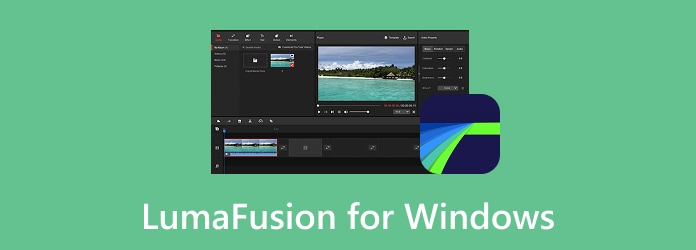
The LumaFusion app is a multitrack video editing tool designed for mobile devices. This mobile-based video editor is ideal for content creators, journalists, and vloggers who want a desktop-style editing control. It can offer timelines, keyframing, and layered tracks, without using any laptops or computers.
Tech Specs:
- It can offer up to 6-layer video tracks, plus additional audio-only tracks.
- I support color correction with scopes and LUT, animation, transitions, titles, and more.
- Support for .cube and .3dl LUT import for color grading
- The app can provide a green screen, luma key, and chroma key.
- It can provide a built-in stabilizer.
Pricing:
| Tier | Price | What it Unlocks |
|---|---|---|
| Base app | $29.99 (one-time) | Full 12-track timeline, color correction, green screen, basic audio tools. |
| Creator Pass | $9.99/month or $69.99/year | Speed ramping, adjustment clips, Multicam Studio, FCPXML export. |
| Individual Features | $19.99 each | Speed ramping or enhanced keyframing is purchased separately. |
Is Luma Available on Windows?
The LumaFusion app is not accessible on Windows. It is because the app is naturally designed for Android and iOS devices. If you want to use the app on your desktop, the best way is to use an emulator.
Part 2. What Can LumaFusion Do
Wondering what LumaFusion can do? See this section for the key features we offer.
- Multitrack magnetic timeline: The app lets you insert up to six video and audio tracks for complex, layered edits.
- Color correction: The app can adjust the video's color. This is perfect for changing the theme or appearance of your videos.
- Green screen and chroma/luma key: These features allow you to change the video's background. It is helpful for editors doing virtual sets or stylized overlays without needing a laptop.
- Lock and load stabilizer: It lets you deal with shaky videos. This is ideal for shooting run-and-gun style on a phone or tablet.
- Speed ramping: The video editor lets you adjust the playback speed of the captured video. It is a popular feature for action sequences.
Part 3. How to Get LumaFusion on Windows 10/11
As mentioned in the previous part, LumaFusion is not available on Windows, unless you use an Android emulator. Some emulators you can use include LDPlayer, BlueStacks, and MEmu Play. These tools can create a virtual Android environment on your desktop, allowing you to access the video editor effectively. So, if you want to use the emulators, just access them from the Google Play Store.
Part 4. Top 5 LumaFusion for Windows
Want to start exploring the best LumaFusion for Windows? Then, see everything in this part as we offer all the best video editors you can use to replace LumaFusion for editing your videos.
1. Tipard Video Converter Ultimate
Best for: Windows and Mac users who want fast editing without encountering any complications.
Key Features:
- The program can offer basic and advanced video editing tools, such as a cropper, trimmer, color correction, transitions, and more.
- It can offer a media converter feature to transcode files.
- The video editor enhances video quality.
- It has hardware-accelerated processing for smoother editing and conversion.
Why We Selected It
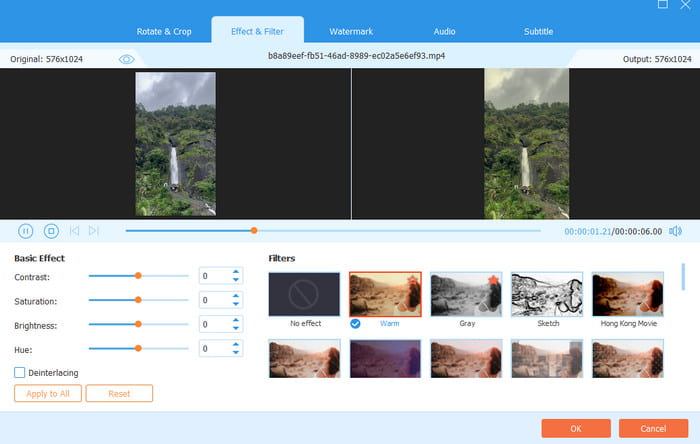
If you want to use LumaFusion on Mac and Windows, you can use Tipard Video Converter Ultimate. This video editor can offer various tools you can use. Some of them are a video speed adjuster, cropper, trimmer, filters, reverser, watermark remover, and more. It is also easy to utilize, thanks to its comprehensive user interface. It can even provide its AI-powered technology to enhance videos effectively.
- The editing process is simple because its UI is easy to understand.
- It can save the edited video in various formats, such as MP4, MOV, MKV, and AVI.
- It can save videos in up to 4 K resolution.
- To access all the features, it's better to use the paid version.
2. Movavi Video Editor
Best for: Beginners and casual video editors who want good-looking edits without a learning curve.
Key Features:
- The drag-and-drop feature is available.
- It can offer timelines, transitions, and title templates.
- It is powered by AI.
Why We Selected It
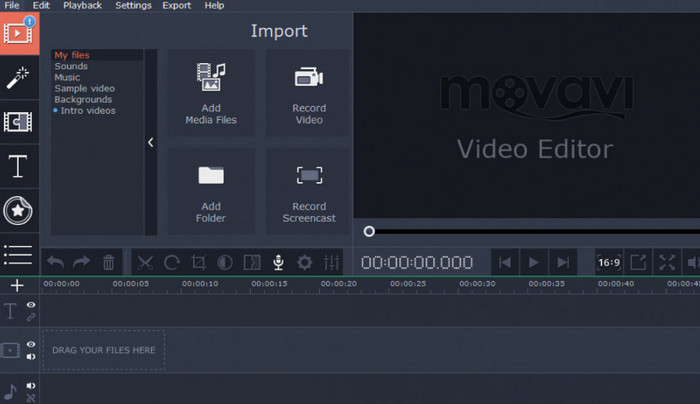
Movavi is an ideal editor if you want to deal with your videos without any trouble. It can even offer ready-made templates, drag-and-drop tools, and AI-assisted features, ensuring you achieve the result you need after editing.
- Its main interface is approachable.
- The rendering process is fast.
- The advanced color grading is limited.
- To remove the Movavi watermark, use its premium version.
3. VideoPad Video Editor
Best for: Hobbyist creators who want a simple multitrack editor for social content.
Key Features:
- It can offer a multitrack timeline, ideal for adding multiple video and audio tracks.
- It provides a library of transitions, text overlays, and visual effects.
- The tool can offer direct export to various platforms, such as Vimeo, YouTube, and more.
Why We Selected It
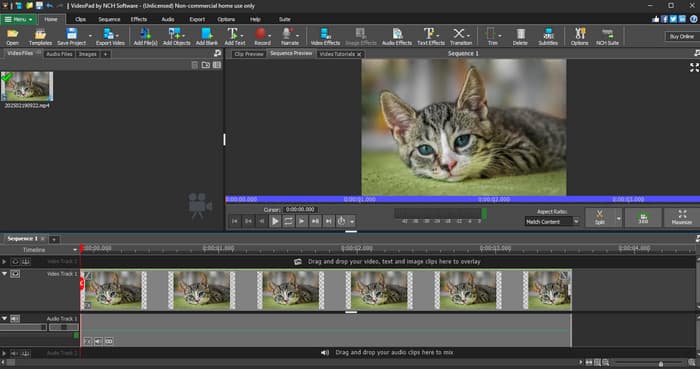
If you need a lightweight video editor to replace LumaFusion, feel free to use VideoPad. This program offers multitrack editing, a transitions library, and decent effects. You can even save the final video with the best output quality.
- It offers many video editing tools, making it one of the best editors for users.
- The licensing is more affordable compared with other programs.
- The main interface might look outdated.
- The free version inserts a watermark into the video.
4. VLC Media Player
Best for: Users who want to edit and play videos instantly.
Key Features:
- It can provide basic video editing tools.
- The software can offer its converter feature to save the video in any format.
- It supports various codecs for smoother playback.
Why We Selected It
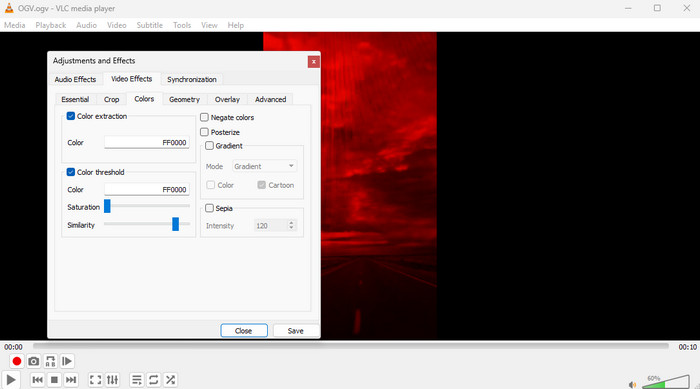
Another LumaFusion for Windows you can use is VLC. This tool is perfect if you are a beginner and want to edit your videos simply. It can offer basic tools, such as cropper, trimmer, merger, effects, filters, and more. What we like here is that after the editing process, you can instantly play and enjoy your videos since it is also an ideal media player.
- The software is 100% free.
- There is no learning curve.
- It is trusted and lightweight.
- The layout of the tool looks outdated.
- There is no timeline section.
5. OpenShot Video Editor
Best for: Budget-conscious content creators who need a cross-platform editor with legitimate multitrack capability.
Key Features:
- It has unlimited tracks for video, audio, and images.
- The drag-and-drop feature is also available.
- It supports various media formats.
Why We Selected It
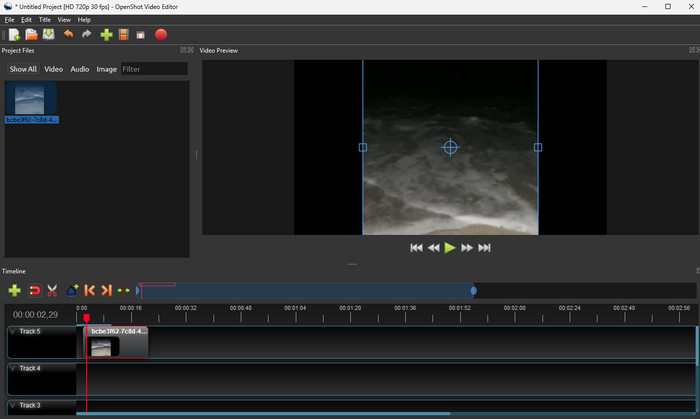
If you need another free and open-source video editor to replace LumaFusion, try OpenShot Video Editor. It is a solid entry point for all users, thanks to its drag-and-drop timeline, basic editing tools, and comprehensive user interface. This lets you achieve the result you want without spending a penny.
- There is no watermark on the edited and saved video.
- It is lightweight, making it suitable even in low-spec computers.
- It can only offer a few built-in effects and templates compared with other video editors.
- The rendering speed is slower.
6. Adobe Premiere Pro
Best for: Professional creators who want to create a professional-grade output.
Key Features:
- It can offer advanced color grading features.
- It has deep integration with various Adobe programs, such as After Effects and Photoshop.
- Supports LumaFusion's FCPXML export.
Why We Selected It
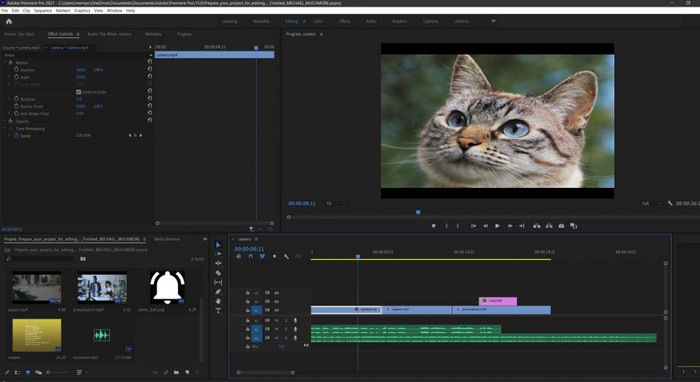
For advanced, skilled users who want to create an excellent video, there is no doubt that Premiere Pro is the best choice. With its powerful color grading feature, you can ensure excellent visuals for a satisfying playback experience. You can even crop, add a caption, insert transitions, and improve the video quality in Premiere Pro.
- It is among the most powerful editors, offering almost all advanced features, and is ideal for professionals.
- It has consistent feature updates.
- It has a steep learning curve and is not ideal for beginners.
- It is not free to use.
7. CapCut
Best for: Short-form content creators who need fast editing and a variety of editing tools.
Key Features:
- The auto-captioning is available.
- It can offer various templates for smoother editing.
- Some of the tools are AI-powered, providing accurate results.
Why We Selected It
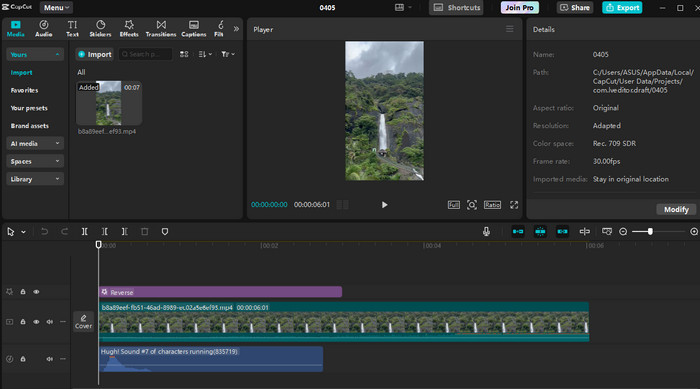
Do you want to edit your videos for posting on various social media platforms? In that case, you can access CapCut. This lets you improve your videos in many ways. You can resize the video, remove the background, add background music, and more.
- The video editor is available on Mac, Windows, iOS, and Android.
- It can offer its free version.
- The tool inserts a watermark into the video when using the free version.
- Use the premium version to save the edited video with the best output quality.
Part 5. FAQs about LumaFusion for Windows
Can I use LumaFusion on Mac?
Unfortunately no. LumaFusion is only available on mobile devices. If you want to edit videos on a Mac, it's best to use a desktop video editor, such as Tipard Video Converter Ultimate. This program is perfect for Mac and Windows. It can even offer all the features you need to achieve your desired result.
Can I use LumaFusion on multiple devices?
You can use the app on your Android and iOS devices. Also, note that you cannot use it natively on Windows or Mac. However, if you want to access the editor on a desktop, you will need to use an Android emulator.
Is there a free trial on LumaFusion?
LumaFusion offers a trial version that lets you test its capabilities. However, for consistent use in your content creation, the paid version is highly recommended.
Conclusion
With these top alternatives to LumaFusion for Windows, you can now create your videos smoothly on your computer. Thus, check them all and use the editor that best meets your needs. Plus, if you want a powerful editor that can give you all the features you need, look no further than Tipard Video Converter Ultimate. This video editor offers basic and advanced editing tools, effective conversion, and support for various formats, making it an ideal, reliable choice for all users.

All-in-one video toolbox: convert, edit, upscale, enhance, and compress your videos easily
100% Clean & Safe
100% Clean & Safe

More Reading

About the Author

 Click here to join the discussion and share your comments
 Tipard Video Converter Ultimate