Key Takeaways:
We evaluated 10 DVD and Blu-ray ripping tools based on audio output quality, supported formats, customization options, ease of use, and conversion performance. Tipard DVD Ripper is the best overall choice for users who prioritize audio quality and flexible settings. VLC is a good free option for standard, unprotected DVDs, while XMedia Recode offers more detailed control over audio channels, chapters, and encoding parameters.
When watching a DVD, you might fall in love with its soundtrack or background music. However, extracting that audio from a DVD disc isn't always straightforward. That is where the MP3 format comes in. As a universally compatible audio format, MP3 plays seamlessly on almost any device, from smartphones to computers. Converting your DVD to MP3 allows you to enjoy your favorite audio anytime, anywhere.
To help you achieve this, we provide three easy ways to convert DVDs to MP3. These methods are simple to follow, even for complete beginners. Let's get started!
Part 1. Can You Convert DVD to MP3
Absolutely! Converting DVDs to MP3 is a quick and straightforward process when using the right tools. A DVD contains both video and audio streams. If you only want the audio, such as a movie soundtrack or a live concert recording, extracting it to MP3 offers several distinct advantages:
- Customizable Audio Quality: Converting a DVD to MP3 allows you to adjust the audio settings. You can choose higher bitrates and sample rates to ensure the best possible sound clarity.
- Maximum Portability: MP3 files are lightweight and easy to transfer. Once converted, you can quickly move them to your phone or portable media player for offline listening on the go.
- Significant Space-Saving: MP3 files occupy a fraction of the storage space compared to massive DVD video files. If you don't need the visuals, switching to MP3 saves gigabytes of hard drive space.
- Universal Convenience: The MP3 format is supported by virtually every device, including smartphones, PCs, Macs, and legacy MP3 players. It completely eliminates the hassle of dealing with physical discs or heavy video containers.
What Is the Best MP3 Setting for DVD Audio?
We mentioned that you can choose higher bitrates and sample rates, but what kbps and other parameters should you choose? You can check the table below.
| Setting | Recommended Value | Best For |
|---|---|---|
| Bitrate | 256–320 kbps | High-quality music and movie audio |
| Sample Rate | 44.1 or 48 kHz | Preserving the source's typical audio sampling rate |
| Channels | Stereo | Most music and movie soundtracks |
| Format | MP3 | Maximum compatibility |
| Encoder | High-quality MP3 encoder | Better quality at the same bitrate |
Part 2. How to Convert DVD to MP3 with the Best Audio Quality
Extracting DVDs to MP3 files with pristine audio quality is simple with Tipard DVD Ripper. This software streamlines the ripping process while ensuring reliable sound output. It offers tailored audio profiles, allowing you to fine-tune essential settings like channels, sample rates, and bitrates to match your exact playback requirements.
Tipard DVD Ripper goes far beyond MP3 extraction. It supports over 500 video and audio formats, including MP4, MOV, and AAC. More importantly, it features an advanced decryption engine that bypasses legacy and modern copy protections, allowing you to rip most DVDs. Whether you want high-fidelity audio or a reliable way to digitize your disc collection, Tipard DVD Ripper offers everything you need in a user-friendly package.
- Best for: Converting encrypted DVDs to MP3 with 320 kbps.
- Rating: 4.8/5

- Rip DVDs to multiple high-quality MP3 presets effortlessly.
- Organize your media library by updating metadata titles, artists, and genres.
- Batch convert DVD to MP3 files with 30× faster utilizing advanced hardware acceleration technology.
- Preserve original DVD quality with full content and structural preservation.
Step 1 Load DVD
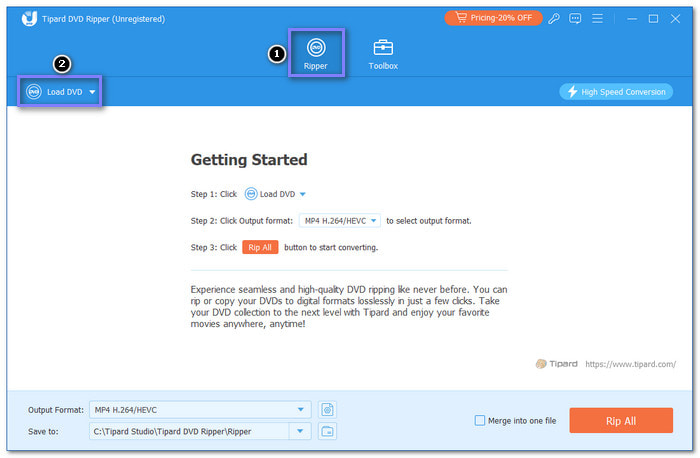
Connect your DVD drive to your computer and insert the DVD you want to rip
Launch Tipard DVD Ripper and click the Load DVD button to import the disc from your drive.
Step 2 Select Your Titles
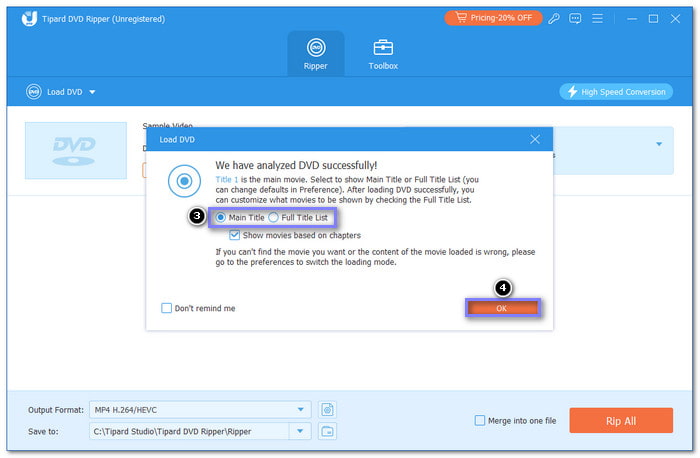
Once loaded, the software will automatically detect and select the Main Title for you. If you want to extract audio from bonus tracks or other segments, click Full Title List to select additional chapters or titles from the pop-up window.
Step 3 Choose MP3 High Quality
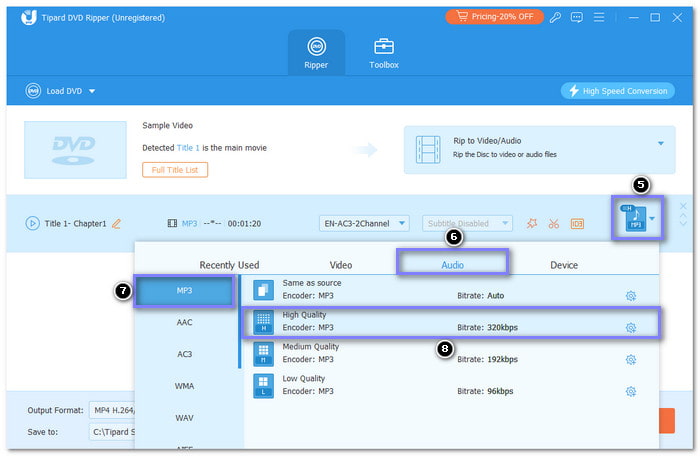
Click the Format drop-down menu in the top-right corner. Navigate to the Audio tab and select MP3 (located at the top of the list). For enhanced clarity, choose the High Quality preset next to the format.
Step 4 Customize Audio Parameters
For further optimization, click the Custom Profile (gear icon) button. Here, you can manually adjust the Channel (e.g., Stereo), Sample Rate, or Bitrate (up to 320 kbps). Click Create New to save your custom profile.
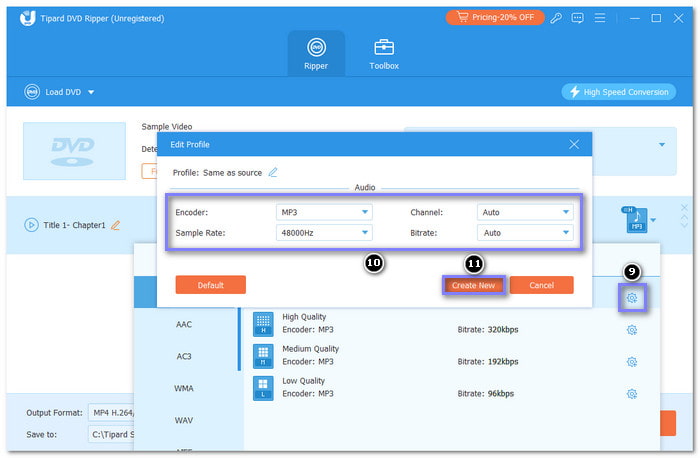
320 kbps is the highest bitrate commonly available for MP3. If you want the highest-quality MP3 output, choose 320 kbps as the bitrate.
Step 5 Select Destination and Rip DVD to MP3
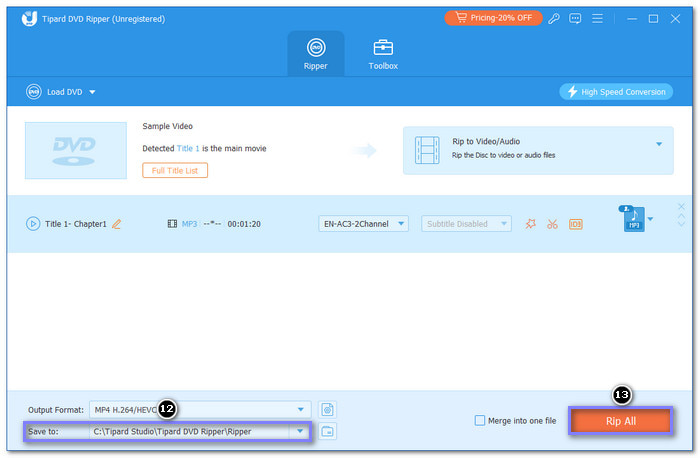
Open the Save to drop-down menu at the bottom to browse and select the destination folder for your converted files. Finally, click the Rip All button to initiate the conversion. Your high-quality MP3s will be ready in the target folder shortly.
Part 3. How to Convert DVD to MP3 in VLC Media Player
Available for both Windows and macOS, VLC is a free, open-source media player packed with versatile converting features. Beyond playing almost any media file extension, it allows you to extract audio from DVDs directly.
VLC works best with unprotected DVDs. Commercial DVDs may use copy protection or disc structures that VLC cannot reliably process for conversion.
- Best for: Ripping non-protected and standard DVDs.
- Rating: 3/5
Step 1 Open VLC Media Player on your computer.
Step 2 Head to the Media menu and select Open DVD Disc. Choose the DVD menu and click Play. Then, go to the Playback menu at the top, select the Title option, and pick the title and chapter you want to rip.
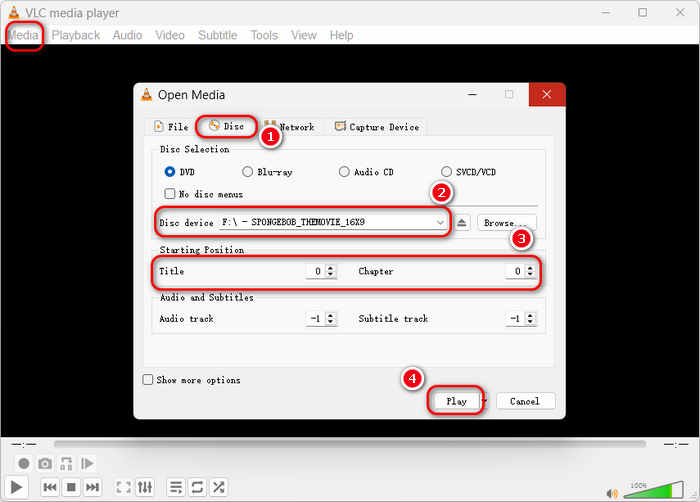
Step 3 Click on the Media menu again, then choose Convert/Save. In the Open Media window, go to the Disc tab, select DVD content, and click the Convert/Save to move to the next window.
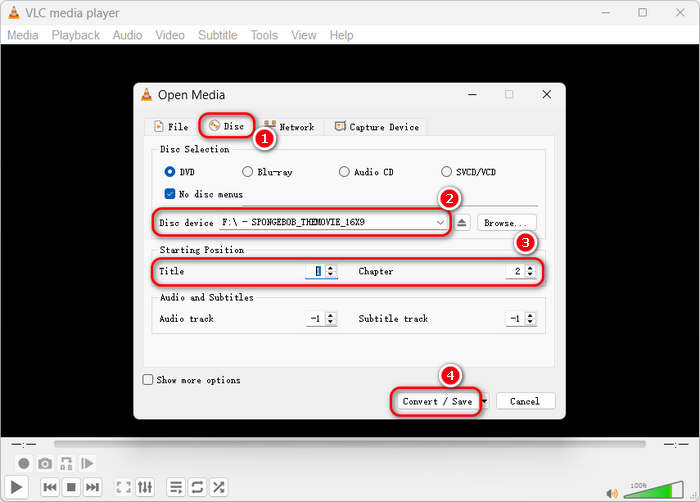
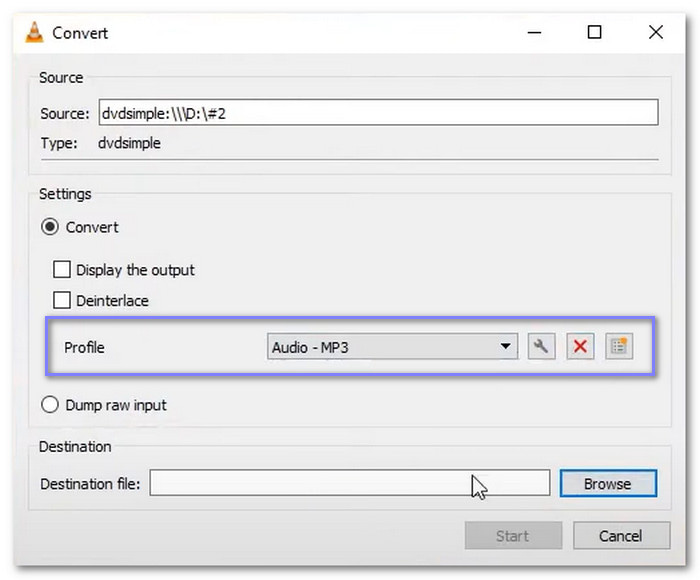
Step 4 In the conversion window, open the Profile drop-down menu and opt for MP3 as the output format. Before continuing, click Browse to choose where to save the converted file.
Step 5 Finally, click Start to begin converting DVD to MP3 format.
Part 4. Convert DVD Video to MP3 in Xmedia Recode
XMedia Recode is a powerful, free audio/video transcoder for Windows, though it remains a hidden gem to the general public. When ripping DVDs to MP3, XMedia Recode maps out all titles and chapters clearly, making it easy to isolate specific tracks. It also provides a detailed progress bar displaying real-time file sizes and time-to-completion.
However, because it is designed for technical users, its interface features confusing dialog boxes and complex parameter tabs. Additionally, it lacks native support for heavily encrypted DVDs and can be relatively slow during certain conversion tasks.
- Best for: Convert DVDs with easy audio track management.
- Rating: 4/5
Step 1 Open XMedia Recode and click the Open Disc button on the toolbar. Select your DVD drive or folder and click Open to load the data.
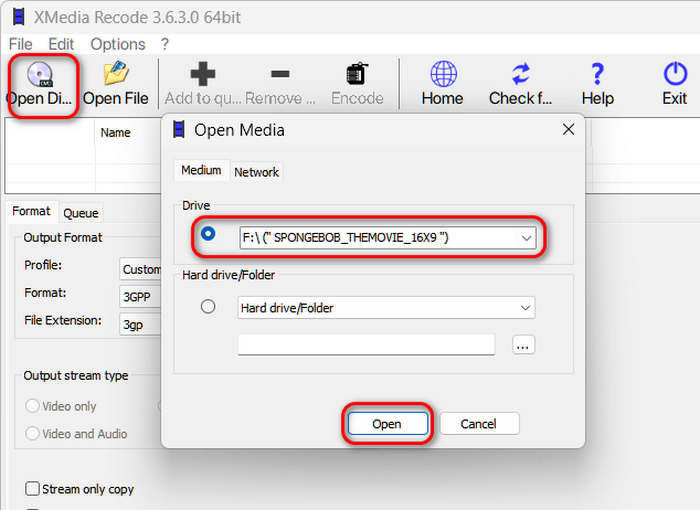
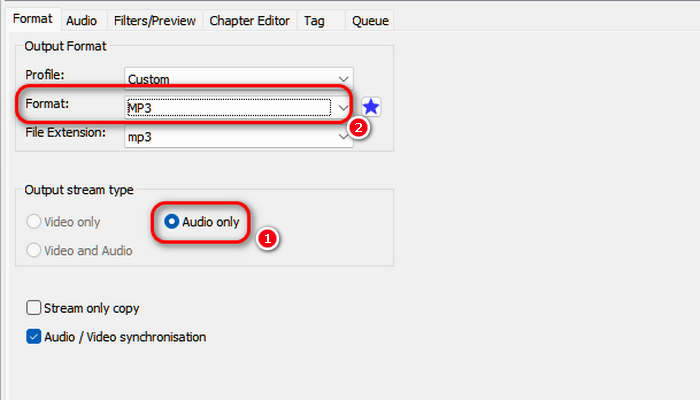
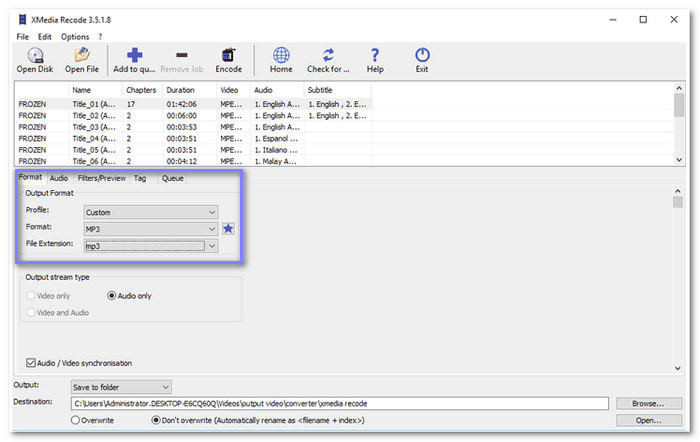
Step 2 In the Format tab, look for the Output Stream Type option and select Audio Only. This tells the program to completely ignore the video track and focus on extracting audio.
Step 3 Under the Output Format panel, set the Format to MP3 and ensure the file extension is set to .mp3. You can navigate to the Audio tab to adjust the bitrate or normalize the volume if needed.
Step 4 Click the Browse button at the bottom to choose an output folder. Next, click the Add to queue (plus icon) button on the top toolbar to queue the task. Finally, hit the Encode button to start converting your DVD to MP3.
Part 5. FAQs of DVD to MP3 Conversion
Which is the fastest MP3 converter?
The fastest MP3 converter should have the strongest hardware acceleration capabilities. Tipard DVD Ripper is the fastest DVD to MP3 converter and Tipard Video Converter Ultimate is the fastest video/audio to MP3 converter. They can support full GPU acceleration from NVIDIA, AMD, Intel, and Apple Silicon.
How to rip a CD to MP3 for free?
You can use VLC Media Player to rip CDs to MP3 for free. Insert the CD into your computer's disc drive. Launch VLC Media Player. Click Media in the top menu bar and select Convert / Save. Switch to the Disc tab, check the Audio CD option, and click the Convert / Save button at the bottom. In the Profile drop-down menu under settings, select Audio - MP3. Click Browse to choose where to save your tracks, then click Start to begin the extraction.
Is there a free MP3 converter?
VLC Media Player is a free MP3 converter. It can convert video/audio and physical media, like DVDs and Blu-rays to MP3. VLC can also convert MP3 to other audio formats.
Conclusion
Tipard DVD Ripper, VLC, and XMedia Recode are all excellent solutions for converting DVDs to MP3. You can choose the one that best aligns with your workflow and technical comfort level.
Among these options, Tipard DVD Ripper comes highly recommended. Unlike free alternatives that fail when encountering digital rights management, Tipard seamlessly handles encrypted commercial DVDs. Combined with its blazing-fast hardware acceleration and extensive audio output profiles, it is the ultimate tool for digitizing your physical media collection. Download and install it today to experience the difference!
More Reading
About the Author