

Key Takeaways:
Ripping 3D Blu-rays requires specialized software to maintain depth and quality. For those looking to preserve the original 3D video (MVC codec) and full disc structure, Tipard Blu-ray Converter is the premier choice. For quick and direct 1:1 copies, CloneBD is a reliable alternative, while DumboFab excels at converting 3D Blu-rays into accessible formats like Side-by-Side (SBS) or Top-and-Bottom (TAB). Since complex copy protections often hinder the process, Tipard offers a seamless, one-click solution to bypass these restrictions effortlessly.
People love 3D Blu-ray movies for their stunning picture quality and the feeling of being in the movie. However, watching them without the appropriate gadgets can be quite challenging. This can be solved by a 3D Blu-ray ripper that will help you convert 3D Blu-ray movies into formats that can be played on any device.
Today, we will recommend the best 3D Blu-ray rippers to you. These tools are effective, user-friendly, and perfect for ripping 3D Blu-ray discs. We will also guide you on how to use one of them to rip 3D Blu-ray into 3D MP4 format so that you can watch your movies anytime and any place!

Part 1. Side-by-Side Comparison of the 3 3D Blu-ray Players
Before we dive into the detailed review of the top 3D Blu-ray rippers, let's take a quick look at how they compare in terms of key features. This will help you understand their strengths and weaknesses at a glance.
| Key Features | Tipard Blu-ray Converter | DumboFab Blu-ray Ripper | CloneBD |
|---|---|---|---|
| Decryption | Industry-Leading: Built-in support for AACS, BD+, Region Codes, and the latest 2026 protection schemes. | Robust: Supports most commercial discs. | Limited: Requires third-party tools like AnyDVD HD for encrypted discs. |
| Format Support | Universal: 500+ profiles including 4K/8K MKV, MP4, HEVC, ProRes, and 3D MVC Modes. | Standard: Covers mainstream formats but lacks specialized device optimization. | Good: Focused on MKV/MP4; limited support for niche mobile formats. |
| Ripping Speed | 30X Ultra-Fast: Full hardware acceleration for NVIDIA NVENC, Intel QSV, and AMD. | High: Reliable speed, though batch processing is less optimized. | Moderate: Excellent for structural copies; slower for heavy transcoding. |
| Output Quality | Pro-Grade: 1:1 lossless backup with AI-driven 4K upscaling capabilities. | Average: Basic transcoding; noticeable detail loss at high compression. | Excellent: Maintains high fidelity, especially for 3D structures. |
| User Interface | Modern: Minimalist Apple-style aesthetic. Highly intuitive and SEO-professional ready. | Legacy: Outdated design reminiscent of Windows 7; cluttered navigation. | Functional: Complex menu layers; steeper learning curve for beginners. |
Part 2. Master Review of the Top 3 Blu-ray Rippers
This section will share the top 3 best 3D Blu-ray rippers. Each of these tools is powerful, reliable, and simple to use. Let us explore them!
1. Tipard Blu-ray Converter
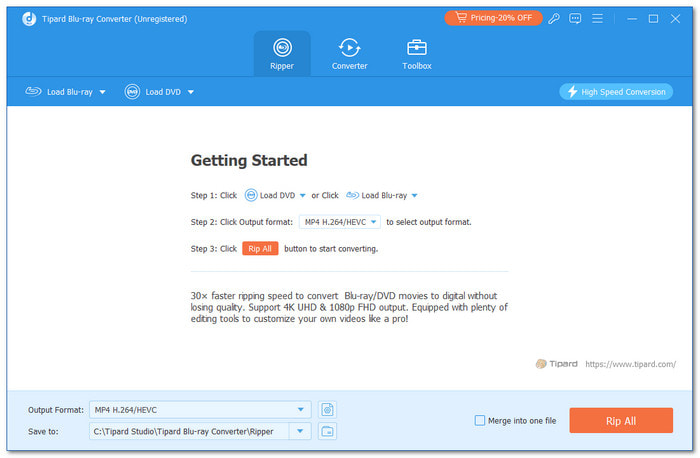
The best 3D Blu-ray rippers easily convert protected or unprotected 3D Blu-ray discs into various formats. It keeps the original clarity and offers options to edit your videos. Plus, it lets you enjoy your favorite 3D movies on different devices without hassle. Did you know that Tipard Blu-ray Converter checks all the qualifications?
Key Features of Tipard Blu-ray Converter:
- Rip copy-protected Blu-rays and DVDs, including 3D Blu-rays and 4K Blu-rays.
- Rip 3D Blu-rays to lossless MKV, keeping the original MVC video and 3D structure.
- Support full hardware acceleration to quickly rip 3D Blu-rays with low CPU usage.
- Rip Blu-rays and DVDs with subtitles, audio tracks, and chapter information.
- Support batch conversion and high-quality video upscaling.
Tipard Blu-ray Converter can easily decrypt and convert protected 3D Blu-rays into various formats without losing clarity. You can turn 3D Blu-ray movies into formats like MP4, MKV, AVI, and more. With multiple 3D video output choices, you can select formats like 3D Red-Blue or 3D Left-Right. With up to 30X faster speed and full-quality conversion, it uses this technology to ensure a quick and smooth experience.
- Easy workflow and simple interface.
- Support fast 3D Blu-ray ripping at 30× faster speed.
- Deal with commercial, homemade, and customized 3D Blu-rays.
- Handle all Blu-ray and DVD region codes and encryptions.
- Provide practical video editing features and AI enhancement features.
- The interface can be more fashionable.
2. DumboFab Blu-ray Ripper
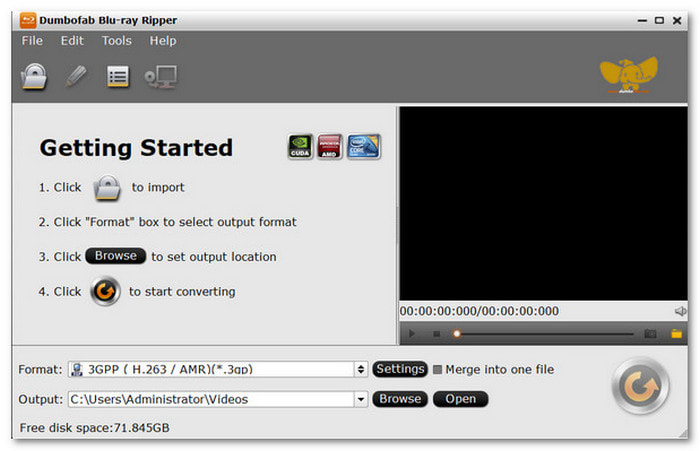
With an easy-to-use interface, DumboFab Blu-ray Ripper makes the whole ripping process fast and simple. It uses the latest technology to convert 3D Blu-rays into popular formats like MP4, HEVC, and MKV. In addition, you can export subtitles straight from your 3D Blu-ray files. This feature adds convenience if you want to watch with subtitles.
However, there is a need to redesign the interface since it seems outdated to some users. Nevertheless, DumboFab Blu-ray Ripper is still a good option for those who want to rip 3D Blu-ray movies at high speed.
Key Features of Tipard Blu-ray Converter:
- Integrate a powerful decryption engine.
- Support a broad range of output formats including HEVC, MP4, MKV, and multi-track audio options.
- Convert 2D or 3D Blu-rays to SBS OR TAB formats.
- Offer a built-in video editor with trimming and cropping tools.
- Natively rip copy-protected discs.
- Support hardware acceleration to speed up the transcoding.
- The interface is too outdated.
- Lack of AI upscaling feature.
3. CloneBD
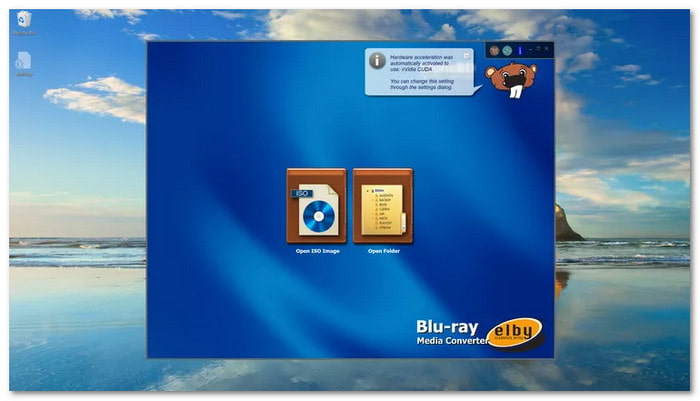
CloneBD lets you rip unprotected 3D Blu-ray movies to your hard drive or burn them to blank Blu-ray discs. It can rip regions A, B, and C 3D Blu-rays into the MKV format using the advanced H.265/HEVC compression standard. It supports hardware acceleration for a fast ripping process like the Tipard Blu-ray Converter and DumboFab Blu-ray Ripper.
However, this program has some disadvantages, even though it is efficient and easy to use. It cannot work with encrypted Blu-ray discs; it only supports unprotected ones. In addition, the free version adds a watermark to the output video. Despite these, CloneBD is a reliable 3D Blu-ray ripper for cloning and ripping unprotected 3D Blu-ray discs.
Key Features of Tipard Blu-ray Converter:
- Provide native supports for MVC codec.
- Compress large 3D Blu-rays (BD-50) to smaller formats, like BD-25.
- offer a feature-rich preview feature.
- Support creating 1:1 ISO copies.
- Excel at lossless 3D ripping.
- The processing engine is highly stable and specifically optimized for the complex file structures found in 3D Blu-ray discs.
- Cannot rip copy-protected 3D blu-rays.
- The trial version has a watermark after ripping.
Part 3. How to Rip 3D Blu-ray to 3D MP4
Do you want to learn how to rip 3D Blu-ray to 3D MP4 using Tipard Blu-ray Converter? This program is fast, easy to use, and does not blur your movies. It makes it easy to convert 3D Blu-ray movies to be played on any other device. Here is the step-by-step process to get started:
Step 1 The first step that you have to take is to download the Tipard Blu-ray Converter and install it on your computer. Once installed, open the program and insert your 3D Blu-ray disc into your computer's drive.
Step 2 Look for the Load Blu-ray button at the top left corner of the screen and click it to load the 3D Blu-ray movie. The Main Title will be selected automatically when the disc is loaded. Select the Full Title List option to rip specific chapters from your Blu-ray movie.
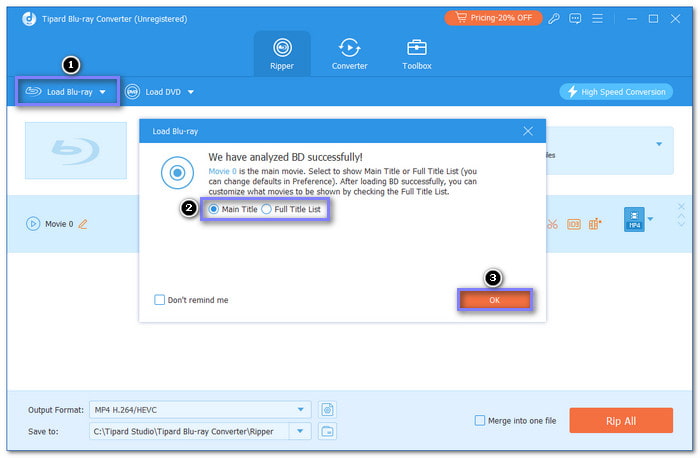
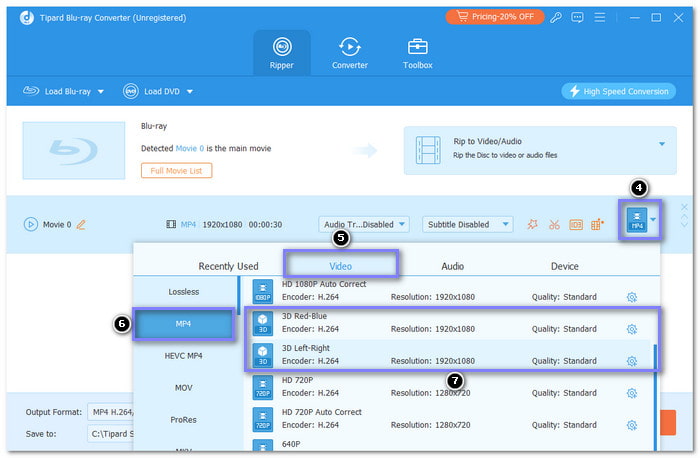
Step 3 Head to Output Format at bottom left and click on the drop-down list. Under the Video tab, select MP4 format, and choose whether 3D Red-Blue or 3D Left-Right. You can also choose other video format and select a 3D preset.
Note: Red-Blue 3D employs color filters with red-blue glasses, while Left-Right 3D employs side-by-side perspectives for 3D viewing in compatible 3D gadgets.
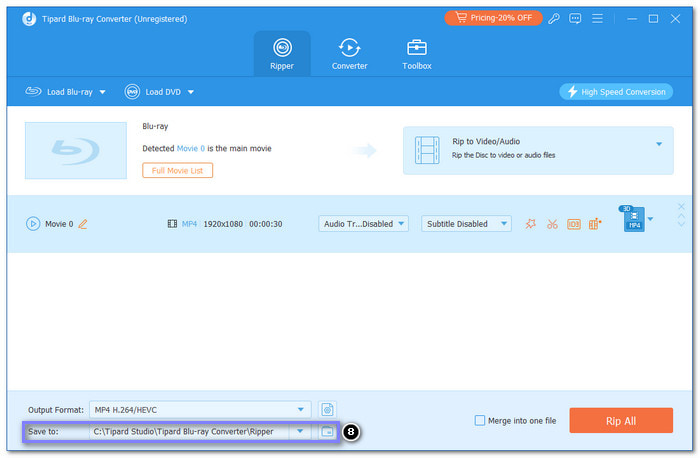
Step 4 Click the Browse button to select a directory on your hard drive where the converted 3D video will be stored. Ensure the destination drive has enough space to accommodate all the data from a full Blu-ray disc.
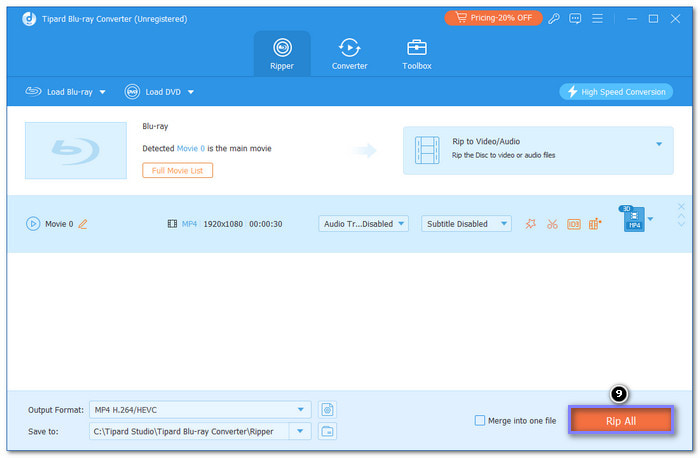
Step 5 To achieve the above result, press the Rip All button to rip the 3D Blu-ray into a 3D MP4 video. Wait until the program completes its job, and you will get your 3D MP4 output.
Part 4. How to Watch 3D Blu-ray Movies
There are different ways to watch 3D Blu-ray movies depending on your device. Here is how you can do it:
1. Using 3D TVs
To watch 3D Blu-ray movies on a 3D TV, ensure your television supports 3D Blu-ray. Some recommended models include the LG OLED65E6P, Sony XBR-HX950, Samsung UN55F8000, or Panasonic TX-P65VT50. Next, connect the HDMI cable to the 3D Blu-ray player and connect the other end to the TV. Insert the 3D Blu-ray disc into the player and wear the 3D glasses compatible with your TV set. Last of all, watch the movie and feel the difference on the larger screen.
2. Using VR Headsets
To watch 3D Blu-ray movies with a VR headset, you need to use a headset that supports 3D movies, such as Meta Quest 2, HTC Vive Pro, PlayStation VR, or Pimax 8K X. You can transfer the 3D Blu-ray movie to your headset or watch it using applications like Bigscreen VR. Start the movie in your VR application and select the 3D viewing mode. Lastly, put on your headset for a 3D view of the whole thing.
3. Using Computers with 3D Displays
To watch 3D Blu-ray movies on a computer, select a model that supports 3D, for example, Asus Rog G752vs, Dell Alienware 17 R5, HP Envy 17 3D, or MSI GT72 Dominator Pro. Ensure your computer has a Blu-ray drive, and download a 3D Blu-ray player software. Place the 3D Blu-ray disc into the drive, start the program, and turn on the 3D option. Put on the 3D glasses and begin the movie to watch it.
Part 5. FAQs of 3D Blu-ray Ripper
Why did 3D Blu-ray fail?
3D Blu-ray failed primarily due to the physical and financial friction it imposed on the casual viewer. The requirement for expensive, cumbersome, and often incompatible glasses made home viewing socially isolating and physically tiring, while the process significantly dimmed the screen’s brightness. As the industry pivoted toward 4K and HDR, which offered a massive boost in clarity and color without the need for accessories, manufacturers phased out 3D panels entirely by 2017 to prioritize these more accessible, high-fidelity standards.
Are 3D TVs coming back?
3D TVs are not returning to the living room in their original format, as manufacturers have permanently shifted their focus toward 4K, 8K, and high-peak-brightness OLEDs. Instead, the technology is evolving into a niche market through glasses-free (autostereoscopic) monitors for gaming and professional design, and "spatial computing" headsets like the Apple Vision Pro. These modern solutions solve the previous issues of brightness loss and cumbersome eyewear, but because they are tailored for personal or professional use, the era of the communal 3D television set is effectively over.
What hardware do I need to rip 3D Blu-rays?
You need a Blu-ray drive that is "friendly" to decryption. While most standard external Blu-ray drives can read the data, some enthusiasts prefer "LibreDrive" compatible firmware (often found in LG or ASUS drives) to bypass newer protection layers without hardware restrictions.
Conclusion
Today, we introduced the three best 3D Blu-ray rippers and described what they can do. If you want to watch your favorite 3D Blu-ray movies on different devices and formats, the Tipard Blu-ray Converter is the perfect solution. Because of the fast conversion speed and simple interface, it is one of the most suitable programs for beginners and professionals.
More Reading


About the Author


 Tipard Blu-ray Converter