Master Making Audio in Reverse Under One Minute or Less
Following the norm of cutting and trimming audio files can sometimes be boring. As long as you have achieved that clean and pleasant sound, that's it and no more. But what if we tell you that you can spice things up? To do that, you can apply the reverse audio technique in your next audio editing task. You just have to spark your creativity and lay it perfectly to your desired media file to sound eerie. In this post, you will learn how to make reverse audio in less than one minute.

Part 1: The Easiest Way to Reverse Video Keeping High-Quality
Let us revisit first how to reverse videos and proceed to audio reversing. Tipard Video Converter Ultimate is an impressive video editing tool that stands out for its user-friendly interface and rich features. Whether you are a seasoned content creator or a beginner, the program will help you achieve your desired output. Its features include essential editing tools, like reversing videos, trimming, merging, and adding music, alongside various effects and filters to enhance video quality. Here are the steps on how to reverse videos using Tipard Video Converter Ultimate.
Step 1Download and install the app
First and foremost, download the app's installer using the Free Download buttons below. Depending on your computer's OS, you may choose between the Windows or macOS installer. Launch the program afterward.
Step 2Access Video Reverser
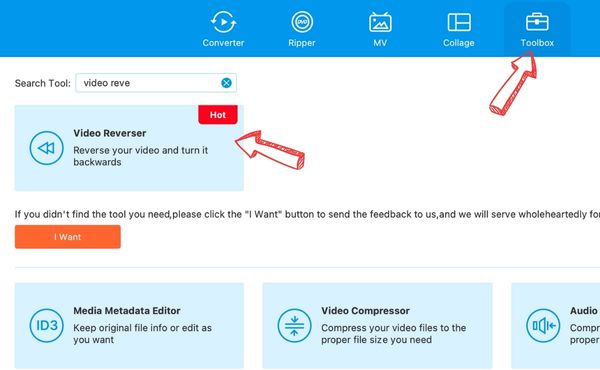
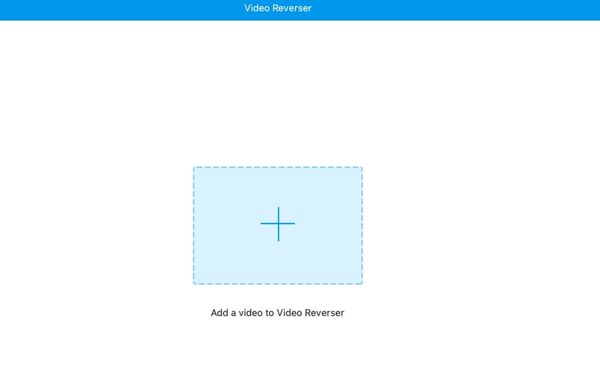
Next, go to the Toolbox tab and look for the Video Reverser option. Alternatively, you can use the search bar to look for the option instantly.
Step 3Add a video to reverse
This time, click the Plus sign button that appears after launching the Video Reverser option. After that, locate and insert the video you wish to insert. You should see the editor for reversing videos once the video is uploaded.
Step 4Reverse the video and export
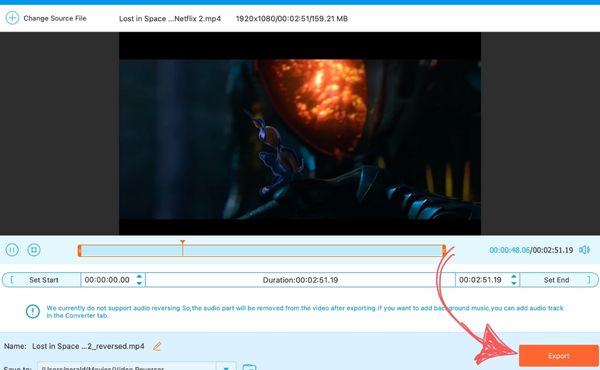
Before reversing the video, you may decide to remove the unwanted beginning part. Once decided, click the Export button at the bottom to reverse.
Part 2: How to Reverse Audio in Audacity
For a powerful, open-source audio editing software, Audacity is the choice. One of the standout capabilities of this program is its ability to reverse audio which is a fun and innovative option for audio enthusiasts. With this feature, you can play sounds backward, opening up endless possibilities and creating unique sound effects for creativity and experimentation. Audacity offers a quick and straightforward process for anyone interested in sound design. Additionally, the interface is intuitive, allowing beginners to navigate the tool without confusion. Explore new dimensions in your sound project by following the steps to reverse audio with Audacity.
Step 1Install and open Audacity
First, download the program from its official website and install the app. After that, launch the program on your computer.
Step 2Import audio file
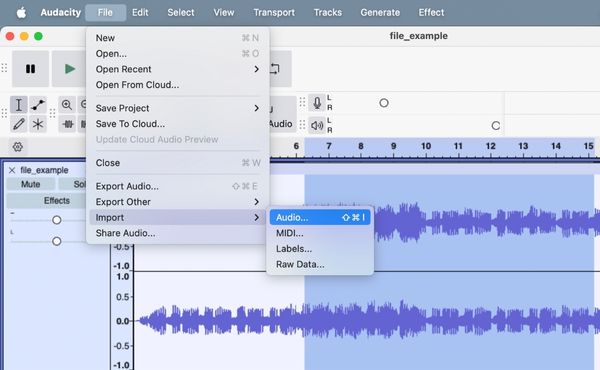
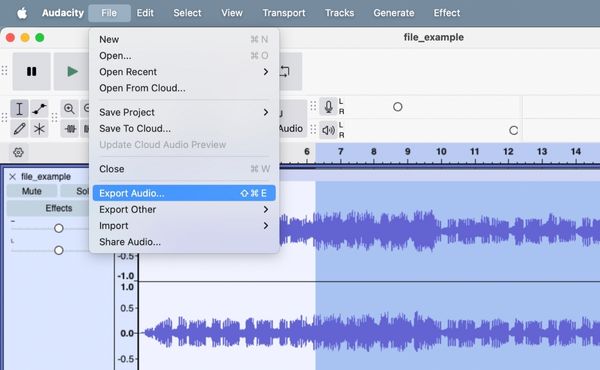
Once the program is launched, you will see a menu at the top interface. Click on File > Import > Audio… to add audio to the app. When the upload is complete, highlight the section of audio you wish to reverse or reverse the entire track by pressing Ctrl + A or Command + A (for Mac) to highlight all.
Step 3Reverse Audio
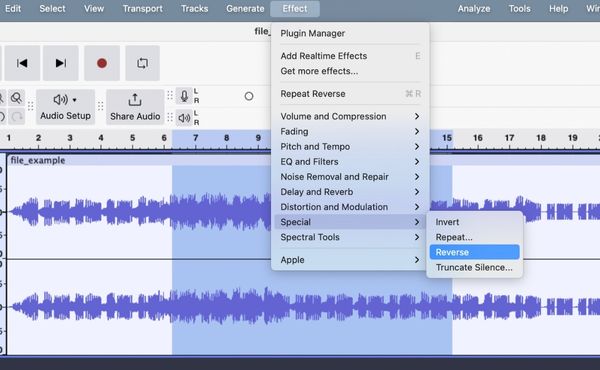
Now, look for the Effect option on the top menu. Click on it, and a menu will appear. Choose Special > Reverse. After that, play the audio to listen to the changes.
Step 4Export the audio file
If you are happy with the results, go to File > Export Audio and choose the location where you wish to save the reversed audio.
Part 3: 3 Ways to Reverse Audio Online
You may opt for online audio reversers for no-download ways to reverse audio files. We have gathered some effective online tools to help you.
1. TwistedWave
TwistedWave is an excellent online audio editor that offers a wide range of features and an intuitive interface. The best thing about this program is that it maximizes the gestures in your mouse. You can use your scroll wheel to zoom in and out of the audio track with ease. This helps with imprecision issues to get accurate results when editing. Additionally, it separates the interface for uploading and editing, helping users to concentrate and focus on the tools for editing. Its effects include amplify, fade in, fade out, reverse, silence, graphic EQ, and many more. Take a look below to see how this tool works to reverse audio effects and sound.
Step 1Open any browser on your computer and visit TwistedWave. From the homepage, you will see the upload options that appear in green buttons. Choose the option that best suits your needs for importing audio.
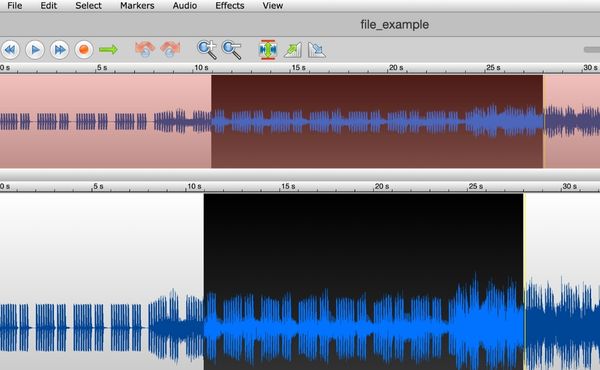
Step 2You will see a duplicate of your audio and the original one on the editing interface. Each track offers editing accessibility that fits your needs.
Step 3Now select the part to reverse by highlighting the duplicate copy and click on Effect > Reverse.
2. Soundation
Bear Audio Tool is not your typical audio reverser. It gives you that professional-grade look and feel. It is worth noting that the options are in small buttons which gives more space for editing. Here is how to use this program.
Step 1Go to Bear Audio Tool and click on Import to add an audio file.
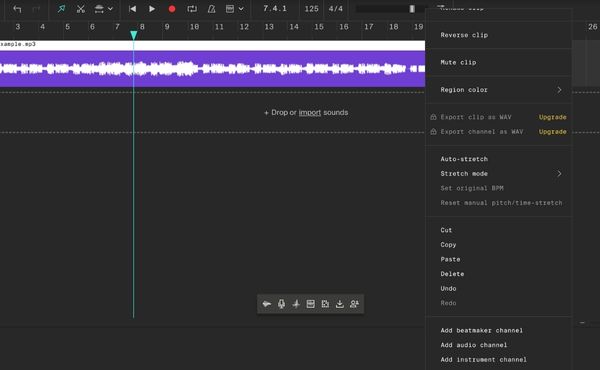
Step 2Once done, you will see the audio track in purple color. Now, right-click on the track to see the editing options.
Step 3From the menu, choose Reverse Clip and listen to the reverse audio. After that, right-click on the track once more and choose the Export option to download the output.
3. AudioEditor.io
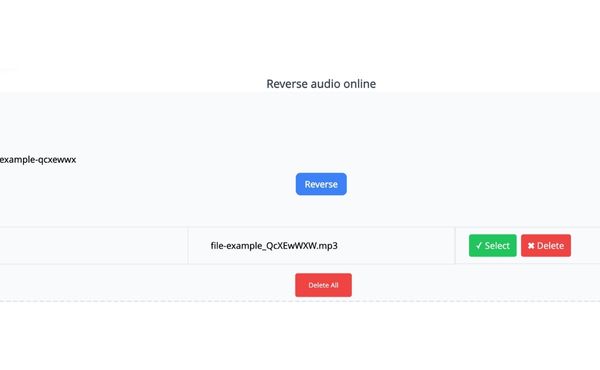
If you are into a straightforward process, AudioEditor.io is for you. From its interface, you will already see that it has no concerns except reversing audio files. You will not see additional options, like what is usually seen in other programs. Nevertheless, it is effective for reversing audio files.
Step 1Visit Audio Editor on your browser and click the Choose button to upload an audio file.
Step 2Now, choose the Select button and hit the Reverse button. Then, you will be able to listen to the reversed audio after the process.
Step 3Click on Download to get the output.
Further Reading:
How to Easily Reverse GIFs Offline, Online, and on Phone
How to Play A Video In Reverse Easily [Basic Steps]
Conclusion
You can now play audio in reverse using the above tools to create fun and unique music. You can choose between offline and online options. Meanwhile, you might have plans to reverse a video. That is where Tipard Video Converter Ultimate comes into play.