

VLC, originally known as VideoLAN Client, is a free and open-source multimedia player. It is popular around the world due to its free price, across platforms, and high compatibility. It is currently available on Windows, macOS, Linux, Android, and iOS. However, as with other freeware, users may encounter various errors, such as audio delays. This guide explains how to fix the VLC video that has delayed audio on your computer and mobile device.

Part 1: Why Is VLC Audio Delayed
VLC Media Player audio delay means the audio track plays out of sync with the video, too early, or too late. Many VLC users have encountered the problem. The main causes why VLC audio goes out of sync include:
- 1. Audio and video tracks have different timestamps.
- 2. Hardware acceleration.
- 3. Improper audio settings in VLC.
- 4. Media file is incomplete or damaged.
Part 2: How to Adjust Audio Delay in VLC on Windows, Mac, and Linux
Way 1: How to Adjust Audio Delay in VLC with Shortcuts
The easiest way to fix audio delay in VLC is through the shortcuts. By default, you can press the right key on your keyboard to slow down or speed up the audio track. Open the video file in VLC and start playing it. If the audio appears before the image, keep pressing the K key until they match. If the audio sounds after the image, keep pressing the J key until they match. You can see the indication in the top-right corner.
Way 2: How to Adjust Audio Delay in VLC with Audio Synchronization
VLC integrates lots of custom options, including the Audio track synchronization option on the Adjustments and Effects panel. It allows you to adjust the audio delay in VLC Media Player manually.
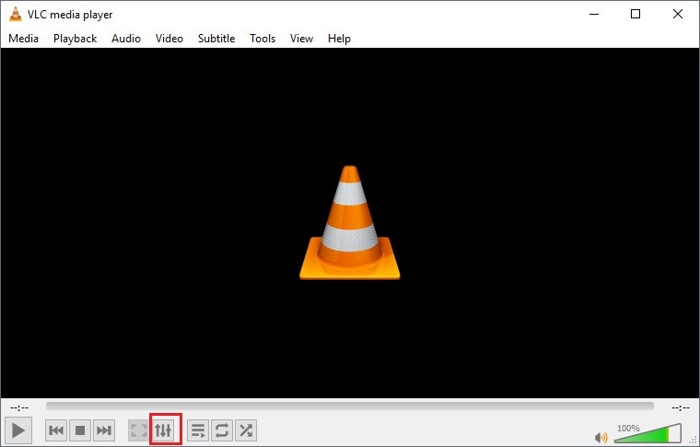
Step 1 When playing a video, click the Show extended settings button at the bottom.
Or choose Effects and Filters from the Tools menu.
Step 2 Go to the Synchronization tab on the Adjustments and Effects dialog.
Step 3 Then, set the delay value in seconds.
If the audio is before the video by 5 seconds, enter 5. If the audio is 5 seconds after the
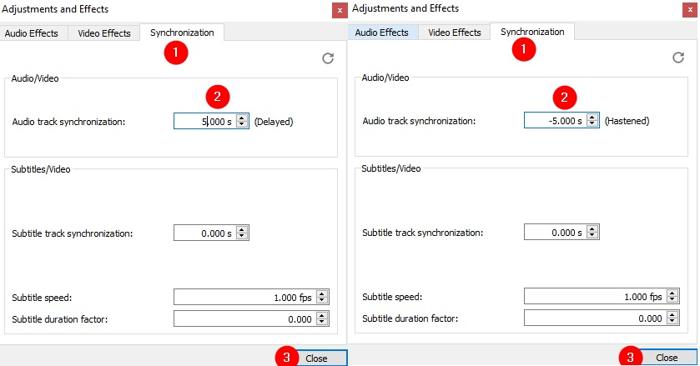
Step 4 Click the Close button to confirm it.
Step 5 Play the video to check if the audio is synced to the image.
You can adjust the synchronization and check it repeatedly.
Way 3: How to Adjust Audio Delay in VLC via Preferences
Another way to fix audio and video out of sync in VLC is to use the Audio desynchronization compensation option. That can remove the delay permanently if you need to play the video frequently.
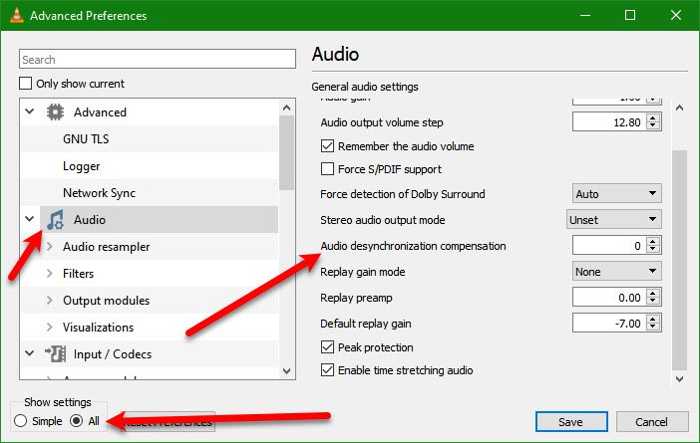
Step 1 When you play a video in VLC with audio delay, click the Tools menu at the top of the menu bar.
Step 2 Choose Preferences to open the Advanced Preferences dialog.
Step 3 Select All in the Show settings section at the bottom left side.
Step 4 Next, click the Audio entry in the left panel to show all settings.
Step 5 Scroll down in the right panel and locate the Audio desynchronization compensation option.
Step 6 Then set a positive or negative value based on the audio delay.
Way 4: How to Fix Audio Delay in VLC by Disabling Hardware Acceleration
If you encounter a VLC Media Player audio delay when playing any video, you’d better disable hardware-accelerated decoding. As a result, VLC may become slower. For instance, it takes longer to load a video.
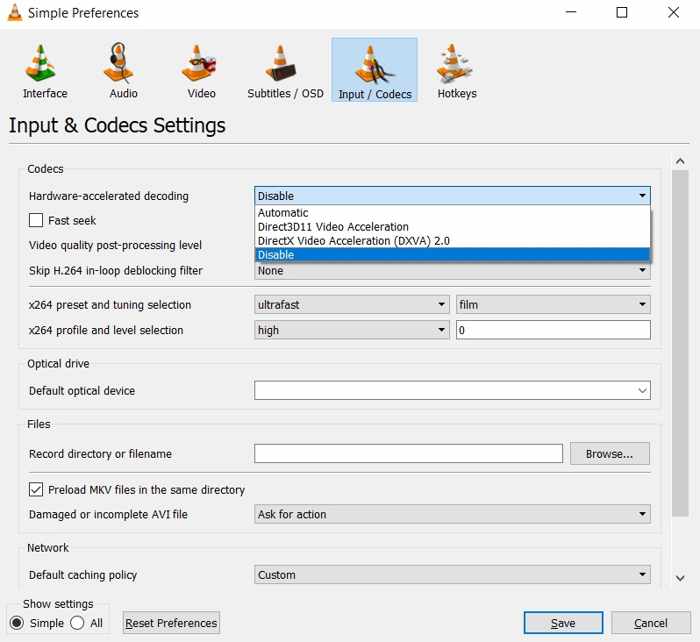
Step 1 Go to the Tools menu in your VLC.
Step 2 Choose Preferences to open the Preferences dialog.
Step 3 Make sure to select Simple in the Show settings section.
Step 4 Switch to the Input/Codecs tab.
Step 5 Click the Hardware-accelerated decoding option and choose Disable.
Step 6 Click the Save button.
Part 3: How to Adjust Audio Delay in VLC on Android
Some people reported the audio delay in VLC for Android. The good news is that you can fix this problem directly in the VLC mobile app. Keep in mind that this option isn't available in VLC for iOS.
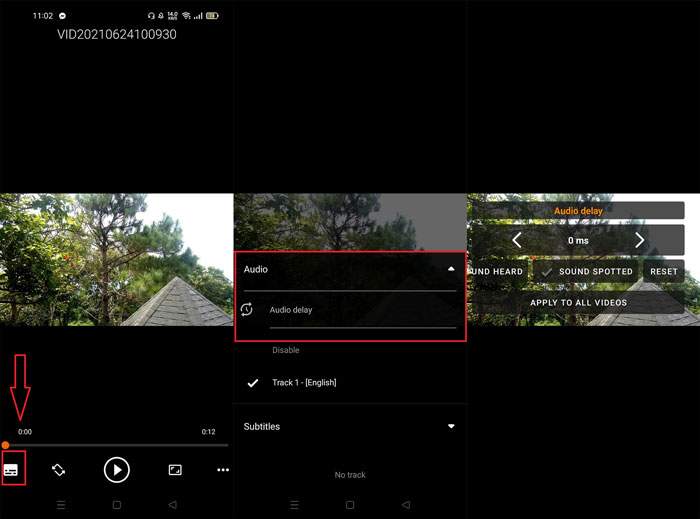
Step 1 Open a video in VLC for Android.
Step 2 Tap the screen to show on-screen controls.
Step 3 Tap the Show extended settings button and choose Audio delay.
Step 4 Press the Arrow buttons to fix the audio delay.
Part 4: Ultimate Way to Fix Audio Video Sync Permanently for VLC
Is it possible to permanently fix audio-video sync in VLC? Yes, all you need is Tipard Video Converter Ultimate. It is able to sync audio and video and match audio to the image using an advanced algorithm. More importantly, the software supports lossless audio editing.

- Sync video and audio with three steps.
- Adjust audio delay and volume quickly.
- Preview results with the built-in media player.
- Support a wide range of video formats.
- Edit video and audio without quality loss.
How to Fix Audio Video Sync Permanently for VLC
Step 1 Install the audio sync tool
Download Tipard Video Converter Ultimate from the official website. Install it on your computer. If you play a video in VLC and encounter the audio delay issue, launch the audio sync tool.
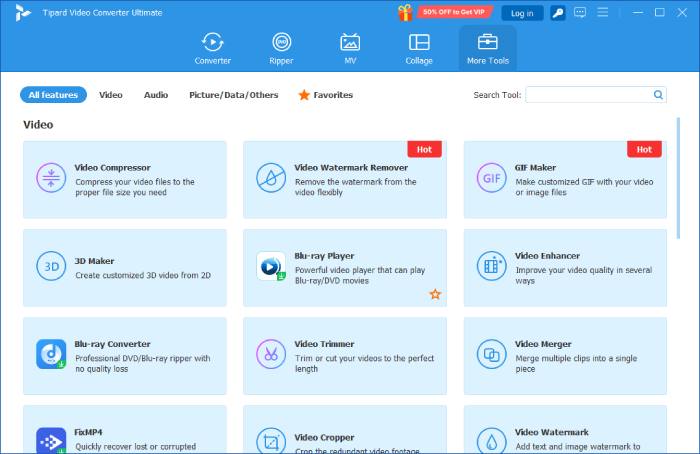
Step 2 Add a video
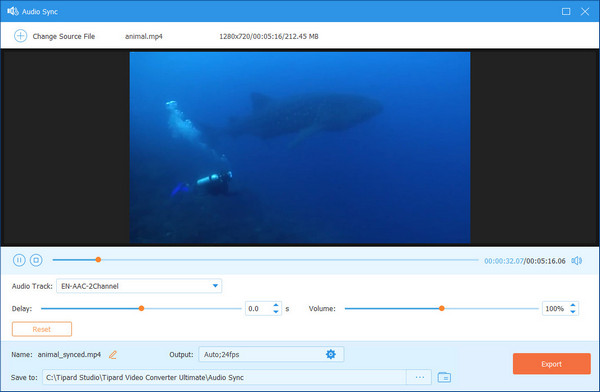
Go to the More Tools window from the top of the interface and choose the Audio Sync tool. Click the Add button and import the video from your hard drive.
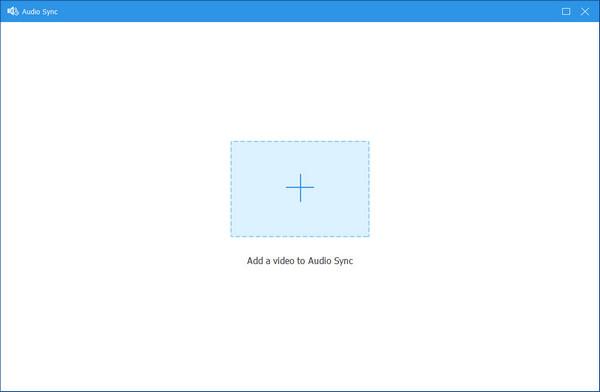
Step 3 Sync audio
Move the Delay slider until the audio and image are synced. Preview the result in the media player. If you are satisfied, set the output folder and click the Export button.
Conclusion
This guide explained how to fix the VLC audio delay on Windows, macOS, Linux, and Android. You can choose the right approach for your situation and follow our steps to sync audio and video. You have to adjust the audio delay every time you play the video in VLC. Alternatively, Tipard Video Converter Ultimate can help you fix this problem permanently.
All-in-one video toolbox: convert, edit, upscale, enhance, and compress your videos easily
100% Clean & Safe
100% Clean & Safe

More Reading


About the Author


 Tipard Video Converter Ultimate