

Today, there are many platforms where you can show your videos. So, having a clear and sharp video is a must. Without it, your video may look blurry or dull.
Wink Video Enhancer gives you a simple way to improve video quality. Have you heard of it? If not, this post is for you! We will cover what it is, its key features, and how to use it. Scroll down for the full guide!

Part 1: What Is Wink Video Enhancer
Wink Video Enhancer is an AI tool from Meitu. It helps make low-quality videos look clearer and sharper. It can upscale videos to 1080p or 4K. It is really useful for old clips and phone videos. It can also work well for portraits, concerts, games, and other types of footage. It really provides special modes for different scenes.
Part 2: Key Features of Wink Video Enhancer
Wink Video Enhancing Tool puts several video improvement tools in one place. Below are the main features that matter for video enhancement.
1. AI Video Upscaling
Wink can make a video larger and clearer. It supports up to 1080p HD and 4K UHD. This works well for old or low-quality clips.
2. AI Restoration
The AI UHD mode helps improve weak video quality. It can make the picture clearer and bring out more details.
3. Noise Reduction
Wink Video Enhancer can denoise video. This can help footage that looks grainy or rough.
4. Blur and Detail Improvement
The enhancer can improve blurry footage and make details easier to see. It can also help with motion blur and other common quality problems.
5. Scene-Based AI Modes
Wink Video Enhancer offers modes made for different video types. Its current site lists Concert, Product, Animation, Text, and Game scenarios.
6. Portrait Enhancement
The Portrait mode is made for portrait-style videos. It can help improve videos that mainly show people.
7. Batch Enhancement
You can upload several videos at once. This can save time when you have many clips to improve.
8. Multiple Formats
Wink supports common video formats such as MP4 and MOV.
Part 3: Wink Video Enhancer Workflow and Test
Ready to see how Wink Video Enhancer works? The process is short. You only need to move through four main steps.
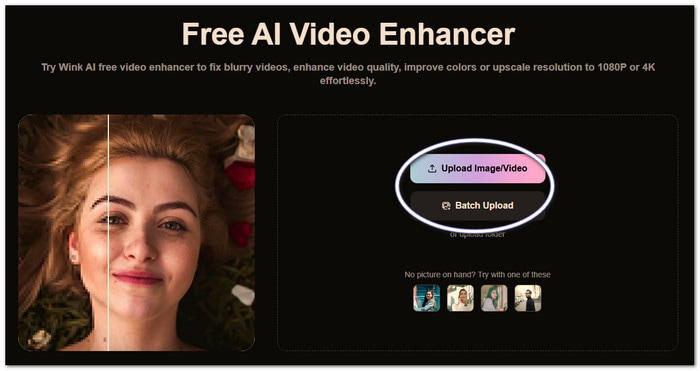
Step 1 Go to Wink - AI Video & Image Enhancer. Under Online Tools, select Video Enhancer. Click Upload Image/Video. Then, choose the video from your device. You can also use Batch Upload when you have several clips.
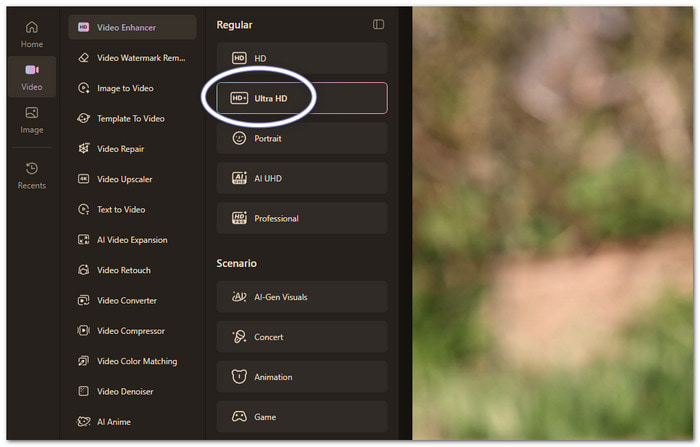
Step 2 Under Regular, you can choose options such as HD, Ultra HD, Portrait, AI UHD, and Professional. Under Scenario, you can choose options such as AI-Gen Visuals, Concert, Animation, and Game. Pick the mode that fits your video best.
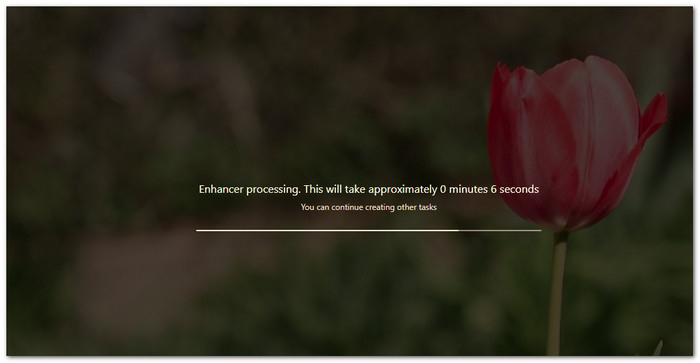
Step 3 Hit the Start button. Wink Video Enhancer will begin processing your video with AI. Just wait for the process to finish.
Step 4 Once the process is done, check the enhanced video. If the result looks good, click Export. You can choose to export with or without a watermark. Your enhanced video will then be saved to your device.
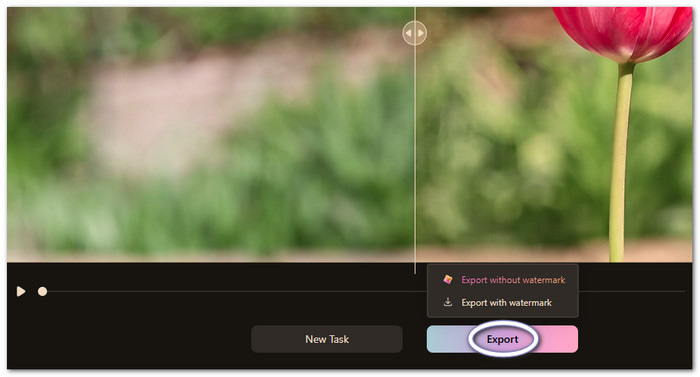
Before and After Test
Before: The video was in 720p. It looked clear enough but had slightly soft details. Fine details were not very sharp.
After: The enhanced video looked a little sharper and cleaner. Some details were easier to see. The overall change was noticeable but not dramatic.
Result: The video increased from 8.48 megabytes to 49.0 megabytes and was upgraded from 720p to 1080p. On top of that, it improved the overall look without making the footage look completely different.

Part 4: Review of Wink Video Enhancer
Our Wink Video Quality Enhancer review covers our verdict, user ratings and reviews, plus its main pros and cons to help you understand what it offers.
Verdict
Wink Video Enhancer is a useful AI tool for improving videos such as old clips, low-resolution videos, portraits, animations, and game footage. It can upscale videos and make soft footage look cleaner.
User Ratings & Reviews
On its official website, Wink Video Enhancer has a user rating of 4.9 out of 5—many users like how it improves their videos and makes edits look better. However, slow processing is still mentioned by some users. Others draw attention to AI effects that might appear less natural. Also, the free version has some limits, which is an issue for those users who do not want to spend.
- 1080p and 4K output are supported.
- Several modes work with different video types.
- Batch upload lets you work on many videos together.
- Multiple platforms let you use it on the web, desktop, and mobile.
- Require sign-up for processing.
- The free version embeds a huge brand watermark.
- Lack of advanced editing functionalities
- No audio tools are available.
Part 5: Top Alternatives to Wink Video Enhancer
Wink Video Enhancer is not the only tool that can improve video quality. These alternatives offer different features for upscaling, restoring, editing, and enhancing videos.
1. Tipard Video Converter Ultimate
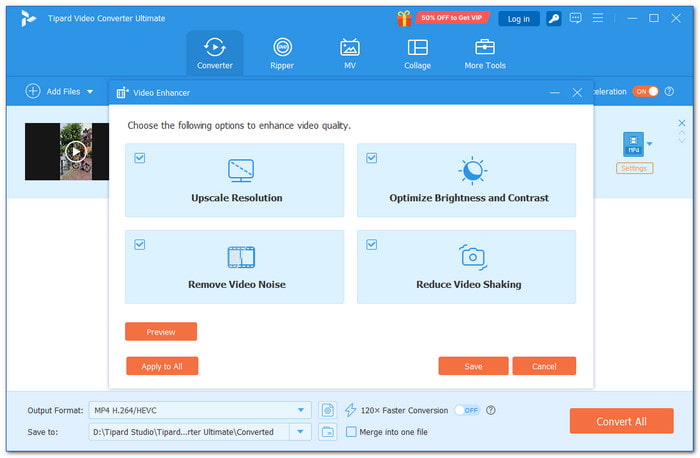
First in the list of top Wink Video Enhancer alternatives is Tipard Video Converter Ultimate. It can upscale videos, remove noise, stabilize footage, and correct color. It supports over 500 formats like MP4, MOV, MKV, AVI, and WMV. It also has a converter, MV creator, and video collage maker. It works smoothly and stays lightweight.
Supported Platform: Windows 11/10/8.1/8/7 and macOS 10.12 or above.
Strength: It combines video enhancement with conversion, editing, MV creation, and collage making.
Limitations: Some features require a paid license.
2. Vmake Labs

Need to make a low-quality video look better? This alternative to Wink Online Video Enhancer can raise video quality to 2K, 4K, or 8K. It can also cut down blur, noise, and visual flaws. It has tools for portraits, products, dark scenes, gaming clips, and anime videos.
Supported Platform: It is accessible online, so an internet connection is required.
Strength: It can rebuild missing details and process multiple videos at once.
Limitations: Video enhancement requires uploading files to the web tool.
3. VikPea: AI Video Enhancer&Maker
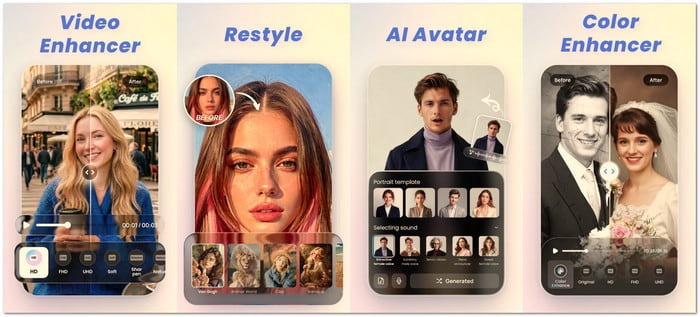
Old footage can get a new look with HitPaw VikPea. This app, like Wink Video Enhancer, can upscale videos to 4K or 8K. It can also clear up blurry videos, remove noise, stabilize shaky clips, repair old videos, and colorize black-and-white footage.
Supported Platform: It is available on both Android and iOS.
Strength: It combines video enhancement with repair, colorization, stabilization, and AI video creation.
Limitations: Paid plans can cost more than basic video enhancement tools.
Part 6: FAQs of Wink Video Enhancer
Is the Wink AI video enhancer free?
Wink AI Video Enhancer is free to download and use. However, a paid plan is needed to unlock all features. The standard version is $14.99, while the Pro version is $39.99 per month.
Does Wink Video Enhancer add a watermark?
This can depend on the version and plan you use. Check the export settings before you save the video. This helps you know what to expect.
Can Wink Video Enhancer remove video noise?
Yes. Wink can reduce unwanted noise in your video. This can make the footage look cleaner. It works best when the original video is not too damaged.
Conclusion
How's learning in-depth about Wink AI Video Enhancer? Yes, it is really good for improving video quality with AI. However, its limited free features can be a drawback. That's why we provided other options. Tipard Video Converter Ultimate can upscale videos and also remove noise, stabilize footage, fix color, convert formats, etc. Feel free to use it for your video needs!

All-in-one video toolbox: convert, edit, upscale, enhance, and compress your videos easily
100% Clean & Safe
100% Clean & Safe

More Reading



About the Author

 Click here to join the discussion and share your comments
 Tipard Video Converter Ultimate