While WebP is excellent for the web, it is not the best for social media, mobile devices, or video editing. Due to the compatibility issue, you have to convert WebP to MP4. The new problem is picking the right converter. In fact, there are oceans of media file converter programs on the market. However, using the wrong tools will damage the output quality. This tutorial shares the right ways to complete the job offline and online.

Part 1. What Are WebP and MP4 Formats?
WebP is a modern animated image format developed by Google for web distribution. The standout advantage is ultra-high compression efficiency. At equivalent visual quality, the WebP file size is much smaller than that of a GIF. It is designed for speeding up loading on websites and mobile apps. Moreover, it supports 24-bit true color and full Alpha transparency, delivering rich color rendering and a transparent background.
MP4 is a prevalent video format, also known as MPEG-4 Part 14, for streaming and downloading video content online. An MP4 file can store both animated content and audio, as well as subtitles. It is perfect for use across a range of digital devices and platforms.
| WebP | MP4 | |
|---|---|---|
| Max Colors | 24bit true color | 24bit true color |
| Compression type | VP8/ VP9 | H.265/H.264 |
| File size | 70% of GIF size | 30% of GIF size |
| Transparency | Full Alpha | No |
| Browser support | New browsers | Most browsers |
| Platform support | Limited | Most platforms |
| Loading speed | Medium fast | fast |
| Show MoreShow Less | ||
Part 2. Convert WebP to MP4 with Best Video and Audio Quality
Converting animated WebP to MP4 on your desktop is a stable option. Tipard Video Converter Ultimate is able to process WebP files while preserving video and audio quality using AI technology. Furthermore, the hardware acceleration feature can speed up the process. The user-friendly design simplifies the workflows.

- Convert animated WebP to MP4 with one click.
- Handle multiple WebP files at one time.
- Enhance output quality using AI technology.
- Support a wide range of multimedia formats.
- Work on Windows 11/10/8/7 and macOS 10.12 or above.
How to Convert WebP to MP4 Without Quality Loss
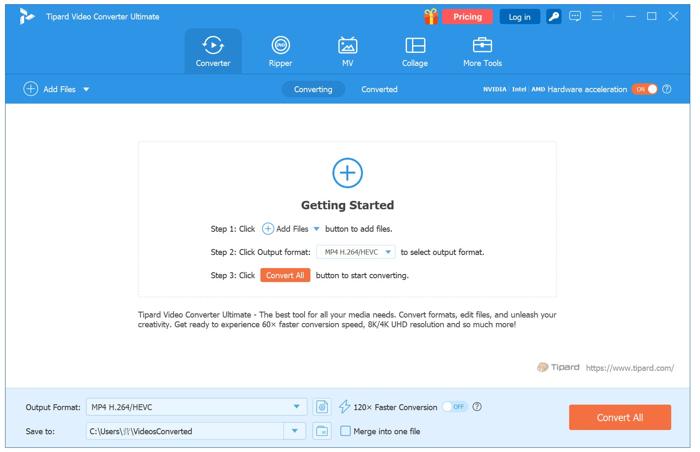
Step 1Import WebP files
Download and install the WebP-to-MP4 converter on your PC. There is another version for Mac. Open the software when you need to convert animated files. Click the Add Files menu and choose the WebP files you want to convert to import them immediately.
Step 2Set output format
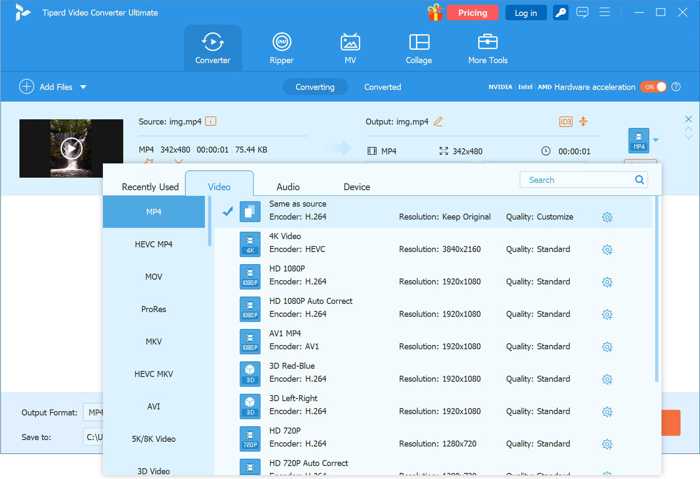
Click the Output Format option at the bottom to trigger the profile dialog. Go to the Video tab, choose MP4, and pick a preset. If you want to change options such as encoder, resolution, or quality, click the Settings button.
Step 3Change WebP to MP4
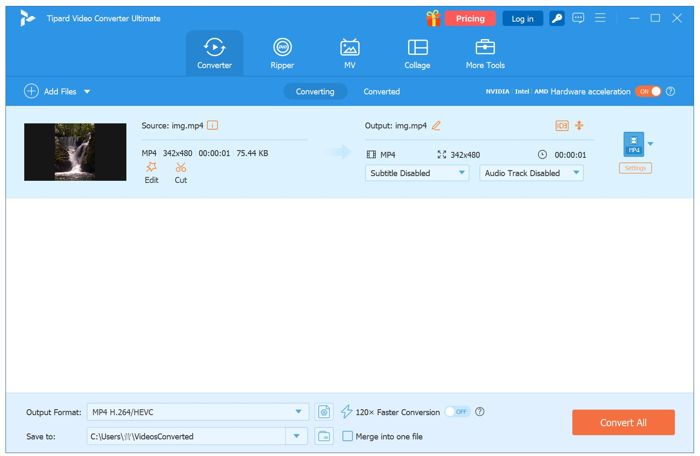
Finally, click the Folder button at the bottom and select a destination folder. Click the Convert All button to convert the animated images into video files.
Part 3. Convert WebP to MP4 with FFmpeg
Can you convert WebP to MP4 with FFmpeg? According to our research, FFmpeg can encode animated WebPs, but cannot decode them. In other words, FFmpeg itself cannot convert WebP to videos. You can complete the process with ImageMagick and FFmpeg. The former program extracts the frames from a WebP file. Then, use FFmpeg to build an MP4 video with the frames.
Step 1Visit the ImageMagick website and download the latest installer.
Step 2Run the installer file and follow the instructions to complete the installation.
Step 3Next, visit the FFmpeg website and download the correct version.
Step 4Unzip the archive.
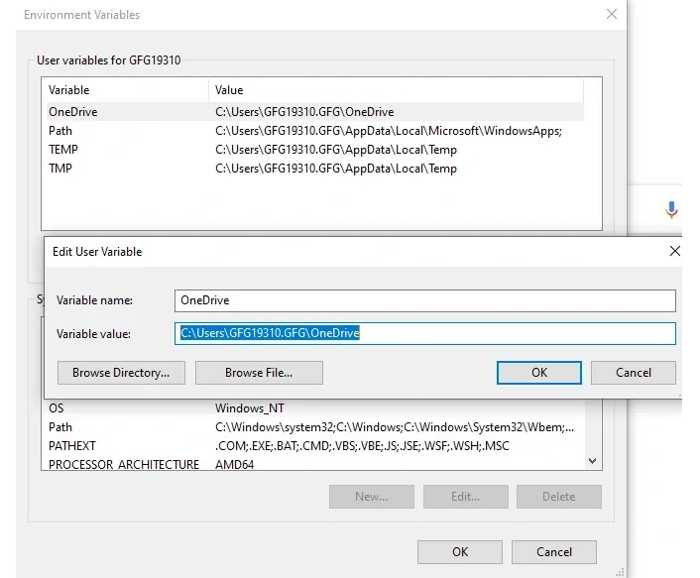
Step 5Press Win + S, search for Environment Variables, and open it.
Step 6Click Path, hit Edit, and click New.
Step 7Enter the FFmpeg folder path in the field, then click Save.
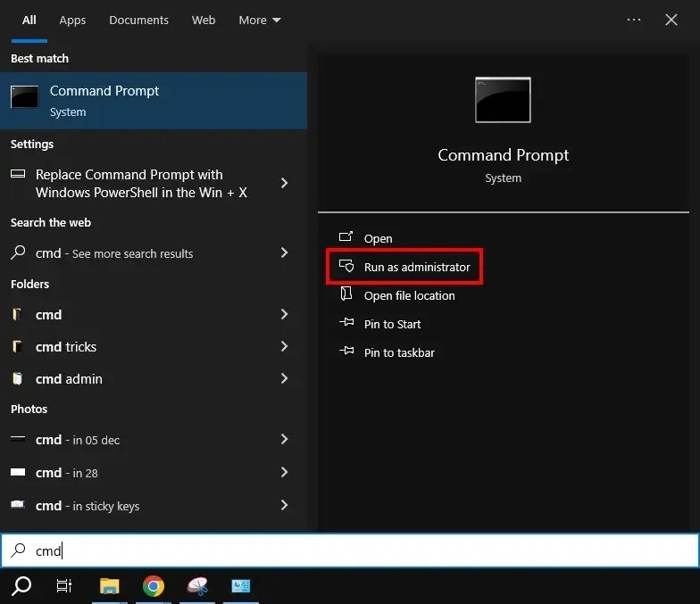
Step 8Go to the Start menu.
Step 9Search for Command Prompt and choose Run as administrator.
Step 10Input magick input.webp frames.png and press the Enter key on your keyboard to extract the frames from the WebP file.
Replace the input with the WebP filename.
Step 11Next, run the commands below:
ffmpeg -r 30 -f image2 -s 1920x1080 -i frame%03d.png -vcodec libx264 -crf 25 -pix_fmt yuv420p test.mp4
Part 4. Convert WebP to MP4 Free Online
Another way is by using an online video converter app, such as using Ezgif to convert WebP to MP4. It is completely free and lets you transcode a WebP file to MP4 online without downloading any software.
Step 1Visit the online WebP-to-MP4 converter in your browser.
Step 2Choose WebP on the menu bar and switch to WebP to MP4.
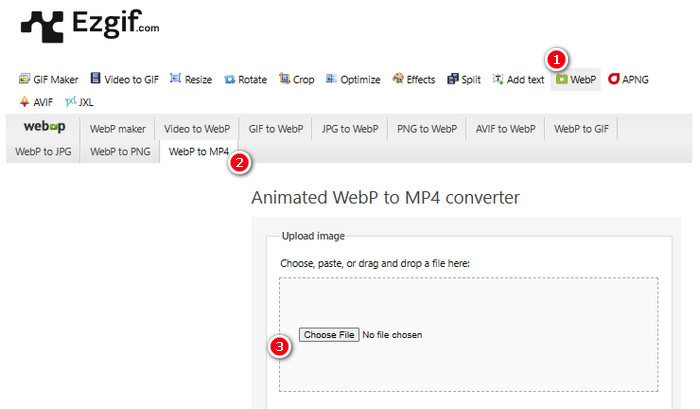
Step 3Click the Choose File button and upload a WebP file under 200 MB.
Step 4Click Upload to upload the file.
Step 5Next, click the Convert WebP to MP4 button.
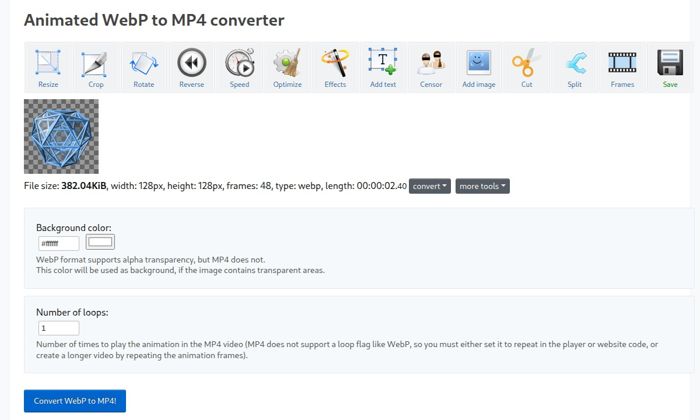
Step 6When it is done, download the video.
Part 5. Comparison of the 3 WebP to MP4 Converters
| Tipard Video Converter Ultimate | FFmpeg | Ezgif | |
|---|---|---|---|
| Speed | Fast | Fast | Slow |
| Output quality | Enhance with AI | No quality enhancement | Poor |
| Pros | • Stable and easy to use • Generate great video quality • Batch process multiple WebP files • Offer bonus features |
• Open source and free • Convert WebP to MP4 quickly |
• Convert WebP to MP4 online • Free to use • Not require sign-up |
| Cons | • It takes a while to process many WebP files | • Difficult to use • Complicated setup |
• Maximum 200MB file size |
Part 6. FAQs of Converting WebP to MP4
What is the best WebP to MP4 converter?
You can convert WebP to MP4 offline and online. The best converter depends on your situation.
Can I convert WebP to MP4 without losing quality?
Yes, using a reliable converter, such as Tipard Video Converter Ultimate, can preserve output quality when converting WebP to MP4.
Can FFmpeg convert WebP to MP4?
No, FFmpeg itself cannot convert WebP to MP4, because it cannot decode WebP files. Alternatively, you have to extract images from WebP and generate a video file.
Conclusion
This guide explained how to convert WebP to MP4 offline and online. FFmpeg and ImageMagick can convert animated images into video files using the command line. Ezgif can process WebP online without requiring an account. Tipard Video Converter Ultimate is a great option if you wish to generate the best video quality.

All-in-one video toolbox: convert, edit, upscale, enhance, and compress your videos easily
100% Clean & Safe
100% Clean & Safe

More Reading
About the Author