

- Part 1. How to Replace Audio in Video Without Quality Loss
- Part 2. How to Replace Audio in Video Online Free
- Part 3. How to Replace Audio in Video with VLC
- Part 4. How to Replace Audio in Video with FFmpeg
- Part 5. Comparison of 4 Ways to Replace Audio in Video
- Part 6. FAQs of Replacing Audio in Video
You might think that replacing audio in a video takes a lot of time. But no, it is actually simple, especially with the methods we provided. There are four ways you can use to replace audio in video, and each one fits different skill levels of users.
The goal is to help you put the sound you want for your video, the one you really like, so it matches your style and makes your content more enjoyable to watch.
- Part 1. How to Replace Audio in Video Without Quality Loss
- Part 2. How to Replace Audio in Video Online Free
- Part 3. How to Replace Audio in Video with VLC
- Part 4. How to Replace Audio in Video with FFmpeg
- Part 5. Comparison of 4 Ways to Replace Audio in Video
- Part 6. FAQs of Replacing Audio in Video
Part 1. How to Replace Audio in Video Without Quality Loss
Tipard Video Converter Ultimate can help you replace audio in a video without quality loss in a simple way. It lets you swap sound without re-encoding, so your video keeps its original quality. You can work with almost any file, as it supports formats like MP4, MOV, AVI, MKV, MP3, AAC, WAV, and many more. You can also easily edit or change audio tracks in any video. Plus, it uses full GPU acceleration, so audio changes are faster, smoother, and more stable every time.
Step 1 Free download, install, and run Tipard Video Converter Ultimate on your Windows or Mac computer.
Step 2 Click Add Files. Choose the video you want to replace the audio. You can add more than one video if needed.

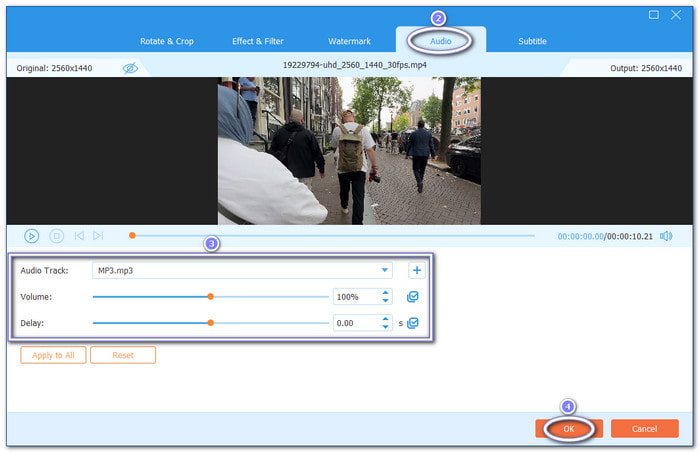
Step 3 Open the Edit button next to your video. Go to the Audio tab. Find the Audio Track option. Select Audio Track Disabled to remove the old sound. Then, click Add Audio to upload your new audio file. You can also adjust volume and delay if needed. After that, press OK to confirm.
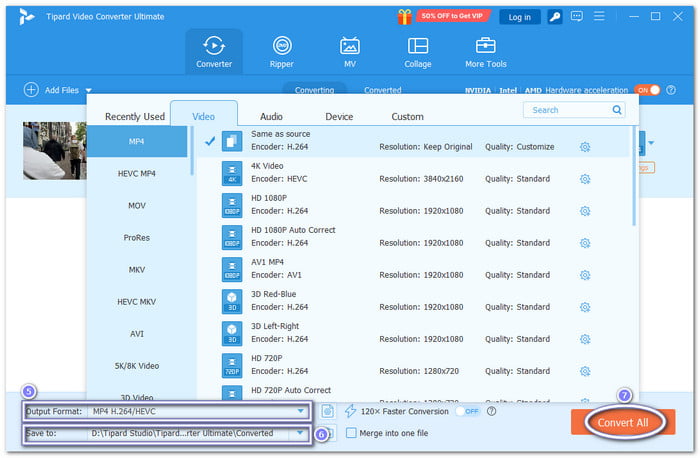
Step 4 Head to Output Format and choose your output format, like MP4, MOV, or AVI. Then, set your save folder under Save to. Once everything is set, click Convert All. Tipard Video Converter Ultimate will process your video and keep good clarity while adding your new audio.
- Multi-audio track control for easy add, remove, or switch.
- Quick sync sliders to fix audio delay issues.
- Batch processing for editing many videos at once.
- Supports 500+ formats, including 4K, 8K, and HD videos.
- The free version is limited; complete features require a paid license.
Part 2. How to Replace Audio in Video Online Free
Kapwing lets you replace audio in a video online for free. You can choose to remove audio from the video or swap it with new music or a voice. It also supports AI voiceovers and royalty-free audio. Everything is simple and fast, with export ready for sharing online.
Step 1 Open your browser and go to the official Kapwing - Replace Audio website, and click the Replace Audio button.
Step 2 Import your video file by selecting and dropping it straight into the workspace. Please wait until it fully loads.
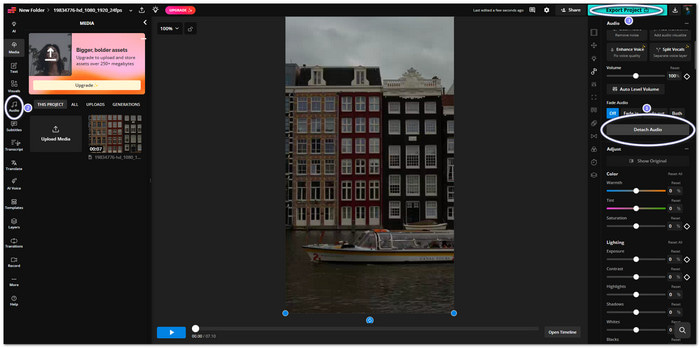
Step 3 Click on your video on the timeline. Right-click it and choose Detach Audio. It will split the video and sound.
Step 4 Delete the old audio track. Then, upload your new audio. You can also pick music or a voiceover from the audio library.
Step 5 When everything sounds right, click Export. Please wait for it to finish, and then download your new video.
Part 3. How to Replace Audio in Video with VLC
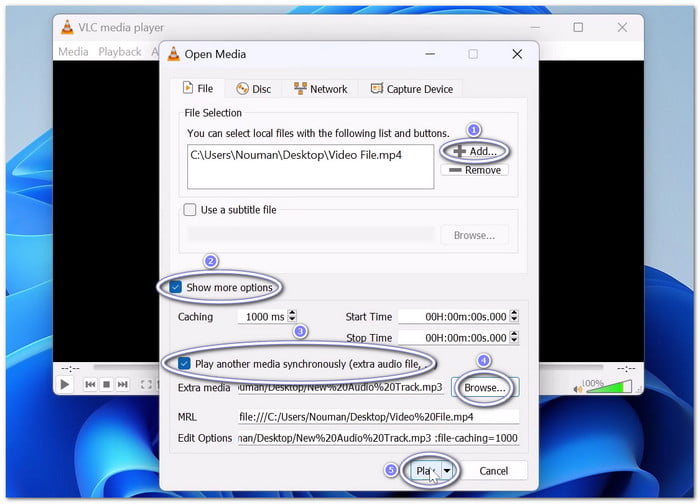
VLC replacing the audio track in a video is totally simple. You only need to load a video, add a new audio file, and sync them together. You can preview changes before saving. It works on many devices, so you can edit without an extra program or paid tools.
Step 1 Run VLC on your computer.
Step 2 Click Media at the top. Then, choose Convert / Save from the menu list.
Step 3 Click Add and pick the video you want to edit. Then, enable Show more options at the bottom.
Step 4 Enable the Play another media synchronously option. Click Browse, then add your new audio file. Confirm your selection.
Step 5 Click Play first to test. Then, go back to Convert / Save, choose a save folder, and click Start to export your new video.
Part 4. How to Replace Audio in Video with FFmpeg
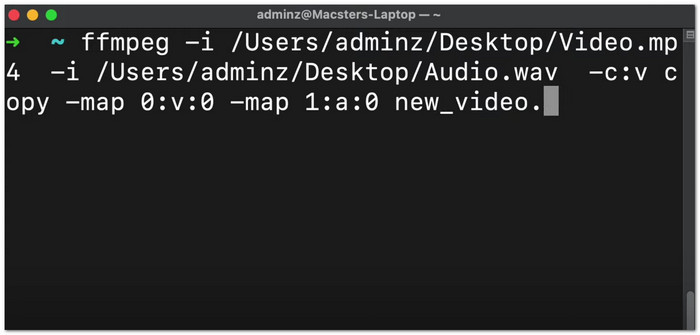
FFmpeg is a command-line program that replaces audio on video with precision. It combines your video file and new audio into one output file. It helps keep video quality since it avoids full re-encoding.
Step 1 Install Homebrew first on Mac by copying the command from brew.sh and running it in Terminal. It helps install FFmpeg.
Step 2 Type brew install ffmpeg in Terminal. Please wait until FFmpeg is fully installed.
Step 3 Prepare your files. Make sure your video and new audio are saved in one folder. It makes it easier to work.
Step 4 Open Terminal again. Type ffmpeg -i, then drag your video file. After that, type -i again and drag your audio file.
Step 5 Add the output file name, like new_video.mp4. Press Enter, and please wait. Once done, your new video will have the replaced audio.
Part 5. Comparison of 4 Ways to Replace Audio in Video
Below, you can see a clear comparison of 4 ways to replace audio in video so you can immediately choose the one that best matches what you need.
| Comparison Factors | Tipard Video Converter Ultimate | Kapwing | VLC | FFmpeg |
|---|---|---|---|---|
| Ease of Use | Easy | Easy | Medium | Hard |
| Platforms | Windows and Mac. | Web only. | Windows, Mac, Linux, and mobile. | Windows, Mac, and Linux. |
| Audio & Sync Editing | Built-in sync slider and audio edit tools. | Basic audio replacement and simple sync. | Manual sync control only. | Advanced sync and full control. |
| Batch Processing | ✓ | ✗ | ✓ | ✓ |
| Export Speed | Fast with GPU acceleration. | Depends on the internet. | Moderate speed. | Very fast, no re-encode or GPU use possible. |
| Pricing | Paid (trial available). | Free with limits. | Free to use. | Free and open-source. |
Part 6. FAQs of Replacing Audio in Video
Why is audio important in video?
Audio makes a video more powerful. It helps tell the story clearly. Good sound can make scenes feel real and emotional. It also keeps viewers more focused and engaged.
Will the video and audio stay synced?
Yes, most of the time they stay synced after replacement. But sometimes small delay issues can happen. Good thing, Tipard Video Converter Ultimate can help you sync audio and video using simple tools like delay adjustment and precise editing controls.
Which format works best for audio replacement?
MP3, AAC, and WAV are good for audio. These formats are widely supported. They also help avoid errors during editing and export.
Conclusion
That is all for how to change audio in a video. You now know different methods to do it. Some tools are simple and fast, like Tipard Video Converter Ultimate. Some are advanced, like FFmpeg, and really need more skill. In the end, you will get the video with the exact sound you want.

All-in-one video toolbox: convert, edit, upscale, enhance, and compress your videos easily
100% Clean & Safe
100% Clean & Safe

More Reading


About the Author


 Tipard Video Converter Ultimate