

- Part 1. Embedding Local vs. Online Videos in PowerPoint
- Part 2. How to Embed a Local Video from Your PC & Mac
- Part 3. How to Embed an Online Video to PowerPoint (YouTube, Vimeo, etc.)
- Part 4. Important Tips: How to Customize and Format Your Embedded Video
- Part 5. Why Is Your Embedded Video Not Playing in PowerPoint
PowerPoint has come a long way over the years. It started as a simple tool for creating slides. Today, it lets you build more engaging presentations with pictures, animations, and even videos.
Do you want to learn how to embed a video in PowerPoint for your next presentation? You are in the right place.
This guide will show you how to add videos from your computer or online sites like YouTube. Yes, both are possible. Follow along, and let us make your presentation more fun and engaging!
- Part 1. Embedding Local vs. Online Videos in PowerPoint
- Part 2. How to Embed a Local Video from Your PC & Mac
- Part 3. How to Embed an Online Video to PowerPoint (YouTube, Vimeo, etc.)
- Part 4. Important Tips: How to Customize and Format Your Embedded Video
- Part 5. Why Is Your Embedded Video Not Playing in PowerPoint
Part 1. Embedding Local vs. Online Videos in PowerPoint
There are two ways to add video to PowerPoint. You can attach a video from your computer or use one from the internet. Each option has its own benefits. The best choice depends on where you will give your presentation.
1. Local Videos
A local video comes from your computer. PowerPoint adds the video to your presentation. It plays even without an internet connection. It makes it a good choice for offline presentations. But keep in mind that it can make your PowerPoint file size much larger.
2. Online Videos
Online videos come from websites like YouTube or Vimeo. PowerPoint plays the video using the internet during your presentation. It helps keep your PowerPoint file small. You need a stable internet connection for it to work. If the internet is slow or not available, the video may not play.
Part 2. How to Embed a Local Video from Your PC & Mac
A video can make your slides clearer and more interesting. It also helps explain ideas in a simple way. Mastering how to embed a video in PowerPoint is a useful skill for school, work, or business. Once your video is part of the presentation, you can play it with just a few clicks.
Step 1 Open your PowerPoint presentation. Then, go to the slide where you want to place the video.
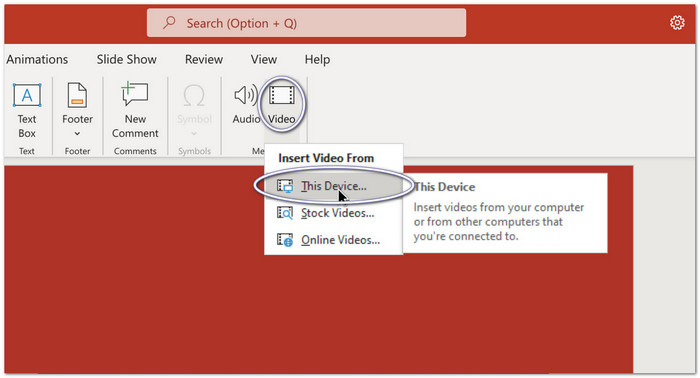
Step 2 Click the Insert tab. Select Video. On Windows, choose This Device. On Mac, choose Video on My PC or Movie from File, depending on your PowerPoint version.
Step 3 Find the video on your computer. Select the file, such as an MP4 or MOV video. Then, click Insert to add it to your slide.
Step 4 Drag the corner handles to resize the video. Move it to the best spot on your slide. Save your presentation. Then, play the slideshow to make sure the video works as expected.
Part 3. How to Embed an Online Video to PowerPoint (YouTube, Vimeo, etc.)
Online videos can bring fresh content to your presentation. They also help keep your PowerPoint file small and easy to share. If you wish to learn how to embed a YouTube video in PowerPoint, you are in the right place. It is a simple way to make your slides more fun and engaging.
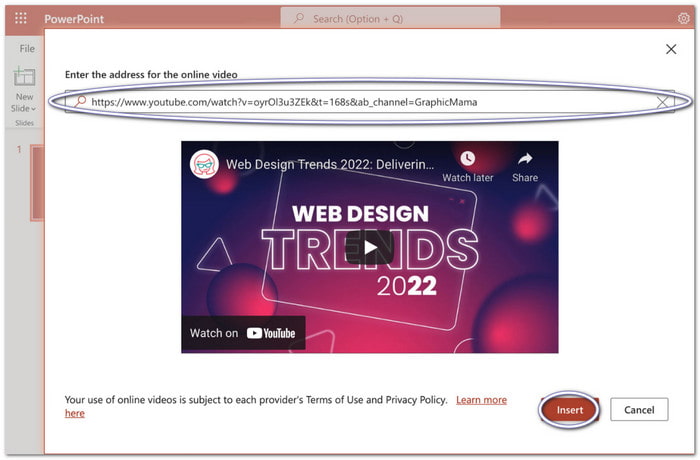
Step 1 Open the video in your web browser. Copy the link from the address bar. If needed, copy the embed code instead.
Step 2 Open your PowerPoint presentation. Head to the slide where you want the video. Click the Insert tab. Then, choose Video and select Online Video.
Step 3 Paste the video link or embed code into the box. Click Insert. PowerPoint will place the online video on your slide.
Step 4 Start the slideshow and test the video. Make sure your internet connection is working because the video streams online. If you need more help, check the Microsoft Support guide for the latest steps.
Part 4. Important Tips: How to Customize and Format Your Embedded Video
PowerPoint includes simple tools that help you control how your videos play and look. After you learn how to attach a video to PowerPoint, these features become easy to use. A few quick changes can make your presentation look more polished and keep your audience focused on the most important parts.
1. Change the Start Time: Open the Playback tab and choose how the video starts. You can set it to play Automatically, When Clicked On, or In Click Sequence. Choose the option that works best for your presentation.
2. Trim the Video: To trim video in PowerPoint, you need to use the Trim Video feature in the Playback tab. It allows you to remove unwanted parts from the beginning or end. It helps keep your video short and focused.
3. Visual Formatting: Open the Video Format tab to change how your video looks. Add borders if needed. Adjust the screen ratio to fit the screen. You can also use Poster Frame to show a custom thumbnail before the video starts.
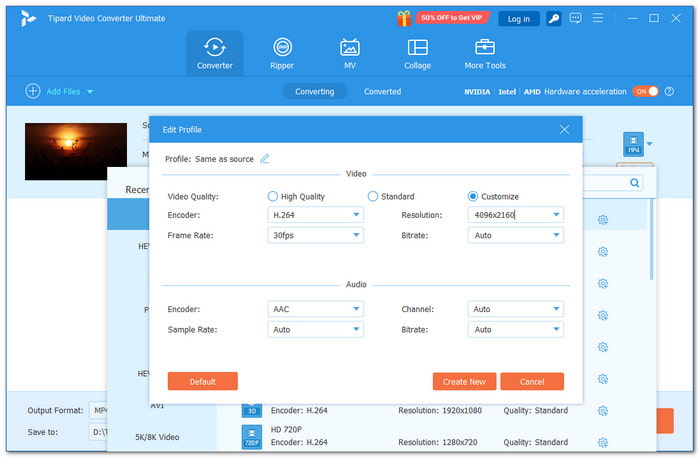
If your videos are too large, will not play, or use an unsupported format, Tipard Video Converter Ultimate can help. It can compress large videos to reduce file size for easier sharing and smoother PowerPoint performance.
You can also fine-tune the codec, bitrate, frame rate, resolution, and other settings to improve playback. It even converts videos to PowerPoint-friendly formats like MP4, MOV, AVI, and WMV. With that, your presentation is ready to play without format problems.
Additional Information: You can edit videos on PowerPoint, but its editing tools are limited. For more control, you can also use Tipard Video Converter Ultimate. It lets you trim, crop, rotate, apply a filter, boost audio volume, select a theme, and enhance videos before adding them to your presentation.
Part 5. Why Is Your Embedded Video Not Playing in PowerPoint
Even if you know how to put a video in PowerPoint, the video may not always play as expected. But, good thing, most playback issues have a simple cause. Check the common problems below to fix them immediately.
- Unsupported file format
PowerPoint works best with MP4 videos and AAC audio. If your video uses a different format or codec, it may not play. - Missing or moved video file
PowerPoint cannot play the video if you moved, renamed, or deleted the original file. It can also happen if you copy the presentation to a USB drive but do not copy the video with it. - Missing codec
Some videos need a codec that is not installed on your computer. Without the right codec, the video cannot play. - Online video problems
Online videos need an internet connection. A firewall, a restricted school or work network, or a deleted video on the website can stop the video from loading.
Conclusion
Whatever your reason for learning how to place a video on PowerPoint, we are glad this guide helped you.
If you run into problems like large video files, playback errors, or unsupported formats, Tipard Video Converter Ultimate is a simple solution. It can compress videos, customize video settings, and convert them to PowerPoint-friendly formats in one place.
With just a few clicks, you can get your videos ready and deliver a smooth presentation with confidence.

All-in-one video toolbox: convert, edit, upscale, enhance, and compress your videos easily
100% Clean & Safe
100% Clean & Safe

More Reading



About the Author


 Tipard Video Converter Ultimate