

Long videos often have extra parts that are not needed. For iPhone users, how to shorten a video on an iPhone is easy, and this write-up will show you how. You will be glad because we will show you different ways to make your video shorter. So, please check each method and find the one that works best for you.

Method 1: The Quick Trim (Shorten the Start & End)
This method is great when you only want to cut the beginning or the ending of your video. It is fast because the trim option sits right inside the Photos app. It works well when the extra parts are at the edges of the clip, and you want a clean start or finish.
Here is how to shorten a video in Photos on iPhone:
Step 1 Run the Photos app and pick the video you want to make short.
Step 2 Tap Edit at the top of the screen to open the trim tools.
Step 3 Drag the left slider to cut the start and drag the right slider to cut the end until the video looks right.
Step 4 Watch the preview to make sure the video starts and ends the way you want.
Step 5 Tap Done, then tap Save Video to keep the trimmed copy on your iPhone.
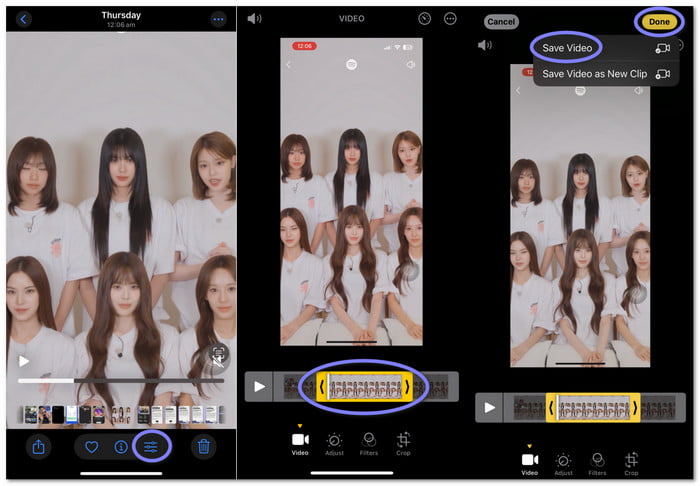
Drawbacks: Trimming the start and end can sometimes remove parts too fast if you drag the slider too far. Also, it can be hard to place the slider on the exact second you want, especially on long clips.
Method 2: The Precision Cut (Splitting a Video to Remove the Middle)
If you want to learn how to make a video shorter on an iPhone, this is a smart workaround. You can break a clip into two clean parts even without a real split button. The Photos app can do it by trimming one section first, saving it as a new clip, and then trimming the other half.
Step 1 Launch the Photos app and choose the video you want to split into two clips.
Step 2 Tap Edit and drag the trim slider until it reaches the point where you want the first clip to end.
Step 3 Tap Done, then choose Save Video as New Clip so the first part is saved as its own short video.
Step 4 Go back to the original video, tap Edit again, and move the trim slider to keep only the second half.
Step 5 Tap Done, pick Save Video as New Clip, and now you have both clips saved separately on your iPhone.
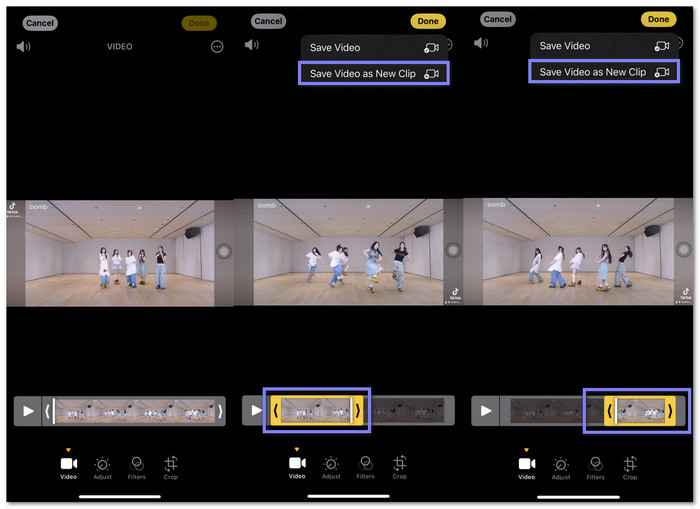
Drawbacks: The limit is that you must trim twice and save twice, which takes more steps than a real split. You cannot remove a chunk in the middle in one pass.
Method 3: Using iMovie for iPhone (For Maximum Control)
Some videos need more control because the timing must feel smooth. It is where iMovie helps. It gives you better trimming tools, a slider that reacts fast, and a layout that makes the clip easier to shape. Plus, it lets you crop video to remove unwanted frames. It really works well for edits that need accuracy.
Here is how to shorten an iPhone video using iMovie on iPhone:
Step 1 Open iMovie and tap Create Project, then pick Movie and choose your video.
Step 2 Tap the video on the timeline so the editing tools appear.
Step 3 Drag the yellow handles on both ends to shorten the clip to the length you want.
Step 4 Play the video to check if the cut feels right and make more small trims if needed.
Step 5 Tap Done, then tap Share, and save the new, shorter video back to your iPhone.
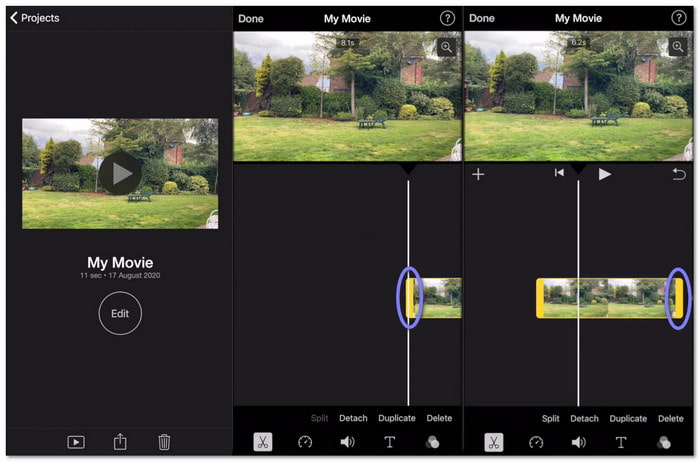
Drawbacks: It takes more time to learn, and you must open a project every time, so it is slower than trimming inside Photos.
Method 4: Speed Up the Video to Make It Short on iPhone
Speeding up the video is also another way to shorten a video on an iPhone. Normal videos can be sped up in iMovie by dragging the speed slider toward the rabbit option. It is helpful when the clip is too slow, and you want a shorter video that still feels smooth.
Step 1 Run iMovie and start a new Movie project with your video.
Step 2 Tap the video on the timeline so the speed control appears.
Step 3 Press the Speed button and drag the slider to the right to make the video go faster.
Step 4 Watch the video to see if the speed feels natural and adjust the slider if it feels too fast or too slow.
Step 5 Tap Done, then export the faster and shorter video to your iPhone.

Drawbacks: A very fast speed can look rushed, and you may need iMovie for regular clips, which adds an extra step.
Most Convenient: Using an All-in-One Tool to Edit Your Video Length
Editing your video length can be tricky if you use many tools. The most convenient way is to use an all-in-one tool that lets you do everything in one place. That tool is Tipard Video Converter Ultimate.
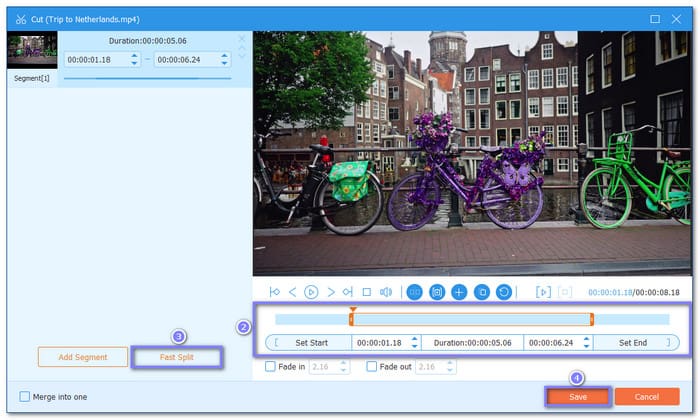
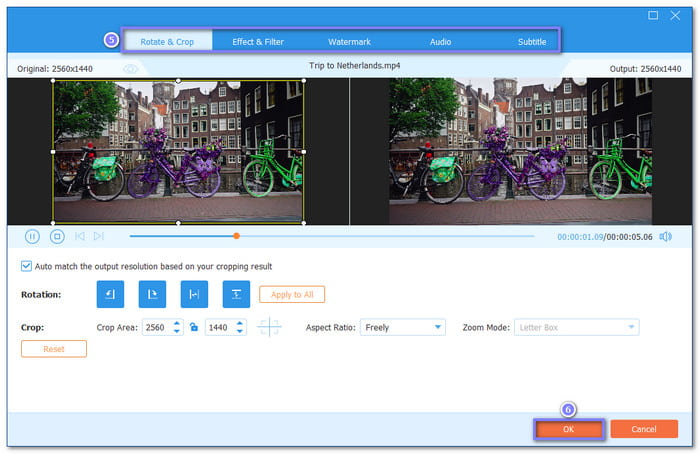
You can cut the start and end parts, set exact start and end times, split videos fast, add segments, and even apply fade-in and fade-out effects. Before saving your trimmed video, you can also do more edits. You can rotate, crop, add filters, put in watermarks, and more.
After learning how to shorten a video on an iPhone, it is time to see how to edit your video length on a Windows or Mac computer.
Step 1 First and foremost, grab and install Tipard Video Converter Ultimate on your computer.
Step 2 Open the program and click the Add button in the center. Pick the video you want to shorten, and please wait for it to load.
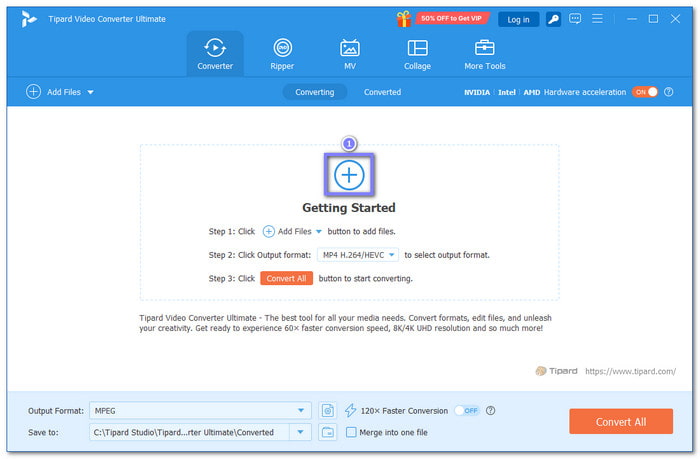
Step 3 Click the Cut button to start trimming. Just drag the yellow bars to highlight the parts you want to remain. You can also type in Set Start and Set End times for exact cuts, or use Fast Split to cut multiple parts. Once sure about the parts you want to remove, press the Save button.
Step 4 If you want to do more edits, click the Edit button to rotate, crop, add effects, or insert a watermark. Once you finish editing, click the OK button to apply the changes and return to the main screen.
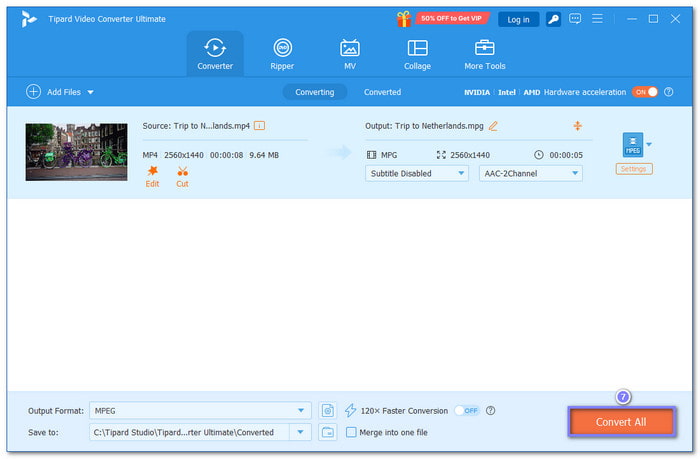
Step 5 Finally, click the Convert All button to save your new video, which is the shortened and edited version. It will be stored in your desktop folder or the folder you set.
Extra information: Tipard Video Converter Ultimate can also help you speed up videos on Windows and Mac. It gives you more control over playback speed while editing.
Conclusion
So easy to shorten a video on iPhone 16, 14, or any iPhone model. Your phone already has a built-in trimmer that can help you cut the start, end, or even parts of your video.
But if you want more ways to edit your video length, you can use Tipard Video Converter Ultimate. It offers numerous editing tools and extra features for a deeper level of control over your videos.
More Reading




About the Author


 Tipard Video Converter Ultimate