

"I play a video on my Android phone using the built-in media player, but it says Video Codec Not Supported. Why does it occur, and how to fix the error?" Codec issues can occur on any device when playing videos. It means that your device, video player, or video editor cannot open the multimedia file or decode its video or audio tracks. This guide helps you get rid of the issue quickly.

Part 1: Common Causes for Video Codec Not Supported
A video codec is a program or system that encodes or decodes visual content by compressing or decompressing it. It is designed to compress raw video data for transmission and storage. Why can't you play the video, and why doesn't the video's codec support it? The common causes include:
- Your media player lacks the codec.
- Your computer or mobile device doesn't support the codec.
- Your player or device is outdated.
Part 2: How to Fix Video Codec Not Supported
What does video codec not supported mean? It means that your device, media player, browser, or operating system doesn't support the video codec in your media file. Try the solutions below to fix it.
Solution 1: Install Codec Package
Step 1 To fix the codec used to compress the video is not supported, download a third-party codec package, such as K-Lite.
Step 2 Open the installer and click Next.
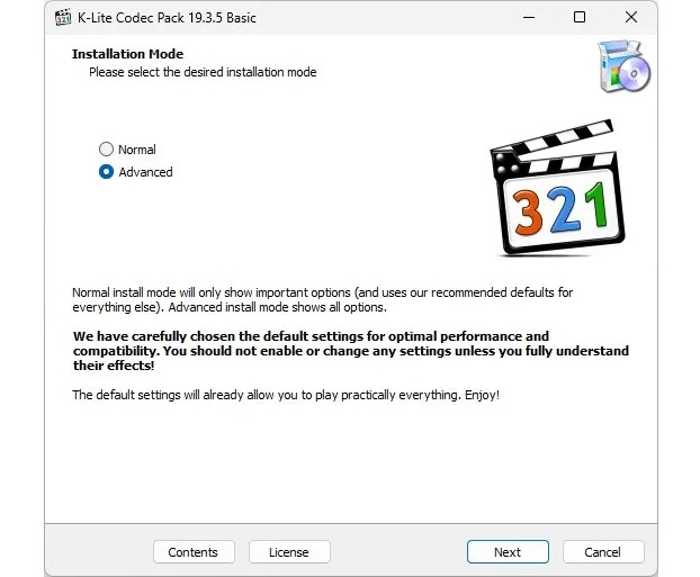
Step 3 Select Advanced and press Next.
Step 4 Then, set the drive to install the package.
Step 5 Choose Profile 7: Lots of stuff and press Next.
Step 6 Next, follow the onscreen instructions to continue.
Step 7 Select your preferred video player and audio player.
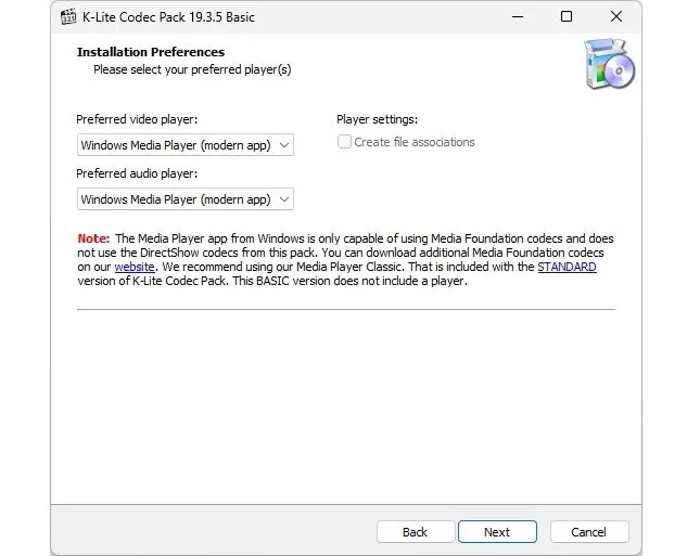
Step 8 Click the Next button to proceed.
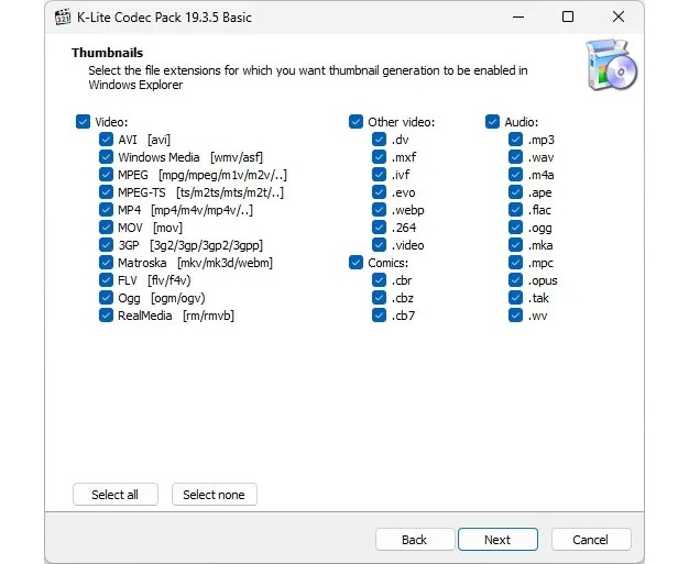
Step 9 Select the codecs you need in the Thumbnails window, then click Next.
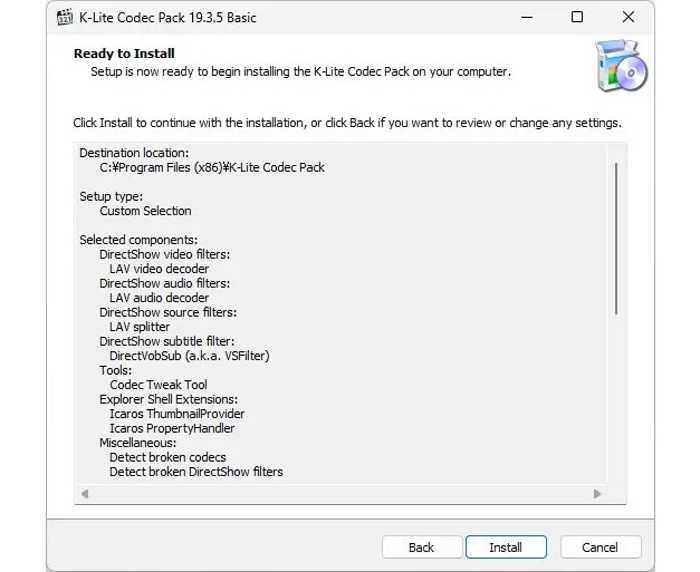
Step 1: When you reach the Ready-to-Install window, click Install.
Solution 2: Use Another Player or Browser
If you cannot play a video codec that is not supported on the Samsung A15, the easy solution is to use another media player. VLC, for example, comes with a large package of codecs. It supports a wide range of video and audio codecs.
If the Discord video codec is not supported, try another browser, such as Google Chrome or Firefox. The major browsers integrate the most widely used video and audio codecs.
You May Also Like:
Solution 3: Update Software
A video codec not supported on Android may be due to outdated software. For example, the HEVC codec is supported on Android 5.0 and above. If your operating system is outdated, you'd better update it to get support for new codecs.
Update Software on Android
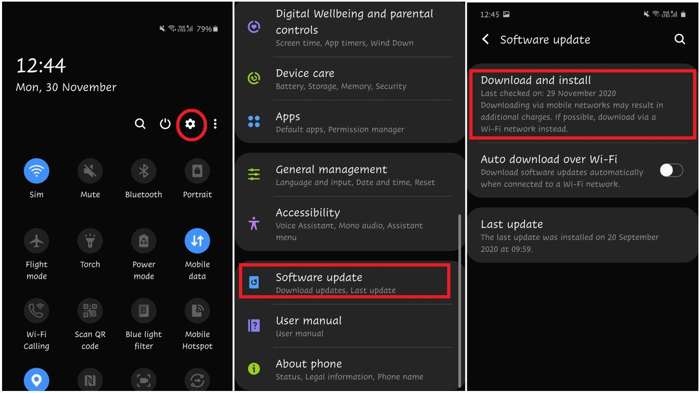
Step 1 Open the Settings app.
Step 2 Scroll down and choose the Software update or related entry.
Step 3 If an update is available, tap the Download and install button to get it.
Update Software on iPhone
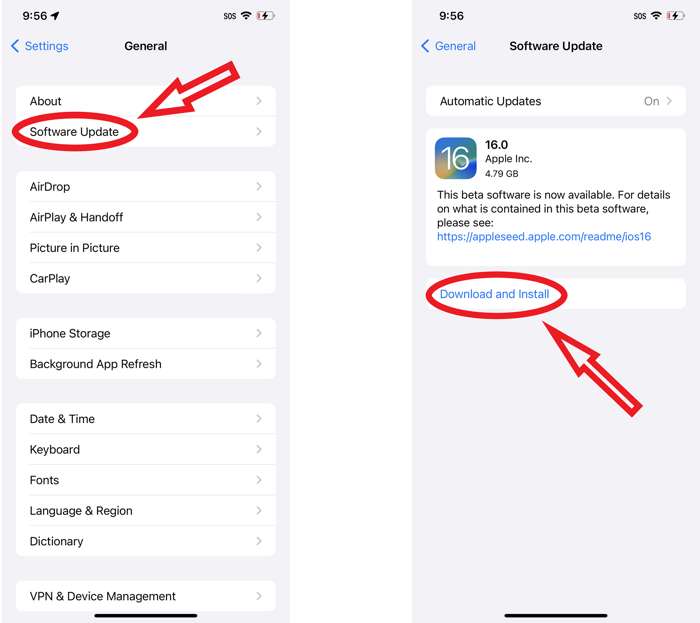
Step 1 Go to the Settings app.
Step 2 Navigate to General and Software Update to search for updates.
Step 3 Next, tap Download and Install.
Part 3: How to Fix Video Codec Not Supported for Any Device
If common solutions are unavailable, converting the video codec that is not supported is an effective solution. Tipard Video Converter Ultimate can help you convert between any video codecs in a single click. Moreover, the user-friendly design can streamline the workflow.

- Convert a video to any codec in three steps.
- Batch-process multiple videos at one time.
- Speed up the process with hardware acceleration.
- Support a wide range of video codecs, including HEVC.
- Offer bonus features, like a video editor.
How to Fix Video Codec Not Supported for Any Device
Step 1Install the video codec converter
Launch the video codec converter software after installing it on your PC. It is available on Windows 11/10/8/7. There is another version for macOS 10.12 and above. Go to the Converting tab at the top of the interface.
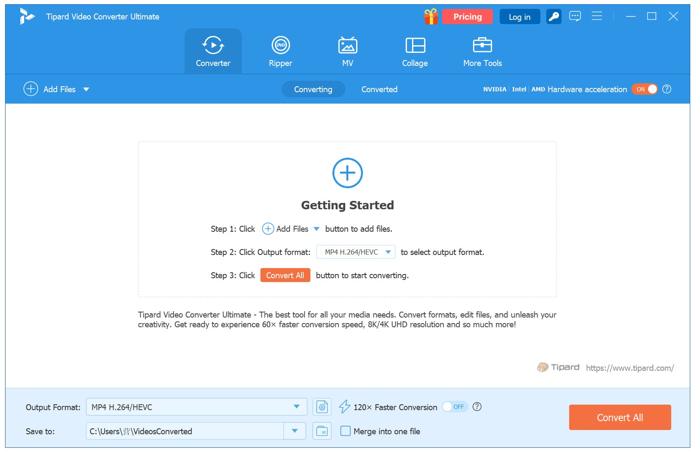
Step 2Import videos
Click the Add Files menu and open the videos that you want to play on any devices. With multithreaded technology, you can import and process multiple videos at once.
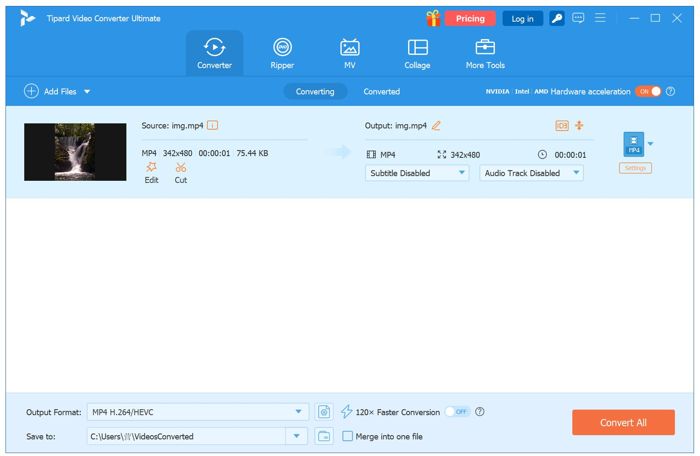
Step 3Convert video codec
Click the Output Format option at the bottom. Go to the Video tab, choose a proper video format, and pick a preset. If the preset doesn't cover the desired codec, click the Settings button and select the code from the Encoder option.
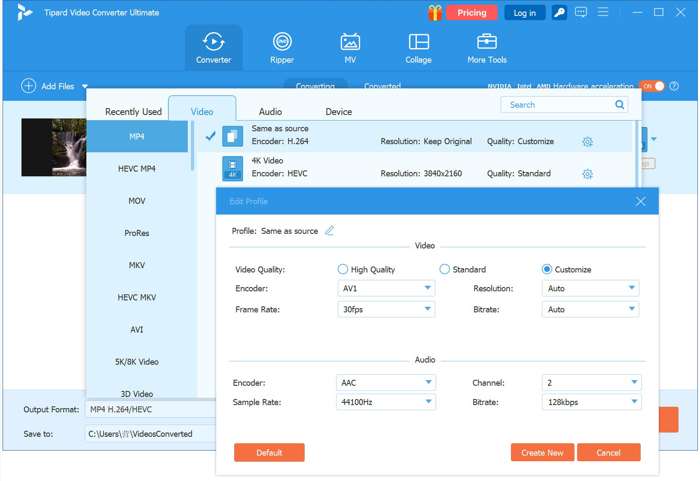
Finally, set the output folder in the Save to field, then click the Convert All button to begin fixing the video codec not supported issue.
Conclusion
This article explained how to fix the video codec not supported error on Android, iOS, Windows, macOS, and other platforms. You can learn what the error means, why it occurs, and the effective solutions. Tipard Video Converter Ultimate is able to convert videos to any codec and play them on the target device without errors.
All-in-one video toolbox: convert, edit, upscale, enhance, and compress your videos easily
100% Clean & Safe
100% Clean & Safe

More Reading



About the Author

 Click here to join the discussion and share your comments
 Tipard Video Converter Ultimate