

AVS Video Converter is a well-known tool for changing videos into newer formats. However, with so many modern and high-tech converters available today, many users wonder if AVS is still a reliable choice. Instead of guessing, we tested the software to bring you the truth. In this review, we will look at how it works, its pros and cons, and the best alternatives you can use right now.

Part 1. What AVS Video Converter Can Do?
AVS Video Converter has standard features and advanced feature. Standard features include video conversion, DVD and Blu-ray burning, simple video editing, etc. The advanced features mainly focus on video parameter customization, which is also the most impressive and precious features of this program.
Standard Features of AVS Video Converter:
- Digital Video Conversion: AVS Video Converter can convert your videos to MP4, MOV, MKV, AVI, WMV, etc.
- Disc Burning: AVS Video Converter can burn videos to DVD and Blu-ray with free menu templates. You can also change the menu background music.
- Video Editing: AVS Video Converter has simple video editing features, like color correction/adjustment, trim, filters, invert, and more. However, those editing features are very difficult to use.
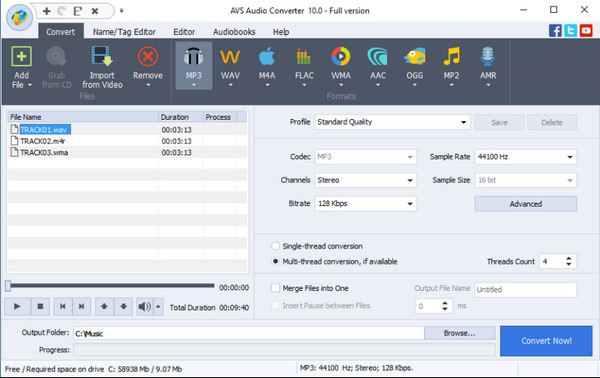
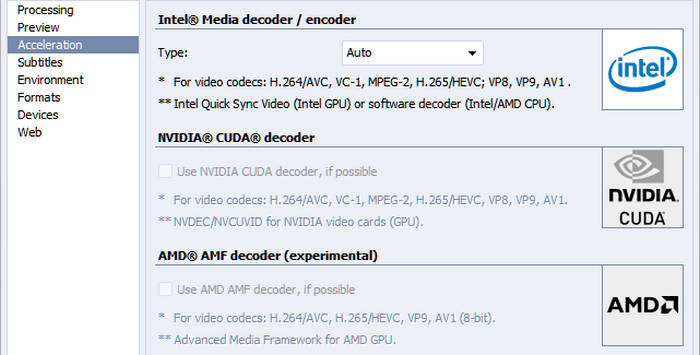
- Hardware Acceleration: AVS Video Converter well supports GPU acceleration to re-encode videos. It can manually detect the graphics card on your computer and apply it.
Advanced Features of AVS Video Converter
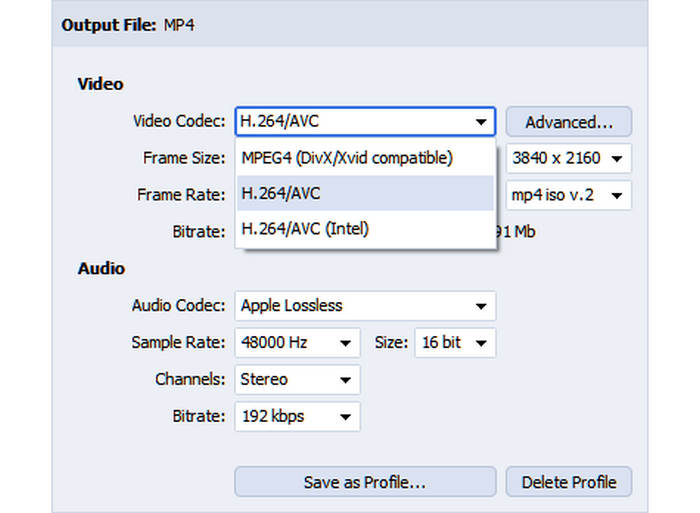
- Adjust Video Parameter: You can change video codec, bitrate, resolution, frame rate, audio codec, sample rate, channels, and more. It offers many presets, like standard MP4, MOV, MKV, and presets optimized for iPhone, iPad, Samsung, Sony, and more.
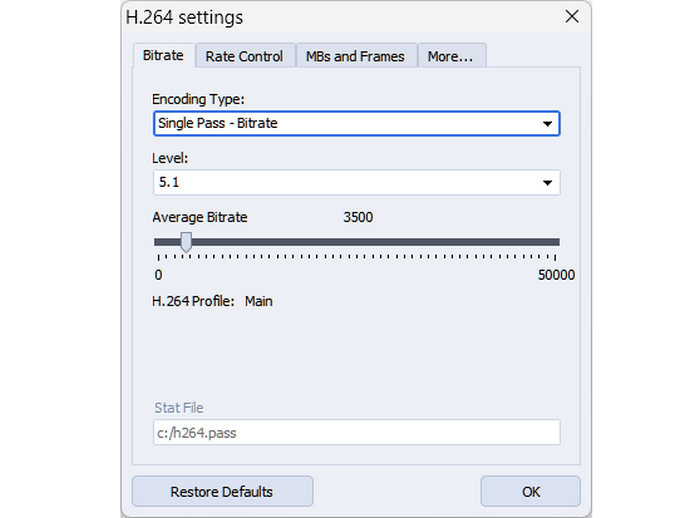
- Super Deep Codec (Compression) Customization: Many other media converters or editors can only directly offer you video codecs, but AVS Video Converter lets you adjust the video codec bitrate, rate control, MBs, Frames, and even motion estimation. This is a very professional feature of this program. If you need to do a very subtle configuration for video re-encoding, AVS Video Converter must be your best free choice.
Part 2. Master Review of AVS Video Converter
When reviewing AVS Video Converter, it quickly becomes apparent that the software offers some commonly used formats and codecs, and the codec configuration feature is also amazing. However, there are some apparent drawbacks: limited formats and codecs. The advanced features are also useless for average users, while advanced users may resort to more professional video editors.
Pros:
- AVS Video Converter provides dedicated output formats and presets.
- It can also burn DVDs and Blu-rays.
- The codec customization features can help advanced users to easily adjust the compression rate.
Cons:
- In 2026, AVS Video Converter still doesn't support H.265 and AV1 codecs.
- Although you can deeply customize the H.264 codec, it is still less competitive than a dedicated HEVC or AV1 codec.
- The video editor feature is very difficult to use, and the features are outdated.
- AVS Video Converter cannot input or output audio formats, which means it is only a video converter.
Compatibility of AVS Video Converter:
- Supported OS: Only on Windows: Windows 11, 10, 8, 7, Vista, and XP.
- Supported Output Formats: MP4, MOV, AVI, MKV, WMV, MPEG, WebM, M2TS, TS, 3GP, DPG, AMV, MTV, RM, GIF, SWF, FLV, DVD, Blu-ray.
- Supported Output Codecs: MPEG-4, MPEG-2, H.264, H.263, Sorenson, IBM Motion, VP8, Huffman, and more.
- Supported Hardware Acceleration: Intel, NVIDIA, and AMD.
Our Verdict:
Despite its deep customization features, AVS Video Converter feels outdated today due to its lack of support for modern HEVC and AV1 output codecs.
Is AVS Video Converter Free?
AVS Video Converter is not a free video converter. Thankfully, the free version can let you convert videos to all the formats it supports up to 4K resolution. However, other features, like video editor, DVD/Blu-ray burning, and command-line mode, are only in the full version (premium version).
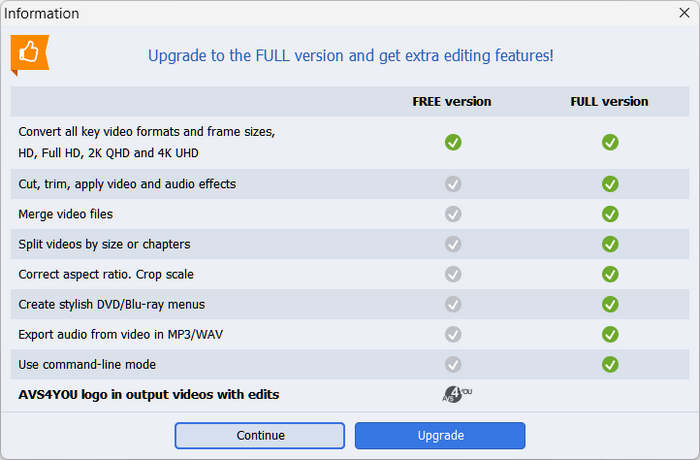
The price of AVS Video Converter is $49.00 or higher for a subscription. Given its outdated codecs, AVS Video Converter just isn't worth the price, especially with a subscription model. However, if they ever offer a lifetime license, it could become a solid choice for advanced users who need deep customization.
Part 3: Best Alternatives to AVS Video Converter
To find an AVS Video Converter alternative, you can consider these important factors: modern codecs and presets, an easy-to-use, intuitive interface, and a simple workflow. Here we offer 3 good alternatives to AVS Video Converter as follows.
1. Tipard Video Converter Ultimate
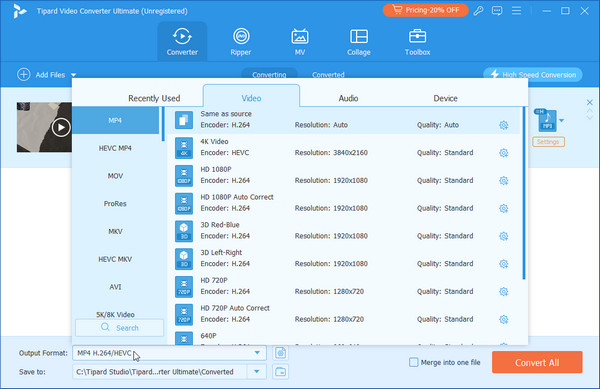
Tipard Video Converter Ultimate surpasses the AVS Audio Converter in all functions and features. This app has revolutionized the conversion game to the next level. Rather than limiting its support to 150+ formats, this app supports 500+ video and audio formats on different platforms you have today. With that and the addition of an improved user-friendly interface, there is nothing more we can say about this app that did not surpass what the previous one had. If you want to convert multiple files, you can upload them here and convert them into your desired format, as this app supports batch conversion limitless.
Not only that, it can also work as an advanced video editing tool and ripper whenever you need to rip a DVD to a computer. All these features can be enjoyed for free, but if you purchase the app's premium version, you will have a great deal, for it offers more surprises than you ever imagined. Get the latest version of this converter now to enjoy all of its benefits as a converter and more!
2. Virtual Dub
VirtualDub is a robust video capture and processing utility primarily designed for Windows platforms. Despite its lack of the extensive editing features found in general-purpose editors like Adobe Premiere, it excels in specific tasks related to video manipulation. Users can leverage it to capture video from various sources, including webcams or video files. Its streamlined interface, characterized by simplicity and efficiency, makes it ideal for quick tasks such as trimming clips, adjusting brightness/contrast, or applying basic filters. Moreover.
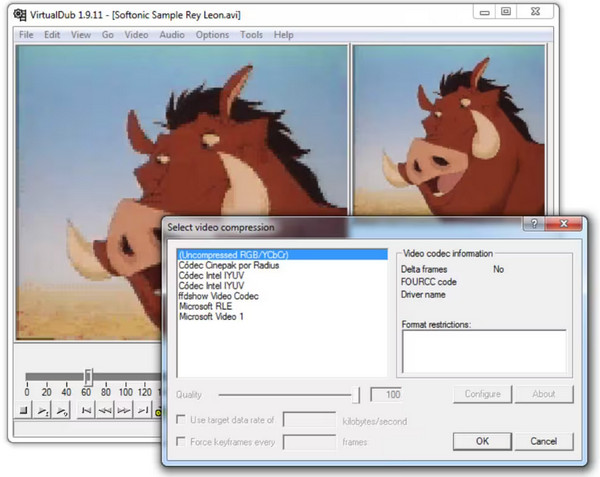
Moreover, it supports a range of video filters and effects, allowing users to enhance video quality, remove noise, or correct color balance. While it may not offer the vast library of effects found in AVS, it covers essential needs effectively. Another standout feature is its batch processing capability, enabling users to create scripts for automating repetitive tasks—a boon when handling large numbers of video files.
3. Freemake Video Converter
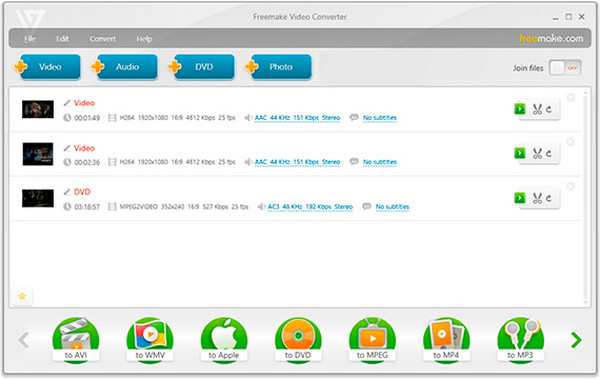
Freemake Video Converter is a widely used tool with over 93 million users. It converts videos to various formats, including AVI, WMV, MPG, and MP4. Additionally, it can rip video from DVDs, convert audio files, and even burn videos to DVD or Blu-ray. Its user-friendly interface, preset device profiles, and straightforward editing features make it an excellent choice. While some advanced features require a free Web Pack activation after three days, it remains a convenient and reliable alternative to AVS Video Converter.
Conclusion
AVS Video Converter free is a good video converter if you only need the H.264 codec. If you want modern output codecs like HEVC, AV1, and ProRes, you should choose an AVS Video Converter alternative. Tipard Video Converter Ultimate is a good choice. It supports many modern and rare input and output formats and codecs. The simple interface and easy workflow can also let you easily convert and edit videos and audio files.

All-in-one video toolbox: convert, edit, upscale, enhance, and compress your videos easily
100% Clean & Safe
100% Clean & Safe

More Reading

About the Author


 Tipard Video Converter Ultimate