

Key Takeaways
- Subtitles can make the clips more engaging and accessible.
- iMovie can offer its pre-built tool to add subtitles to your videos.
- Customizing text/subtitles in iMovie is possible.
- For a better and more successful subtitle-adding process, it is ideal to use Tipard Video Converter Ultimate.
How to add subtitles in iMovie? Inserting a subtitle would be a wise decision if you want to make your videos more accessible and engaging to your viewers. Whether you are making content for social media, personal projects, or tutorial videos, subtitles can help your audience follow along and understand your intent clearly. In this tutorial, you will learn the best way to add a subtitle to your videos when using the iMovie app on your Mac, iPhone, and iPad. Thus, read on to get more insights into the discussion.

Part 1. Can You Add Subtitles to iMovie
Can you add subtitles in iMovie? The good news here is that adding a subtitle to a video in iMovie is possible. The tool offers a built-in feature for inserting text into your videos. The good thing here is that you can edit and customize the font, size, color, and position based on your preferences. With that, we can say that iMovie is among the best options available for creating professional-looking videos with good subtitles.
Part 2. How to Add Subtitles on iMovie on Mac
Want to learn how to add subtitles on iMovie? Well, iMovie is not just an ideal app for viewing and editing videos. It can also offer its Titles feature to easily attach text or subtitles to the video. The best part here is that inserting subtitles is easy, making it doable for all users, especially beginners. In addition, you can customize the text in the video. You can modify the font, colors, size, and position. Aside from that, you can edit your videos effectively. You can cut videos on iMovie, crop, insert effects, add a watermark, and more. Thus, if you want a simple and powerful editing program for Mac, consider using iMovie.
To add subtitles to iMovie, follow the simple steps provided below.
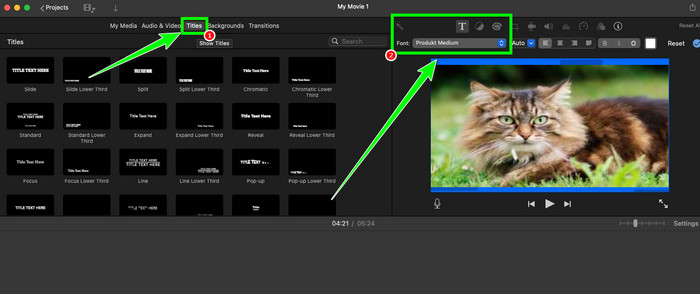
Step 1 Launch iMovie and click Plus to add the video you want to edit. After that, place the video clip in the Timeline section below.
Step 2 Then, navigate to the top interface and click the Titles function. With that, you can check and select your chosen video title. Drag and drop the title box to the Timeline and align it to the video.
Step 3 Now, you can click the title box below to change the font, size, position, color, and other necessary parameters.
Step 4 Once satisfied, click File > Share > File options, then choose your destination folder. Then start exporting the video with a subtitle.
Subtitle Editing Tips
- Always keep the subtitle concise and easy to read by limiting each line to a few words.
- Use an easy-to-read font. This will help the viewers read the subtitles easily.
- Adjust the subtitle timing carefully. Ensure that there is no delay when aligning it to the video.
Part 3. How to Add Subtitles on iPhone and iPad
Want to add a subtitle in iMovie on iPhone and iPad? Well, just like the process above, adding subtitles or text to your videos is just as simple. Its main interface is also comprehensive, making it a good editor/tool for iPhone and iPad users. What's more, you can also customize the text/subtitles. What's more, you can edit your videos in many ways. You can reverse the video on iMovie, insert filters, cut videos, add effects, and more.
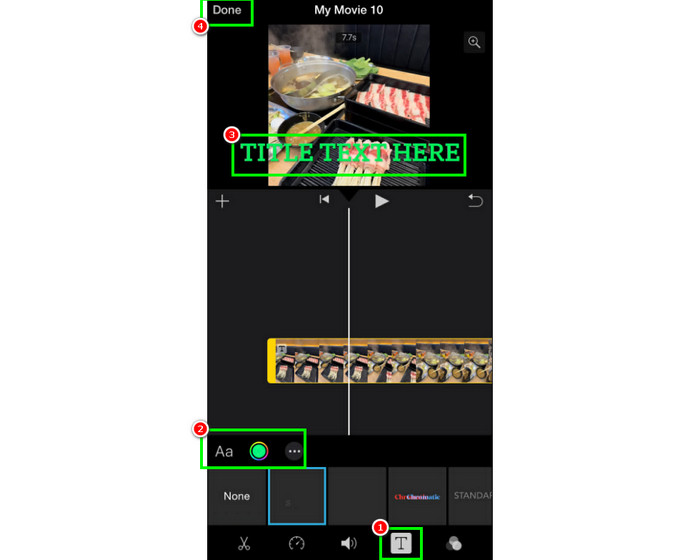
Step 1 Launch iMovie on your iPhone or iPad. Then, press the Movie button to start adding the video you want to edit. Then, tap Create Movie.
Step 2 From the main interface, tap the Text function and start choosing your desired text style. You can now start adding the text/subtitle to the video. You can also adjust/change the font style, size, colors, and position.
Step 3 Once done, hit the Done button. Then, tap Share to start saving and sharing the video with a subtitle.
Subtitle Editing Tips
- When adding a subtitle, it is best to position it in the middle part of the video.
- Use a large font to make the text/subtitle viewable.
- After adding the subtitle, check its visibility.
Part 4. An Easier iMovie Alternative to Add a Subtitle to the Video
When adding a subtitle in iMovie, you have to insert the text manually. The process might be time-consuming, especially when dealing with long-form videos. So, if you need the best alternative to iMovie, try Tipard Video Converter Ultimate. This program allows you to add the subtitle file to the video, making the process easier and faster. It can even add both soft and hard subtitles. In addition, you can edit the subtitles. You can modify the font style, size, colors, and other elements as needed. It even lets you easily remove, replace, and export subtitles, making the program superior. So, if you want to add subtitles to the video, check the simple procedure below.
Step 1 Download Tipard Video Converter Ultimate on your computer. Then, launch it to begin the main process.
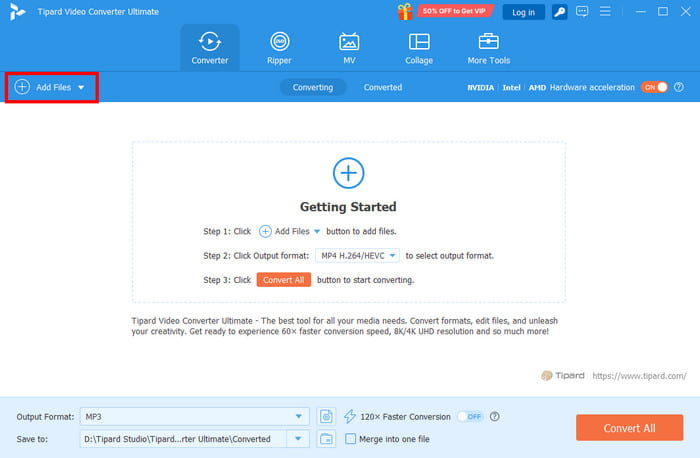
Step 2 From the interface, click the Add Files button to add the video from your computer.
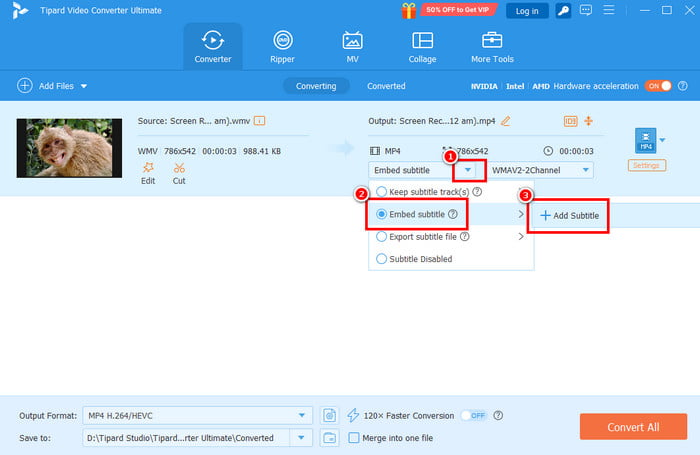
Step 3 Go to the drop-down arrow and click the Embed Subtitle > Add Subtitle options. Then, browse and select the subtitle from your computer folder. You can also start editing the subtitle based on your needs.
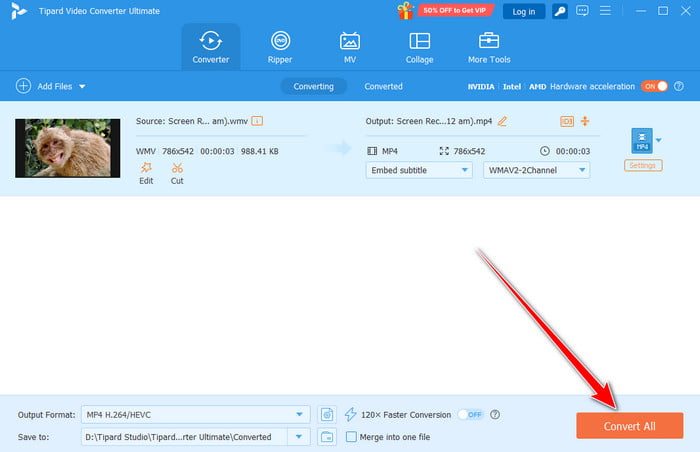
Step 4 For the last step, click the Convert All button at the bottom of the interface. After that, you can enjoy watching the video with subtitles.
Part 5. FAQs about Adding Subtitles in iMovie
Can iMovie support automatic subtitle generation?
Unfortunately, no. You must add subtitles manually to your videos, as it doesn't support auto-captioning.
Can I adjust the subtitle timing?
Definitely, yes. Adjusting the subtitle timing is possible. What you need to do is to place the subtitle box in the exact video area.
Do subtitles in iMovie work on all devices?
Absolutely, yes. Since the subtitles are burned and saved into the video, you can play it on all devices without any issues.
Conclusion
If you want to add subtitles in iMovie, follow the steps in this guide. You can even customize the subtitles by adjusting their size and color, and changing the font style. Also, if you want an easy and instant way to add subtitles, it is best to use Tipard Video Converter Ultimate. This program allows you to add the subtitle file, making it more efficient than the manual process. Thus, access this program and get the result you need.

All-in-one video toolbox: convert, edit, upscale, enhance, and compress your videos easily
100% Clean & Safe
100% Clean & Safe

More Reading




About the Author


 Tipard Video Converter Ultimate