

- Part 1. Understanding Instagram Video Length Limits
- Part 2. How to Make a Video Longer on Instagram via the Timer Feature
- Part 3. How to Make an Instagram Video Longer Before Posting It
- Part 4. How to Bypass Instagram Video Length Limits
- Part 5. Magic Tips to Make a Short Instagram Video Feel Longer
- Part 6. FAQs on How to Make a Video Longer on Instagram
Making videos longer on Instagram helps you share more stories, show more details, and keep people watching. It makes your content more complete and more engaging. Do you also want to do it?
If yes, you are in the right post. We will share different ways to make a video longer on Instagram. We will use the Instagram feature and a helpful program. We will also share useful tips you can apply to your video. Ready? Dive in now!

- Part 1. Understanding Instagram Video Length Limits
- Part 2. How to Make a Video Longer on Instagram via the Timer Feature
- Part 3. How to Make an Instagram Video Longer Before Posting It
- Part 4. How to Bypass Instagram Video Length Limits
- Part 5. Magic Tips to Make a Short Instagram Video Feel Longer
- Part 6. FAQs on How to Make a Video Longer on Instagram
Part 1: Understanding Instagram Video Length Limits
Instagram has different video limits depending on where you post. Each feature has its own purpose. Learning this helps you choose the right format for your content.
Feed Posts
Videos can be up to 10 minutes long. Some verified or large accounts can upload for up to 60 minutes. It is best for long content like tutorials, reviews, and vlogs.
Reels
Reels can be up to 3 minutes long as of 2025. They are made for short and engaging videos. The goal is to boost reach, views, and engagement through the Instagram algorithm.
Stories
Each Story clip lasts up to 60 seconds. You can add more clips to make a longer story. Stories are used for quick updates, behind-the-scenes moments, and interactive posts like polls or Q&A.
Part 2: How to Make a Video Longer on Instagram via the Timer Feature
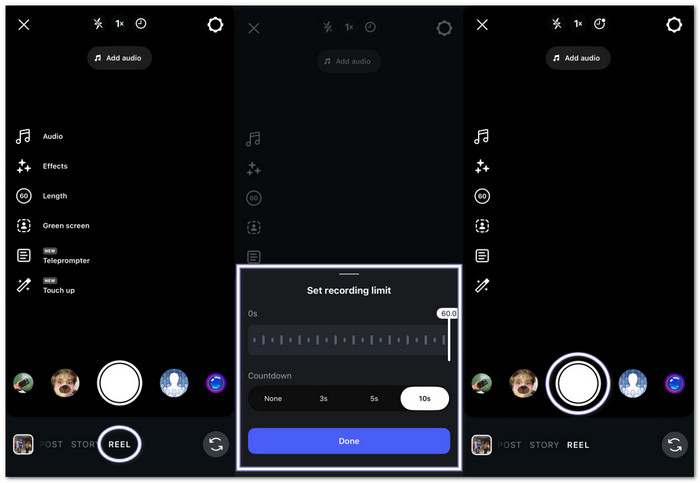
Instagram lets you record longer videos using its built-in timer feature. It is one simple way to make a video longer on Instagram.
Step 1 Open Instagram and swipe right on your home screen or press the Add button. Then, choose Reel to open the camera.
Step 2 Look on the left side of the screen. Tap the circle that shows a time like 15, 30, 60, 90 seconds, or 3 minutes. Pick the longer duration you want for your video.
Step 3 Still on the left menu, press the Clock (Timer) button. It is the timer feature used before recording.
Step 4 Adjust the slider to choose when recording should stop. Then, select a 3-second or 10-second countdown. It gives you time before it starts.
Step 5 Tap Set Timer, then press the Record button. The countdown will start, and your video will begin recording with the full chosen length.
Part 3: How to Make an Instagram Video Longer Before Posting It
Before posting it on Instagram, you may want to make your video longer for a better impact. Tipard Video Converter Ultimate helps you do that in an easy way. It lets you easily loop, merge, and slow down videos for extra length and smoother flow. Do not worry; it processes videos without lag, stutter, or quality loss. It also supports all video and audio inputs. Even better, it provides presets optimized for Instagram.

- Supports Instagram-supported formats like MP4 and MOV.
- Edit Instagram videos by trimming, merging, looping, and slowing playback.
- Upscale video resolution from standard definition up to 4K or even 8K.
- Offers more tools like video compressor, video enhancer, and video reverser.

See different ways on how to make a video longer on Instagram before posting it below!
Method 1: Make an Instagram Video Longer by Looping It
Looping repeats your video automatically. It is a simple way to increase the video's length.
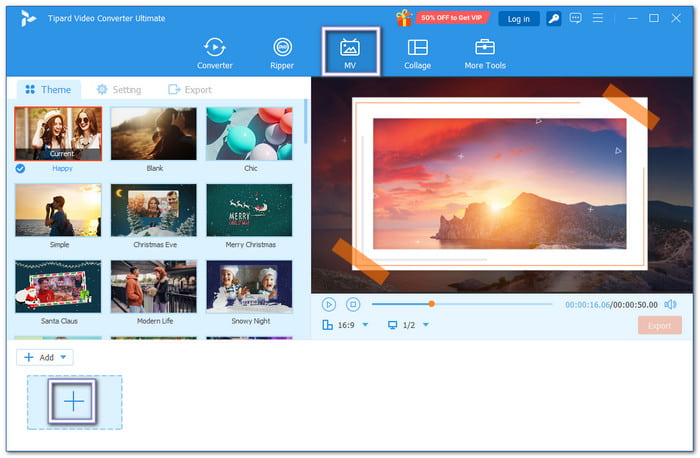
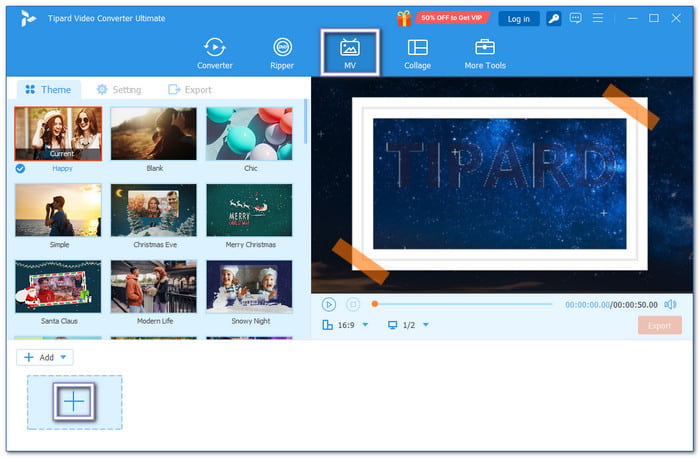
Step 1 Launch Tipard Video Converter Ultimate, go to the MV tab, and click Add and import the video you want to make longer.
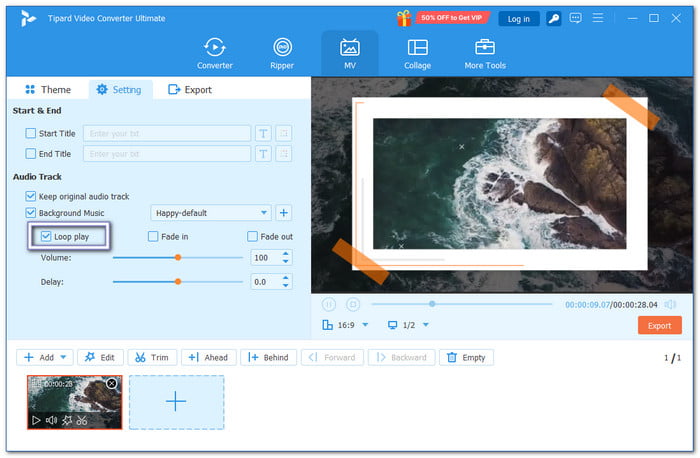
Step 2 Open Settings and enable Loop Play. Then, preview the video to check the looping effect.
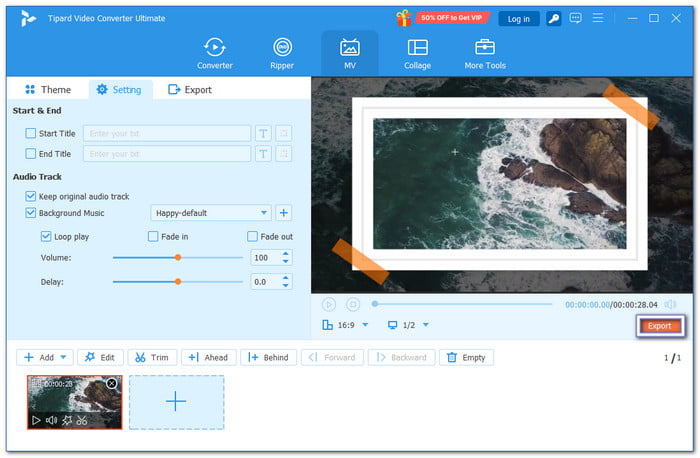
Step 3 Hit Export to save your longer Instagram video.
Method 2: Make an Instagram Video Longer by Slowing Down the Playback Speed
Slowing down an Instagram video makes it longer while adding a smooth and dramatic look.
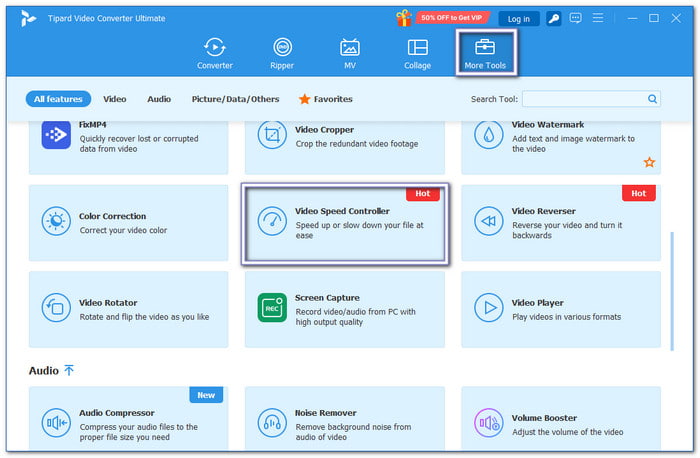
Step 1 Run Tipard Video Converter Ultimate, open More Tools, and choose Video Speed Controller.
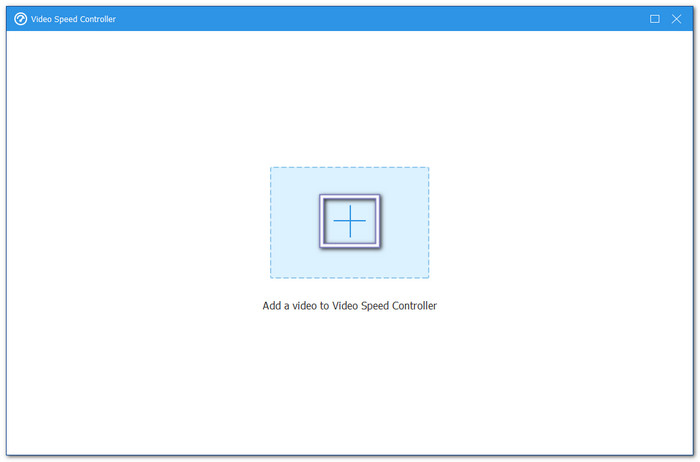
Step 2 Load your Instagram video by clicking the Add button in the center.
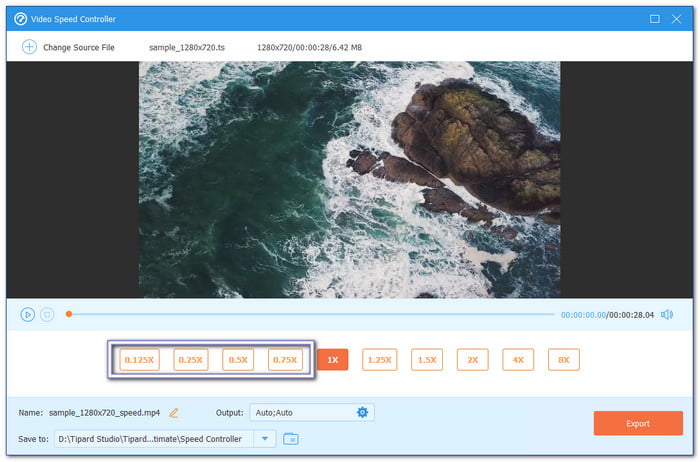
Step 3 It is time to select a slower speed, such as 0.75×, 0.5×, or 0.25. As you can see, the duration became longer.
Step 4 Once satisfied, click Export to save the extended video.
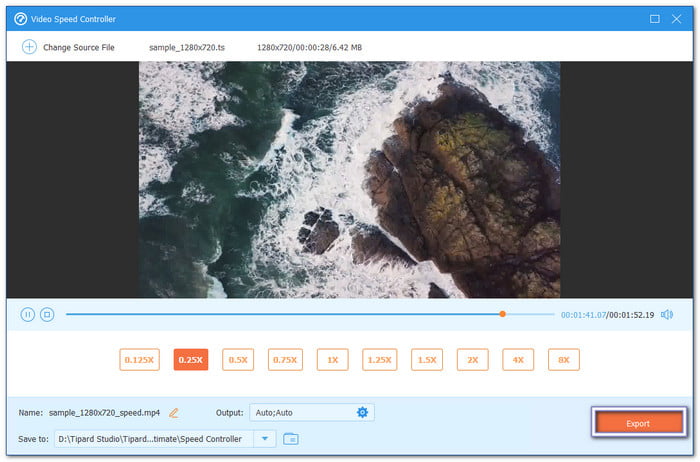
The 1.25×, 2×, 4×, and 8× can only be used if you want to speed up an Instagram video.
Method 3: Make an Instagram Video Longer by Adding an Opening Title Screen
Adding a short title screen at the beginning can make your video longer and more professional, especially when thinking about how do you make a video longer for Instagram.
Step 1 Open Tipard Video Converter Ultimate, go to the MV tab, and import your main video clip.
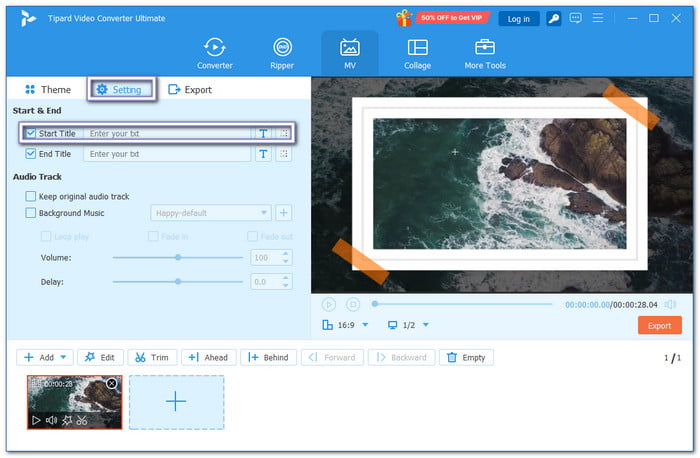
Step 2 Go to Settings and enable Start Title. Then, enter your title text and preview the changes.
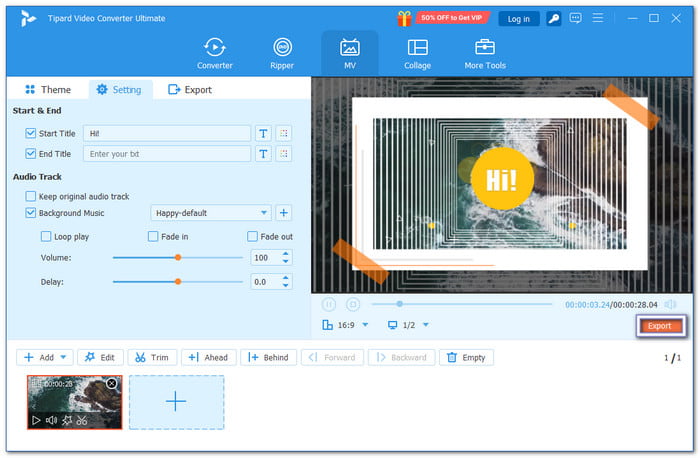
Step 3 Hit Export to save the finished video.
Method 4: Make an Instagram Video Longer by Merging Multiple Clips
Combining several clips is a great way to create one longer Instagram video and is one method for how to make a video longer for Instagram.
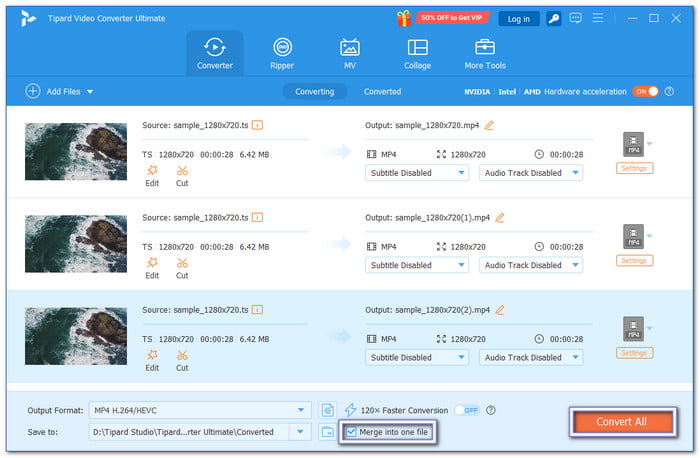
Step 1 Launch Tipard Video Converter Ultimate and stay on the Converter tab.
Step 2 Click Add Files and import all the video clips you want to combine. Then, arrange the clips in the correct order.
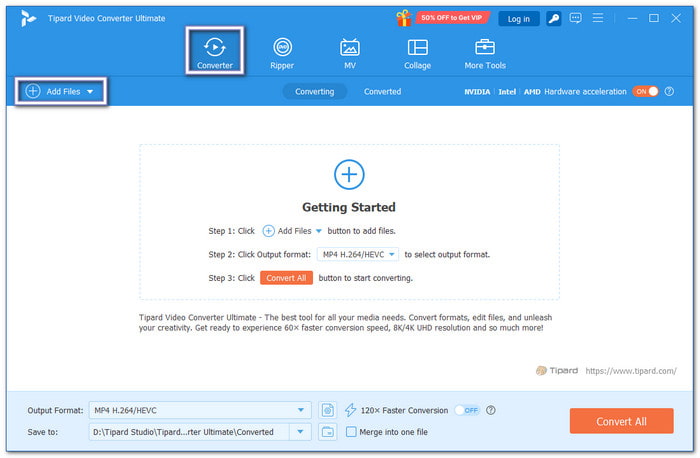
Step 3 Check Merge into One File, and then click Convert All to save the merged Instagram video.
Instagram has specific aspect ratio requirements for videos. If your video does not match, you can use Tipard Video Converter Ultimate to easily crop the video for Instagram and adjust it properly, so it fits perfectly without losing clarity.
Part 4: How to Bypass Instagram Video Length Limits
You must utilize the appropriate workaround for each feature in order to prevent your video from being clipped.
Workaround 1: Stories (up to 60 seconds per clip)
Break your long video into short parts. Each part should be 60 seconds or less. You can use your phone editor or a third-party app. Then, upload the clips one by one in order.
Workaround 2: Reels (up to 3 minutes or more, depending on account)
If your video is too long for a Reel, upload it as a normal Feed post instead. Instagram may turn it into a Reel automatically. It can help you avoid the usual Reel time limit.
Workaround 3: Feed Posts (15 minutes on mobile, up to 60 minutes on desktop)
Upload your long video as a Feed post. For longer videos, use Instagram on a computer. Desktop upload supports up to 60 minutes. It is the best option for full videos.
Workaround 4: Instagram Live (up to 4 hours)
If your content is super long, go Live instead. Instagram Live allows long streaming times. It is best for events, talks, or real-time videos.
Part 5. Magic Tips to Make a Short Instagram Video Feel Longer
Short videos can feel longer and more engaging when you edit them the right way. These simple tricks help stretch time without making the video feel boring or fake.
Tip 1: Slow Down & Freeze Key Moments
Slow your video to 50% or even 20% speed. It makes it feel longer and more dramatic. You can also freeze one strong scene for 3 to 5 seconds. It helps viewers focus and stay longer.
Tip 2: Use a Bouncing Loop (Reverse Effect)
Take your clip and duplicate it. Then, reverse the second part. When played together, it creates a smooth back-and-forth motion. It makes the video feel longer without adding new footage. It also keeps the movement interesting.
Tip 3: Add a Simple Intro & Outro
Start with a short intro of about 2 seconds. End with a short outro. You can add a question or call to action. It makes your video feel complete, like a small story.
Tip 4: Use Background or Ambient Audio
Pick a longer sound or music track. Lo-fi beats or soft background sounds work well. It helps the video feel smooth, even if the clip is short. Good audio also hides repeating loops.
Part 6. FAQs on How to Make a Video Longer on Instagram
What is the 5-3-1 rule on Instagram?
The 5-3-1 rule is a simple daily habit to grow your account naturally. Like 5 posts in your niche. Comment on 3 posts with real and meaningful thoughts. Follow 1 account that matches your niche or interest.
Does Instagram pay you per 1000 views?
No. Instagram does not pay per 1000 views. There is no fixed payout per view. Most earnings come from brand deals or bonuses.
Should I post reels every day on Instagram?
No. Posting daily is not required. It can cause burnout. A good range is 3 to 5 Reels per week. It keeps content strong and consistent.
Conclusion
What do you think is the best method for making an Instagram video longer? You can use the built-in Instagram timer feature or use Tipard Video Converter Ultimate to loop videos, change video speed, add an opening film, or merge clips. It will surely help you create longer and better Instagram videos in an easy way!
All-in-one video toolbox: convert, edit, upscale, enhance, and compress your videos easily
100% Clean & Safe
100% Clean & Safe

More Reading




About the Author


 Tipard Video Converter Ultimate