

If you have a collection of DVDs and Blu-ray discs, you are likely familiar with HandBrake and MakeMKV. They are designed to convert physical video discs into digital videos and are powerful solutions in their space. It makes sense that many people wish to compare them and pick the right tool. This article provides a comparison to help you decide which one to choose in different situations.

Part 1: Core Differences between MakeMKV and HandBrake
| MakeMKV | HandBrake | |
|---|---|---|
| Video file input | No | Yes |
| DVD ripping | Yes | Yes |
| Blur-ray disc ripping | Yes(lossless copy) | Yes(transcode) |
| H.265 encoding | No | Yes |
| Batch processing | No | Yes |
| Cross platform | Windows XP and later, macOS, Linux | Windows, macOS, Linux |
| Price | Free, Blu-ray ripping is not free | Free |
| Presets include | No | Yes |
| Advantages | Rip DVDs and Blu-ray discs Remove disc copy protection Preserve original audio and subtitle tracks Lightweight and fast | Completely free and open source Support a wide range of input formats Offer extensive control and custom settings Include helpful presets Integrate hardware acceleration |
| Limitations | Rip discs to MKV only Output files can be very large Lack video editing features | Complex to configure Cannot decrypt video discs Output formats are limited to MP4 and MKV |
| Show MoreShow Less | ||
Part 2: Which You Should Choose: MakeMKV vs. HandBrake
MakeMKV is a software tool designed to copy DVDs and Blu-ray video discs to MKV video files. It preserves all video, audio, and subtitle tracks, as well as keeps them in their original condition. Besides, it keeps chapter information and metadata.
HandBrake is an open-source video transcoder for converting video formats, converting DVDs into digital videos, and encoding video files for specific devices.
In fact, the integration of MakeMKV and HandBrake is the best option for ripping DVDs and Blu-ray video discs. MakeMKV can decrypt and rip DVDs into lossless MKV video files. Then HandBrake can convert MKV files to other formats.
MakeMKV and HandBrake Tutorial
Step 1 To get started with the MakeMKV and HandBrake tutorial, insert the DVD or Blu-ray disc into your computer.
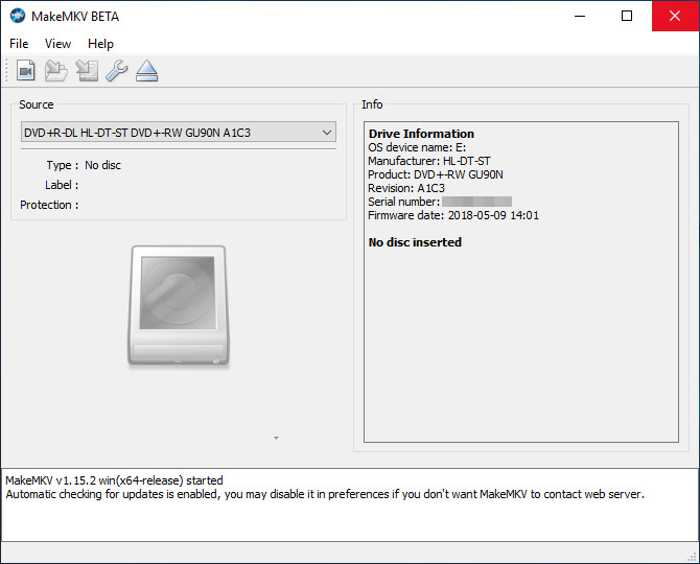
Step 2 Open MakeMKV and select the disc under the Source section.
Step 3 Click the Disc button.
Step 4 Select the desired chapters.
Step 5 Click the Folder button under the Output folder area to set the output folder.
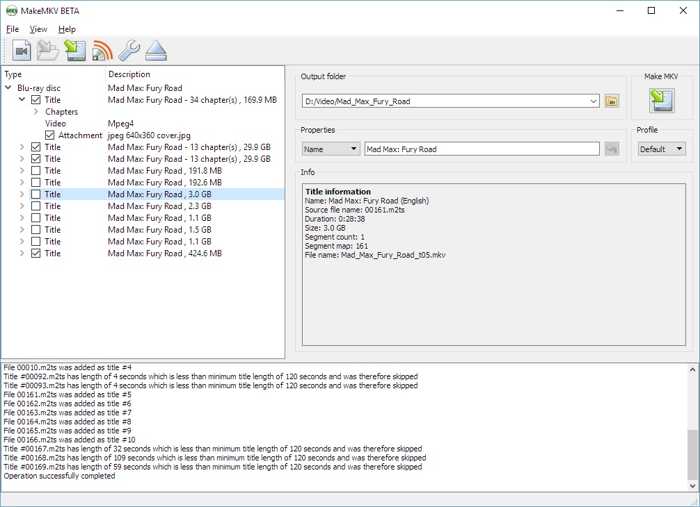
Step 6 Click the Make MKV button to copy the video disc.
Step 7 Next, open HandBrake.
Step 8 Click the Open Source menu and open the MKV file.
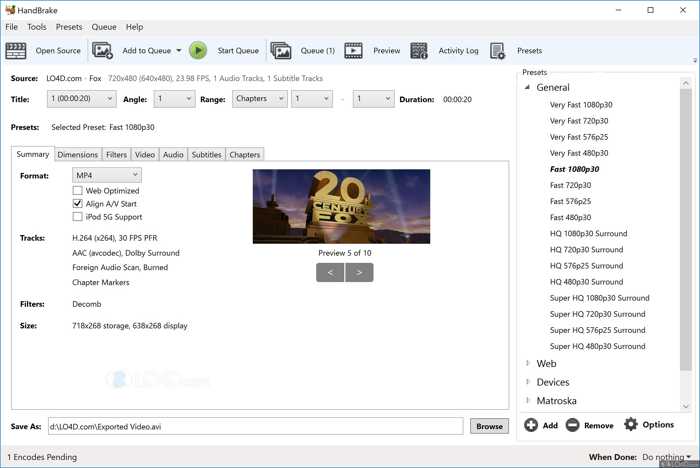
Step 9 Click the Browse button to set the destination folder.
Step 10 Go to the Summary tab and select a video format from the Format option.
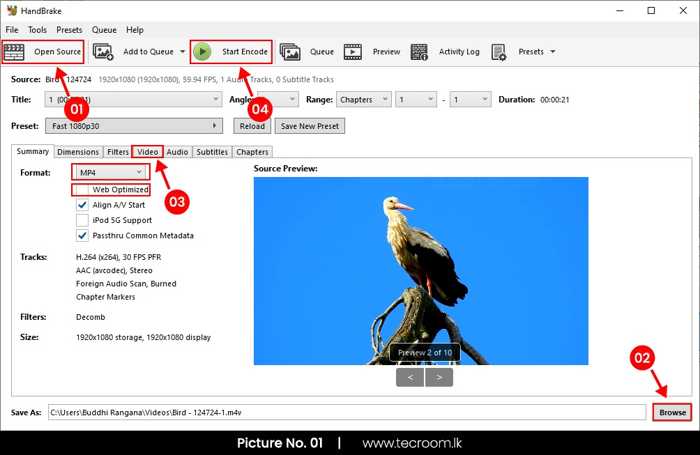
Step 11 Then, pick a proper preset from the Preset option.
Step 12 Finally, click on the Start Encode button to begin encoding the MKV file.
Part 3: A Great Alternative to HandBrake and MakeMKV
You may wonder if you can rip DVDs with a single program. The answer is yes. Tipard Video Converter Ultimate is an alternative to HandBrake and MakeMKV. It can rip video discs to any video format, so you don't need to consider the settings for HandBrake to replicate MakeMKV.

- Rip DVDs and Blu-ray discs into digital videos quickly.
- Batch-process multiple chapters at once.
- Support a wide range of output formats, like MP4, MKV, AVI, etc.
- Preview videos before ripping DVDs.
- Include bonus features such as a video editor.

How to Rip a DVD with an Alternative to HandBrake and MakeMKV
Step 1 Import your disc
Launch the alternative to HandBrake and MakeMKV after installing it on your PC. There is another version for Mac OS X. Insert a video DVD into your PC. Go to the Ripper tab at the top of the window. Click the Load DVD menu, choose Load DVD Disc, and import the disc. When prompted, select the titles you want to rip.
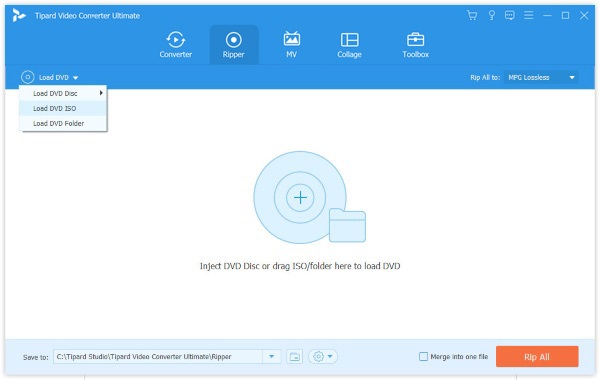
If you hope to edit a title, click the Edit button to open it in the video editor.
Step 2 Set an output format
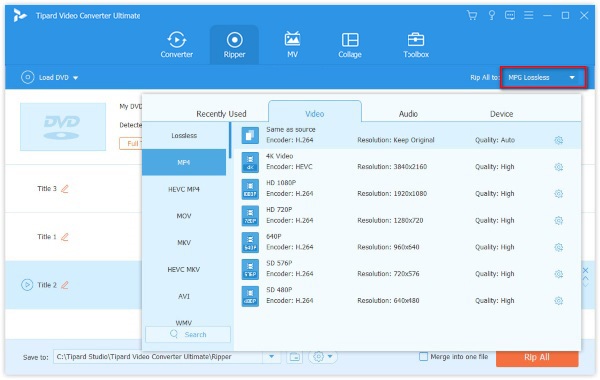
After videos load, click the Output Format option at the bottom to trigger the format dialog. Head to the Video tab, select a proper video format, and pick a preset. If you want to watch the videos on your phone, go to the Device tab and select your phone model.
Step 3 Rip your DVD
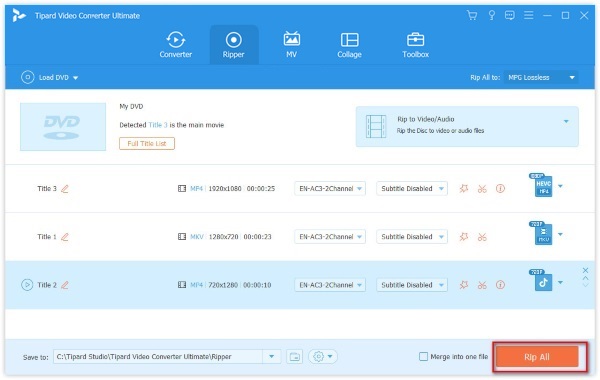
Click the Folder button at the bottom and set an output folder. Finally, click on the Rip All button to start ripping the DVD into digital videos.
Conclusion
This article presented a comparison between HandBrake and MakeMKV. You should learn the core differences between the two tools. More importantly, you can follow our tutorial to copy and convert DVDs to digital video properly. We also recommend a one-stop alternative solution: Tipard Video Converter Ultimate. It can decrypt and rip DVDs into any video format.
All-in-one video toolbox: convert, edit, upscale, enhance, and compress your videos easily
100% Clean & Safe
100% Clean & Safe

More Reading




About the Author

 Click here to join the discussion and share your comments
 Tipard Video Converter Ultimate