

Key Takeaways:
If your TV screen looks blurry, first check the HDMI cable, restart the TV, adjust picture settings, and make sure your video source is high quality. If only certain videos look blurry, the problem may be the video file rather than the TV.
A blurry TV screen can happen because of incorrect picture settings, poor video sources, loose cables, outdated software, or blurry video files. Whether you use a Samsung, LG, Sony, TCL, Hisense, or another brand, you can usually fix blurry TV picture quality with a few simple adjustments.

Part 1. Why Is My TV Blurry?
Generally, your TV should display a clear picture, but why does your TV sometimes show pixelated, blurry, or grainy pictures? You can check some common causes below:
- Wrong picture settings: Sharpness, brightness, or picture mode may be incorrect.
- Low-quality video source: SD channels or compressed streaming videos look blurry.
- Loose or damaged cables: Poor connection may affect picture quality.
- Outdated TV software: TV firmware bugs can affect display.
- Blurry video files: Low-resolution or poorly encoded videos may appear blurry.
Part 2. Check These Things First When Your TV Looks Blurry
Sometimes, a bad or blurry picture on TV is caused by small problems that are easy to fix. Before you try complicated steps, it is better to check the basics first.
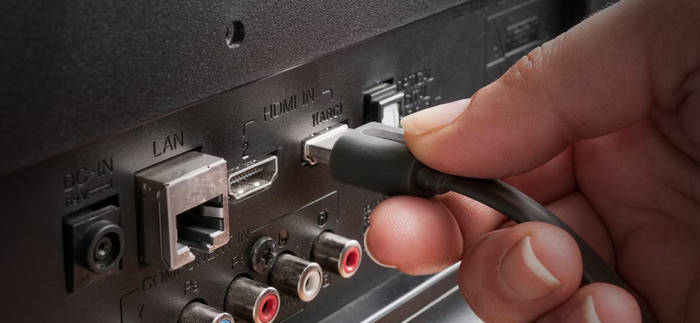
1. Check HDMI and other cables
Loose or damaged cables can make the screen look blurry or flicker. Make sure all cables are pushed in tight. If a cable looks bent or worn out, replace it with a new one.
2. Restart your TV
Turning the TV off and on can clear small glitches. Unplug the TV for about 30 seconds before turning it back on. It gives the system a fresh start.
Part 3. Fixes for Poor TV Picture Quality
A poor TV picture can be frustrating, especially when you just want to relax and view something. It might look blurry, too dark, or the colors may seem off. It does not always mean the TV is broken. Most of the time, the problem is caused by settings, cables, or the source of the video.
You can fix many of these problems on your own without calling a technician. The steps are simple and safe to do at home. By checking each fix one by one, you can find what is wrong and make the picture look clear again.
Fix 1: Change Picture Settings
Picture settings control how bright, sharp, or colorful your TV looks. If the TV settings are wrong, the image can look dull or too dark.
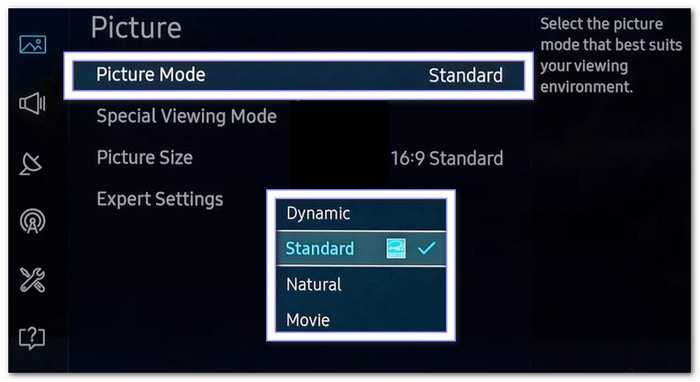
1. For Samsung TVs
- Press the Home button on your remote.
- Go to Settings > Picture > Picture Mode.
- Try Standard or Movie mode for a more natural look, which can resolve Samsung TV blurry issues.
- Adjust brightness, contrast, and sharpness until it looks better.
2. Adjust Picture Settings on Other TV Brands
- Open the picture settings menu from your remote.
- Choose a preset mode like Standard or Cinema.
- Avoid turning the sharpness too high, as it can make the picture look grainy.
Fix 2: Check the Source
A bad picture can come from the device or service you are using. If the source is low quality, the TV cannot make it look perfect.
1. For cable/satellite
- Restart your box by unplugging it for 30 seconds.
- Switch to an HD channel and compare it to an SD channel.
- If HD looks fine but SD is blurry, it is normal because SD has less detail.
2. For streaming (Netflix, etc.):
- Check the video quality setting in the app and set it to High or Best.
- Try playing a video in another app to see if it is the service or the TV.
Fix 3: Update Your TV
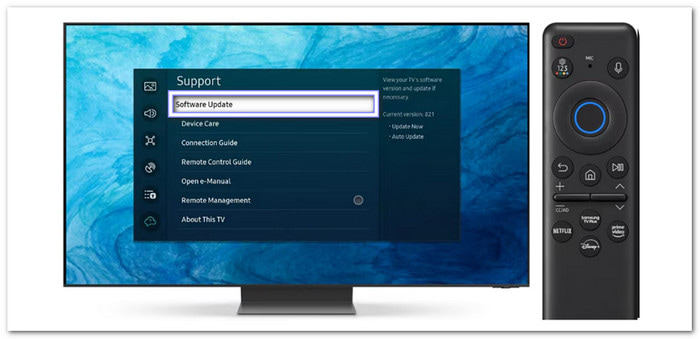
TV software updates can fix bugs, improve picture quality and fix Samsung TV blur and other brands. If your TV is running old software, it might cause display issues.
- Go to your TV settings and find Software Update or System Update.
- Connect your TV to the internet before checking.
- If there is an update, install it and restart the TV.
Fix 4: Convert and Enhance Video Files to a Compatible Format (For Streaming/External Devices)
Some TVs support only specific video formats and codecs. A video may look blurry or fail to play correctly if it uses an unsupported codec, high compression level, or unusual resolution. Tipard Video Converter Ultimate can help fix playback issues caused by incompatible or improperly encoded video files by converting them into widely supported formats. It makes it easier for your TV, streaming device, or media player to read without glitches. You can change the video to a format that works on most devices, like MP4, MOV, AVI, and more.
You can also adjust the output settings. You can change the resolution, bitrate, or frame rate so the video plays smoothly on your specific device. It also supports batch conversion, so you can change many videos at the same time without doing them one by one.
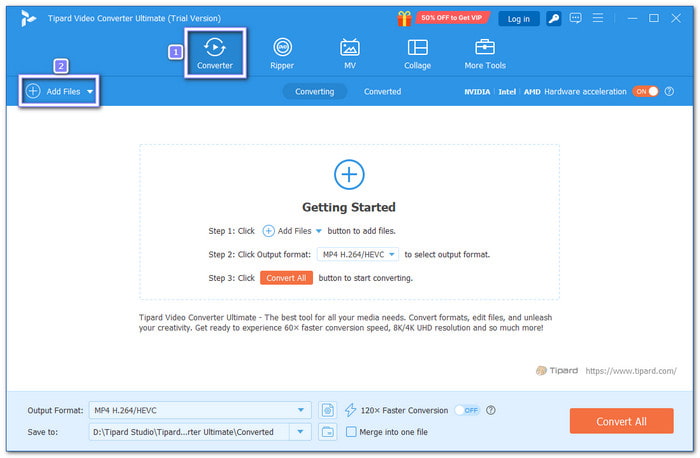
Step 1 Open Tipard Video Converter Ultimate
You need to download and install Tipard Video Converter Ultimate on your computer. Once done, run the program to start your task.
Step 2 Add the Corrupted Video File
Hit Add Files on the top left. Find the blurry video from your computer, USB drive, or memory card. Even if the file does not play well, Tipard Video Converter Ultimate can usually load it so you can fix your problems.
Step 3 Choose a Safe Output Format
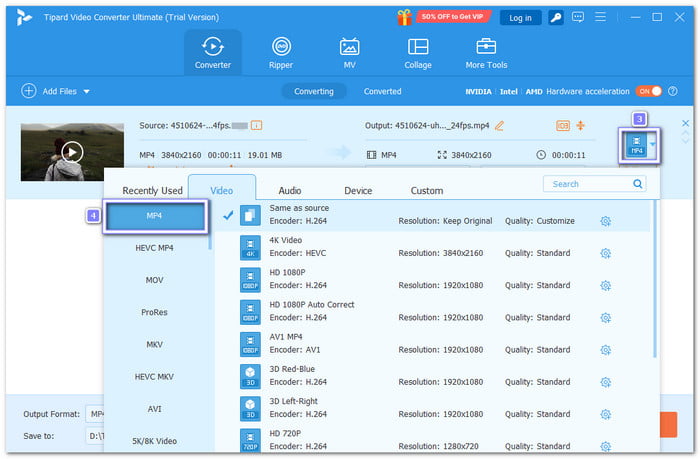
Click the Profile drop-down menu in the interface's right-hand corner after your video has finished loading. Select a format that is compatible with the majority of TVs and streaming devices here. The best option is MP4 due to its stability and broad support.
Step 4 Fine-tune Output Settings
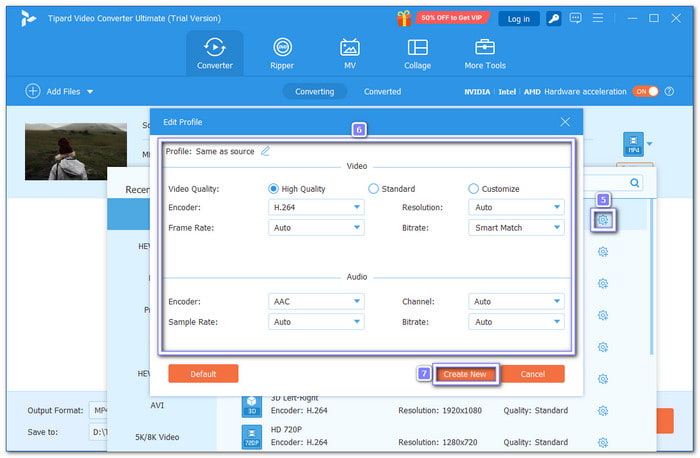
You can also fine-tune the resolution, bitrate, or frame rate to make the video smoother by opening the Cogwheel button. Once you have made some changes, do not forget to click the Create New button to apply the changes you made.
Step 5 Re-encode the Video
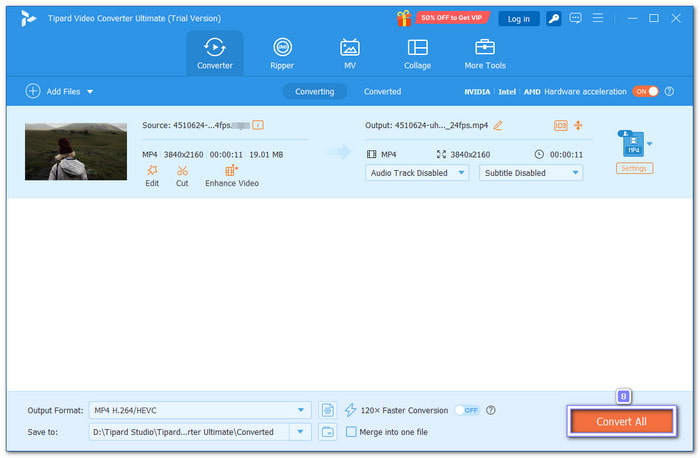
Click Convert All to start the process. Once the process is done, save the converted video file in a safe folder. Play it on your computer first to check if it runs smoothly. If it works well, you can move it to your USB, external drive, or streaming device and enjoy watching it again without errors.
Fix 5: Reset Picture Settings
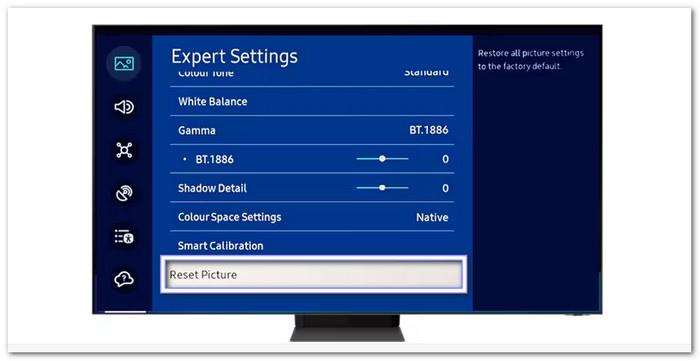
If nothing works, and you are still asking yourself, "Why is my TV blurry?" your TV might just have the wrong settings saved. Resetting brings everything back to the factory defaults.
- Go to your TV's picture settings menu.
- Look for Reset Picture or Restore Defaults.
- Confirm the reset and adjust the picture again if needed.
Fix 6: Call for Help
If you have tried all steps and the picture still looks bad, the TV might have a hardware problem. In that case, it is best to get professional help.
- Contact your TV brand's customer service.
- If your TV is under warranty, you may get a free repair or replacement.
- For older TVs, ask a repair shop for a cost estimate before deciding to fix it.
Conclusion
A blurry TV screen can ruin your viewing experience. It makes it hard to enjoy movies, sports, or games because the details are unclear. It can strain your eyes, make colors look dull, and even make you lose interest in watching.
The good news is you now know how to fix it using the solutions above. These steps can help you bring back a clear, sharp picture without spending a lot of money on repairs.
If the problem comes from blurry video files on your USB or streaming device, Tipard Video Converter Ultimate can help. It can convert them to supported formats like MP4 and adjust settings so they play smoothly on your TV.
More Reading



About the Author


 Tipard Video Converter Ultimate