

- Part 1: What Do You Need to Record Party Chat on Xbox
- Part 2: How to Record Party Chat on Xbox
- Part 3: Why Can't I Hear Party Chat in My Xbox Recording
- Part 4: How to Make Sure Xbox Party Chat Is Being Recorded
- Part 5: Xbox Party Chat Recording vs. Game Chat
- Part 6: The Best Way to Record Xbox Party Chat and Game Chat
How to record party chat on Xbox? Recording a party chat is an ideal method to capture conversations with friends alongside your gameplay, making your clips complete and engaging. Whether you are making content or saving gaming moments, the right recording tools can help include party audio in your recordings. In this guide, we will teach you how to record a party chat on Xbox. Thus, read this tutorial and learn more about the best recording process.

- Part 1: What Do You Need to Record Party Chat on Xbox
- Part 2: How to Record Party Chat on Xbox
- Part 3: Why Can't I Hear Party Chat in My Xbox Recording
- Part 4: How to Make Sure Xbox Party Chat Is Being Recorded
- Part 5: Xbox Party Chat Recording vs. Game Chat
- Part 6: The Best Way to Record Xbox Party Chat and Game Chat
Part 1: What Do You Need to Record Party Chat on Xbox
There are various requirements you must meet to record a party chat on Xbox. Some of them are:
- Xbox Console - To record party chats during gameplay, you will need an Xbox Series X/S or Xbox One.
- Xbox Headset or Microphone - For better audio output, it would be best to use an Xbox Headset. It makes your voice clear and understandable.
- Party Chat Permissions - You cannot instantly record a party chat. You must get the permission of other players/users to record their voices.
- Capture Card - A good capture card can capture gameplay and party chat with great quality and longer recording times.
- Recording Software - You can also rely on a good recording software to capture a party chat. This helps you achieve the result you need after the process.
Part 2: How to Record Party Chat on Xbox
Want to start learning how to record Xbox party chat? Then, you can check all the methods in this section.
Method 1. Record Party Chat Using Xbox Game Capture
Xbox Game Capture is the simplest method to capture gameplay and party chat directly from your console. The good thing here is that it doesn't require extra hardware. It is also ideal for casual users who want to save highlights that include party chat audio when the permissions are enabled. See the simple steps we have provided below and learn how to record party chat on Xbox One and other series.
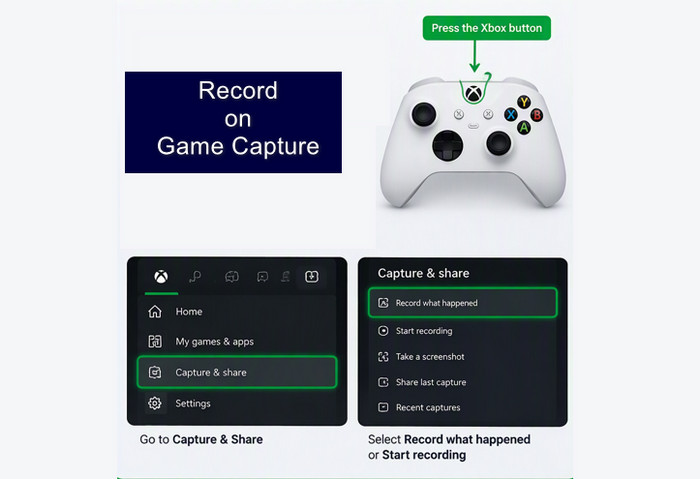
Step 1 First, join and start an Xbox Party Chat. Then, make sure all the participants allowed their voices to be included in the recordings.
Step 2 On your console, start pressing the Xbox button. Then, navigate to the Capture & Share option.
Step 3 Choose the Record what happened or Start recording to begin the recording process
Step 4 Finally, save the clip and review to confirm if the party audio was captured successfully.
Method 2. Record Party Chat Using a Capture Card and OBS Studio
Besides Xbox Game Capture, you can also use a capture card and OBS Studio for an effective party chat recording process. It can offer a more advanced recording setup for streamers and content creators. Plus, this method is ideal for longer recordings, great output quality, and greater control over audio sources, including game sound and party chat. The only challenge here is that the recording process might be confusing with other users, especially beginners. But still, you can check the instructions below and learn how to record Xbox party chat.
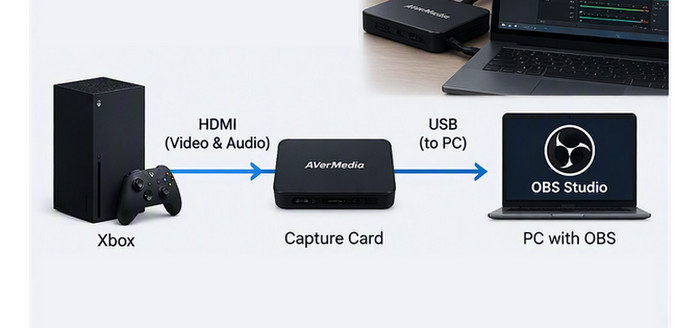
Step 1 Connect your Xbox to a capture card and your computer. Then, download and launch the OBS Studio software.
Step 2 Click Plus to add/select the capture card as a video source. After that, configure audio sources to capture both party chat and game audio.
Step 3 You can now start or join a party chat. To begin recording, hit the Start Recording button.
Step 4 To finish the recording, hit the Stop Recording button. You can start viewing the OBS recordings to check the output.
Part 3: Why Can't I Hear Party Chat in My Xbox Recording
There are times when you can't hear anything after recording a party chat. Well, one reason is that a party member has not allowed their voice to be broadcast or recorded. Another reason might be the audio settings on your Xbox, capture card, headset, or recording software. With that, always check your privacy settings and recording setup to ensure both chat audio and game audio are enabled before proceeding with the recording process.
Part 4: How to Make Sure Xbox Party Chat Is Being Recorded
Want to ensure that your Xbox party chat is being recorded smoothly? In that case, read all the details below, as it helps you get the result you want.
- Always ask for the permission of the party members, so you can also capture their voices during the recording process.
- Check your Xbox audio settings. Ensure that party chat audio is not muted and can be heard when using your headset.
- Test Recording Setup Before Playing. You can record a short clip and play it back to verify that both game audio and party chat are captured effectively.
- Always keep your headset connected properly. If it is plugged incorrectly, you might experience a party chat audio error.
Part 5: Xbox Party Chat Recording vs. Game Chat
Are you interested in exploring more about party chat recording and game chat? Then, you can take a peek at the table in this section.
| Xbox Party Chat | vs. | Xbox Game Chat |
|---|---|---|
| Friends invited to a private Xbox party | Who Can Join | Players in the same game lobby or match |
| Private conversation | Privacy Level | Public or in-game communication |
| Usually, it is more stable and clearer | Audio Quality | Depends on the game's voice chat system |
| Easier to capture with proper permissions | Recording Difficulty | May demand additional setup depending on the game |
| Party members must allow their audio to be recorded | Voice Inclusion | The game's settings control voice chat |
| Playing with friends across different games | Best Use Case | Coordinating with teammates in multiplayer matches |
| Missing audio from participants who don't allow recording | Common Issue | Voice chat may not be routed to the recording source |
Part 6: The Best Way to Record Xbox Party Chat and Game Chat
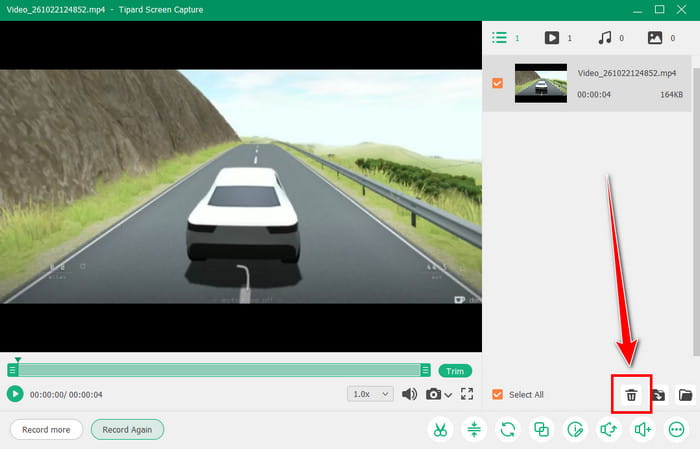
Do you want a smoother recorder that can help you record your voice, party chat voice, and other players' voices clearly? In that case, we suggest using Tipard Screen Capture. This recorder is ideal since it provides you with all the features you need for achieving your desired result. It can even record gameplay and audio smoothly, making it more powerful and reliable. The best part here is that it supports long-duration gameplay without any lag. So, to check its capability, you can follow the instructions below.
Step 1 Download Tipard Screen Capture on your computer. After that, you can start connecting the Xbox to your PC.
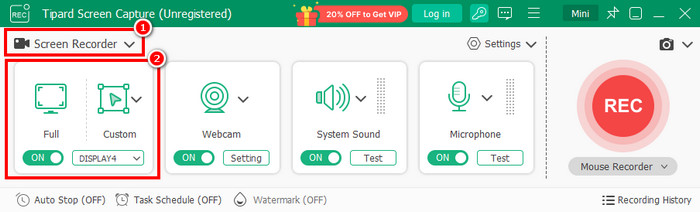
Step 2 After you launch the recorder, click the Screen Recorder mode. You can also set up the recording area, allowing you to record/capture the entire screen or a certain screen area by clicking the Full or Custom button.
Step 3 Turn on the System Sound to record the game audio and party chat. You can also turn on the Microphone to capture your own voice. Then, hit the REC button to start recording.
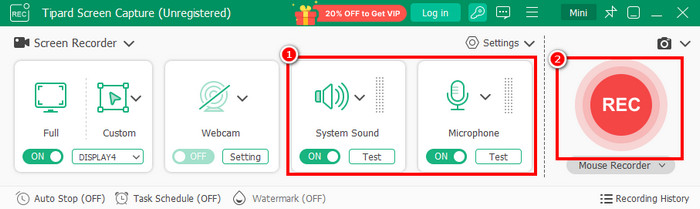
Tap Stop to finish the recording.
Step 4 Once the preview shows up, start clicking the Export button to save the recordings on your computer.
Conclusion
Thanks to this guide, you have learned how to record Xbox party chat. You even explored the reasons why you can't hear the party chat recordings and how to record smoothly. Also, if you are looking for the best recorder that can capture your gameplay and party chat perfectly, we suggest using Tipard Screen Capture. This recorder can offer all the necessary features, ensuring that you can record your gameplay, your voice, camera, and party chat, making it the best gameplay and audio recorder for all users.

Record full screen, portion, window, game, and phone seamlessly without lag
100% Clean & Safe
100% Clean & Safe

More Reading



About the Author

 Click here to join the discussion and share your comments

 Tipard Screen Capture