

WMV, which stands for Windows Media Video, is a video codec format developed by Microsoft. While it is widely used on Windows and other platforms, Mac cannot play WMV natively, because Microsoft stopped supporting WMV for Mac in 2003. If you need to play WMV video files on a Mac, it is a good idea to look for a third-party video player application. This article identifies the top 5 video player applications to play WMV on Mac smoothly.

Part 1: Comparison of Best WMV Players for Mac
Methodology
To identify the best WMV video players for Mac, we tested the popular video player applications available on macOS in our professional lab. Moreover, we collected hundreds of users’ reports. When testing WMV players, we focused on a few factors, including prices, features, playback controls, custom options, hardware acceleration, source usage, and more.
| Price | Platforms | Support Formats | Maximum Resolution | |
|---|---|---|---|---|
| Tipard Blu-ray Player | $24.00 per month $45.00 lifetime | Mac OS X 10.9 and above Windows 11/10/8/7 | Over 500 formats, such as WMV, MOV, AVI, etc. | 8K, 10-bit HDR |
| VLC Media Player | Free | Windows XP and above macOS 10.7 and later Linux Android 2.2 and later iOS 9.0 and later | WMV, MOV, MKV, and other popular video formats | 4K and 8K with hardware decode |
| IINA | Free | macOS | WMV, MKV, MP4, AVI, and popular video formats | 8K/60fps |
| Vidi | Free, $19.90 per month or $16.58 per month when billed annually | macOS 12.0 and later | WMV, MP4, MKV, AVI, MOV, WebM | 4K and 8K |
| Elmedia Player | Free and start from $19.90 | macOS 10.9 and later | WMV, 3GP, AVI, FLV, and more | 4K and 8K |
Part 2: Top 5 Best WMV Players for Mac
Top 1: Tipard Blu-ray Player
According to our test, Tipard Blu-ray Player is a great WMV player for Mac. It supports almost all video and audio formats, as well as video discs and Blu-ray. Furthermore, it uses few resources to deliver a smooth viewing experience.
- Fast and lightweight.
- Support a wide range of formats.
- Play DVDs and Blu-ray discs.
- Organize videos into playlists.
- Offer full control over playback.
- It takes a while if the video is too large.
Top 2: VLC Media Player
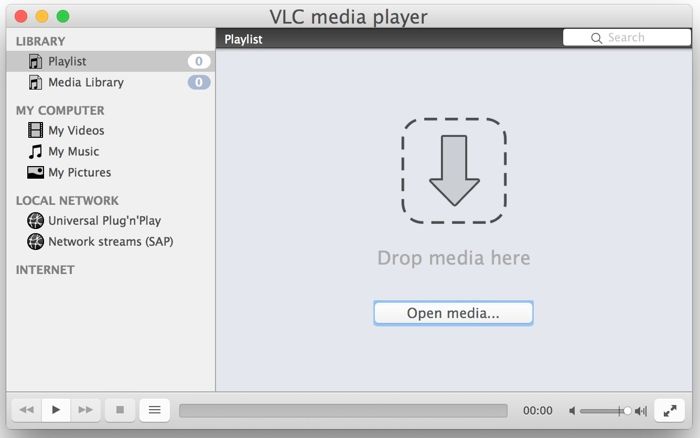
VLC Media Player is a popular cross-platform video player. It is open-source and free to use for everyone. With a large package of codecs, it can play almost all video formats on macOS and iOS, including WMV and AVI.
- Completely free to use.
- Available on an array of platforms.
- Play WMV on Mac easily with native support.
- Able to convert WMV to MP4 for easier playback.
- No playlist feature.
- Slow and laggy.
Top 3: IINA
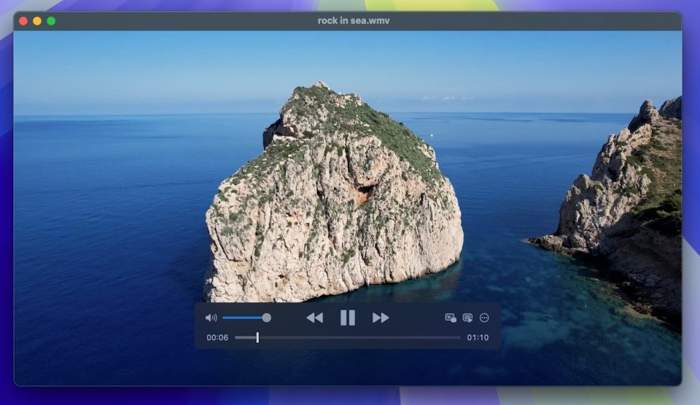
IINA is another free app to play WMV files on Mac, because it is open-source. It can play all popular media files and online streams on macOS. Currently, it is driven by the community and is continuously improving. It is also a well-designed media player for macOS. You can check its beautiful interface that suits macOS well along with smooth controls and workflow. Just play your WMV videos with seamless playback on IINA.
- Free of charge.
- Available in over 20 languages.
- Support online streaming.
- Offer a Chrome extension.
- Only available for macOS.
- Require external tools for online streams.
Top 4: Vidi
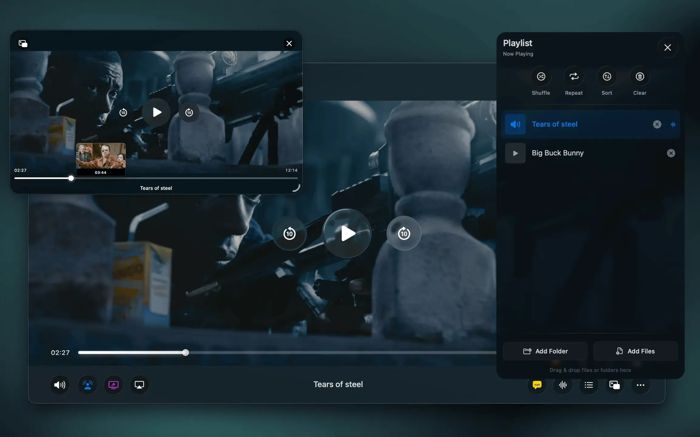
Vidi is a modern AVI and WMV player for Mac. It is designed for Apple’s native frameworks and optimizes for Apple Silicon. It supports all major video formats and comes with advanced features, like picture-in-picture playback. Some legacy WMV videos with different video codecs or audio streams can generally play smoothly on Vidi.
- Picture-in-picture playback.
- Offer immersive audio touches.
- Full control video playback.
- Support 3D videos.
- Advanced features require subscriptions.
- Lack of plugins.
Top 5: Elmedia Player
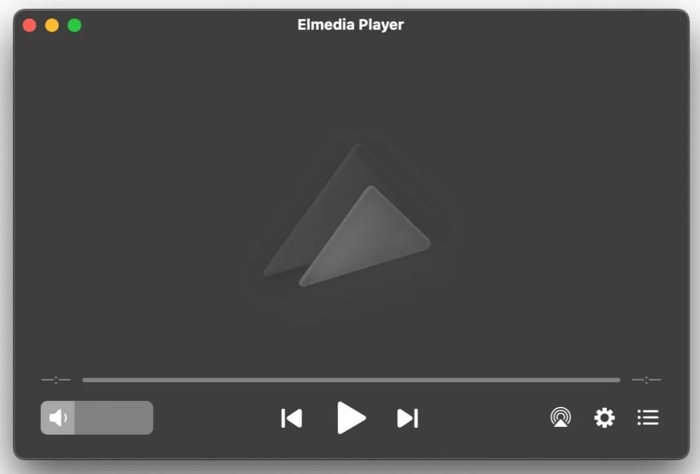
Elmedia Player is another way to play WMV on macOS. Besides local files, it is suitable for streaming online content and watching videos on Apple TV and smart TVs. The streamlined interface makes it easy to use. Like IINA, Elmedia Player also has a well-designed interface and workflow that suits modern macOS styles very well.
- Support most popular formats.
- Sync audio and subtitle.
- Stream videos without ads.
- Support multi-monitor setup.
- Only for macOS.
- Built-in converter is basic.
Part 3: How to Play WMV on Mac
Step 1Install the WMV player
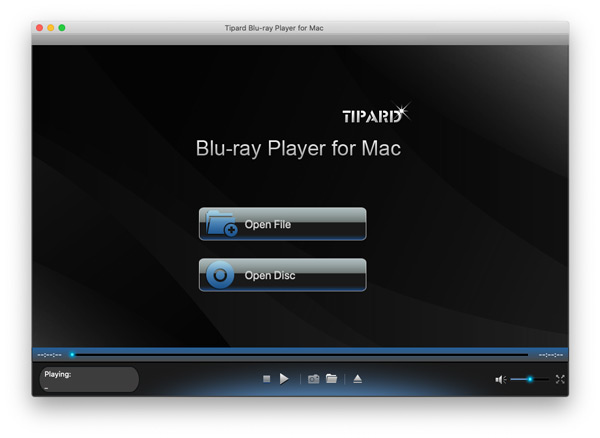
Run the WMV player on Mac, such as Tipard Blu-ray Player, once you install it on your computer. There is another version for PCs. If the WMV file is stored on a disc, install it into the computer.
Step 2Open a WMV file
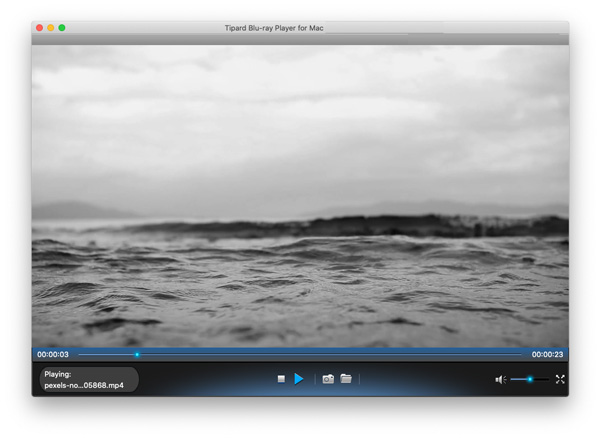
Click the Open File button, locate the WMV file you want to play, and open it. After loading, it will start playing.
Step 3Control WMV playback
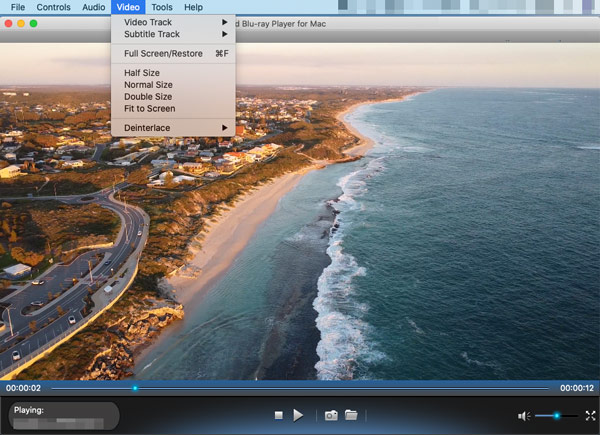
You can control the playback with the buttons at the bottom, like screenshotting. The top menu bar enables you to get more custom options.
Conclusion
Now, you should learn the top 5 apps to play WMV on macOS without extra codecs. You can find an appropriate one according to our test results and your situation. Tipard Blu-ray Player, for example, is a versatile video player application on macOS for a flexible viewing experience.

Play Blu-rays and multimedia files with the best video and audio quality
100% Clean & Safe
100% Clean & Safe

More Reading




About the Author


 Tipard Blu-ray Player