

GIFs are fun and an ideal medium for sending memes to other people. However, its drawback is that it cannot produce sound. It can also lose quality when shared across platforms and is not supported by other editing tools. So, if you want to deal with GIFs, the best solution is to convert them to a video format such as MP4, MOV, AVI, FLV, M4V, and more. Luckily, this post can give you the best online and offline conversion methods you can use to successfully convert your GIF files to your desired video format. Thus, read here and explore the best way to turn a GIF into a video.

Part 1: GIF vs. Video: Understanding the Core Differences
GIFs are lightweight looping animations. This file is perfect for sending memes or messages to other users. On the other hand, videos are richer, more versatile media files that support audio, a broader platform, and have higher compression. The key differences lie in how each format stores and plays back frames, which can impact usability, purpose, and quality. To give you more insights about the two formats, check all the information in the table below.
| GIF | vs. | MOV |
|---|---|---|
| Graphics Interchange Format (image sequence) | Format Type | Multimedia container (e.g., MP4, AVI, MOV) |
| Stores every frame as a full image | Frames | Uses compression with keyframes + delta frames |
| No Audio | Audio Support | Supports audio tracks |
| Larger for longer animations (inefficient compression) | File Size | Smaller due to advanced codecs (H.264, HEVC) |
| Limited color palette (256 colors) | Quality | Full color depth, HD/4K resolution |
| Loops automatically, short duration | Playback | Flexible playback (pause, rewind, fast-forward) |
| Quick reactions, memes, short animations | Use Cases | Movies, tutorials, social media content, professional projects |
| Universally supported in messaging apps and browsers | Compatibility | Supported across video players, editing tools, and streaming platforms |
Part 2: How to Transcode GIF to Video on Desktop
Want to convert GIFs to video effectively? Then, you can use all the methods we have provided in this section.
Method 1. Convert GIF to Video Using Tipard Video Converter Ultimate
If you want an offline way to transcode GIF to video, we recommend using Tipard Video Converter Ultimate. With this program, you can turn your GIF into a video effectively with your preferred quality. Plus, with its fast conversion process, you can get the result in just a few seconds. Not only that, but you can also attach audio to your GIF to create an engaging video. It can even support hundreds of formats and presets, such as MP4, MKV, AVI, M4V, WMV, FLV, and more. What makes it more powerful is that you can access its batch conversion feature, allowing you to convert multiple GIFs simultaneously. Lastly, Tipard can support level-3 hardware acceleration to convert videos, perfect for ensuring stability and efficiency during encoding and decoding.
To use this GIF to video converter, you can check the detailed steps we have provided below.
Step 1 Download Tipard Video Converter Ultimate on your Mac or Windows. After the installation, launch it to start the GIF-to-video conversion process.
Step 2 Navigate to the Converter feature and start adding the GIF by clicking the Add Files. You can add as many files as you want since the software supports the batch conversion feature.
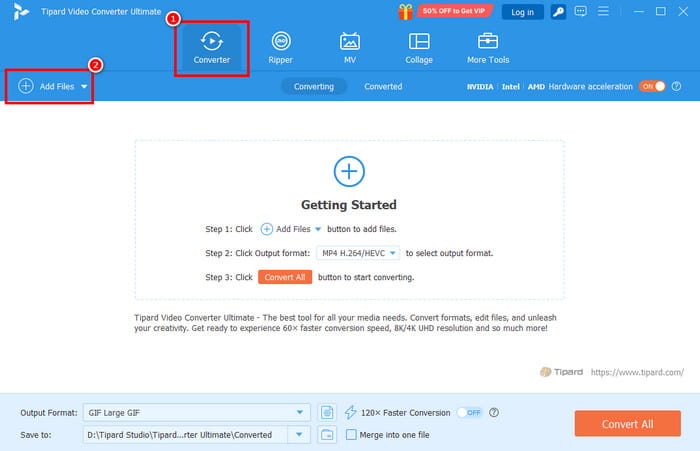
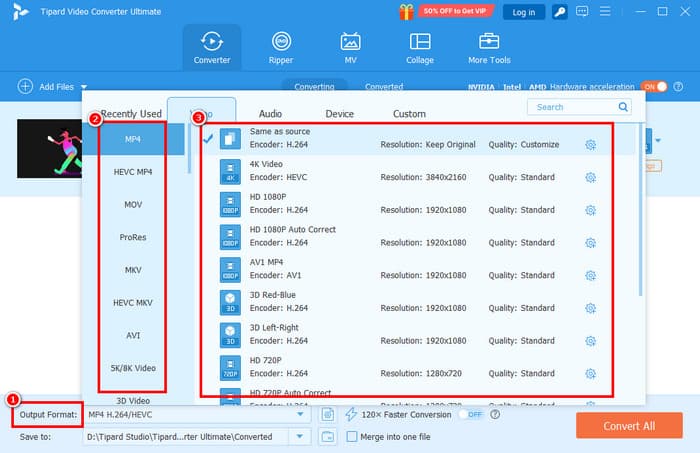
Step 3 After you add the GIF, go to the Output Format section to see all the video formats. Then, select your desired format and quality.
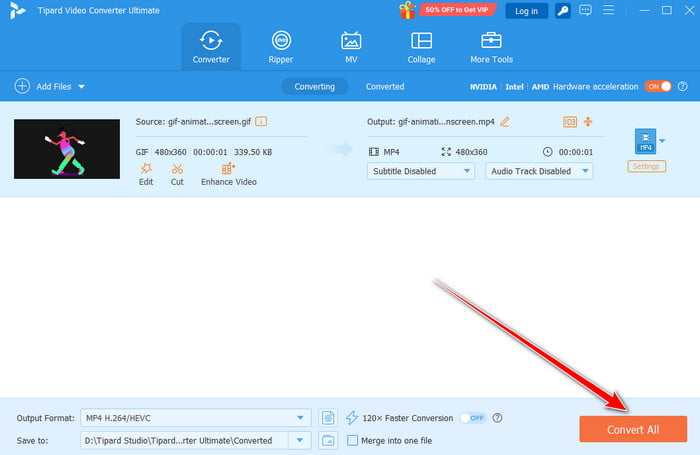
Step 4 To begin the final GIF-to-video conversion process, hit the Convert All button below.
Method 2. Convert GIF to Video Using Convertio
To make a video from a GIF online, we suggest using Convertio. This web-based converter is perfect since it ensures a simple and smooth conversion process. You can convert GIFs to MP4, MKV, AVI, WMV, etc. Plus, with its straightforward layout, you can get the result in just a few moments. It can even convert up to two GIFs in a single process. The only drawback here is that you must have a strong internet connection to experience its overall potential. With that, if you need an online tool that can give you the result you need, feel free to access Convertio.
To learn how to turn a GIF into a video, follow the instructions below.
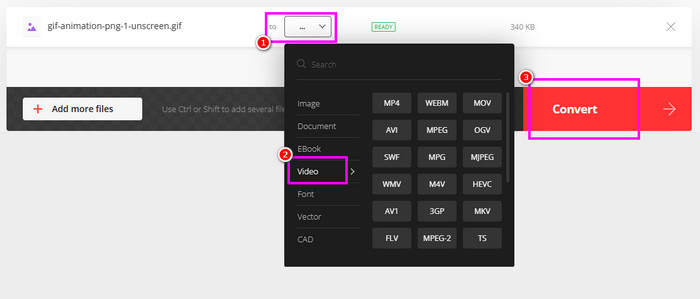
Step 1 Access Convertio on your browser. Then, tap the Choose Files option to upload the GIF from your device.
Step 2 Then, proceed to the Output format section. Click the Video option and choose your preferred format.
Step 3 Finally, tap the Convert option to start the GIF to video conversion process. Hit Download to save/keep it on your computer.
Part 3: How to Turn GIFs into Videos on iPhone and Android
Come here and learn how to make a video from your GIFs using an iPhone and Android.
Method 1. Convert GIF to Video Using iPhone
If you are using an iPhone, you can install the GIF to Video app. With this converter, you can get a video file from a GIF in just a second. It also has a simple interface, suitable for beginners who want to convert GIFs instantly. You can use the steps below and start converting an animated GIF into a video.
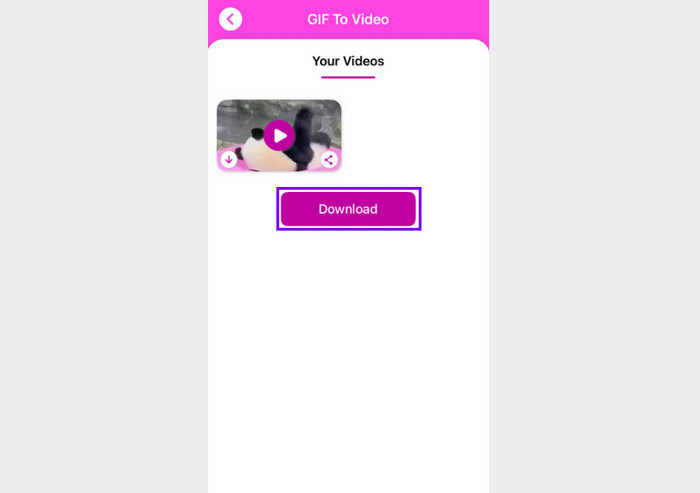
Step 1 Download the GIF to Video app from the App Store. Then, install it to begin the process.
Step 2 After you launch the app, click the Plus sign to add the GIF. You can start pressing the Convert to Video button to proceed to the conversion process.
Step 3 Lastly, press the Download function to save the converted file on your device.
Method 2. Convert GIF to Video Using Android
For Android users, you can use the GIF to Video - GIF maker app to convert your GIFs to MP4 format. What we like about this app is that it has a GIF editor feature. It lets you crop your GIF, adjust the speed, and more. If you want to check its capabilities, start reading the steps below and learn how to transcode GIFs into video.
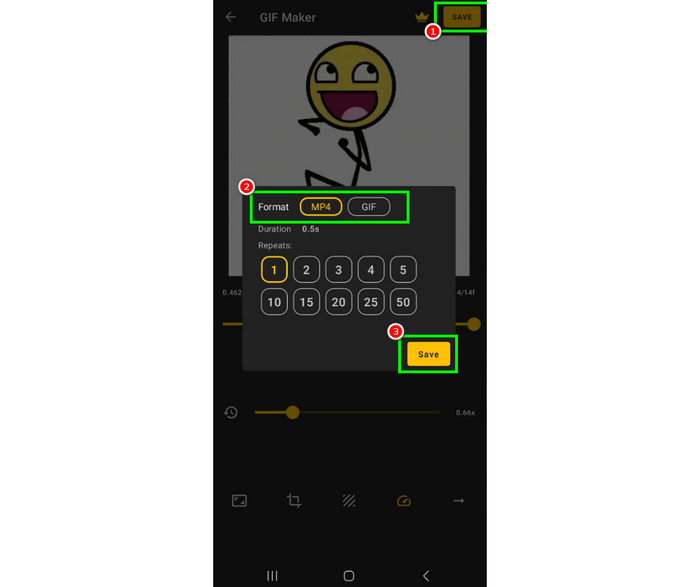
Step 1 Download GIF to Video - GIF maker app from the Play Store. Then, install to start the procedure.
Step 2 After you open the app, select the GIF you want to convert. Once done, you can also edit the file if you want to.
Step 3 Go to the Save button above and select the MP4 format. For the last process, press the Save button.
Part 4: Tips to Customize Settings for Better Playback
Do you want better playback when turning your GIF into video formats? Then, you can use all the best tips from this section.
Customize Resolution
Since GIFs have a low-resolution output, the best thing to do is to customize the resolution for your file. You also need to consider the aspect ratio for better playback.
Adjust Frame Rate
You also need to change the frame rate of your file. The GIF can only have 10-20 fps, which can look choppy. Thus, adjust the fps for up to 24-30 for a smoother playback.
Use Proper Codec
If you want a better viewing experience, you must use a proper codec. You can use H.264 (MP4) to balance the quality and compatibility. You can even use other codecs, which your device or media player supports, for better playback.
Conclusion
Thanks to this tutorial, you have learned how to convert an animated GIF into a video. With that, you can play your file with audio. You can even watch the file in the best quality for a satisfying viewing experience. Plus, if you need a powerful yet comprehensive GIF to video converter, always rely on Tipard Video Converter Ultimate. This converter ensures that you can get the video format you need with the best quality, making it perfect for all users.
More Reading

About the Author


 Tipard Video Converter Ultimate