

SWF files are Flash files used for animations and interactive content. They were once popular on websites and games. But today, they are hard to open and edit. Most browsers no longer support them. It makes SWF files less useful and harder to manage.
What if you need to edit them? We got you covered!
In this article, we will highlight five SWF editors. We will introduce what they offer, along with their benefits and drawbacks. To help you get started, we will also provide a beginner-friendly guide on editing SWF files using one of the reliable tools listed.

Part 1. Why Do You Need an SWF Editor
SWF files are not easy to change once they are created. You may have a file that needs a small fix. You can update text, replace images, or reuse old content. It is where an SWF editor becomes useful.
An SWF editor lets you open the file and make changes to it. You can edit text, images, sounds, and animations. You can also extract parts of the file and reuse them. It helps save time and effort.
It also helps when Flash is no longer supported. Many tools let you convert SWF to modern formats like MP4 or HTML5. It makes your content work on new devices and browsers. In short, an SWF editor helps you edit, reuse, and convert old Flash files so they stay useful today.
Part 2. Top 5 SWF Editors on Different Platforms
If you need an SWF editor, you can count on the tools below. They work on different platforms and help you edit SWF files!
1. Tipard Video Converter Ultimate
- Best for: Fast video conversion and advanced editing of Flash-based and video files.
- License: Trialware (free trial available, paid full version).
- Operating System: Windows and Mac.
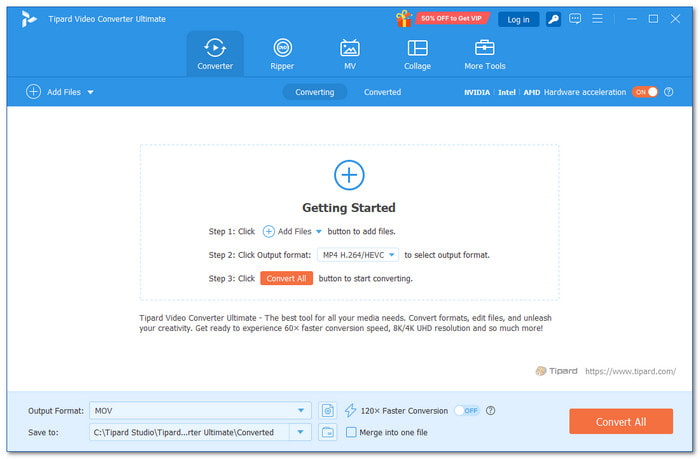
If you want an all-in-one program that can convert and edit your SWF file, you cannot go wrong with Tipard Video Converter Ultimate. This SWF editor lets you rotate and crop videos. You can also add effects and filters. It supports text and image watermarks. You can add audio and subtitles too.
After editing, you can change the output format to many common formats, such as MP4, AVI, MOV, MKV, and WMV. It makes your file easy to play on phones, computers, and other devices. With its simple interface and strong GPU acceleration, it runs fast and smoothly while using less processing time.
Key Features:
- Boasts up to 120× faster 4K and HD video conversion speed.
- Makes it simple to cut away unnecessary portions, leaving only the necessary portion.
- Provide MV templates and split-screen collage creation with videos and photos.
- Include AI-based enhancement for upscaling, noise reduction, stabilization, and color correction.
- Offers built-in tools such as a video compressor, a GIF maker, a 3D maker, a metadata editor, and speed control.
- Simple interface that is easy for beginners to use.
- Supports 500+ input and output file formats.
- Batch conversion and editing for faster work and time saving.
- High-quality conversion with support for 4K UHD and 1080p HD.
- Limited usage and features in the free version.
2. Flash Decompiler Trillix
- Best for: Batch SWF decompiling and full file conversion.
- License: Shareware (trial-based).
- Operating System: Windows and Mac.
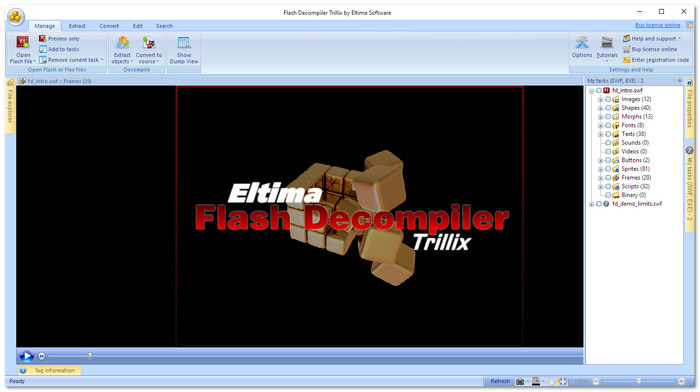
Working with SWF files becomes easier when you use a SWF file editor that can break them apart and rebuild them. One program from Eltima, called Flash Decompiler Trillix, lets users extract media, change elements, and convert files in batches. It is used by developers who need deep control over Flash content editing.
Key Features:
- Batch conversion and decompilation of SWF.
- Convert source files from SWF to FLA.
- Extract text, audio, and picture assets.
- Modify shapes, colors, and links.
- Strong batch processing support.
- Wide export format options.
- Good for deep SWF editing.
- Limited free demo access.
- High full license cost.
3. JPEXS Free Flash Decompiler
- Best for: Free SWF editing and advanced inspection.
- License: Open-source freeware.
- Operating System: Windows, Mac, and Linux.
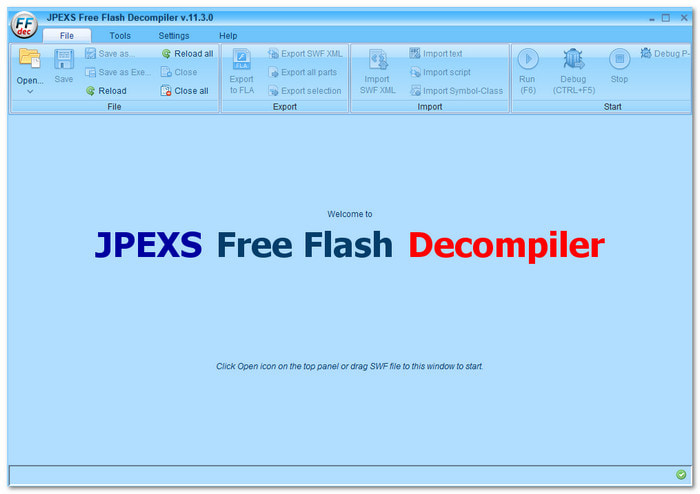
Free tools often offer more control at no cost. This SWF editor freeware lets users inspect SWF files in detail. It breaks animations into assets and scripts. Many developers use it to edit and learn how Flash content is built. It also runs on multiple systems.
Key Features:
- Decompile SWF into images and scripts.
- Edit ActionScript directly.
- Export to SVG and HTML5.
- Replace fonts, images, and text.
- Convert SWF to FLA or XML.
- Completely free to use.
- Powerful editing tools included.
- Supports many Flash elements.
- Not easy for beginners.
- Interface feels technical.
4. Sothink SWF Decomplier
- Best for: Extracting and converting SWF resources.
- License: Shareware (trial-based).
- Operating System: Windows and Mac.
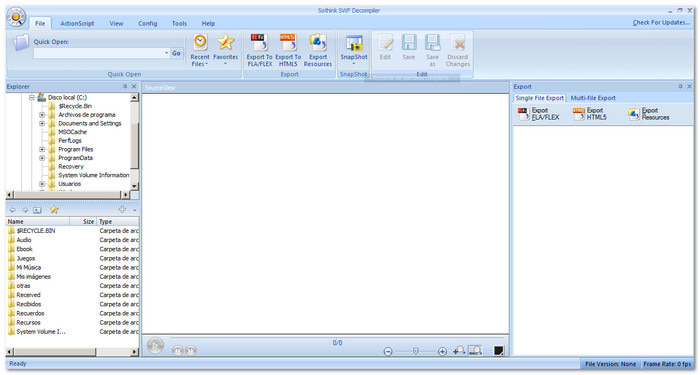
Some editors focus on the recovery and conversion of Flash files. Sothink SWF Editor helps users pull out images, sounds, and scripts from SWF content. It also supports converting Flash projects into newer formats. It is built for designers who want to reuse old Flash assets.
Key Features:
- Convert SWF to FLA and HTML5.
- Extract images, sounds, and fonts.
- Replace SWF elements easily.
- Export ActionScript and assets.
- Easy-to-use interface.
- Good conversion support.
- Fast resource extraction.
- Limited modern Flash compatibility.
- Extra bundled tools may be installed by default.
5. Adobe Animate
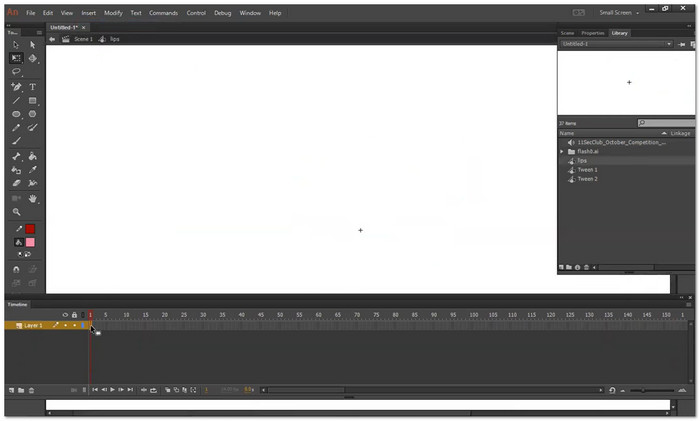
- Best for: Professional animation and modern web publishing.
- License: Trialware (subscription-based).
- Operating System: Windows and Mac.
Before Flash was discontinued, creators used a well-known studio tool, Adobe SWF Editor, to create animations and interactive media. It supports frame-by-frame editing, motion design, and publishing to modern web formats such as HTML5. It remains popular among designers.
Key Features:
- Editing animation frame by frame.
- Motion presets and transitions.
- Publish to HTML5 Canvas and WebGL.
- Interactive animation design tools.
- Audio and visual timeline control.
- Professional-grade animation tools.
- Supports modern web formats.
- Smooth and flexible workflow.
- Hard to learn for beginners.
- Requires a paid subscription.
Part 3. How to Edit Your SWF with a Reliable SWF Editor
You already know that Tipard Video Converter Ultimate can handle SWF editing with ease. Now, let us guide you through how to use it step by step.
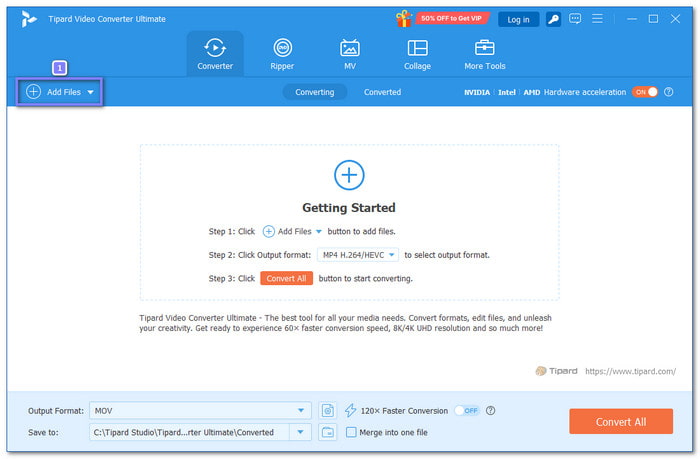
Step 1 Hit the Download button and install Tipard Video Converter Ultimate on your Windows or Mac.
Step 2 Hit the Add Files button, then browse your folder and select the SWF file you want. After that, load it into the program.
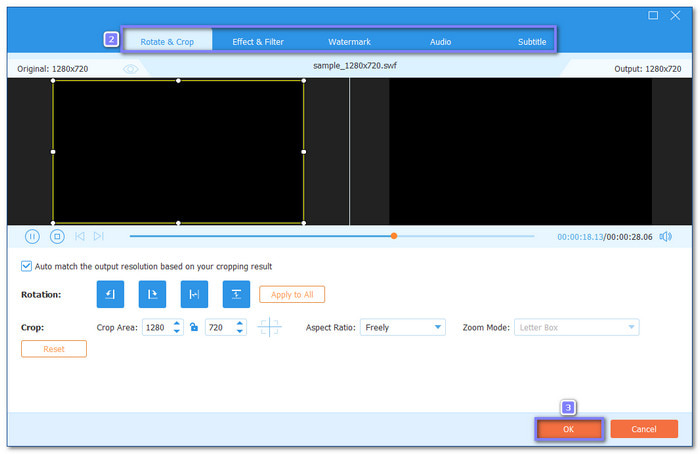
Step 3 To edit your file, open the Wand button. Use tools like Rotate & Crop, Effect & Filter, Watermark, Audio, and Subtitle. After editing, click OK to save changes.
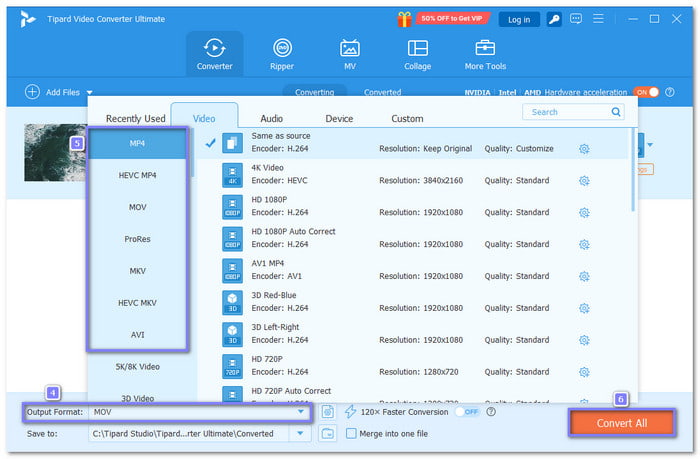
Step 4 Head to the Output Format menu and select a format like MP4, AVI, or MOV. Then click the Convert All button. Just a few seconds, your edited and converted file will be saved in a new output folder.
Why we select Tipard Video Converter Ultimate: It provides the tools you need to edit SWF files. You can change the video orientation, apply filters, cut unwanted parts, add watermarks, and more. It does not end there; it also lets you convert SWF to MOV, MP4, and AVI, which are popular formats for easy playback.
Part 4. FAQs of SWF Editor
How do I unpack a SWF file?
You can use an SWF decompiler tool. It breaks the file into parts like images, sounds, and scripts. After that, you can edit or save each part.
Is SWF still used today?
Not very much. In 2020, Flash was formally discontinued. Most browsers no longer support SWF files. Instead, people now use MP4 or HTML5 formats.
Can VLC play SWF files?
No, VLC does not support SWF files well. It may fail to play them. It is better to convert SWF to MP4 or another video format first.
Conclusion
It is time to download the SWF editor if you need a tool to refine and manage SWF files. You have five options, including Tipard Video Converter Ultimate. Use it now and take full advantage of its features for faster, easier editing and conversion!
More Reading



About the Author


 Tipard Video Converter Ultimate