

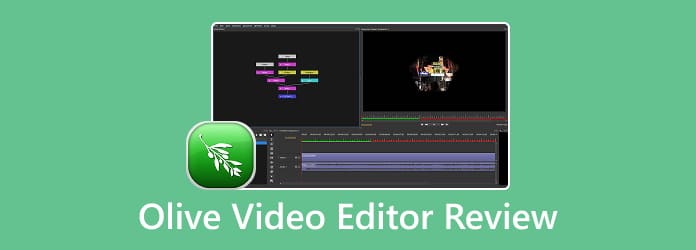
Today, open-source programs are popular. These tools let you complete various tasks without paying a penny. Olive Video Editor, for example, is an open-source video editor designed to retouch videos. According to our test, it offers non-linear video editing features as professional as some premium video editing software. This honest review shares everything you need to know about this free video editing program to help you make the best decision.
Part 1: Olive Video Editor Review
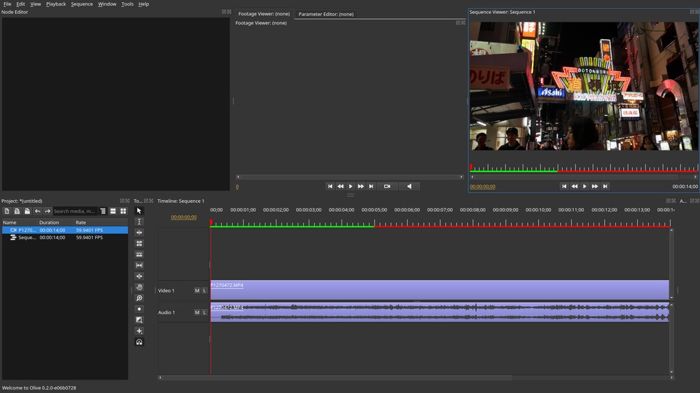
The latest version is Olive Video Editor 0.2.0, released in 2024. Currently, you cannot download it from the official website, but it is available on GitHub. As a comprehensive suite of modern video editors, it enables flexible arrangement and manipulation of video and audio tracks.
Main Features of Olive Open-Source Video Editor
- Include advanced editing capabilities, like precise cuts.
- Work with multiple layers of video, audio, and graphics on the timeline.
- Correct and enhance the color of video footage.
- Offer visual effects, such as Chroma Key.
- Sync video and audio tracks and edit audio tracks.
- Available on Windows, macOS, and Linux.
User Review of Olive Video Editor
It has been several months or a couple of years since I have worked with open-source video editors. Olive was ridiculously fast compared to others.
Node-based compositing is more powerful, but combining it with typical editing workflows that use a timeline is a complex design challenge. Olive is currently exploring the possibilities and shortcomings of different approaches.
A nice open-source video editor that reminds me of Adobe After Effects. I have been using it for several months now, and I find it increasingly useful and easy to learn. One of the few major things missing is the ability to create export presets.
Honest Review of Olive Video Editor
- Completely free and open-source.
- Include a powerful feature set.
- Node-based compositing.
- Available on a wide variety of platforms.
- Offer an ad-free experience.
- Support all popular video formats.
- Lack some advanced features.
- It can have a learning curve.
- Stability can vary by version.
Is Olive Video Editor safe?
Yes. While the official website doesn't work, you can download Olive Video Editor from GitHub. It won't install viruses or malware on your hard drive.
Which teams would benefit most from using Olive?
Olive is ideal for individuals and small teams looking for a powerful video editor without financial cost.
Is Olive really free?
Yes. Olive Video Editor is open-source and free to download and use without extra fees.
Part 2: How to Use Olive Video Editor
To use Olive Video Editor smoothly, you need to understand the minimum system requirements. It requires a 64-bit processor and at least 4GB of RAM for optimal performance. It is compatible with Windows, macOS, and Linux.
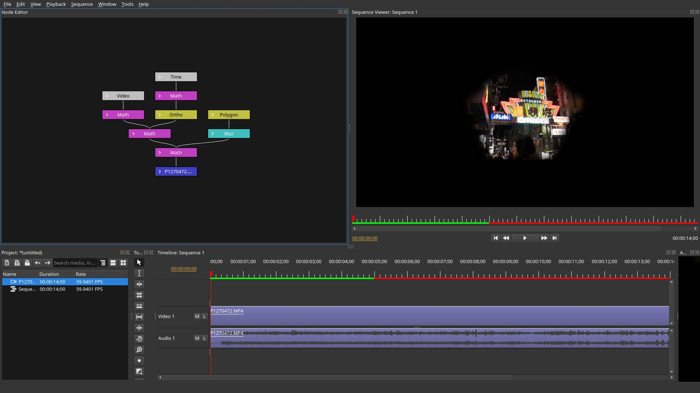
Step 1 Power Olive on your computer.
Step 2 To add text in Olive Video Editor, click the Title option.
Step 3 Then, select the font style, size, and color you want to use.
Step 4 Enter the text and position.
Step 5 To cut or trim the video track, select the unwanted portion, then press Cut.
Step 6 If you want to add effects, click the Video Effects option and choose the desired effect.
Step 7 Finally, export the video.
Part 3: A One-stop Alternative to Olive Video Editor
Olive Video Editor is a basic video editor. If it is too simple to retouch your videos, try Tipard Video Converter Ultimate as an alternative solution. It comes with a full video editor and AI-powered features. Moreover, the clean interface makes it available to beginners.

- Edit videos without quality loss.
- Batch process multiple videos at once.
- Support over 300 video input and output formats.
- Include a wide range of AI-powered editing tools.
- Compatible with Windows 11/10/8/7 and macOS 10.12 or above.
How to Use the Alternative of Olive Video Editor
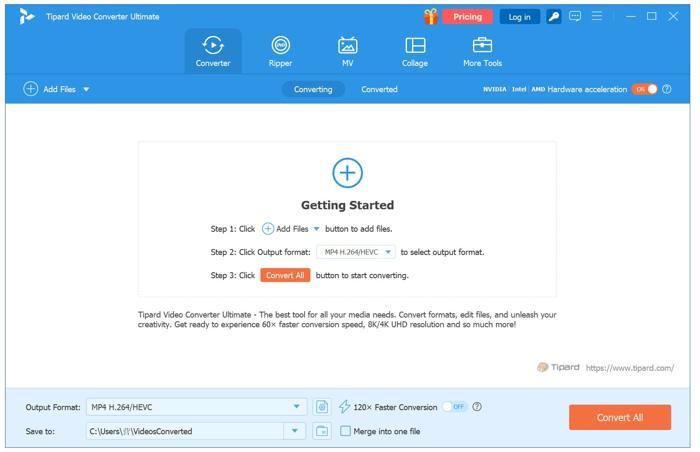
Step 1Import videos
Run the alternative to Olive Video Editor after installing it on your computer. Click the Add Files menu and import the videos you want to edit.
Step 2Edit videos
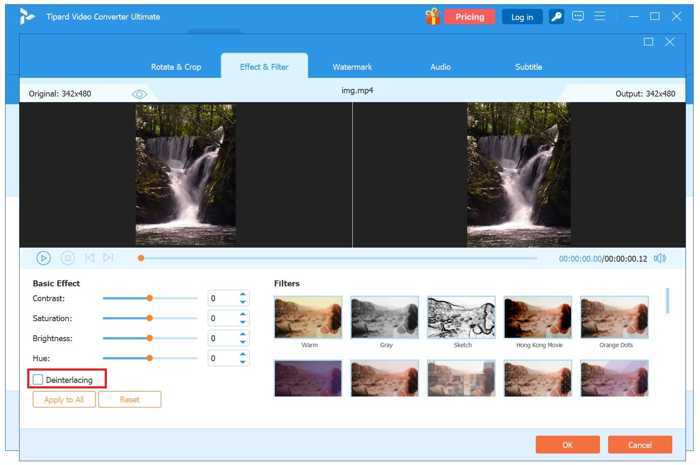
After the video loads, click the Edit button to open the video editor. Then, you can edit the video. To rotate or crop the video, go to the Rotate & Crop tab, and rotate, flip, or crop it. To apply an effect, switch to the Effect & Filter tab and choose the desired effect. To watermark the video, head to Watermark and add a text or image watermark. To adjust audio or subtitles, go to Audio or Subtitle, and edit them.
If you want to cut a video, click the Cut button and slip or trim the frames.
Step 3Export videos
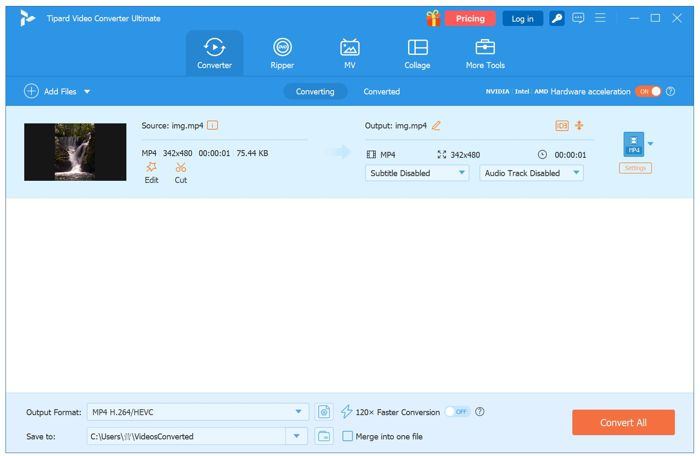
When editing is done, click the OK button. Click the Output Format option, and select a proper format. Then, set an output folder in the Save to field. Finally, click the Convert All button.
Conclusion
Now, you should understand what Olive Video Editor is, what it can do, and its benefits and downsides. The information can help you make the best decision. You can also learn the procedure of editing a video. Tipard Video Converter Ultimate is an excellent alternative solution for video editing.
All-in-one video toolbox: convert, edit, upscale, enhance, and compress your videos easily
100% Clean & Safe
100% Clean & Safe

More Reading



About the Author

 Click here to join the discussion and share your comments
 Tipard Video Converter Ultimate