

- Part 1. What to Expect from a Free Video Editor with No Watermark
- Part 2. Best Free Video Editing Programs With No Watermark
- Part 3. Which Free Video Editor with No Watermark Should You Choose
- Part 4. How We Tested the Free Video Editor with No Watermark
- Part 5. Can Free Video Editors Handle 4K Videos
- Part 6. Free vs. Paid Video Editors
Looking for the best free video editing software with no watermarks? Choosing the best video editors might be tricky since some of them leave a watermark on the videos. The good news here is that there are some powerful editors that can let you improve your videos without encountering any annoying watermarks. In this article, we will introduce various video editors you can use to create professional-grade videos without any watermarks or branding. So, read here and learn more about the discussion.
- Part 1. What to Expect from a Free Video Editor with No Watermark
- Part 2. Best Free Video Editing Programs With No Watermark
- Part 3. Which Free Video Editor with No Watermark Should You Choose
- Part 4. How We Tested the Free Video Editor with No Watermark
- Part 5. Can Free Video Editors Handle 4K Videos
- Part 6. Free vs. Paid Video Editors
Part 1. What to Expect from a Free Video Editor with No Watermark
Free video editors with no watermarks can give creators/users the freedom to create clean and professional-looking videos without hidden costs or branding. They can even combine essential tools with simple-to-understand UI, making them accessible to all beginners. To learn what to expect with these tools, check the details below.
- Full Editing Features - Some core tools, like transitions, trimming, and audio adjustments, are available for simple video editing.
- No Branding Distractions - All the saved and exported videos remain professional and clean.
- Simple User Interface - You can expect a comprehensive user interface, allowing you to edit and improve without any struggles.
- Cross-Platform Availability - Some of the free video editors are available on various platforms, such as Windows, Mac, and browsers. This lets you improve your videos without encountering any compatibility issues.
Part 2. Best Free Video Editing Programs With No Watermark
Want to explore the video editor for free with no watermark? Then, check all the editors here, along with their features, best for, pros, cons, and more.
1. Tipard Video Converter Ultimate
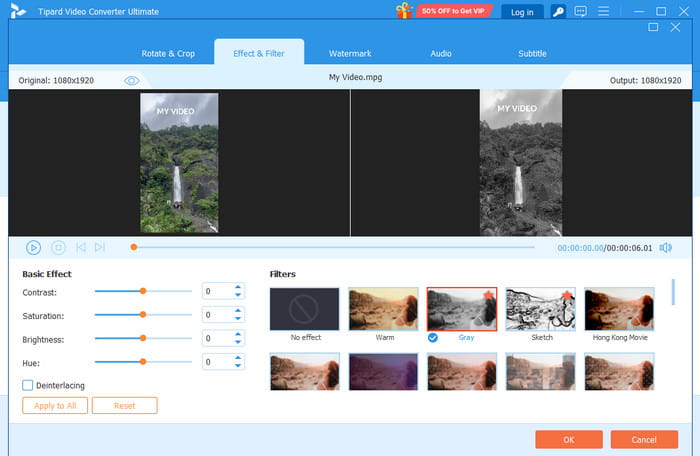
Best for: Users who need a powerful yet simple editor for editing and converting videos.
Features:
- The program can offer all video editing tools, such as cropper, trimmer, transitions, metadata editor, speed adjuster, and more.
- It can support all types of input videos, such as MP4, AVI, FLV, MKV, WMV, MOV, etc.
- The program can also convert images and audio.
One of the most powerful video editors with no watermark is Tipard Video Converter Ultimate. This program is perfect since it can offer all the features you need, allowing you to edit videos smoothly. The best part here is that it is both a video editor and a converter, so you can improve the videos and export them based on your preferred format. Plus, it can also offer its video watermark remover feature. This is helpful if you want to remove any unnecessary elements from your videos. It also doesn't have any restrictions when it comes to video editing and conversion, making it the best software for users.
- The main interface of the program is easy to navigate.
- It can export the video with the best quality for up to 4K.
- The downloading and installation process is simple.
- If you want to access all the advanced features of the software, you can check its paid version.
2. Shotcut Video Editor
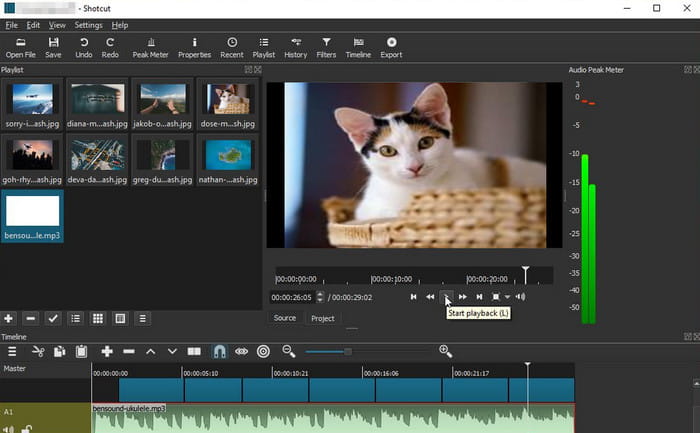
Best for: Tech-savvy users who need flexibility and open-source freedom.
Features:
- It supports various codecs for better performance and video playback.
- The user interface is customizable.
- It supports 4K export.
Another good free video editing software with no watermark you can use is Shotcut Video Editor. This program is ideal since it offers customizable workflows and supports a wide range of formats, making it useful for users who want control over their editing environment. What we like here is its modular interface. It lets users tailor the workspace to their needs. It can even offer more advanced editing tools. You can reverse a video on Shotcut, crop, add transitions, trim, and more.
- The tool is open-source and 100% free.
- It is available on both Mac and Windows Operating Systems.
- The main interface is not polished well.
- There are times when the rendering process is too slow.
3. OpenShot
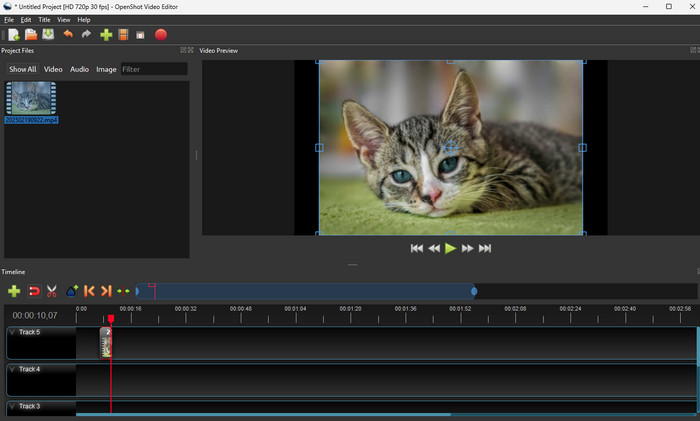
Best for: Non-professional users who want to edit videos easily and instantly.
Features:
- It can offer unlimited tracks, ideal for dealing with multiple files.
- The software can deal with other media files, such as images and audio.
- The drag-and-drop feature is available.
If you need a simple and free video editing software for Windows with no watermark, you can access OpenShot. This program can offer various basic editing features. It includes effects, transitions, 3D titles, cropper, video cutter, and more. The best part here is that its main UI is easy to navigate, making it ideal for all users. So, if you need a reliable and simple video editor that can help you enhance videos without any watermark, it would be best to access OpenShot right away.
- The layout of the editor is comprehensive.
- It can let users add numerous media files, thanks to its multiple timelines.
- The editing process might be slower when dealing with large projects.
- There are occasional stability issues.
4. Media IO
Best for: Students and freelancers who prefer instant online edits.
Features:
- It can offer AI noise removal for better playback.
- The editor supports auto-subtitle.
- It can export videos in HD.
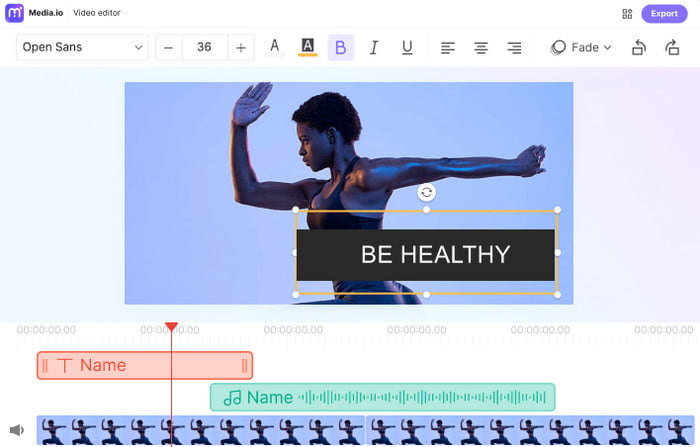
Do you need a free online video editor with no watermark? If so, look no further than Media IO. This browser-based editor is ideal if you want an instant edit. This tool can offer various editing tools, such as effects, trimmer, cropper, and more. It can even save the edited videos in HD, which can lead to a good viewing experience. What's more, the editor integrates AI-powered features, such as AI background noise removal, auto subtitles, and smart enhancement tools. These features ensure that you can get the result you need after the editing process.
- There is no need for installation.
- Its AI-powered technology ensures that it gives you an accurate result.
- It needs an internet connection to perform well.
- Some advanced features are not available.
To learn more about these exceptional video editors with no watermark, check the table below.
| Video Editors | Tipard Video Converter Ultimate | Shotcut Video Editor | OpenShot | Media.io |
|---|---|---|---|---|
| Ease of Use | Simple | Simple | Simple | Simple |
| Platform | Windows and Mac | Windows and Mac | Windows and Mac | Browser |
| Speed | Fast GPU acceleration | Strong hardware acceleration | Decent, can lag | Depends on the internet speed |
| Supported Formats | MP4, MOV, MKV, WebM, ProRes, MXF, AVI, WMV, ASF, MPG, FLV, M4V, XVID, DIVX, 3GP, and more. | MP4 (H.264/HEVC), MKV, AVI, MOV, etc. | MP4 (H.264), MOV, AVI, FLV, WebM, and MKV. | MP4, MOV, MKV, AVI, FLV, WMV, WebM, etc. |
Part 3. Which Free Video Editor with No Watermark Should You Choose
Are you wondering what the best free video editing software is with no watermark that you can access? In that case, we recommend using Tipard Video Converter Ultimate. This program is ideal since it can offer all the features you need. It can even provide both basic and advanced video editing tools, such as a video cropper, transitions, a playback speed adjuster, a watermark remover, effects, filters, and more. Plus, it is also powered by AI, allowing you to enhance your videos accurately. Lastly, you can convert your video to any format with the best quality, ensuring a satisfying viewing experience.
Part 4. How We Tested the Free Video Editor with No Watermark
Proceed to this section and learn how we test the best video editors with no watermark.
- Ease of Use - We check the user interface and editing workflow to ensure that improving the videos will be a simple task.
- Performance - We also measure the stability, speed, and resource usage during editing and rendering. This helps us determine if the tool is reliable and useful.
- Export Quality - We also ensure that the video editors can export the videos smoothly and won't add any watermarks.
- Installation - We also check whether the video editors are simple to install and set up. A tool that can offer a smooth installation would be ideal for users who prefer instant access.
Part 5. Can Free Video Editors Handle 4K Videos
Definitely, yes. Some free video editors can deal with 4K videos. Some of the video editors you can access are Tipard Video Converter Ultimate, Shotcut, and Media IO. However, you must know that these editors might require a strong, high-end PC to give you a better editing performance.
Part 6. Free vs. Paid Video Editors
Want to see the difference between free and paid video editors? Then, you can check the table we have provided in this section.
| Free Video Editors | vs. | Paid Video Editors |
|---|---|---|
| Completely free, no subscription or license fees. | Cost | Requires one-time purchase or monthly/yearly subscription. |
| Core editing tools (trim, cut, merge, transitions, basic effects). Some advanced features, like 4K export or AI tools, are available in select free editors. | Features | Full suite of professional features (advanced color grading, motion tracking, 3D editing, VR support, premium effects, plugins). |
| Can handle HD and 4K, but may struggle with very large projects or advanced effects depending on hardware. | Performance | Optimized for high performance, smoother handling of large projects, and faster rendering with GPU acceleration. |
| Beginners, hobbyists, students, budget-conscious creators, and quick social media edits. | Best For | Professional filmmakers, content creators, agencies, and users need advanced workflows with reliability. |
Conclusion
If you need the best free video editing software without a watermark, you can check all the editors we have provided in this article. We even included their best features, pros, and cons. Also, if you want the best video editors that can give you the best experience, always access Tipard Video Converter Ultimate. This program can offer all the features you need, making it the best video editor for all users.

All-in-one video toolbox: convert, edit, upscale, enhance, and compress your videos easily
100% Clean & Safe
100% Clean & Safe

More Reading




About the Author

 Click here to join the discussion and share your comments

 Tipard Video Converter Ultimate