

Key Takeaways:
In this guide, we compare Tipard DVD Ripper, HandBrake, and MakeMKV and explain what each tool can and cannot do. Tipard DVD Ripper can directly rip DVDs to H.265/HEVC formats, while HandBrake can encode compatible DVD sources to H.265. MakeMKV takes a different approach: it creates a lossless MKV backup first, which you can then encode to H.265 with another converter.
If you want to digitize your DVDs while keeping file sizes manageable, ripping DVD video to H.265 is a practical option. H.265 can provide similar visual quality at a smaller file size than older codecs such as H.264.
In this guide, we compare Tipard DVD Ripper, HandBrake, and MakeMKV and explain what each tool can and cannot do. If you also want to upscale an old DVD to a higher resolution, keep in mind that H.265 encoding and upscaling are separate processes. H.265 reduces file size efficiently; upscaling increases the output resolution.

Part 1. Comparison of DVD to H.265 Converter with Top 3 Tools
Tipard DVD Ripper is the best choice if you need to convert commercial or homemade DVDs directly to H.265. HandBrake is the best free option for compatible, unprotected DVD sources, while MakeMKV is better suited to creating lossless MKV backups before a separate H.265 encoding step.
| Tipard DVD Ripper | HandBrake | MakeMKV | |
|---|---|---|---|
| Supported DVDs | Commercial & homemade DVDs | Unprotected & some encrypted DVDs | Commercial & homemade DVDs |
| Bypasses Protection | Yes, like CSS, region codes, UOPs | Partial; requires libdvdcss | Yes, like CSS, region codes, etc. |
| Output Format | H.265, MP4, MKV, AVI, and 300+ more | H.265, MP4, and other limited formats | MKV Only |
| H.265 Conversion | Supported | Supported | Require further conversion |
| Preserves Subtitles and Audio Tracks | Yes | Yes | Yes |
| Editing Tools | Yes | Limited | No |
| Ease of Use | Beginner-Friendly | Advanced User | Beginner-Friendly |
| Speed | Ultra-fast | Fast | Moderate |
Part 2. Rip All Types of DVDs to H.265 with Tipard DVD Ripper
In the world of converting DVDs to H.265, Tipard DVD Ripper is one of the most feature-rich and safe applications, which deals with all types of DVDs - commercial ones protected by codes like CSS, region locks, and homemade DVDs with personal or cinematographic value. Another advantage of Tipard is that it easily and quickly decodes DVDs and converts them to H.265, which gives up to 50% less size than when converting to an H.264 format, but the quality remains perfect.
It also implies that it is possible to effectively reduce the required storage space without compromising the picture quality, which makes it suitable for constructing an optimum digital video library. Additionally, editing tools and an option for hardware acceleration support make it capable of performing fast ripping on large DVD libraries.
- Best for: Rip copy-protected DVDs to standard H.265 videos.
- Rating: 4.9/5
- Platform: Windows and macOS
Step 1 To download the Tipard app, click the download button we presented here. Then, install the app's package and click Start Now to launch it automatically.
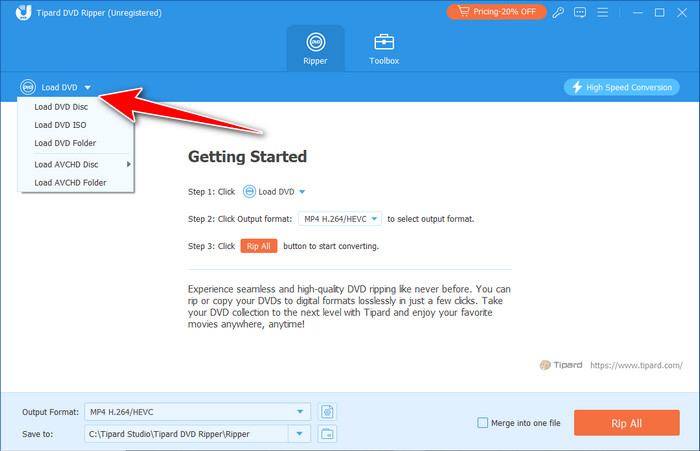
Step 2 Now that the app is running on your system, click the Load DVD and select Load DVD Disc after you have inserted the DVD into your PC optical drive.
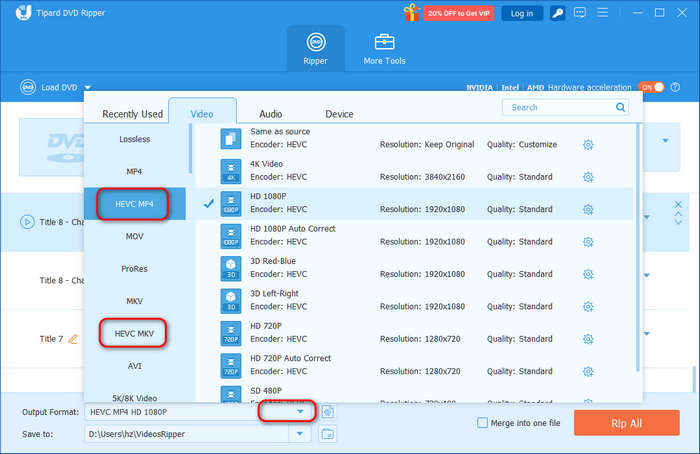
Step 3 Click the Output Format dropdown button to select a video format. You can see there's HEVC MP4 and HEVC MKV categories.
Should You Convert a DVD to 1080p H.265? If your goal is only to preserve the DVD video, you don't need to upscale it to 1080P. Usually, there is little benefit in upscaling a standard DVD to 1080p simply to encode it with H.265. H.265 can reduce the file size efficiently, but it cannot create the original high-resolution detail that was not present on the DVD.
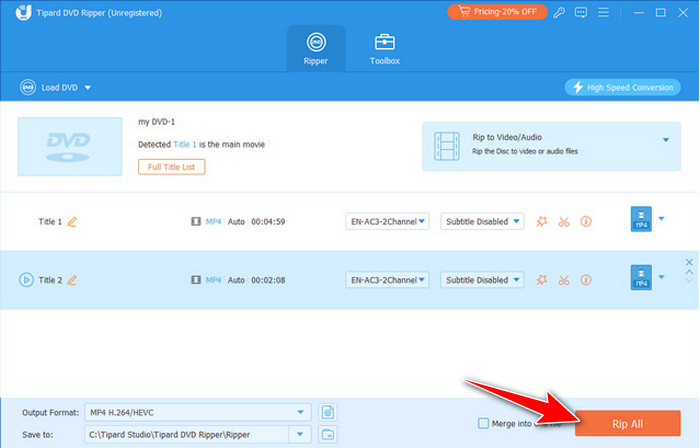
Step 4 After you have selected the H.265 format you want to achieve, click the Rip All button to save it digitally on your Windows or Mac computer.
Recommended H.265 Settings for DVD:
- Container: MP4/MKV
- Resolution: Same as source or 720p/1080p
- Frame Rate: Same as source
- Bitrate: Variable Bitrate (VBR) 1500-2500 kbps
- Audio Codec: AAC / AC3 depending on compatibility and preservation needs
Part 3. Convert Homemade DVDs to H.265 with HandBrake
That is why those who seek free and efficient software for converting homemade DVDs to H.265 should pay attention to HandBrake. Being free and available for multiple platforms, HandBrake is a versatile tool to encode DVD material in modern formats such as H.265 or HEVC, which can halve the file size and retain excellent picture quality. Originally built to homemaded DVDs with no copy protection, it can play others when used with third-party libraries like HandBrake libdvdcss.
- Best for: Rip homemade and non-protected DVDs to H.265.
- Rating: 4.5/5
- Platform: Windows, macOS, and Linux
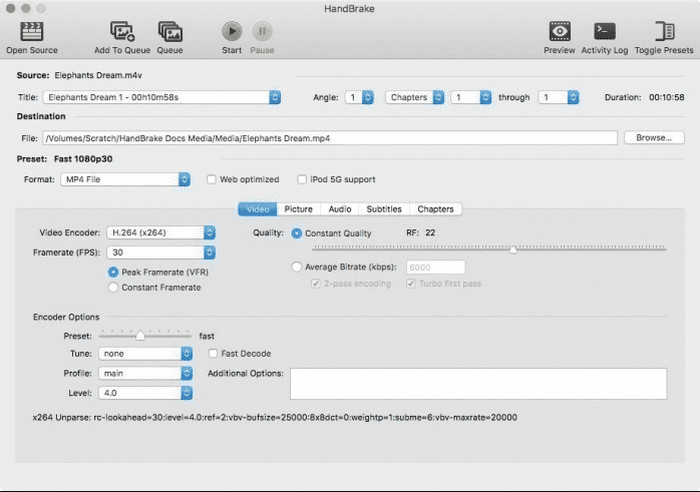
All these and more, HandBrake allows for customization of the final output in terms of bitrate, frame rate, and resolution, among others. While it would take some time for inexperienced and amateur users to fully understand how to work it, it is a leading option among advanced users looking for a versatile tool with remarkable performance. So, if you want to test how to convert DVD to H.265 with HandBrake, then the tutorial below is what you need.
Step 1 After installing the app, open it and load up your DVD file from the Open Source.
Step 2 Inside the Summary, choose the format you want to achieve and click Video. Here, click the Video Encoder to set the H.265 on the app.
Step 3 When you are done with that, click the Start button to start the converting process.
Part 4. Convert Your DVD Films to H.265 via MakeMKV
MakeMKV serves as the gold standard for the first step of a DVD to H.265 backup workflow. Unlike traditional re-encoders, MakeMKV excels at "remuxing"—extracting the raw video and audio streams from commercial or homemade DVDs without any quality loss. While it doesn't encode to H.265 directly within the app, it creates a 1:1 lossless MKV file that preserves all original subtitles, multiple audio tracks, and metadata, making it the perfect source file for high-efficiency HEVC/H.265 compression in secondary tools.
- Best for: Rip simple protected DVDs with lossless audio quality.
- Rating: 4.5/5
- Platform: Windows, macOS, and Linux
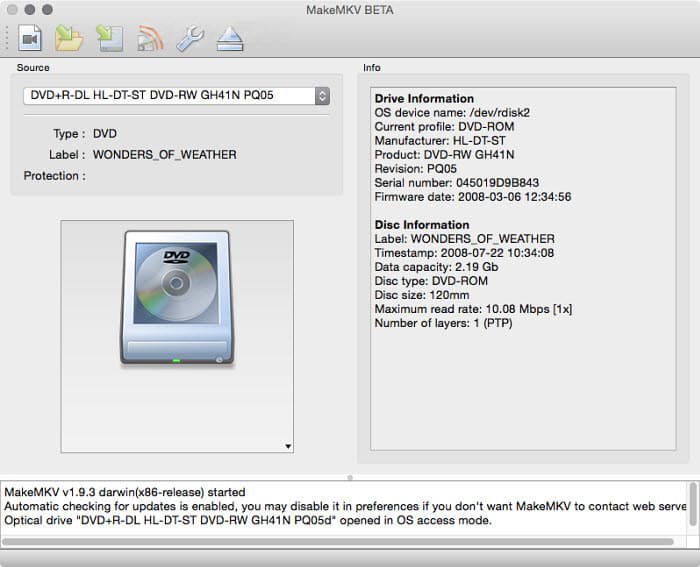
The standout feature of MakeMKV is its powerful decryption engine, which seamlessly bypasses protections like CSS, RC (Region Codes), and RCE. For users prioritizing archival quality, it is an indispensable tool for DVD backup. By using MakeMKV to strip protections first, you ensure a clean, error-free source that is fully optimized for subsequent H.265 encoding, balancing maximum compatibility with modern storage efficiency.
Step 1 Launch the software after installation. Insert your DVD into the optical drive, and the tool will automatically detect the disc in the Source section.
Step 2 Click the drive icon to scan the disc. Once the analysis is complete, select the specific Titles (usually the longest duration for the main movie) and audio tracks you wish to preserve.
Step 3 Set your output folder and click the Make MKV button. You will now have a lossless digital master ready to be compressed into a compact H.265 file.
You can use Tipard Video Converter Ultimate or HandBrake to convert the lossless MKV file to a video format like MP4, MOV, or MKV, with H.265/HEVC codec.
Part 5. FAQs of Ripping DVD to H.265
Does DVD support H265?
DVD doesn't support H.265/HEVC video codec. It uses the MPEG-2 video codec. But you can digitize a DVD to a video (like MP4 or MKV) with H.265 codec.
Is there a better codec than H265?
AV1 is better than HEVC. It has better compression efficiency and quality. However, AV1 is not yet as widely supported as H.265.
What resolution are old DVDs?
DVDs use NTSC (720:480) or PAL (720:576) resolution, which is much lower than modern HD standards. Therefore, you can use Tipard DVD Ripper to rip and upscale your DVDs to higher resolution and quality.
Conclusion
Whenever you need to convert a DVD to H.265, do not forget you can rely on the tools we reviewed here. If you are looking for a free and easy way to convert, then HandBrake and MakeMKV will offer that opportunity to you. However, if you want to have a feature-rich and well-rounded tool that offers unlimited ripping of DVDs even with regional restrictions, then Tipard DVD Ripper is the right choice.
More Reading




About the Author


 Tipard DVD Ripper