

M4V is an Apple video format used in iTunes movies. But some M4V files are protected, so they only play on approved devices. It makes them hard to use on regular DVD players or TVs.
That is why you need to burn M4V to DVD. It helps you watch your videos on home players and also create a backup copy of your files. It can also free up space on your device.
But no worry anymore; we have the solutions you need to burn M4V to DVD successfully. Scroll down and learn each method!

Part 1. Can You Burn M4V Videos to DVD
The good news is, absolutely, you can burn M4V to DVD. However, M4V files often have protection and format limits. So they cannot play directly on most DVD players. You need a DVD authoring tool to fix this.
The tools in the following parts can help you burn a DVD, with a step-by-step guide you can follow.
Part 2. How to Burn M4V to DVD for Seamless Playback
Seamless playback is important when you burn an M4V to a DVD. You can achieve it with Tipard DVD Creator. It offers Fit-to-Disc, which adjusts your M4V videos to match DVD standards for smooth playing on most players.
For your DVD, do you want creative control?? It gives free menu templates and easy customization. You can also manage DVD titles and chapters for better navigation. Moreover, it supports burning DVD, Blu-ray discs, ISO, and folders with ease.
Step 1 Get Tipard DVD Creator using the Download buttons below. After the installation is complete, open the program and choose DVD Creator to start a new project.
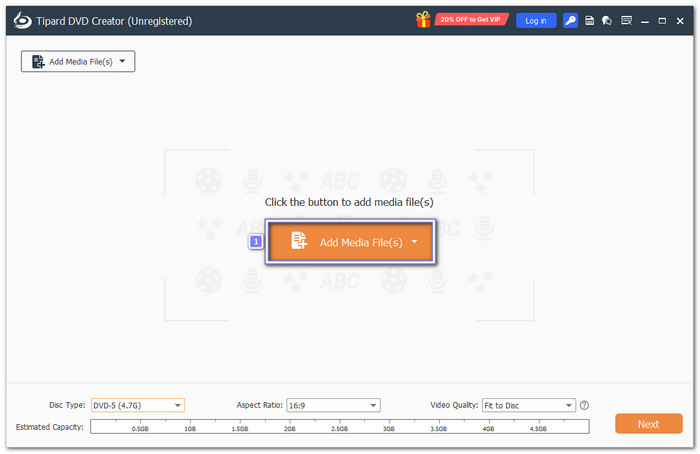
Step 2 Click Add Media Files and import the M4V videos you want to burn. You can load one file or several videos at the same time.
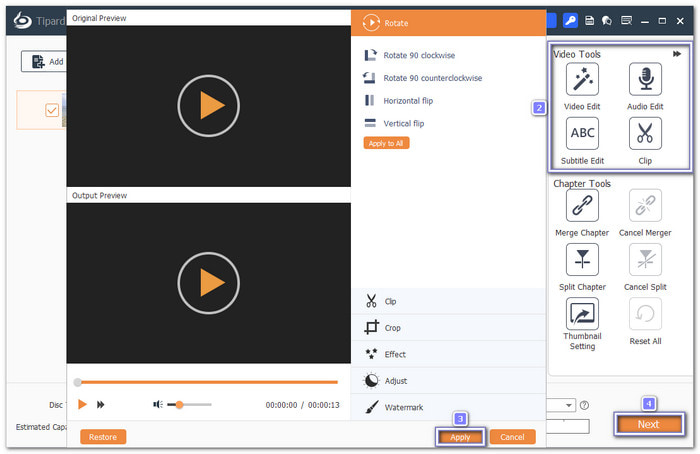
Step 3 Open Power Tools to edit your videos before burning. You can rotate, crop, trim, and apply effects. You can also adjust brightness, contrast, saturation, and hue. If needed, add audio tracks and subtitles, then fine-tune the volume, delay, position, and transparency.
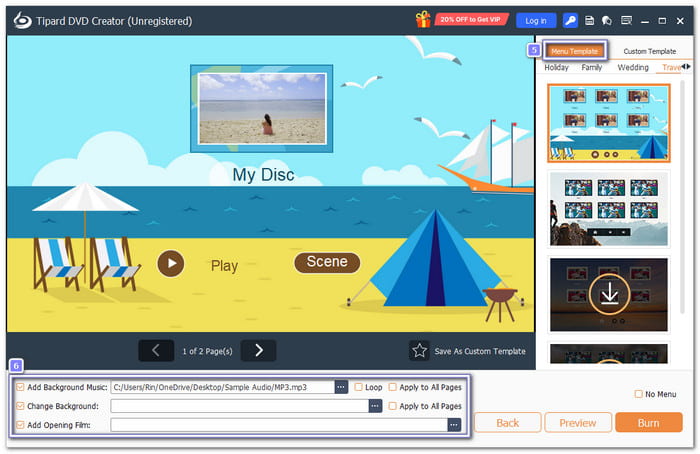
Step 4 It is time to click Next to open the menu editor. Now, choose a menu template that matches your style. You can also incorporate background music, change the background image, and insert an opening film.
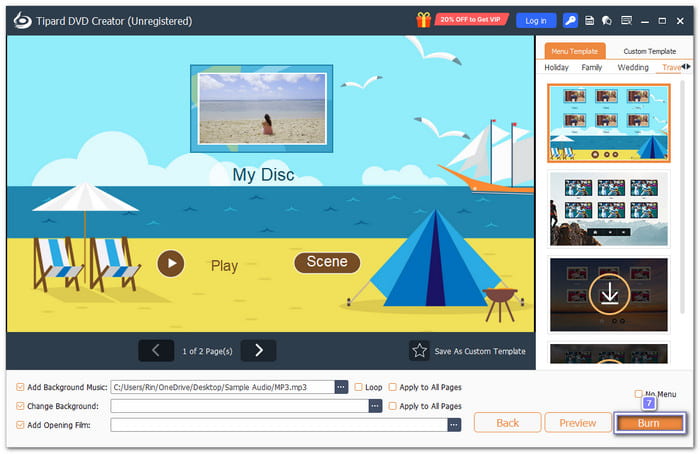
Step 5 Finally, insert a blank DVD into your drive and click Burn. Then, check Burn to Disc and select your DVD drive. Hit Start, and Tipard DVD Creator will convert your M4V videos and burn them to a DVD that plays smoothly on most DVD players.
Test Result
Tipard DVD Creator was tested using a small 1.25 megabytes M4V file. The burning process was smooth and super fast. The system stayed stable during the whole test.
- Burning Success Rate: 100%
- Burning Speed: 12 seconds
- Playback Compatibility: High; the disc is compatible with the majority of computer drives and home DVD players.
- Menu Support: Free menu templates are available. You can also incorporate images and background music.
- Disc Support: It supports DVD-5, DVD-9, DVD-R, DVD+RW, and ISO files.
Part 3. How to Burn M4V to DVD with BurnAware
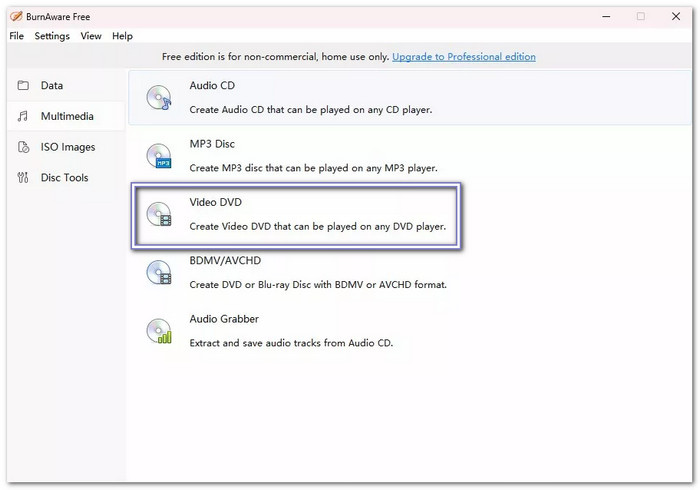
Do you need a simple program to make a DVD from M4V? BurnAware is a fast and easy option. It creates standard DVD-Video discs and supports M4V and other common formats. The interface is clean and simple. It is a good choice for quick burning with no extra setup needed.
Step 1 Download and install BurnAware on your computer. Open the program and click DVD-Video from the main screen to start a new DVD project.
Step 2 Click Add Video Files and select your M4V files. You can also select and drop the videos into the display.
Step 3 Move the videos up or down to set the playback order. If your videos are short, you can add several clips to the same DVD as long as they fit on the disc.
Step 4 Place a blank writable DVD into your DVD burner. Check the disc size bar at the bottom to make sure your videos fit.
Step 5 Click Burn to begin converting and writing your M4V files to DVD. Please wait until the process is complete, then eject your finished disc.
Test Result
BurnAware focuses on speed and stability. It is best for users who want direct burning without editing or menus.
- Burning Success Rate: 100%
- Burning Speed: 15 seconds
- Playback Compatibility: It is compatible with most DVD players and drives.
- Menu Support: None
- Disc Support: It works with many DVD types and standard blank discs.
Part 4. How to Burn M4V to DVD with WinX DVD Author
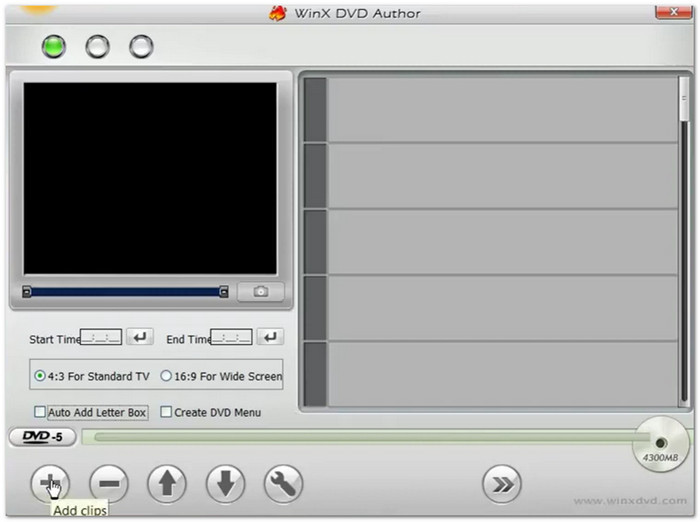
If you want more control over your DVD, WinX DVD Author is a great free option. It can convert M4V to DVD and lets you add menus, chapter points, background music, and subtitles. You can also save your project as a DVD folder or VOB files for easy playback or backup.
Step 1 Insert a blank DVD into your drive and launch WinX DVD Author. Click Video DVD Author on the main screen.
Step 2 Click Add to load your M4V videos. You can import multiple files at once. Use the move buttons to arrange them in the order you want.
Step 3 Choose a menu template and set a background image. You can also create title and chapter menus to make your DVD easier to navigate.
Step 4 Add music to the menu if you like. Then, choose your output folder and make sure DVD Disc is selected as the output format.
Step 5 Click Start to convert your M4V videos and burn them to DVD. When the process finishes, your disc will be ready to play on a DVD player.
Test Result
DVD design and burning are the main goals of WinX DVD Author. Users who desire menus, chapters, and customization will find it ideal.
- Burning Success Rate: 100%
- Burning Speed: 15 seconds
- Playback Compatibility: The DVD follows standard structure and works on most players.
- Menu Support: You can add main menus, chapter menus, text, and music.
- Disc Support: It supports DVD-5, DVD-9, DVD-R, DVD+R, DVD-RW, and DVD+RW.
Part 5. FAQs of Burning M4V to DVD
Can MP4 files be burned to DVD?
Absolutely! You can burn an MP4 to a DVD using Tipard DVD Creator on Mac and Windows. It also lets you customize your output by adding subtitles, audio tracks, and menu styles.
Why won't my video burn to DVD?
Check your disc type first. It must match your DVD drive, like DVD-R or DVD+R. Also, make sure your burning tool is updated. Some old versions may not work well with new systems.
What type of DVD is best for burning videos?
DVD-R General is the best choice. It has high compatibility with most DVD players. It works on about 90 to 95 percent of devices, making it a safe option for video DVDs.
Conclusion
You can watch your videos on any DVD player for seamless playback, now that you know how to convert M4V to DVD. For better results, we recommend Tipard DVD Creator. It allows you to refine your video files before burning. It is beneficial for your DVD to look clean and organized on TV or a computer.

Burn and author media files to DVD disc, ISO, and folder
100% Clean & Safe
100% Clean & Safe

More Reading

About the Author


 Tipard DVD Creator