

- Part 1. WebM vs. MOV: What Are They
- Part 2. Key Scenarios for WebM to MOV Conversion
- Part 3. Convert WebM to MOV with High Speed and Quality
- Part 4. Convert WebM to MOV with VLC Media Player
- Part 5. Convert WebM to MOV with FFmpeg
- Part 6. Convert WebM to MOV Free Online
- Part 7. Comparison of the 4 Ways to Convert WebM to MOV
- Part 8. FAQs of WebM to MOV
When you download or watch videos online, you may see a file called WebM. It is common on Chrome pages and Android devices. But it can be a problem on an iPhone or iPad. These devices do not support it well.
That is why WebM to MOV conversion is important. Now, you might be wondering, how can you do it? No need to worry; we have got you. We will present four ways to convert WebM to MOV using desktop and online converters.

- Part 1. WebM vs. MOV: What Are They
- Part 2. Key Scenarios for WebM to MOV Conversion
- Part 3. Convert WebM to MOV with High Speed and Quality
- Part 4. Convert WebM to MOV with VLC Media Player
- Part 5. Convert WebM to MOV with FFmpeg
- Part 6. Convert WebM to MOV Free Online
- Part 7. Comparison of the 4 Ways to Convert WebM to MOV
- Part 8. FAQs of WebM to MOV
Part 1. WebM vs. MOV: What Are They
Before converting files, it is important to know what WebM and MOV are. They are both video formats, but used in different ways.
• WebM stands for Web Media. It is an open-source video format made for the web. It is often used for streaming and browser playback. It keeps the file size small for faster loading online.
• MOV, on the other hand, stands for Apple QuickTime Movie. It is an Apple video format designed for Mac and iOS devices. It delivers high video quality and works best for editing and playback.
Part 2. Key Scenarios for WebM to MOV Conversion
Here are common situations where converting WebM to MOV is needed:
- When editing videos on a Mac using tools like Final Cut Pro or iMovie.
- When using an iPhone or iPad to play WebM files without experiencing any compatibility problems.
- When you need higher video quality for professional use or projects.
- When sharing videos in Apple-based apps or workflow systems.
- When converting online videos into a format that is easier to edit and store.
Part 3. Convert WebM to MOV with High Speed and Quality
The difference of Tipard Video Converter Ultimate from other WebM to MOV converters is its strong focus on high speed and high quality. It converts videos fast while keeping them clear and smooth.
What makes it even better, it supports many codecs for WebM and MOV. It also offers MOV presets like HD, 4K, and Apple device formats. Plus, you can use basic AI tools to enhance, crop, and trim videos. Additionally, level-3 hardware acceleration is supported, increasing speed by up to 120×.
Key Features:
- Supports batch conversion for multiple files at the same time.
- Converts WebM to MOV, MP4, AVI, MKV, and other popular formats.
- Allows you to cut, crop, apply filters, and enhance video quality easily.
- Lets you customize video and audio settings like resolution, bitrate, and frame rate.
Step 1 To have complete access, get and set up Tipard Video Converter Ultimate, the best WebM to MOV converter, on your Windows or Mac computer.
Step 2 On the Converter tab, select your WebM video or multiple WebM files by clicking the Add button. You can load more than one for batch conversion.
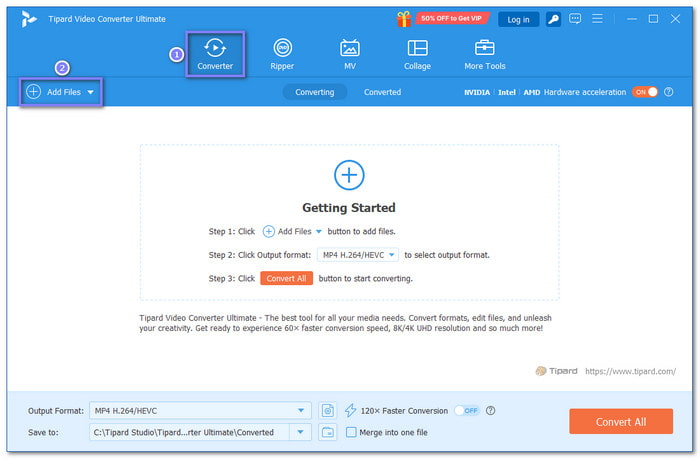
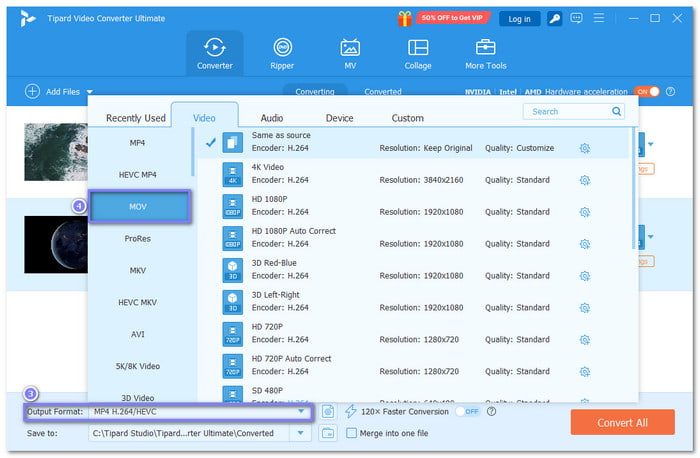
Step 3 Open the Output Format menu at the bottom left. Next, choose MOV as your target format. It makes your file ready for Mac and iOS use.
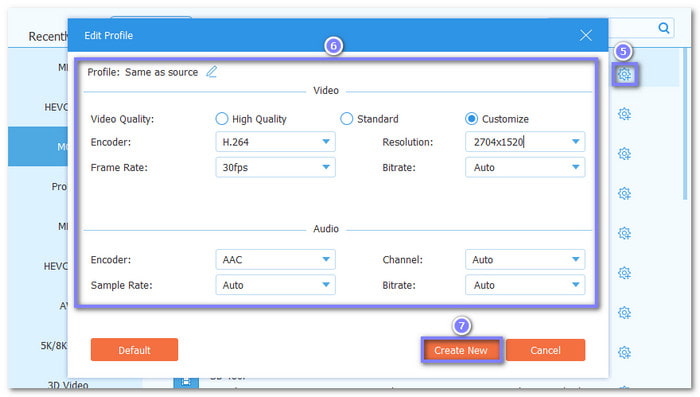
Step 4 Click the Custom Profile option if you want better control. You can fine-tune Resolution, Bitrate, Frame Rate, and Encoder. It helps balance file size and video quality for better results.
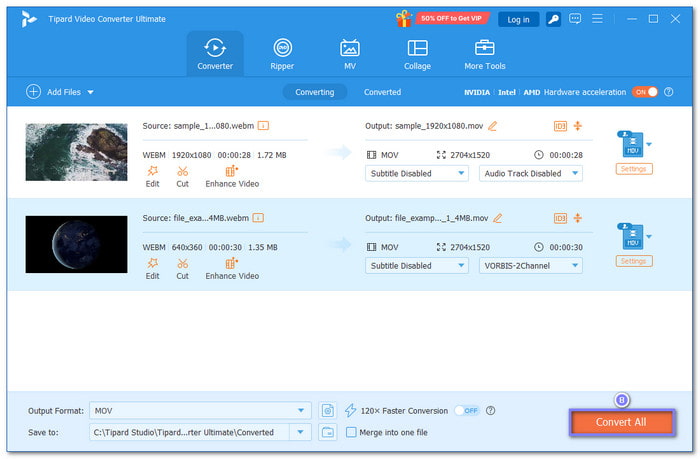
Step 5 Once ready, click the Convert All button on the bottom right. Tipard Video Converter Ultimate uses hardware acceleration to speed up the process. It finishes faster while keeping a clear and high-quality video output. You can open it right away after the process is done.
Why We Select It:
Tipard Video Converter Ultimate stands out because it delivers fast WebM to MOV conversion with high and stable video clarity. It also provides a variety of MOV presets such as HD, 4K, and profiles optimized for Apple devices. On top of that, it uses level-3 hardware acceleration to make the conversion much faster, even for large files.
Part 4. Convert WebM to MOV with VLC Media Player
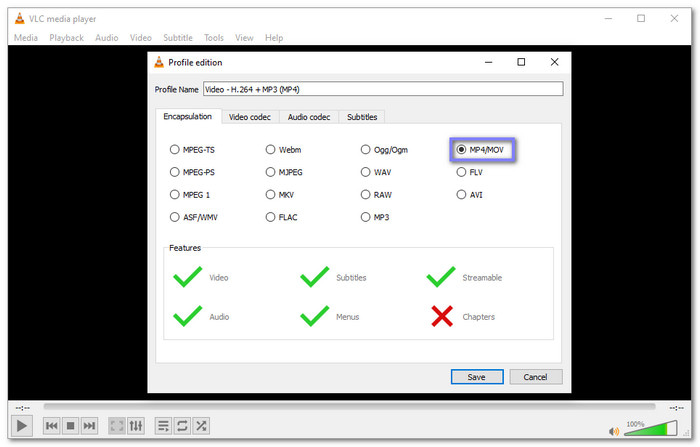
A simple media program, VLC Media Player, can help you convert WebM to MOV. It works on many systems like Windows, Mac, and Linux. It supports many video types, so WebM files are easy to load. You can also convert more than one file at the same time. The steps are simple to follow and recommended for beginners.
Step 1 Open VLC Media Player on your computer.
Step 2 Click Media on the top menu, then choose Convert / Save.
Step 3 Click Add and select your WebM file from your folder.
Step 4 Choose MOV as the final format from the Profile list. You can also pick a video preset if needed.
Step 5 Click Start, and please wait for VLC to finish converting your file.
Part 5. Convert WebM to MOV with FFmpeg
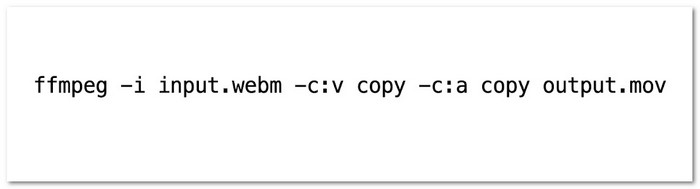
This program is made for users who want more control during video conversion. It works through commands instead of buttons. You type a short line of code to change WebM into MOV. It helps keep good video clarity during conversion. It is also useful for advanced tasks like editing or cropping videos while converting.
Step 1 Install FFmpeg on your computer first.
Step 2 Open Command Prompt or Terminal. Go to the folder where your WebM file is saved.
Step 3 Type this command: ffmpeg -i input.webm -c:v copy -c:a copy output.mov.
Step 4 Replace input.webm with your file name and output.mov with your new name.
Step 5 Press Enter, and please wait until the process ends. Your MOV file will be ready after that.
Part 6. Convert WebM to MOV Free Online
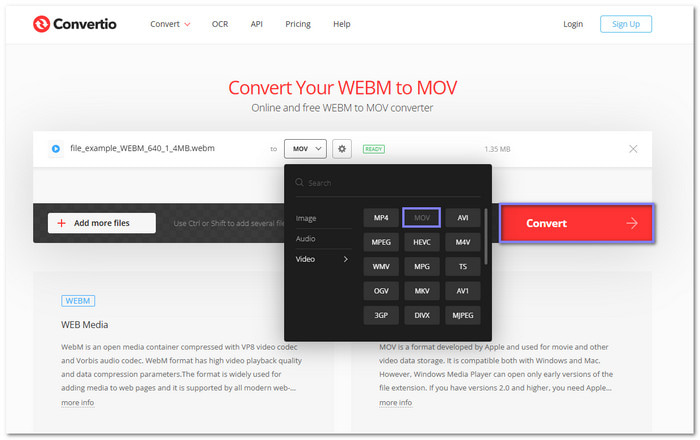
Convertio is a WebM to MOV converter that works without installing anything. You just upload your WebM file and pick MOV as the output. It runs in the cloud, so your computer stays free while converting. In addition, it can also handle other formats like WebM to MP4 conversion, making it more flexible for different video needs.
Step 1 Open the Convertio website using your browser.
Step 2 Import your WebM file by dragging it into the upload box.
Step 3 Select MOV from the drop-down menu as the output format.
Step 4 Hit Convert and proceed to download your MOV file once it is ready, and use it for editing or playback.
Part 7. Comparison of the 4 Ways to Convert WebM to MOV
Each WebM converter has its own strengths. Some focus on speed. Some focus on simplicity. Some are made for advanced users. Below is a clear comparison to help you choose easily.
| WebM to MOV Converter | Ease of Use | Supported Operating System | Speed | Quality | Best Use |
|---|---|---|---|---|---|
| Tipard Video Converter Ultimate | ☆☆☆☆☆ | Windows & Mac | Very fast with level-3 hardware acceleration. | High and stable output quality. | Best all-in-one program for speed and quality. |
| VLC Media Player | ☆☆☆☆ | Windows, Mac & Linux | Moderate conversion speed. | Decent output quality. | Simple and free offline conversion. |
| FFmpeg | ☆☆☆ | Windows, Mac & Linux | Fast but command-based. | Very high quality with correct commands. | Best for advanced and technical users. |
| Convertio | ☆☆☆☆☆ | Web-based (All OS) | Fast, but depends on the internet. | Good quality for basic use. | Quick online conversion without installation. |
Part 8. FAQs of WebM to MOV
Can I upload WebM to iMovie?
No direct support is available for WebM in iMovie. It works best with MOV and MP4 formats. So, you need to convert WebM to MOV first before editing.
Can QuickTime open WebM?
QuickTime does not support WebM by default. It mainly plays MOV files. To open WebM in QuickTime, you must convert it to MOV first.
Is WebM the same as MP4?
No, they are not the same. WebM is mainly used for web streaming. MP4 is more universal and works on almost all devices and platforms.
Conclusion
You have four options to change WebM to MOV. But if you want fast conversion, batch processing, and high-quality output, Tipard Video Converter Ultimate checks all the boxes. You can use it for future conversions, not just for WebM, but also for many other video formats.
More Reading
About the Author


 Tipard Video Converter Ultimate