

To cut MP3 files is a fundamental skill if you work with audio. You may want to make a ringtone, clean up a podcast, or shorten a music track. That is our goal in this guide. We are here to show you how to cut an MP3 file and keep high audio clarity. Below are three easy ways to try!

Part 1. What is an MP3 Cutter
Audio files often have parts you do not need. An MP3 cutter helps you remove those extra sections. It is a program or an application that lets you select a start and an end point in an audio file. Then, it saves only the part you want. You can use it to make ringtones, short clips, or clean audio for videos and podcasts.
Part 2. MP3 Cut vs. Trim vs. Crop: Is There a Difference
Many people think these words mean the same thing. They are similar, but there is a slight difference.
An MP3 cut means you split the audio and remove a section from the middle or elsewhere. Trim usually means you remove unwanted parts from the beginning or end. Crop often means keeping only the selected part and deleting everything else. In simple terms, all three help shorten audio, but the method may vary depending on the tool.
Part 3. Top 3 Ways to Cut MP3 Files on Windows and Mac
1. Tipard Video Converter Ultimate
If you want a simple yet powerful approach to cut MP3 files on Windows and Mac, Tipard Video Converter Ultimate helps you do it immediately, cleanly, and without hassle. It provides a precise MP3 clipper that lets you cut audio at exact start and end points.
You do not have to worry about compatibility, as it supports MP3 files with different bitrates and sample rates. After cutting, it maintains the original audio clarity and sharpness. Plus, it includes audio enhancer tools to improve volume and reduce noise.
Step 1 Go to the official Tipard Video Converter Ultimate website and click the Download button for Windows or Mac. After downloading the file, run it and follow the installation instructions.
Step 2 On the Converter tab, click the Add File button and choose the MP3 file you want to cut.
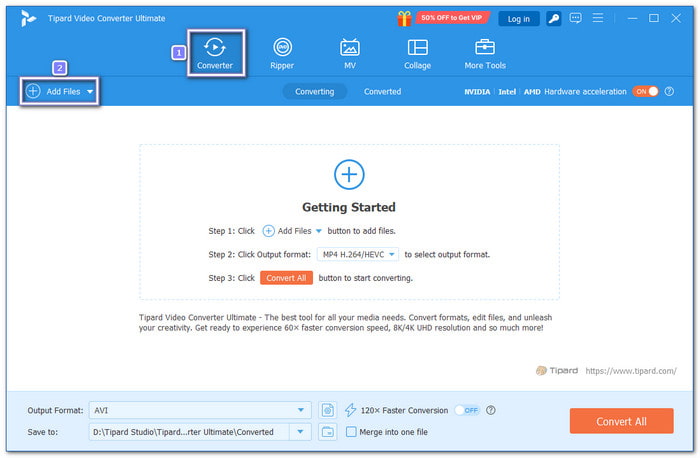
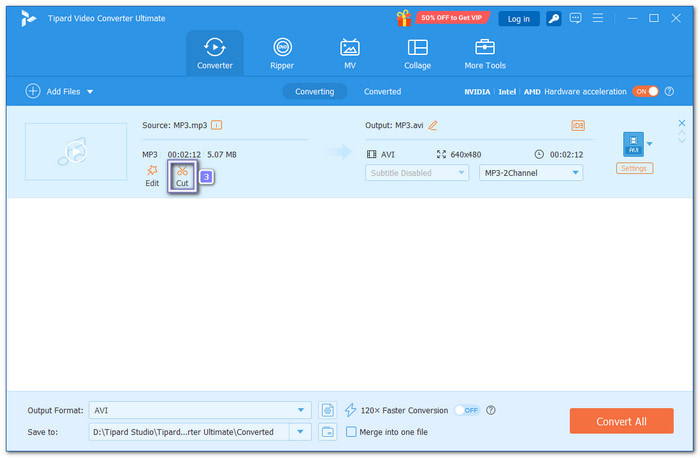
Step 3 Now, click the Scissor button below your audio file details. It will open the cutting interface where you can see your audio timeline.
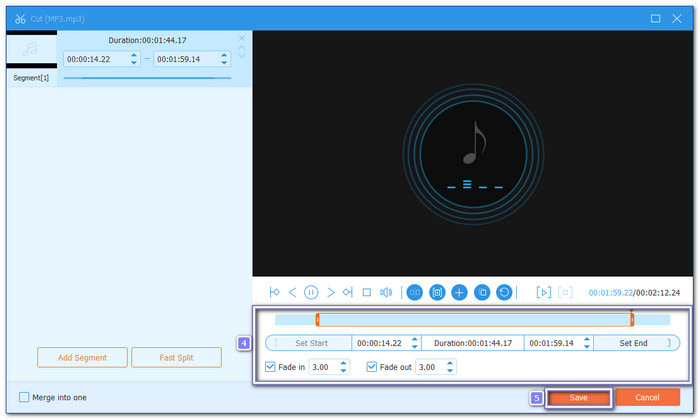
Step 4 Please use the position bar to set the start and end points for your audio. You can also enter exact start and end times for greater precision. If you want, enable Fade-in and Fade-out effects to make the audio fade in or out smoothly. Once you are satisfied with your cut, click Save in the bottom-right corner of the screen.
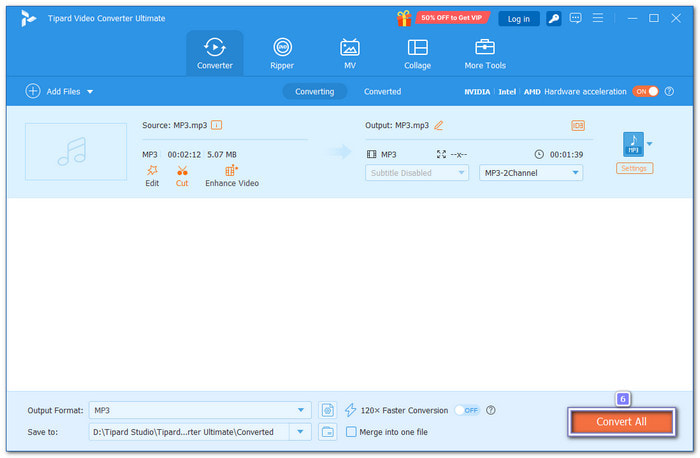
Step 5 It is time to click the Convert All button to save your edited audio file. Once the process is finished, open the folder on your computer to find your final file. You can now play it, add it to a project, or use it for videos, podcasts, or any creative work.
Good and bad points: It lets you not only cut audio but also trim videos in formats like MP4, MOV, AVI, and more. It supports many file types so that you can work on both audio and video in one place. However, the free version has limited usage. To remove limits, you need to upgrade to the paid plan, which starts at $18.00.
2. CapCut
You should know that this program is more than just a video editor; it also lets you work with audio. You can quickly cut MP3 files and offers extra features like fade effects, noise reduction, and volume control. It works on both Windows and Mac, making it convenient for anyone who edits audio.
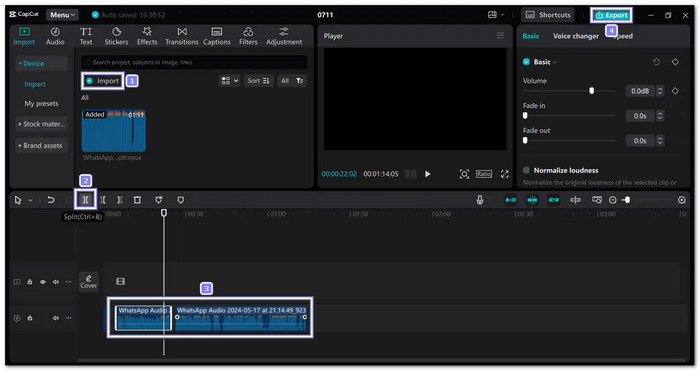
Step 1 Launch CapCut on your computer and click Create Project. Then, click Import to add your MP3 file from your device.
Step 2 Drag your MP3 file to the timeline. Use the Split option above the timeline to cut your audio at any point. You can delete unwanted parts or keep only the sections you need. You can also crop and trim the ends by dragging from the sides.
Step 3 After cutting, you can improve your audio. Lower or raise the volume, add fade-in or fade-out effects, reduce background noise, normalize loudness, or change speed.
Step 4 Head to the Export section. Make sure the video option is off and select the audio option. Finally, pick your preferred format and save the file to your device.
Good and bad points: It is fast and easy to use, and it has many features to improve audio clarity. It also handles large files well. The downside is that advanced audio features are limited. You need to unselect the video settings if you only want audio.
3. Audacity
You probably know Audacity as a classic program designed for working with sound. It lets you cut MP3 audio precisely and remove unwanted parts easily. You can also boost the volume, apply fade-in or fade-out, and refine minor mistakes. Its interface needs to be mentioned, as it is beginner-friendly and really suitable for beginners.
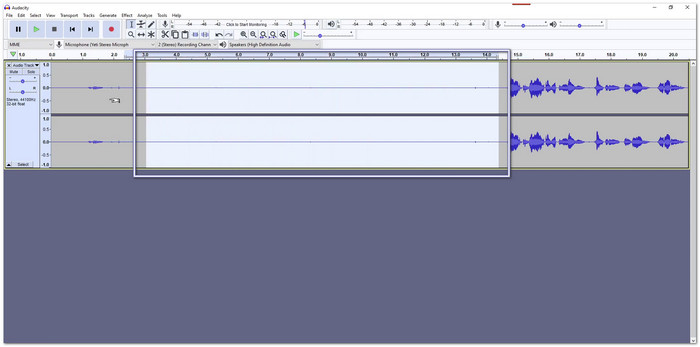
Step 1 Run Audacity and import your MP3 file by clicking File > Import > Audio.
Step 2 Find any silent or unnecessary parts at the beginning or end. Click and drag to highlight the section you do not want, then press Delete. If you make a mistake, press Control + Z (PC) or Command + Z (Mac) to undo.
Step 3 Check your audio for extra spaces between parts. Highlight them and delete. You can also use simple tools in Audacity to adjust volume and apply fade-in and fade-out effects.
Step 4 Once your audio looks good, click File > Export > Export as MP3. Now, choose a location and save your edited MP3.
Good and bad points: It is free and helpful for editing audio. It provides precise control over your audio files and lets you fade in and out of music. However, it can feel plain and confusing at first. It also lacks built-in video features, so it focuses solely on sound.
Part 4. Why Is the MP3 Audio Quality Poor After Cutting
You expect your audio to stay clear after MP3 cutting. Sometimes, it does not. Poor quality often happens because the file is re-encoded after MP3 cutting. It can lower the bitrate and reduce clarity.
Low export settings can also make the sound weak. Another reason is using an unstable or low-quality program for MP3 cutting. To avoid this problem, choose high output settings and use a trusted program that keeps the original audio clarity.
Conclusion
No more asking yourself, How do I cut an MP3 file, because now you already know the answer. You can use Tipard Video Converter Ultimate, CapCut, or Audacity to get the job done on Windows or Mac. Try one today and see which works best for you!
More Reading


About the Author


 Tipard Video Converter Ultimate