

FLAC is a high-quality audio codec. Your song library may contain many audio files in this format. As a lossless compression format, FLAC provides high-quality listening enjoyment. However, FLAC format is large, and some old devices don't support this format, which is why many people want a FLAC to MP3 converter.
This article offers 6 best ways to convert FLAC format to MP3. You can reduce the audio file to save storage space on your device or make your audio files compatible with some old player devices.
Part 1. 3 Excellent FLAC to MP3 Converters on Windows/Mac
Although FLAC and MP3 differ in audio quality and compression, you can still convert FLAC files to MP3 while maintaining excellent listening quality. To ensure the best results, you'd better avoid changing core audio parameters such as sample rate, channel count, and bit depth during conversion. For better results after conversion, you can use the three top FLAC to MP3 converter software recommended below.
Tipard Video Converter Ultimate- Most Recommended
Platforms: Windows and macOS
Converting FLAC to MP3 with Tipard Video Converter Ultimate is easy and effective. It offers a clear interface and simple workflow, helping you quickly change FLAC to MP3. The reason it tops other FLAC to MP3 converters lies in that Tipard Video Converter Ultimate can keep the best audio quality. It can change or enhance the bitrate, sample rate, channels, and more settings. It can also deal with files in batches and provide audio editing and audio compression functions.
Step 1 Launch Tipard Video Converter Ultimate
Click the Download button above to download and install Tipard Video Converter Ultimate on your computer for free. It currently supports both Windows and Mac. Then, launch it.
Step 2 Import your FLAC Files
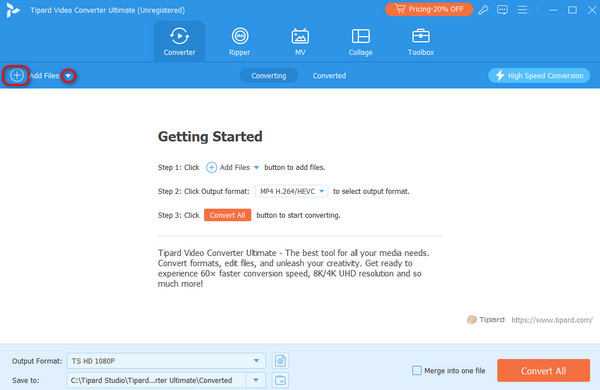
Once you've run this program, you can start the conversion by dragging and dropping FLAC files into it. Alternatively, you can click the Add Files button on the top left side and select your FLAC audio files.
Step 3 Select MP3 as the Output Format
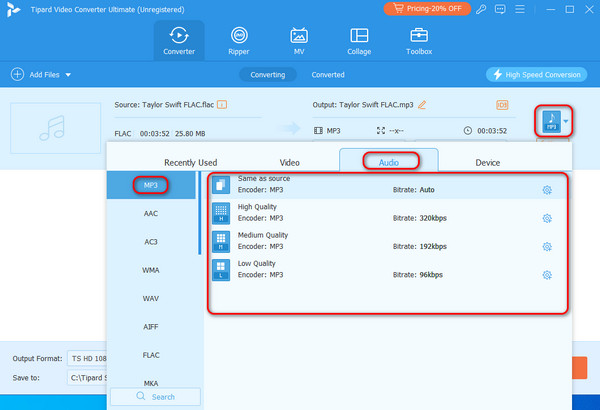
Click to open the Output Format menu from the lower area of the left side, go to Audio > MP3, and choose a preferred preset. For example, you can choose High Quality, which offers high bitrate and sample rate.
Step 4 Start the FLAC to MP3 conversion
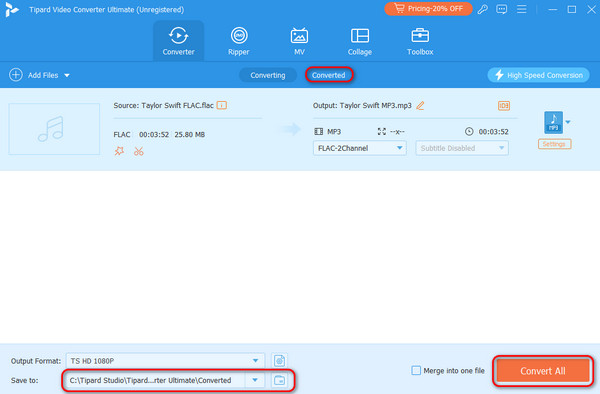
Set the output destination to save the converted files, and complete the FLAC to MP3 conversion by clicking the Convert All button. After all these steps, go to the Converted tab from the top or to the destination folder; you can access your MP3 audio file there.
Tips: Tipard Video Converter Ultimate has tons of editing tools that you can also use from the More Tools, you can edit audio in any quality before or after the conversion.
- Support batch conversion.
- Offer great customization on audio codec, bitrate, sample rate, and channels.
- Offer audio editing features like trimming, merging, and compression.
- Keep the best audio quality after FLAC to MP3 conversion.
- The interface can be more stylish.
VLC Media Player
Price: Always remain free for everyone.
Platforms: Windows, macOS, Linux.
VLC Media Player is a versatile audio FLAC to MP3 converter. You can easily add FLAC files, select the MP3 format, and start the FLAC to MP3 conversion process with just a few clicks. Moreover, your MP3 audio quality can be quickly improved by tweaking many basic and advanced options in this program.
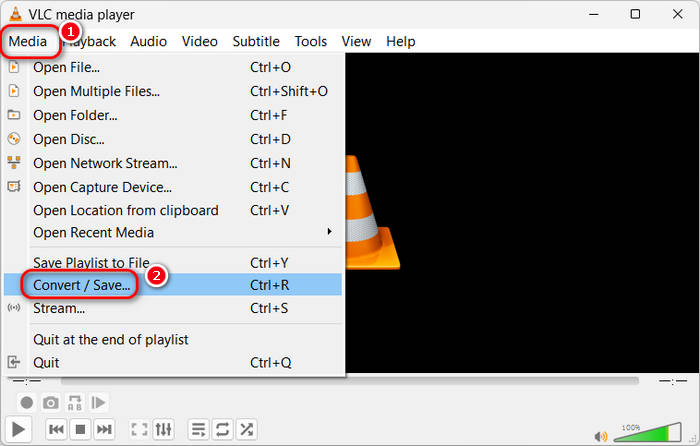
Step 1Download, install, and launch VLC Media Player on your computer. Click the Media button in the top left corner, and then select Convert / Save.
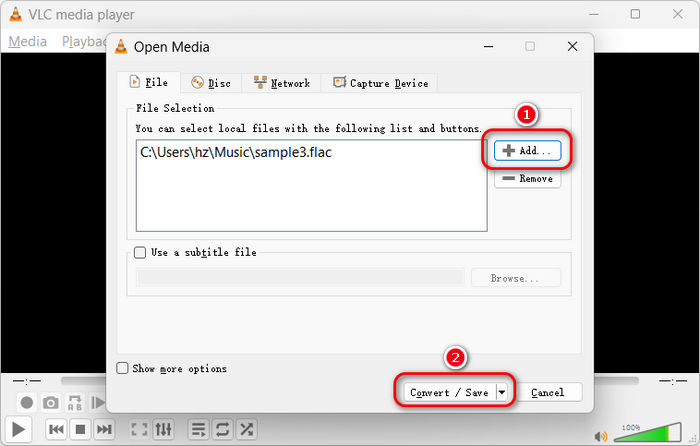
Step 2Click the Add button to add your FLAC audio file to this program. You can import multiple FLAC audio files. Then, click the Convert / Save button to continue.
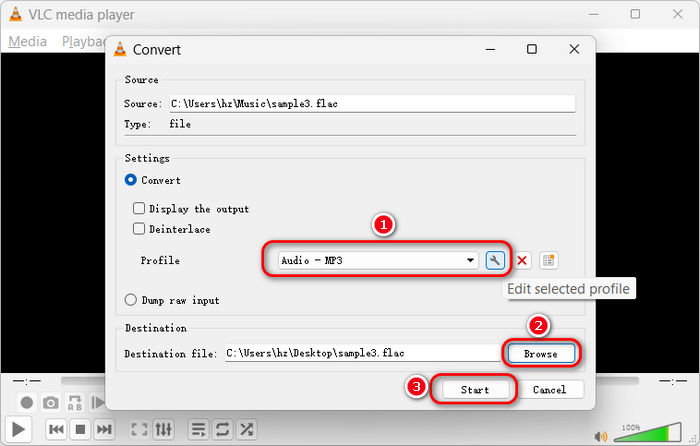
Step 3You can see the Profile is set automatically MP3. You can also click the dropdown button to select your desired audio format. You can also click the Edit selected profile butotn to adjust the audio bitrate and sample rate.
Step 4Click the Browse button to select a destination folder for your upcoming MP3 file, and then click the Start button to convert FLAC to MP3 easily with VLC Media Player.
- Can preview before your conversion.
- Allows unlimited conversion sessions per day.
- Files cannot be processed in batches.
Audacity
Price: Always remain free for everyone.
Platforms: Windows, macOS, GNU/Linux.
Audacity is an open-source editor that can help convert FLAC to MP3. It offers a wide range of advanced audio editing features. Therefore, you can customize the effect you want to achieve during the conversion process, and Audacity will meet almost all your needs with high quality. However, the interface of Audacity is a bit complex, so you can follow the guide below to change FLAC file to MP3 format.
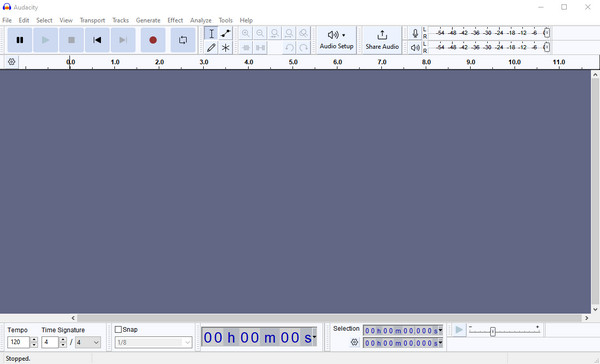
Step 1Download, install, and launch Audacity on your computer. Click the File button in the top left corner. Then, select Import, and then Audio to import your FLAC files.
Step 2Then, click the File button again, and then select Export Audio. You can choose to export the aduio on your computer or on audio.com.
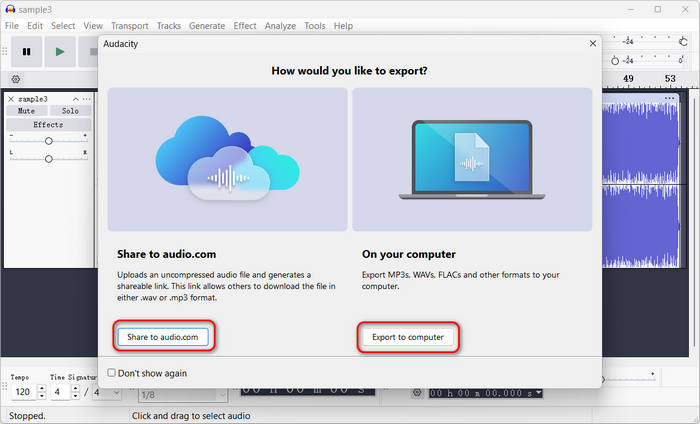
Step 3Click the Format dropdown button to select MP3 as the output format. You can also adjust the Sample Rate, Bit Rate Mode, and Quality. Then, click the Export button to change FLAC format to MP3 easily with Audacity.

- No limit to the number of files you can convert.
- Can perform more professional editing.
- Can directly choose to import the website for everyone to download.
- Only supports audio file conversion.
- Fewer file formats are supported, and most need to be converted to AIFF and FLAC formats first.
Part 2. 3 Best FLAC to MP3 Converters Free Online
In addition to the three FLAC to MP3 software recommended above, a couple of other Internet programs can be used as online FLAC to MP3 converters. Their key features, pros, cons, and prices will be listed below.
Convertio
Price: Start at $9.99 per month for light use, $14.99 per month for basic use, and $25.99 for unlimited use.
Platforms: Windows, macOS, GNU/Linux.
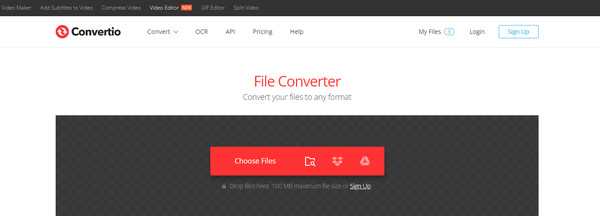
With a simplified design, Convertio is a straightforward tool that allows you to convert FLAC to MP3 online for free. Not only that, but it also supports more than 300 file formats, with no additional operations required. You only need to upload your FLAC files, and then with one click to easily convert them to MP3 successfully.
Step 1Go to Convertio official website. Click the Choose Files button to upload your FLAC files.
Step 2Click the dropdown button to select MP3 as the output format. You can also click the Settings button to adjust audio bitrate and sample rate.
Step 3Finally, just click the Convert button to turn FLAC files to MP3 format free online.
- You can convert it in the cloud without consuming any capacity from your computer.
- Allow you to choose output preferences before conversion.
- Can be used without registering.
- Can only convert files up to 100MB daily without an account to log in.
Zamzar
Price: Start at $18 per month for light use, $30 per month for pro use, and $49 for business use.
Platforms: Windows, macOS, GNU/Linux.
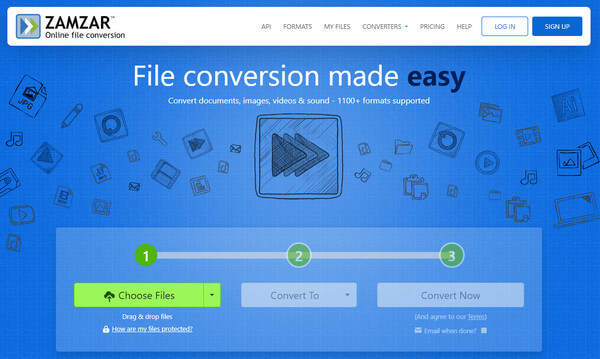
Zamzar provides a simple program for fast, scalable, high-quality file conversion for over 100 formats. After entering the website, the entire page is designed to be very concise and easy to understand. You can directly convert FLAC to MP3 with customization features. You can adjust the audio sample rate, bitrate, and channels.
Step 1Go to the official webpage of Zamzar FLAC to MP3 Converter. Click the Choose Files button to upload your FLAC files. You can add multiple FLAC audio files.
Step 2After uploading, you can adjust the audio settings. For example, you can enhance the bitrate, sample rate, and adjust channels.
Step 3Finally, just click the Convert button to change FLAC to MP3 format free online with Zamzar.
- Can support a wide range of formats.
- A download link for the converted file can be automatically generated.
- You must purchase the corresponding package to convert files larger than 50MB.
CloudConvert
Price: Start at $ 9 per month for light use. The system will automatically calculate a cost-effective package depending on how many files you need to convert.
Platforms: Windows, macOS, GNU/Linux.
CloudConvert is one of the most popular online converters. It can help you convert FLAC to MP3 free online in batches. The tool's performance is terrific, and its simplified design allows easy conversion. Apart from converting files, CloudConvert also offers great flexibility in customizing audio settings. You can adjust the audio bit rate and sample rate easily. Check how to convert FLAC to MP3 with CloudConvert.
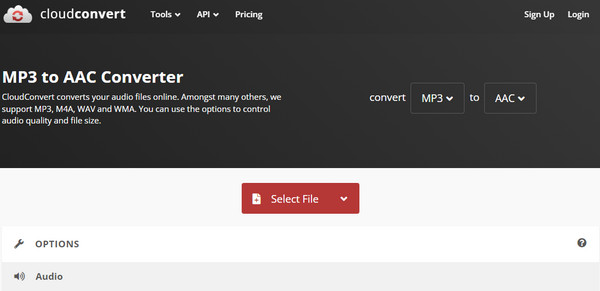
Step 1Go to the official website of CloudConvert. Click the Select File button to upload your FLAC audio file. You can also add more files.
Step 2Click the Convert to button to select MP3 as the output audio format.
Step 3Finally, click the Convert button to change FLAC to MP3 format free online in CloudConvert.
- Support most of the available media formats.
- Remarkable conversion speed with a high quality.
- Doesn't allow unregistered users to convert more than 25 files per day.
Part 3. FAQs of FLAC to MP3 Converter
Can I convert Flac to MP3 without losing quality?
No, you can't ensure lossless conversions. The sound quality of FLAC is inherently better than that of MP3; during the conversion process, even though you may not be able to hear it clearly, the loss of quality is inevitable. You can use Tipard Video Converter Ultimate to convert FLAC to MP3. It can help you increase the bitrate to 320 kbps, which can keep the best audio quality.
Can I convert FLAC to MP3 in iTunes?
Yes, you can. However, because iTunes does not support FLAC format files, you need to convert them to other formats first and then import them into the program for conversion. Therefore, you can use Tipard Video Converter Ultimate or Audacity to convert FLAC to MP3 directly.
Is FLAC more high quality than MP3?
Yes, it is. FLAC is a lossless audio codec that can keep the original audio quality. If you want to convert FLAC to MP3, your purpose could be for compatibility or file size.
Conclusion
In this article, we highlight six popular and easy-to-use tools that can convert FLAC to MP3 quickly and with high quality. Converting FLAC to MP3 will inevitably decrease the audio quality because FLAC is more high-quality than MP3. If you want to keep the best audio quality, use Tipard Video Converter Ultimate. It offers high-quality presets for MP3 format and can help you batch convert FLAC to MP3 quickly.
More Reading
About the Author


 Tipard Video Converter Ultimate