

Key Takeaways
- Tipard Video Converter Ultimate offers easy use, high quality, and more formats. FFmpeg, VLC, and ONLINE-CONVERT.com are also reliable options.
- Tipard Video Converter Ultimate quickly captures WebM frames as JPG while keeping clear image quality.
- FFmpeg uses commands for exact frames. VLC uses snapshots to save video scenes.
- ONLINE-CONVERT.com converts WebM to JPG without installing software.
Have you found a great moment in a WebM video that you want to save as an image? A WebM file offers good video quality with a small size, but opening a single frame can be difficult. With WebM to JPG conversion, you can turn your favorite scenes into JPG images for saving, sharing, or editing.
Part 1. Comparison of the 4 WebM to JPG Converters
| WebM to JPG Converters | Ease of Use | Conversion Method | Image Quality | Output Formats | Internet Required |
|---|---|---|---|---|---|
| Tipard Video Converter Ultimate | Very easy interface. | Frame-by-frame capture. | Keeps original quality. | JPG, PNG, GIF. | No |
| FFmpeg | Command-based process. | Command extraction. | High-quality output. | JPG and other formats. | No |
| VLC Media Player | Simple controls. | Video snapshot. | Good snapshot quality. | JPG, PNG. | No |
| JPG, PNG. ONLINE-CONVERT.com | Easy online tool. | Online conversion. | Quality adjustment available. | JPG only. | Yes |
Our Test Standards
We tested each WebM to JPG converter with the same video file. We used similar settings for a fair result. We checked the JPG image quality, speed, and how easy each tool is to use.
- Test File: 1920×1080 WebM video.
- Output Format: JPG image.
- Goal: Convert WebM videos into clear JPG images successfully.
Part 2. The Fastest Way to Convert WebM to JPG
Tipard Video Converter Ultimate makes WebM to JPG conversion faster by letting you extract images second by second or frame by frame. You can pick the exact moment you want without missing important scenes. It keeps the original image quality for clear results. It also supports JPG, PNG, and GIF formats, giving you more options for saving your captured images.
Step 1 Start by getting Tipard Video Converter Ultimate ready on your computer.
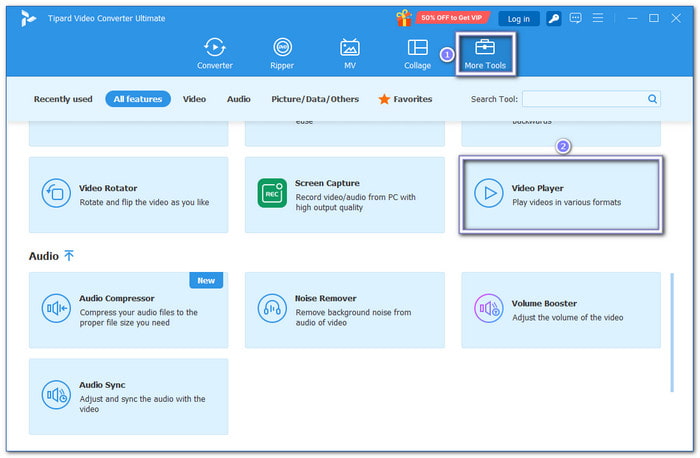
Step 2 Go to the More Tools tab and choose the Video Player feature.
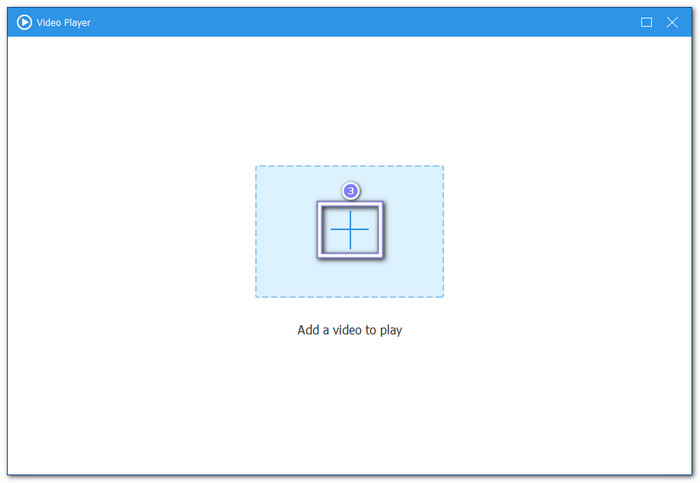
Step 3 Click the Add button to import your WebM file. The video will appear in the built-in player.
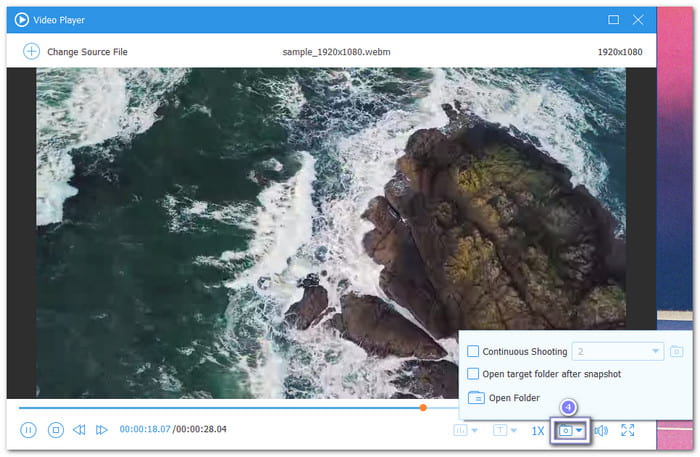
Step 4 Pause the video at the frame you want to save as a JPG image. Hit the Snapshot button below the video preview to capture the frame.
The program will save the captured image automatically. You can check the snapshot folder to find your new JPG file. Repeat the same steps to capture more frames from your WebM video.
Test Result:
It captured WebM video frames quickly. It saved them as clear JPG images. The image stayed close to the original video quality.
Part 3. How to Convert WebM to JPG with FFmpeg
FFmpeg can help you convert WebM to JPG by pulling a single frame from a WebM video without converting the whole file. You can also choose the exact timestamp for the image. It gives you precise control over which scene is saved as a JPG. The process only needs one command.
Step 1 Open FFmpeg on your computer. Make sure FFmpeg is already installed. Place your WebM file in a folder that is easy to access.
Step 2 Run the Command Prompt on Windows or Terminal on Mac. Go to the folder where your WebM video is saved.
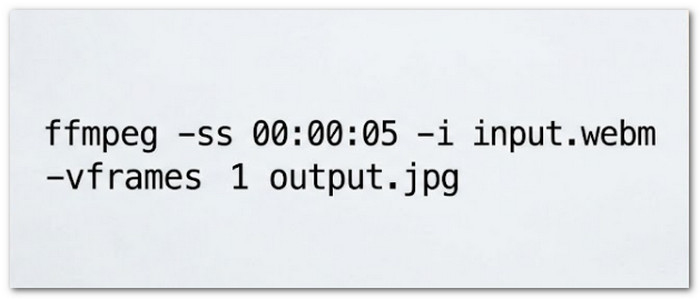
Step 3 Type this command: ffmpeg -ss 00:00:05 -i input.webm -vframes 1 output.jpg.
Replace 00:00:05 with the time you want to capture. Replace input.webm with your video file name. Replace output.jpg with the JPG file name you want to save.
Step 4 Press Enter to run the command. FFmpeg will grab one frame from the selected time and save it as a JPG image in the same folder unless you choose a different save location.
Test Result:
It extracted JPG images from the WebM file with accurate frame selection. The result was clear, but the command process required more manual steps.
Part 4. How to Convert WebM to JPG with VLC Media Player
Besides being a WebM player, VLC Media Player has a built-in snapshot feature that captures the current video frame as an image. It supports saving snapshots in JPG format through its video settings. It makes WebM to JPG free conversion simple while keeping the frame you want.
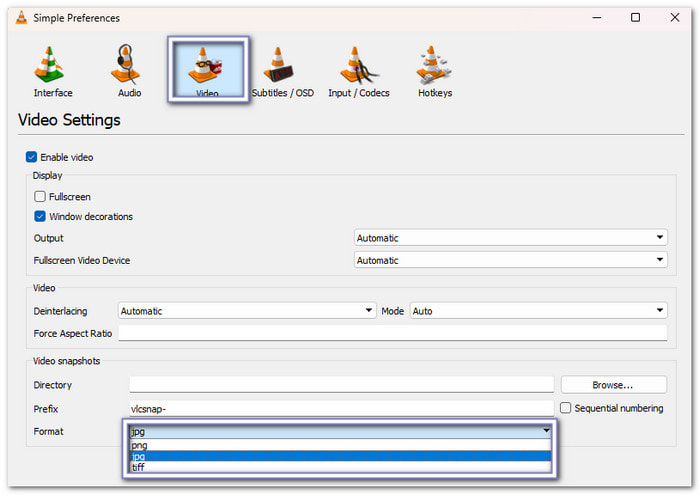
Step 1 Run VLC Media Player on your Windows or Mac computer. Click Tools and choose Preferences. Open the Video tab. Under Format, select JPG and click Save.
Step 2 Click Media and choose Open File. Find your WebM video and open it in VLC.
Step 3 Play the video and pause when you reach the frame you want to save. Take your time until you find the perfect scene.
Step 4 Click Video and select Take Snapshot. VLC will save the current frame as a JPG image in the default snapshot folder on your computer.
Test Result:
It captured WebM video frames through its snapshot feature. The JPG output looked good, and the process worked well for saving selected scenes.
Part 5. How to Convert WebM to JPG Free Online
ONLINE-CONVERT.com extracts a JPG image from your uploaded WebM file through your browser. It also supports WebM to GIF conversion for turning video scenes into animated images. Before the conversion starts, you can change the image quality, resize the output, crop the image, etc.
Check how to convert WebM to JPG using it below!
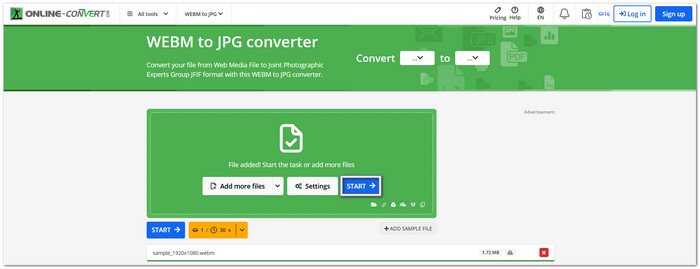
Step 1 Visit the ONLINE-CONVERT.com's WEBM to JPG Converter website. Hit Choose File and upload your WebM video.
Step 2 Please wait for the upload to finish. Then, select Best Quality for a clear image or Smallest File if you want a smaller file size. You can also adjust the photo size if needed.
Step 3 Click Start to begin the conversion. The website will extract the image from your uploaded WebM file.
Step 4 Once the process is complete, click Download to save the JPG image to your computer. Open the file and check if it looks the way you want.
Test Result:
The image quality was good. The process finished quickly. No extra program was needed.
Part 6. FAQs of Converting WebM to JPG
Is WEBM better than MP4?
WEBM and MP4 have different strengths. WEBM offers good compression for online videos. MP4 works on more devices and players. The better choice depends on where and how you plan to use the video.
What is the main difference between JPG and PNG?
JPG creates smaller image files. However, it loses some image quality. PNG keeps the original quality. It does not lose image details.
Will turning a WebM file into a new format affect its clarity?
Will turning a WebM file into a new format affect its clarity?
Conclusion
Are you satisfied with the result of your image? Which tool did you like the most? To convert WebM to JPEG, there is no doubt that Tipard Video Converter Ultimate stands out. It captures clear images, maintains quality, and makes the process quick and simple.

All-in-one video toolbox: convert, edit, upscale, enhance, and compress your videos easily
100% Clean & Safe
100% Clean & Safe

More Reading
About the Author


 Tipard Video Converter Ultimate