

Key Takeaways
Video cropping lets you cut the edges of a video and optimize the frame for different viewing experiences and contexts. Key aspects include:
- Frame adjustment: Removed black bars that only show the overall subject. There are no unnecessary backgrounds or borders.
- Platforms and devices: Common aspect ratios 16:9, 9:16, 1:1, 4:3, etc.
- Cropping vs cutting: Cutting the video will shorten the length of the video, whereas cropping will change the dimensions of the frame.
- Export quality: Editing a video should leave it looking clear and at an excellent resolution.
Video Cropper is used quite often when unwanted edges, black bars, or backgrounds that can distract from the picturesque are present. In some situations, it can be essential to crop the footage to emphasize one portion and adjust the composition in order to optimize the content for the different platforms and aspect ratios.

Part 1. What Is a Video Cropper
Video cropper is a video editor that removes all the unnecessary parts of the frame and focuses on the main content by removing any empty area, watermark, or distracting background. It can also resize videos to the dimensions and aspect ratios for different social media, websites, presentations, or mobile devices. Common formats include 16:9, 1:1, and 9:16. The features of cropping and resizing result in the production of a more elegant video for a multitude of media.
Part 2. Video Cropper vs. Video Cutter: Key Difference
While these two terms are used interchangeably, a video cropper and a video cutter are actually two different video editing functions.
| Feature | Video Cropper | Video Cutter |
|---|---|---|
| Main Purpose | Removes unwanted areas from the video frame. | Removes unwanted sections from the video's timeline. |
| Affects | Video dimensions and visible area. | Video length and duration. |
| Result | Changes the appearance or aspect ratio of the video. | Shortens the video by trimming clips. |
| Common Use | Removing borders, watermarks, or distractions. | Deleting mistakes, intros, outros, or unnecessary scenes. |
| Output Length | Usually remains the same. | Becomes shorter after editing. |
Part 3. Top 10 Video Croppers on Windows and Mac
1. Tipard Video Converter Ultimate
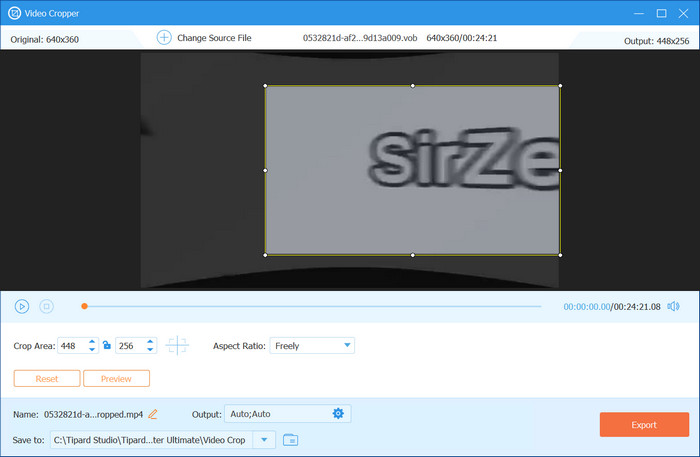
Tipard Video Converter Ultimate is one of the ideal cropping tools for Windows and Mac users who need a versatile yet easy-to-use application. It does not limit the application to just cropping tools like most standalone apps. It includes cropping, converting, enhancing, and editing in one tool. The Video Cropper tool allows users to remove black borders, resize their videos to fit social media dimensions, and focus on subjects of interest.
Key Features:
- Provide a dedicated standard aspect ratio such as 16:9, 9:16, 1:1, and 4:3.
- Simply change a 16:9 video to 9:16 for social networks.
- Allow you to customize the part of the video to be cropped by hand.
- Easy-to-use all video formats as inputs for flexible editing.
- Easy-to-use interface.
- Fast conversion and export speeds.
- Supports 4K, 5K, and 8K videos.
- Includes many additional editing tools.
- Available on both Windows and Mac.
- Some advanced features require a paid license.
2. Adobe Premiere Pro
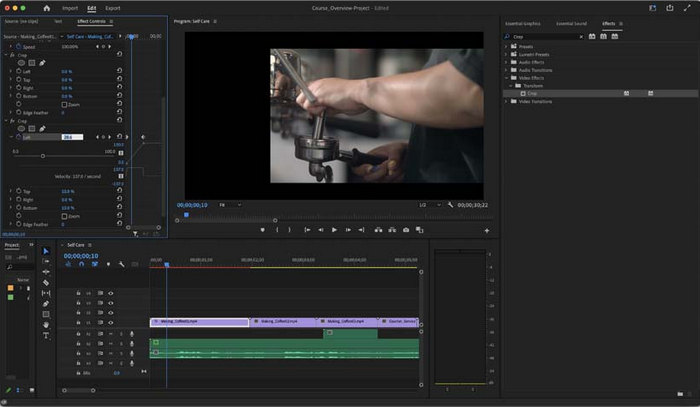
Adobe Premiere Pro is a favorite for professionals and for good reasons. Its cropping tools provide frame-level precision, thus allowing users to fine-tune compositions, add zoom and other cropping effects, and resize videos for various formats.
Key Features:
- Advanced timeline editing.
- Motion graphics integration.
- Multi-camera editing.
- Wide format support.
- Industry-standard editing software.
- Powerful editing capabilities.
- Frequent updates.
- Subscription-based pricing.
- Steeper learning curve for beginners.
3. Final Cut Pro
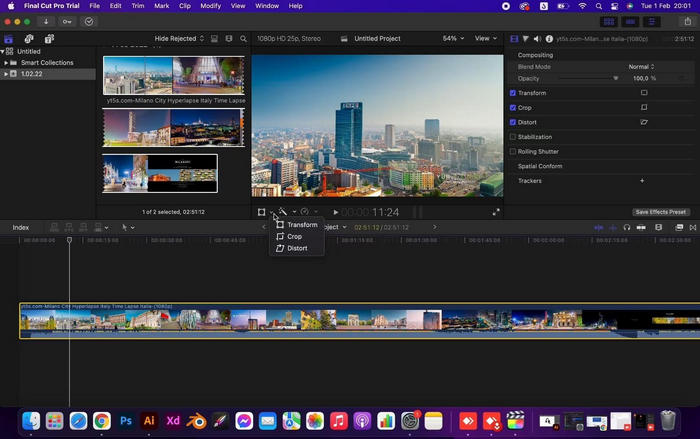
With speed and a need for quality, Final Cut Pro is made for professional video editing for Mac users. Final Cut Pro enables users to resize videos and crop and frame adjust with ease and in a responsive manner. Even editing heavy, high-quality videos is not a problem for the tool.
Key Features:
- Precision crop and transform tools.
- Magnetic timeline.
- 360-degree video editing.
- Optimized for Apple silicon.
- Excellent performance on Mac.
- Professional-grade tools.
- One-time purchase.
- Available only on macOS.
- Higher upfront cost.
4. DaVinci Resolve
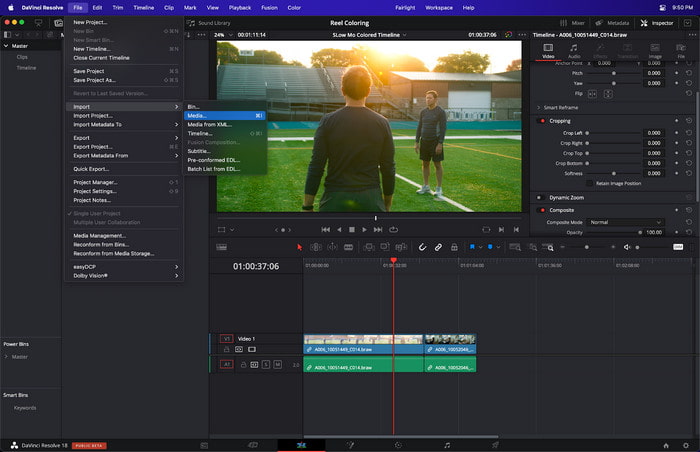
DaVinci Resolve is one of the leading video editing tools on the market, and for good reasons. It includes a full editing suite with VFX, audio, and some of the best color grading in the industry. For ease of cropping to different ratios, DaVinci Resolve includes cropping tools that are as powerful as the full editing suite and are perfect for any type of video, from social media to features.
Key Features:
- Advanced video cropping controls.
- Professional color grading.
- Visual effects tools.
- Audio post-production suite.
- Powerful free version.
- Comprehensive toolkit, including the video speed-up feature.
- High-quality output.
- Resource-intensive.
- Requires time to master.
5. Filmora
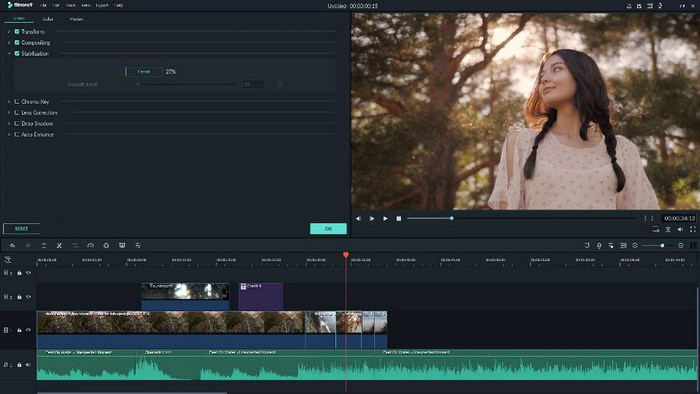
Filmora is appealing to beginners and intermediates due to its well-balanced features and easy accessibility on the market. Video crop tools help resize the video frame and margins to be the perfect size for each platform or video type. Filmora makes a great option for speedy video production with its large effect library and template options.
Key Features:
- Easy crop and zoom controls.
- Built-in effects and transitions.
- Aspect ratio presets.
- Screen recording tools.
- Simple interface.
- Suitable for beginners.
- Fast learning process.
- Some exports may include limitations in the free version.
- Fewer professional tools than advanced editors.
6. CapCut
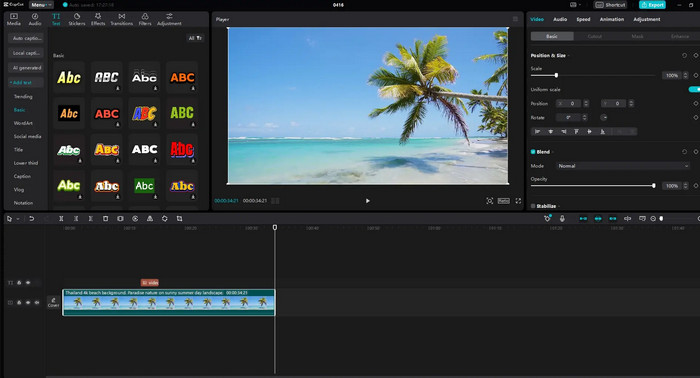
CapCut has a friendly interface and features that make it an immediate and essential video editing tool for social media content creators. It allows video cropping with the proper preset ratio and is a quick optimization for any cropping type in order to fit the various social media platforms.
Key Features:
- One-click aspect ratio presets.
- AI-assisted editing tools.
- Filters and effects.
- Social media export options.
- Easy to use.
- Free version available.
- Great for short-form content.
- Some advanced features require an account.
- Professional editing options are limited.
7. iMovie
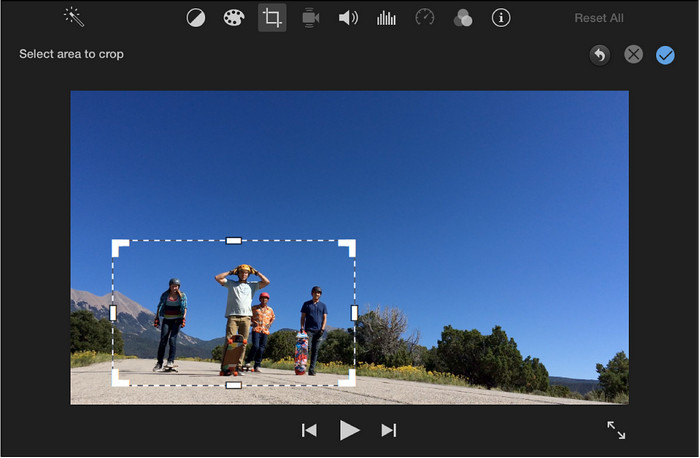
iMovie is the free video editor that Apple has created for its users. Once again, Apple has kept things simple for its users, while other editors may have a ton of options, a guide is always necessary, etc. Casually, things are different with iMovie, as easy cropping to fill is about as easy as it gets.
Key Features:
- Crop-to-fill function.
- Basic video editing tools.
- Built-in themes and templates.
- Direct sharing options.
- Free for Apple users.
- Beginner-friendly.
- Clean interface.
- macOS and iOS only.
- Limited advanced editing and video correction features.
8. HitFilm
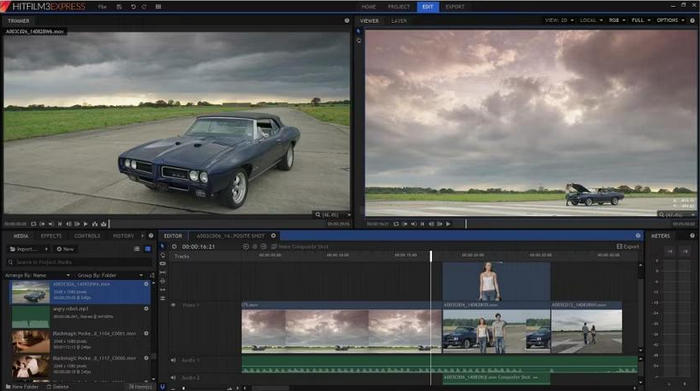
This software is very special as it combines video editing software with visual effects. Cropping can be quite simple in other video editing software, as it can be anywhere else. Still, HitFilm offers a multitude of options for advanced effects and overlays that may be motion tracked, etc. This is very appealing to users who love the creative visual effects, but also want a simple, easy video cropping tool.
Key Features:
- Crop and transform controls.
- Visual effects tools.
- Motion tracking.
- Video compositing features.
- Strong VFX capabilities.
- Suitable for creative projects.
- Flexible editing workflow.
- It can be demanding on hardware.
- The interface may feel complex for new users.
9. Lightworks
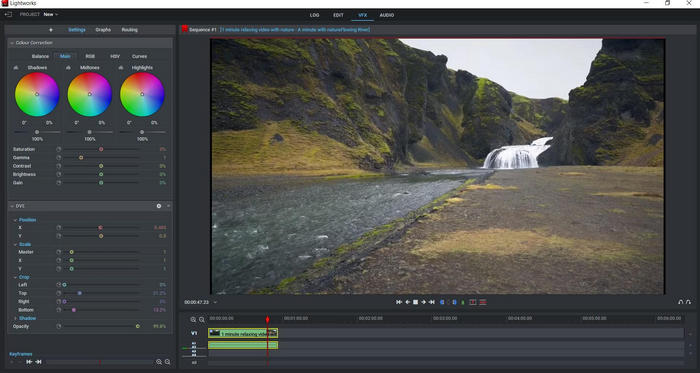
Lightworks is an old-school video editing software that has been used for movie and Television production. The composition tools are accurate and efficient, and the part collection is accurate, complete, and has no duplicate parts, so editors can adjust the video composition according to their requirements without being deterred. It can take some time to get used to its interface, but its ability to offer a comprehensive editing environment will better serve experienced viewers.
Key Features:
- Precision video cropping.
- Multi-track editing.
- Real-time effects.
- Flexible export settings.
- Great professional editing features.
- Very reliable.
- Works with many different formats.
- It can be hard for beginners to learn.
- Some exporting features are behind a paywall.
10. Blender
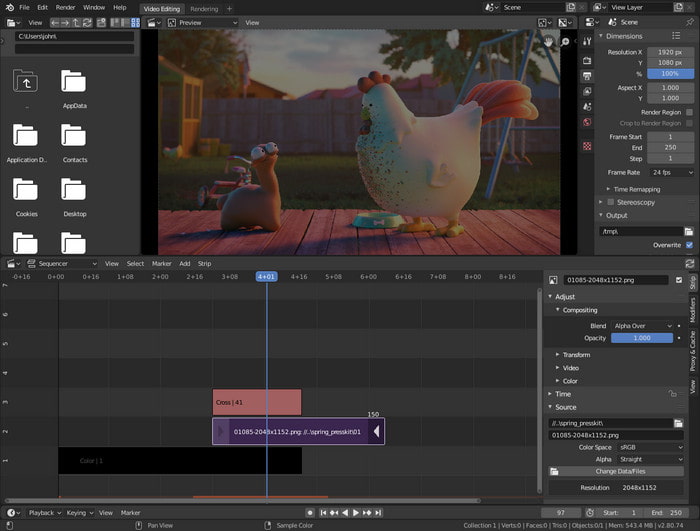
Blender is a great tool for anyone needing 3D modeling or animations, but it also offers a very effective video editor. Through its Video Sequence Editor, users can edit videos with a lot of the same features available in the 3D creative side of the program. Because of this, it is a great tool for anyone needing both video and 3D editing in a single solution.
Key Features:
- Video Sequence Editor.
- Crop and transform effects.
- 3D animation integration.
- Open-source platform.
- Completely free.
- Extensive creative and video compressor capabilities.
- Active community support.
- Complex interface.
- Not ideal for casual editors.
- Requires more time to learn.
Part 4. How to Use a Video Cropper
If you are a Windows or Mac user and you need to crop a video, the first few steps to follow are as follows:
Step 1 Download Tipard Video Converter Ultimate to be installed on Windows or Mac. Once the software has been installed, launch it.
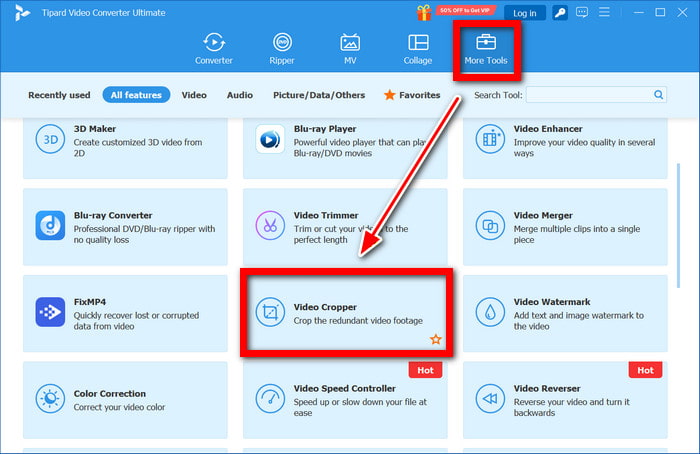
Step 2 On the home page, click on the More Tools tab. From the tools page, edit the reference to pick the Video Cropper tool. Now you are on the tools page, edit the reference to select the Video Cropper tool.
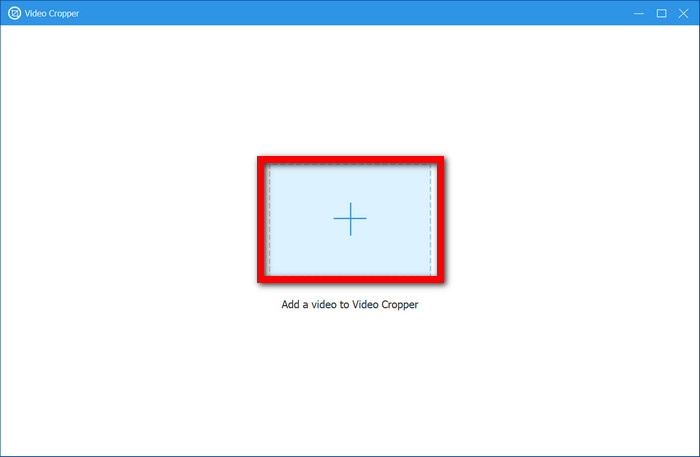
Step 3 To crop one of the videos, upload it to the tool, and then select Add (+).
Step 4 Click and drag the video preview to the size of the crop you would like. Adjust the unwanted view by using the supplied cropping frame. Apply crop values for accuracy to make adjustments.
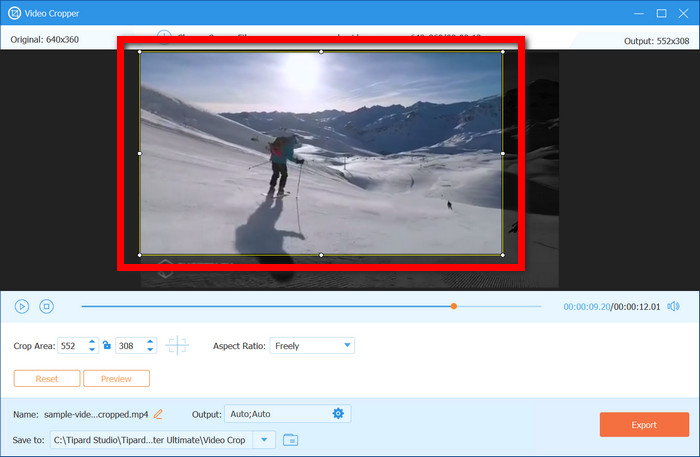
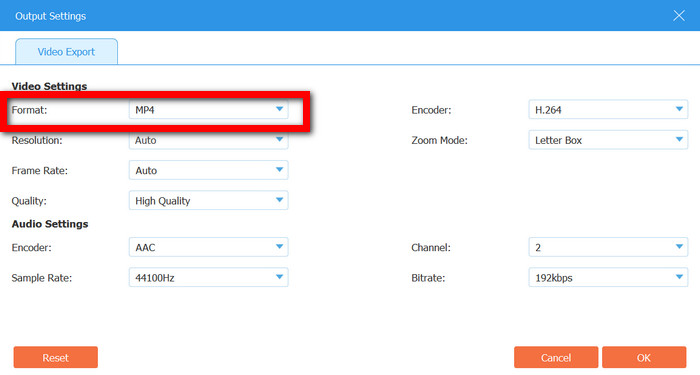
Step 5 Set the crop frame and choose output file type, quality, and size. Other editing options are also available, including trimming, editing effects, and adjusting. Select from the Output Format, including MP4, MOV, AVI, MKV, and others.
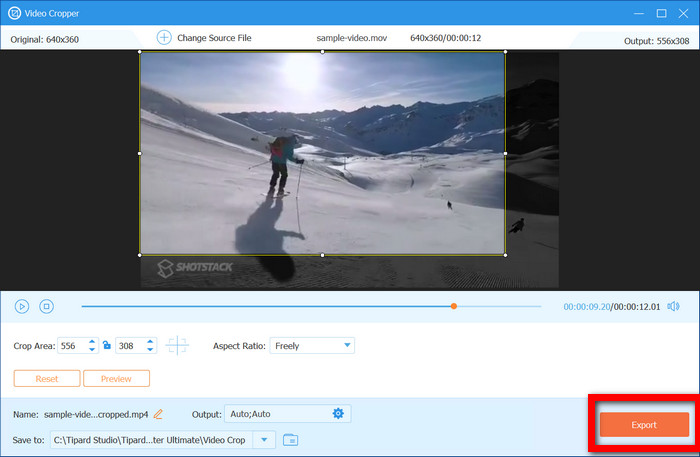
Step 6 Choose the desired location on your computer for the edited video and click on the Export button.
Part 5. FAQs of Video Cropper
Is there a relationship between the crop and the file size of a video?
In some instances, the file size will decrease due to cropping; fewer visual elements will be in the frame, allowing for the possibility of smaller file sizes. The final size, however, also varies with the resolution, bitrate, codec, export settings, and output format.
Is it possible to crop a video without re-recording?
Yes. Cropping in video, the procedure of altering the visible spot of an existing video. Thanks to the fact that it is not possible to record the footage again, it is a quick solution to solve the framing problems.
Will cropping a video fix privacy concerns?
Yes. Privacy concerns can be mitigated by cropping away the edges of a video frame that may contain personal information or other sensitive content that may be in a close-up video. The main subject remains in focus, and privacy is preserved.
Conclusion
A video cropping tool can easily enhance the overall focus and quality of your videos, as well as provide a professional finish in editing. Because of this, it can greatly increase how appealing your videos are to viewers. The best cropper tools will provide a professional finish while being very user-friendly and easy to edit with.

All-in-one video toolbox: convert, edit, upscale, enhance, and compress your videos easily
100% Clean & Safe
100% Clean & Safe

More Reading

About the Author


 Tipard Video Converter Ultimate