

Do you want to convert MPEG to MP3? Converting an MPEG file to MP3 format is an ideal method for making an audio track more portable and compatible with various devices and music players. MPEG files have both video and audio, but extracting the audio in MP3 format is better for smoother and easier playback, sharing, and gives a smaller file size. In this guide, we will show you various methods you can utilize to convert your MPEG files into MP3 format successfully. Thus, read all the information to achieve the result you want.
Part 1. What Happens When You Convert MPEG to MP3
When you turn the MPEG file into MP3 format, the video portion will be removed, and only the audio track will be extracted. This method compresses the audio into a smaller file size, making it easier to play, store, and share. You can even play the MP3 with most devices and media players, unlike MPEG, which is primarily used for video.
Part 2. Convert MPEG to MP3 with the Best Audio Quality
Want to convert an MPEG file to MP3 with the best audio quality? In that case, you can access Tipard Video Converter Ultimate. With the help of this program, you can turn your MPEG video file into an MP3 format, ideal for a smooth listening experience. The best part here is that this converter supports batch conversion, letting you convert multiple files in a single go. It can even give you a super-fast conversion process up to 120× faster compared with other converters. Aside from that, it ensures to convert your file into MP3 with the best quality for up to 320kbps. With that, if you need an exceptional MPEG to MP3 converter, there is no doubt that Tipard is the best choice.
To convert MEG to MP3, start following the steps below.
Step 1Download and run Tipard Video Converter Ultimate on your Mac or Windows. After that, you can start with the MPEG to MP3 conversion process.
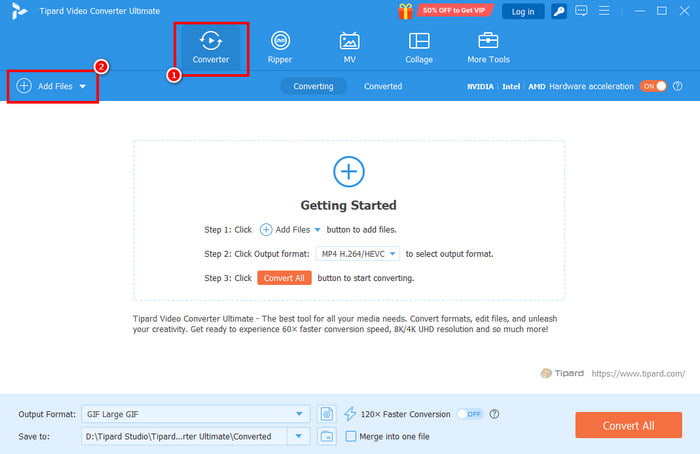
Step 2From the primary interface, proceed to the Converter feature and add the MPEG file by clicking the Add Files button.
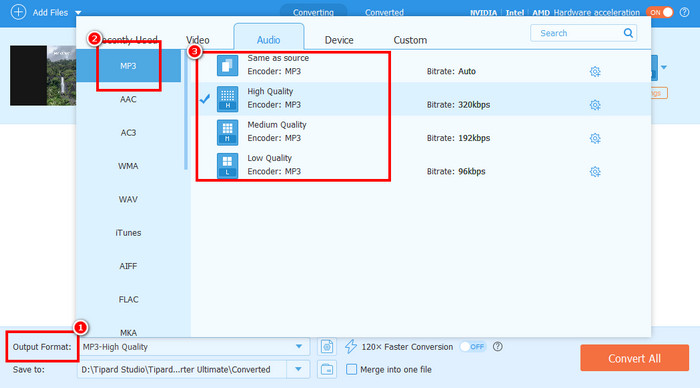
Step 3Navigate to the Output Format > Audio sections and choose MP3. You can also pick/select your preferred audio quality.
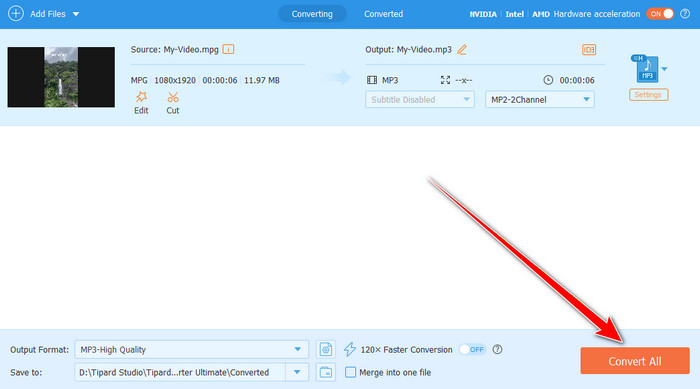
Step 4For the final MPEG to MP3 conversion process, hit the Convert All button.
Part 3. Turn MPEG to MP3 Using FFmpeg
Another useful MPEG to MP3 converter you can use is FFmpeg. This command tool is perfect if you want a fast and smoother conversion process. What makes this tool ideal is that you can use it for free. You can even convert more files, like converting MPEG to MP4, AVI to MKV, MP4 to MP3, and more. The tool can also let you edit your file, such as cropping, trimming, merging, and more. The only problem here is that the tool might be challenging to use, especially for non-professionals. It is because it has a complicated way to convert files since it requires various commands. If you want to check its capability, see the steps below and learn how to convert MPEG to MP3 effectively.
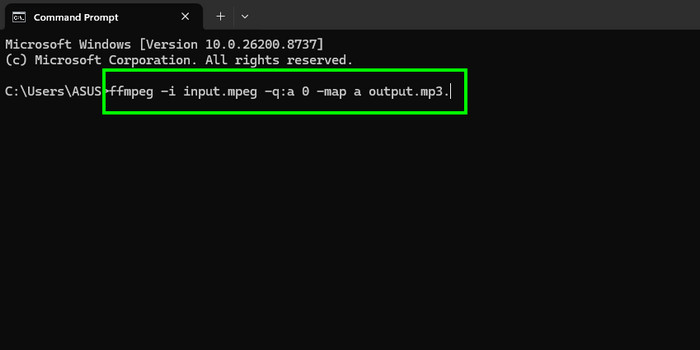
Step 1Download and install FFmpeg on your computer. After that, start setting it up.
Step 2Once done, launch the CMD and start inserting the command to begin the conversion process. The command is ffmpeg -i input.mpeg -q:a 0 -map a output.mp3.
Step 3Then, press Enter to start the conversion. After that, you can now check the converted file on your device.
Part 4. Transform MPEG to MP3 Using VLC
You can also transfer MPEG to MP3 using VLC Media Player. This program can offer its converter feature, ideal for turning your video into an audio format. Plus, the process of converting the file is simple, thanks to its easy-to-understand interface. Also, you can convert more files when using the program. You can convert your MP4 files, MKV, FLV, AVI, MP3, FLAC, etc. The only problem here is that the layout is looking outdated, which might not be that appealing to some users.
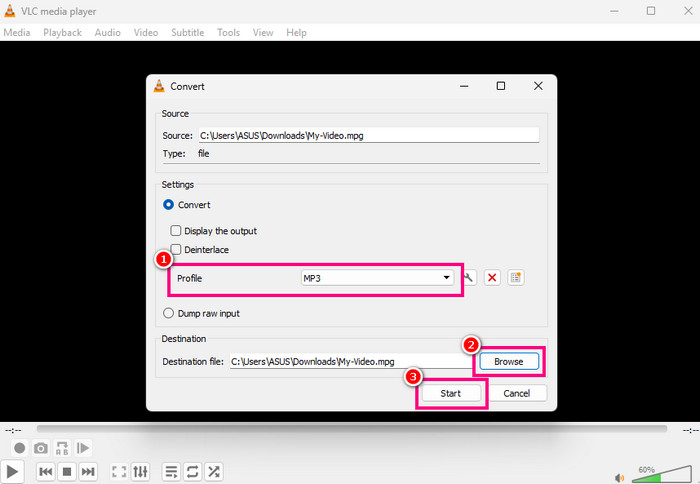
Step 1Download and install VLC on your desktop. After that, run it to begin the conversion process.
Step 2Go to the Media section and tap the Convert / Save option. A mini interface will show up on your computer screen.
Step 3Click Add to start adding the MPEG file you want to convert. Then, click the Convert / Save button below.
Step 4From the Profile section, choose the MP3 format. Then, tap Browse to assign a folder where you want to save the file. Lastly, hit Start to begin the conversion.
Part 5. Convert MPEG to MP3 Online
If you want to convert MPEG to MP3 format online, we recommend using Convertio. This tool is simple to access and doesn't require any installation. It also has a smooth conversion process and an understandable layout. What we like here is that it can convert almost all media files. You can convert MP3 to FLAC, MP4 to MP3, MKV to MP4, and more. But you must have a fast internet connection to convert files smoothly.
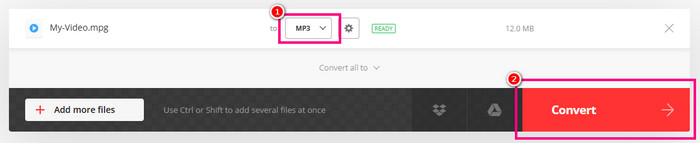
Step 1Go to your browser and access Convertio. Then, click Choose Files to upload the MPEG file you want to transcode.
Step 2Next, click the Arrow button and select the MP3 format.
Step 3Lastly, hit Convert to start the MPEG to MP3 conversion process. Once done, download the converted file.
Part 6. FAQs about Converting MPEG to MP3
Can I convert MPEG to MP3 without losing the video?
No. Converting MPEG to MP3 means extracting the audio track. This way, you can play the MP3 file on any music player or platform without any compatibility issues.
Is MP3 more compatible than MPEG?
There is no doubt that MP3 is superior to MPEG. It is because MP3 is universal. You can play your audio on any media player without encountering any playback errors.
What is the best MPEG to MP3 converter for Windows and Mac?
If you want to convert MPEG to MP3 offline, you can rely on Tipard Video Converter Ultimate. This converter is perfect since it can offer a smoother and faster conversion process compared with other converters. It also ensures that your data is safe and secure.
Conclusion
To effectively convert MPEG to MP3 format, it would be better to use all the offline and online methods we have provided in this tutorial. That way, you can get the result you need for better audio playback. Plus, if you need a remarkable converter to convert files, look no further than Tipard Video Converter Ultimate. This program ensures that you can convert your media files with the best quality. It can even offer a fast conversion speed up to 120× faster, making it a go-to converter for all users.

All-in-one video toolbox: convert, edit, upscale, enhance, and compress your videos easily
100% Clean & Safe
100% Clean & Safe

More Reading
About the Author


 Tipard Video Converter Ultimate