

Transcoding MOV to JPG is the most effective way of extracting images from video files. It is ideal for creating thumbnails, capturing memorable frames, or enhancing visual presentations. Plus, this process lets you transform dynamic video content into static images that can be easily edited, shared, or archived. To learn the best and most effective conversion process, check this tutorial right away.

Part 1. Why Extract JPG from MOV
There are many reasons why you need to extract JPG from MOV. Some of the reasons are:
- Thumbnail Creation - you can capture a specific frame to use as a thumbnail for presentations, online uploads, and videos.
- Highlight Key Moments - converting MOV to JPG allows you to preserve important scenes or details without replaying the entire video.
- Easy Editing and Sharing - JPG files are lightweight and supported by other platforms. It makes them simple to edit, share, and include in documents compared to large video files.
Part 2. Professional Editors to Convert MOV to JPG
If you are looking for a professional way to convert MOV to JPG format, there is no doubt that Tipard Video Converter Ultimate is the most reliable program. This tool can let you get an image file by using its Snapshot feature. The best part here is that it ensures you the best image quality, resulting in a better viewing experience. In addition, the process of turning your video file into an image format is simple, thanks to the program's comprehensive layout. Plus, Tipard can support MOV input with different types of parameters. It means that any MOV files can be added to this program. Thus, if you need a better tool that can help you achieve the result you need, look no further than this converter.
To start converting MOV to JPG, you can use and follow the simple steps below.
Step 1 First, access Tipard Video Converter Ultimate on your Windows and Mac operating systems. To instantly access the program, use the Free Download buttons below.
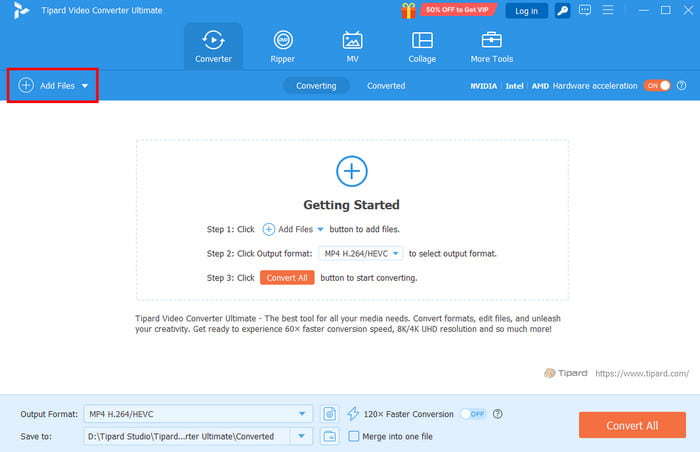
Step 2 Click the Add Files button/option from the interface to start adding the MOV file that you want to convert.
Step 3 After adding the video, click it to play it on your screen. Then, you can use the Snapshot feature below to capture every frame of your video. The screenshot will be saved as a JPG.
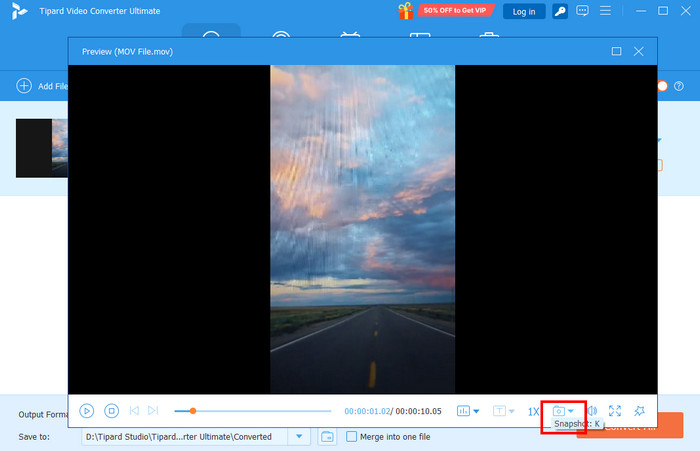
Step 4 You can now view the image from your computer folder. With this process, you can ensure that turning your video into an image file is a possible task.
Part 3. Convert MOV to JPG Online
Do you want to change MOV to JPG online? Then, you can proceed to this section as we offer the best methods you can use for an effective conversion procedure.
Method 1. Convert MOV to JPG Using AnyConv
AnyConv is one of the most reliable online-based converters you can access on your browser. With its fast and smooth conversion process, you can get the result you need without any problem. The good part here is that you can get a good image quality, leading to a better viewing experience. It can even offer its batch conversion feature, allowing you to transcode multiple files at once. You can also use this tool to convert more formats, such as MOV to WAV, MKV to MP4, FLV to AVI, and more. The only problem here is that the tool shows various annoying ads, making it disturbing for some users. Follow the steps below and learn to convert files using this MOV to JPG online converter.
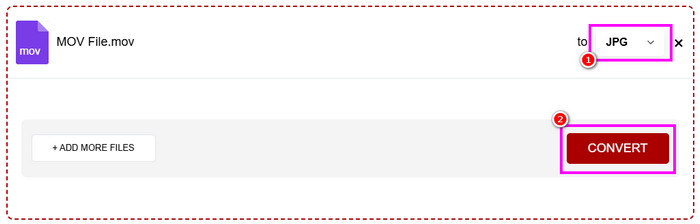
Step 1 On your browser, access the AnyConv tool. Then, click the Choose Files to start uploading the MOV file.
Step 2 Then, proceed to the Format section and select the JPG format.
Step 3 Tap Convert to start the MOV to JPG conversion process.
Method 2. Convert MOV to JPG Using Online-Convert
Another web-based converter you can access is Online-Convert. With this tool, you can smoothly convert your MOV file into JPG format. What we like here is that the conversion procedure is simple. Plus, they can also let you see all the frames before the downloading process. With that, you can choose the frame you want. Additionally, the tool can also convert other formats, like MOV to GIF, AVI to MP4, JPG to PNG, etc. To learn how to change MOV to JPG, see the steps below.
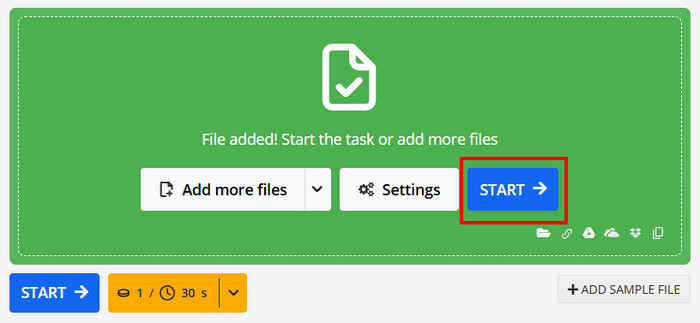
Step 1 Access Online-Convert on your browser. Then tap the Select File option to upload the MOV file you want to convert.
Step 2 Then, select the JPG format from the Format section. To start the MOV to JPG conversion process, click Start.
Step 3 You will see the frames of the video. Click the Download button to start the saving process.
Part 4. Convert MOV to JPG Image with FFmpeg
FFmpeg is among the popular open-source multimedia frameworks for processing audio and video. It is excellent at extracting frames from MOV videos and storing them as high-quality JPG images as a MOV to JPG converter. Its speed, adaptability, and accuracy are its strongest points. You can take a single frame, a succession of frames, or even a full video and turn it into a series of JPGs.
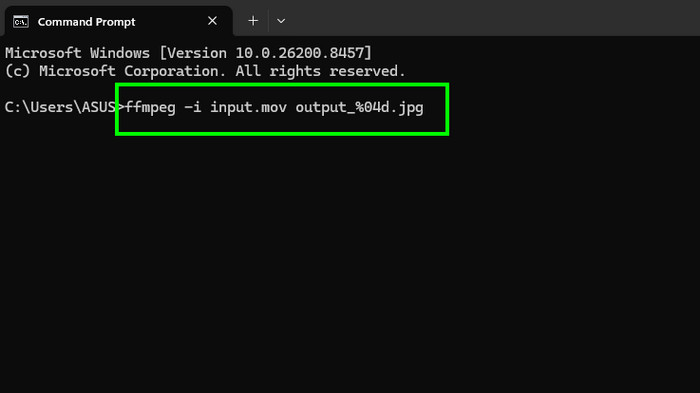
Step 1 Download and set up FFmpeg on your computer. After that, launch the CMD on your desktop.
Step 2 For the next process, start the conversion by typing the command, which is ffmpeg -i input.mov output_%04d.jpg.
Step 3 Press Enter to start the process. After that, you can now browse the converted file on your computer.
Part 5. Comparison of the MOV to JPG Converters
To get more insights about the best MOV to JPG converters, view the table below.
| MOV to JPG Converters | Ease of Use | Best For | Platform | Limitations |
|---|---|---|---|---|
| Tipard Video Converter Ultimate | User‑friendly GUI with preview | Capturing selected frames with editing options | Windows and Mac | No batch frame export (requires manual capture) |
| AnyConv | Very simple, drag‑and‑drop | Quick online conversion without installation | Browser | Limited customization (dependent on internet speed ) |
| Online-Convert | Easy interface with advanced options | Flexible online conversion with extra settings | Browser | Free tier has file size limits (slower for large videos) |
| FFmpeg | Steeper learning curve | Professional bulk extraction and automation | Windows and Mac | Command‑line only (generates many files quickly) |
Part 6. FAQs of Converting MOV to JPG
Can converting or transcoding MOV to JPG reduce quality?
It depends on the tool and settings. Some of the tools, like Tipard Video Converter Ultimate, FFmpeg, and Online-Convert, allow you to set the resolution and compression.
Is it possible to edit and resize frames during conversion?
Definitely, yes. You can rely on FFmpeg to resize and edit the frame during the conversion process. You can also use Tipard and Online-Convert to do basic editing during the conversion process.
Is converting MOV to JPG online safe?
Converting MOV to JPG is safe as long as you are using a good converter. If you are not yet sure what online converters you can use, you can try Online-Convert, AnyConv, Convertio, and FreeConvert.
Conclusion
To learn how to change MOV to JPG, you can use all the methods we have provided in this article. You will also learn why you need to convert MOV files to JPG. Also, if you need a professional-grade converter, we suggest using Tipard Video Converter Ultimate. With its capability to convert files and to give a better quality, we can tell that this program is the most powerful converter you can rely on.

All-in-one video toolbox: convert, edit, upscale, enhance, and compress your videos easily
100% Clean & Safe
100% Clean & Safe

More Reading

About the Author


 Tipard Video Converter Ultimate