

YouTube is one of the most popular platforms for watching videos, but the playback is not always smooth and reliable. For example, sometimes YouTube videos lag, freeze for a few seconds. The problem can happen in any browser on desktops or on phones, especially when watching 4K videos.
Why are my YouTube videos lagging? The reasons may include a slow internet connection, too many browser tabs, outdated graphics drivers, or high CPU usage. Fortunately, you can try several simple ways we will demonstrate below to fix the problem.

Part 1: Why Are My YouTube Videos Lagging?
Let's figure out the probable reasons for YouTube video lagging. You should understand what causes video lag on YouTube. Here are some common reasons:
- Poor Internet Connection: Your network may not be fast enough to watch 1080p or 4K videos on YouTube.
- Too Many Background Tasks: If there are too many background tasks, the CPU and GPU usage will be high, and it will cause YouTube video lag.
- Browser Problems: Old browser versions, cached data, or too many extensions may affect YouTube playback to make it laggy.
- Graphics Driver Issues: An outdated or incompatible GPU driver may cause video stuttering and lag on YouTube. In this case, maybe not only YouTube, but also offline player will play videos with lags.
- Mobile App Problems: If you are using an Android device or an iPhone, an outdated YouTube app, a buggy version, and probably a full cache may cause playback problems on Android.
Part 2: How to Fix YouTube Videos Lagging
Now you have understood some common causes of YouTube video lagging. Then, you can try the solutions below one by one to fix it.
Method 1. Check Your Internet Connection
A slow or unstable network is one of the most common reasons for YouTube video lagging and many other online streaming issues. You can try these solutions to fix this problem:
- Restart your router and modem.
- Switch from Wi-Fi to a wired connection if possible, or reconnect the Wi-Fi.
- Close downloads and other streaming applications or other activities that also use a lot of internet.
- Move your PC or phone closer to your Wi-Fi router.
- Lower the YouTube video quality from 4K to 1080p or 720p or even lower.
Method 2: 2. Clear Chrome Cache and Cookies
If YouTube videos lagging on Chrome is your main problem, too much browser data and cache may be possible causes. You can clean them up to fix this problem. This method also works on all browsers.
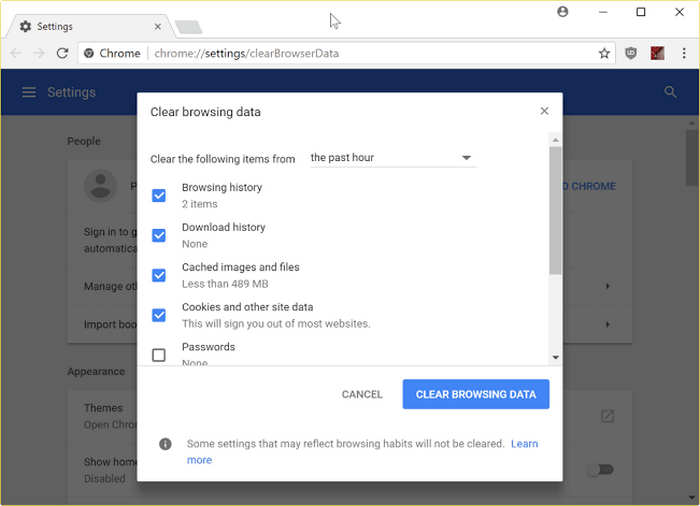
Step 1 Open Google Chrome and click the Customization option (with three-dot menu).
Step 2 Select Settings > Privacy and security. Then, click Delete browsing data.
Step 3 You can select a desired time range and then select cached images and files. Finally, click CLEAR BROWSING DATA and restart Chrome to see whether you can fix the YouTube videos lagging error.
Method 3. Disable Unnecessary Chrome Extensions
Extensions on Chrome, Firefox, or Edge are very helpful. However, too many extensions may causes unexpected issues, like YouTube video lagging when not in full screen.
Some browser extensions may interfere with video playback. For instance, Ad blockers, fast download extensions, etc. can sometimes cause conflicts with many hidden settings.
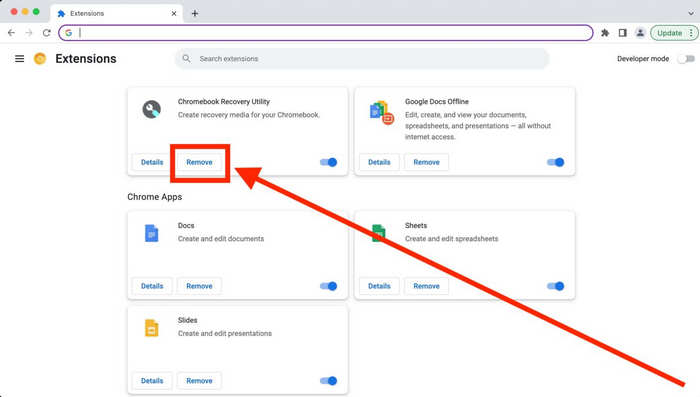
To remove unnecessary extensions, you can go to chrome://extensions/ in the address bar. Then, you can turn off unnecessary extensions by clicking the Remove button. You can also open an Incognito window and test YouTube without your usual extensions.
Method 4. Enable or Disable Hardware Acceleration
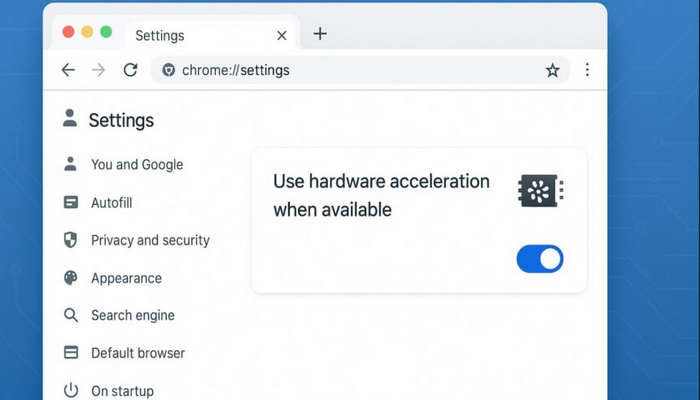
Hardware acceleration allows Chrome to use your GPU to handle certain video tasks. However, it may also cause problems on some computers to make YouTube videos lag.
Step 1 Open Chrome Settings. Then, Select System.
Step 2 Find the option: Use graphics acceleration when available.
Step 3 You can turn if off or on to see whether you can fix YouTube videos lagging on your desktop.
You May Also Like:
Method 5. Update Your Graphics Driver
An outdated or incompatible GPU driver can cause video stuttering, dropped frames, and other playback problems whether you want videos on YouTube or local player. You can update the driver to fix YouTube videos lagging.
On Windows, open Device Manager, expand Display adapters, right-click your graphics card, and select Update driver. You can also download the latest compatible driver from NVIDIA, AMD, or Intel websites.
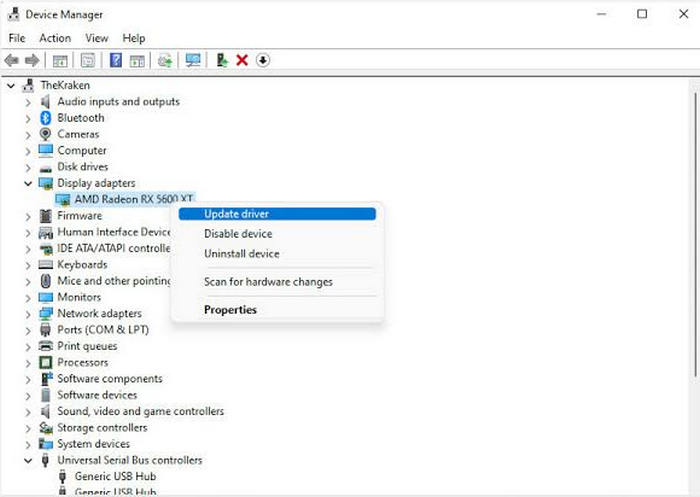
After updating, you can restart your computer and test YouTube again to see whether the problem is resolved.
Method 6. Close Games or Other Background Applications
Why do YouTube videos lag when I'm playing games? That's because both activities need system resources. A demanding game may use most of your GPU, CPU, and RAM, so there will be less resources for other activities. You can shut down those heavy activities to fix the YouTube video lagging problem.
Method 7. Fix YouTube Video Lags When Not in Fullscreen
If YouTube video lags when not in full screen, but plays smoothly in full screen mode, the problem may lie in browser rendering, GPU acceleration, or display settings.
You can try disabling or enabling hardware acceleration in Chrome, as we have demonstrated above. You can also update your graphics driver, close other browser tabs, and test the video in another browser. If the video lagging issue only happens in one single browser, resetting its settings may also help.
Part 3: Repair Local Videos for Uploading to YouTube
The methods above mainly address streaming and browser problems. But what if the video you want to upload to YouTube always lags? Sometimes, a large 4K video can still play smoothly on a low-end PC, but a random long video may lag when you fast-forward it or when it is just in standard playback.
In this case, the video file itself may have problems. Tipard FixMP4 is a desktop video repair program that can help you repair those laggy or stuttering video files. Just add a good-condition video as an example, and Tipard will fix your error video right away.
It can also help repair videos damaged by interrupted downloads, file transfers, recording errors, and more.
Step 1 Get Tipard FixMP4
Click the download button below to download, install, and launch Tipard FixMP4.
Step 2 Add Videos
Click the Add button on the left side to add your laggy video. Click the Add button on the right side to add your sample video that won't lag.
Step 3 Repair Your Laggy Video
Just click the Repair button to fix the video. It will change the configurations of the laggy video based on the good video. Therefore, your output video will be smooth and sleamless even if it is a large 4K 60 fps video.
Conclusion
This post offers 7 reliable methods to fix YouTube video lagging on different platforms. Usually, the problems come from a poor internet connection and incompatible settings. The video file uploaded by the creator may not be the main cause.
But if you want to upload a video to YouTube and it is laggy, you can use Tipard FixMP4 to repair it right away. It will make the video play smoothly even if it is a large, long video. It also supports many input formats, so you can feel free to fix all types of videos.

Repair corrupted and broken videos and different types of playback issues
100% Clean & Safe
100% Clean & Safe

More Reading




About the Author

 Click here to join the discussion and share your comments

 Tipard FixMP4