

Have you ever tried to watch a video and received the message "This video file cannot be played Error Code: 102630"? This error can appear in web players, including JW Player, when the player cannot find a valid video source. It may be caused by a lost video file, an unsupported format, a browser problem, or a server issue.
The right fix depends on where the error occurs. If it only affects one website, the problem may be with the website or its video source. If a downloaded video also fails to play in different media players, the file itself may be damaged. In this guide, we will explain what error code 102630 is and show you seven ways to troubleshoot it.

Part 1. What Is Error Code 102630?
Error code 102630 is a video playback error. It is commonly associated with JW Player, which displays this message when it cannot find a playable video source. According to JW Player's documentation, the error can occur when a playlist is empty or none of its video sources meet the requirements for playback.

Several issues may cause this video playback problem:
- Missing video source: The video link is incorrect, expired, or no longer available.
- Unsupported format or codec: The browser cannot decode the video or audio stream.
- Browser problems: Cached data, outdated software, or extensions may interfere with playback.
- Network or server issues: The video cannot load because of a connection problem or an unavailable source.
- Damaged local video: A downloaded or transferred video may be incomplete or corrupted.
The error message alone does not tell you which cause applies. Start with simple checks before trying more advanced solutions.
Part 2. How to Fix Error Code 102630
Method 1. Refresh the Page and Check the Video Source
The first thing to do is reload the page. A temporary connection problem or loading failure may prevent the video from starting.
After refreshing the page, you can press the play button again. If the page offers several video sources, check whether another available source works.
If other videos play normally but one video keeps showing error 102630, its source may be missing, unavailable, or incorrectly configured. In this case, the website owner or video provider may need to fix the problem.
Method 2. Clear Your Browser Cache and Cookies
Old or damaged browser data can sometimes affect video playback. Clearing the cache and site data may help when the error occurs in Chrome, Microsoft Edge, or another browser.
In Chrome, open Settings and go to Privacy and security. Select Delete browsing data, choose a suitable time range, and clear cached images and files. If needed, clear the affected site's cookies as well.
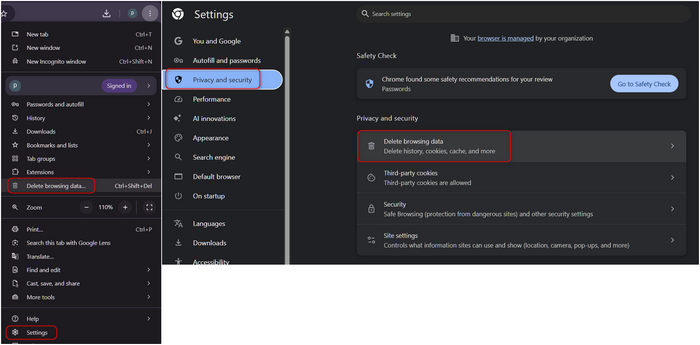
The steps are similar in other browsers, although the menu names may differ. After clearing the data, reopen the page and try playing the video again. You may need to sign in to the website again if you remove its cookies. Then, check whether the error code 102630 is fixed.
Method 3. Try Another Browser
Browser compatibility can also cause playback problems. A video may fail in one browser but work in another because of differences in codec support, settings, or extensions.
For example, if you see error code 102630 in Chrome, try opening the same page in an updated version of Edge or Firefox.
If the video works in the second browser, check the original browser for updates and conflicting extensions. If you still see error code 102530 in every browser, the problem may be related to the video source, network, or website. Therefore, this test helps you narrow down the cause without changing many settings at once.
Method 4. Check Your Internet Connection
A weak or unstable connection may prevent a web player from loading its video source. This is especially common with large video streams or connections that frequently disconnect.
Try the following checks:
- Open other websites to see whether your connection works normally.
- Restart your router if the connection is unstable.
- Pause large downloads that may use most of your available bandwidth.
- Try another reliable network if one is available.
If the code 102630 appears on only one website while other online videos work, your internet connection may not be the main problem.
A website may also have a temporary server or content delivery issue. In that case, you may need to wait for the provider to restore the video.
Method 5. Update Your Browser and Check Its Settings
An outdated browser may not support the format or codec used by a particular video. Updating it can improve compatibility and fix playback bugs.
Open your browser's About section to check for updates. Install any available update and restart the browser.
You can also test whether a browser extension is interfering with playback. For example, open the affected page in a private window, where most extensions are disabled by default. If the video can play, review your extensions and disable them one at a time to find the cause.
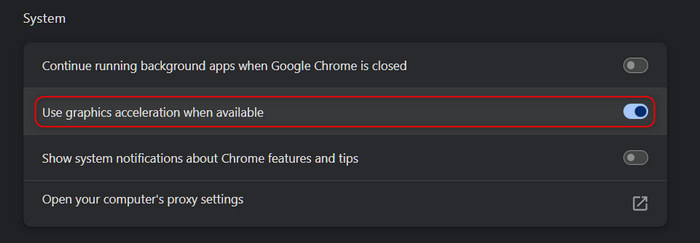
Some browsers also offer a hardware acceleration setting. If video playback problems began after a browser or graphics driver update, testing this setting may help. Change it only as a troubleshooting step, then restart the browser and test again.
Method 6. Check Whether the Local Video File Is Damaged
If you see error code 102630 while watching a video on a website, the previous steps are a good place to start. However, if a downloaded video also refuses to play, you should check the file itself.
First, try opening the video in another media player. If it still fails, check its file size and location. A file that is much smaller than expected may not have downloaded completely.
You can also copy the video to another local folder and try playing it again. If the file came from a camera, phone, or external drive, make sure the transfer finished successfully.
If the video remains unplayable in multiple players, its stream data may be corrupted. Common causes include interrupted downloads, failed file transfers, storage problems, and recording interruptions.
Method 7. Repair a Corrupted Video with Tipard FixMP4
When a local video is damaged and cannot play normally, Tipard FixMP4 offers a more direct way to address the problem. It is a video repair program designed to help repair corrupted or unplayable local video files.
Instead of repeatedly changing browser settings, you can use it to work on the affected video itself.
How to repair a video with Tipard FixMP4:
Step 1Click the Free Download button to download and launch Tipard FixMP4 on your computer.
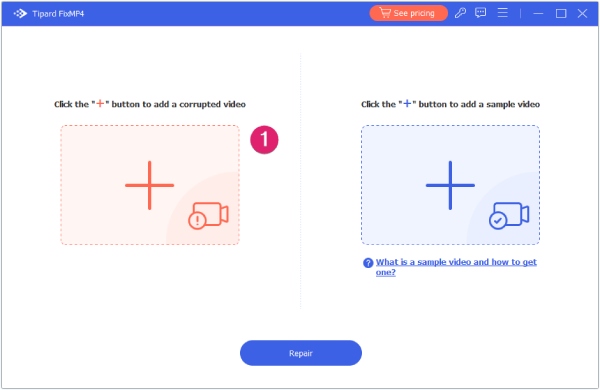
Step 2Click the Add button on the left side to add the corrupted video file to the repair interface.
Step 3Click the Add button on the right side to add a sample video that can play without error.
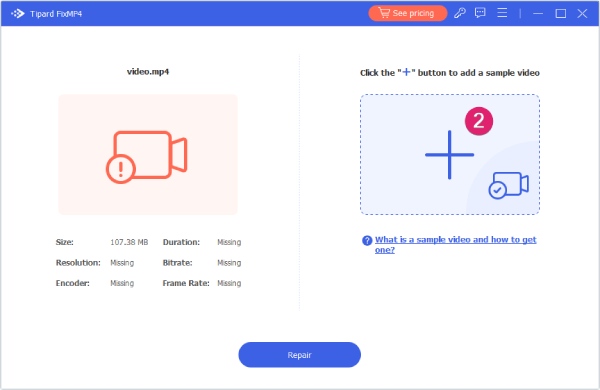
Step 3Click the Repair button to start the repair process and let the software analyze the video.
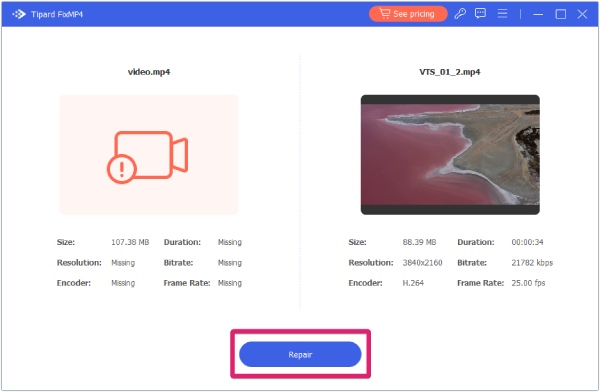
Step 4Finally, preview the repaired result, if available, and save the output to your computer.
For the best results, use a sample recorded by the same camera or phone with similar resolution and recording settings.
If the video fails only on a streaming website, troubleshoot the website first. If you have a damaged local copy, video repair software is the more relevant option.
Part 3. How to Prevent Error Code 102630 in the Future
You may not be able to prevent every playback error, but a few good habits can reduce the risk of video problems, like error code 102630.
- Keep your browser updated: New versions often improve media compatibility and fix bugs.
- Download files completely: Do not move or open a video while its download is still in progress.
- Use reliable storage: Avoid disconnecting external drives while videos are being copied.
- Keep backup copies: Store important recordings in another location when possible.
- Repair damaged files early: If a recording becomes unplayable, avoid repeatedly overwriting or modifying the original file.
These steps can help protect your videos and make playback problems easier to diagnose.
Conclusion
Error code 102630 does not always mean that your video is completely corrupted. It can result from browser settings, network problems, missing video sources, or an incompatible media file.
Start with the simple solutions, such as refreshing the page, checking your connection, and testing another browser. If a local video still fails to play in different media players, Tipard FixMP4 can also help you attempt to repair the damaged file and recover access to your recording. You can choose the solution that matches the actual cause, and you will have a better chance of getting your video to play again.

Repair corrupted and broken videos and different types of playback issues
100% Clean & Safe
100% Clean & Safe

More Reading


About the Author


 Tipard FixMP4