

You are scrolling through TikTok when a video suddenly freezes. You swipe again, but the next video will not play. Oh no! You may be dealing with TikTok videos not playing. You are in luck. This guide covers the common causes and easy repairs to help you enjoy other users' videos and your TikTok videos.
Part 1. Why Are TikTok Videos Not Playing
If you are wondering why TikTok videos are not playing, it helps to know what might be causing the problem before trying every fix.
- Slow Wi-Fi can stop a video from loading. The same can happen with weak mobile data.
- TikTok may have a temporary server issue. In this case, many users may have the same problem.
- TikTok saves temporary files on your phone. Bad cache data can sometimes affect video playback.
- An old or faulty TikTok app may freeze videos. It may also show a black screen.
- A phone with little free space may have trouble running apps well.
- Running too many apps at once can slow down your phone. This may affect TikTok playback.
Part 2. 10 Ways to Fix TikTok Videos Not Playing
Try these fixes from top to bottom. Start with the simple ones first. If your TikTok videos are not playing, you may not need to try all 10.
Clear the TikTok Cache
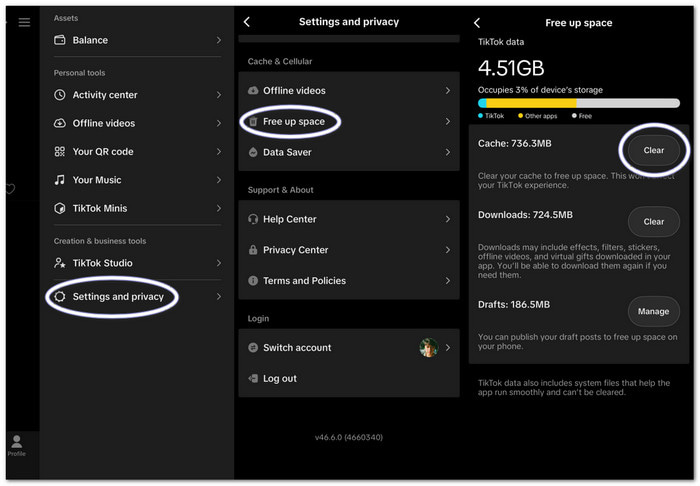
TikTok stores temporary data as you use the app. This data can sometimes cause playback problems.
Go to Profile > Menu > Settings and privacy > Free up space. Then, clear the cache. Open TikTok again and check the videos.
Check Your Internet
A poor connection can make TikTok videos freeze or keep loading. Try switching from Wi-Fi to mobile data. You can also switch from mobile data back to Wi-Fi. If the video plays after the switch, your network may be the cause.
Restart TikTok
TikTok may have a small app error. A quick restart can often fix it. Close TikTok completely. Then, open it again. Check the feed and play a few videos.
Restart Your Phone
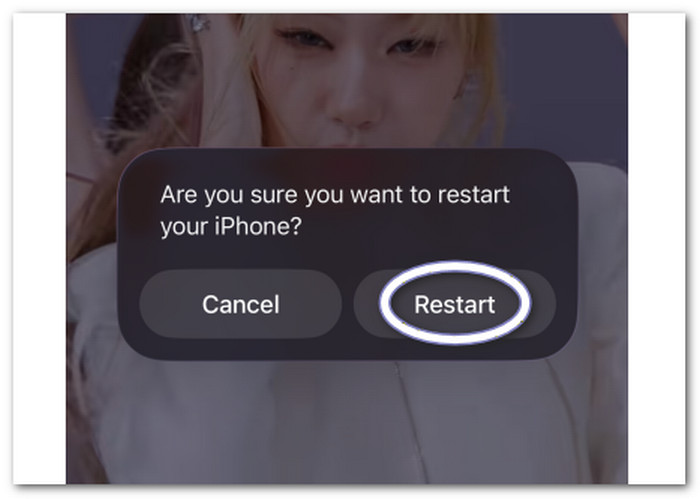
Your phone can also have a temporary system problem. Turn your phone off. Please wait a few seconds. Then, turn it back on. This can also free some active memory.
Update TikTok
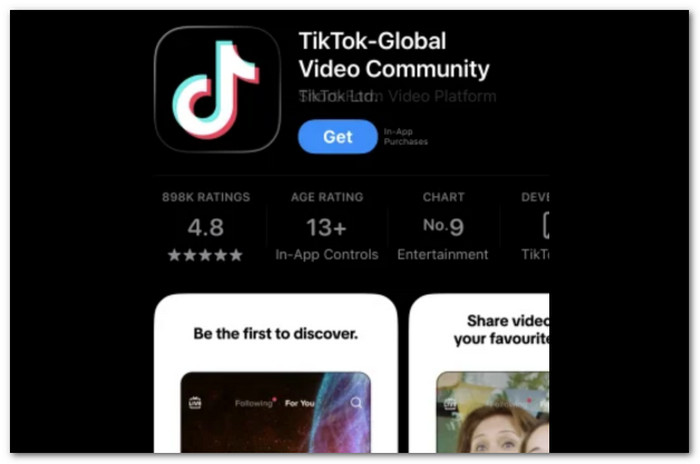
An old app version may have bugs. A newer version may already include a fix. Open the Google Play Store or App Store. Search for TikTok and install any available updates.
Turn Off Your VPN
A VPN can slow down your connection. It may also cause connection problems with TikTok. Turn off the VPN for a moment. Then, open TikTok again. If the videos work, the VPN may be affecting the connection.
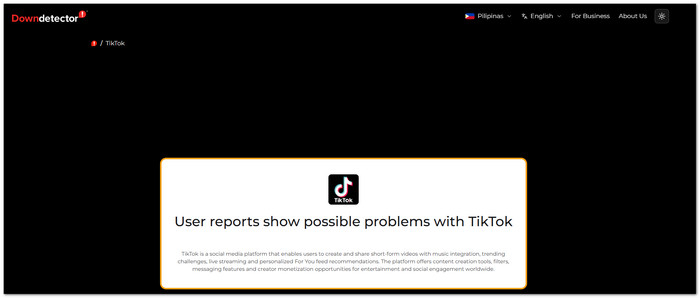
Check for a TikTok Outage
Sometimes, the problem is not your phone at all. TikTok's servers can have temporary problems. Check an outage tracking site. You can also check recent reports from other TikTok users. If many people report the same issue, you may only need to wait.
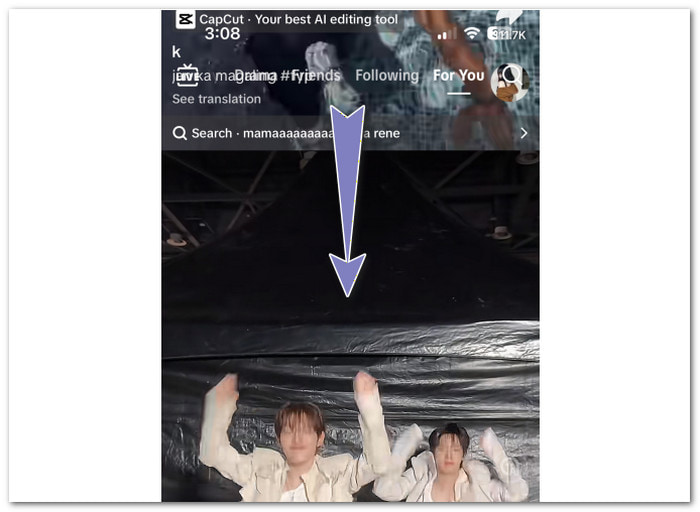
Try a Tiny Swipe
This quick trick may help when one video gets stuck. Give the frozen video a slight upward swipe. Then, release it. The action may refresh the video player. If it does not work, try another fix.
Reinstall TikTok
A damaged app file can cause strange playback issues. Delete TikTok from your phone. Then, install it again from the official app store. Make sure your account details are saved before you do this.
Free Up Phone Storage
TikTok may not work well if your phone has very little storage left. Too many apps, photos, videos, and files can make your phone slow. Delete things you no longer use to free up space. After that, open TikTok and check if the problem is fixed.
Part 3. Why Are TikTok Videos Not Playing Automatically
Autoplay makes TikTok feel fast and smooth. Each video should start as you move through the feed. Sometimes, that process gets stuck.
If you are wondering why TikTok videos are not playing automatically, a weak connection can interrupt playback before it starts. A small app glitch can also stop the player from moving to the next video. TikTok may also need to load other feed content before playback starts.
Try these quick fixes:
- Give the video a tiny swipe: Move the video up a little. Then, let go. This can refresh the player.
- Refresh your connection: Turn Wi-Fi off. Please wait a few seconds. Then, turn it back on.
- Restart TikTok: Close the app fully. Open it again.
- Clear the cache: Old temporary data may be slowing the app down.
Part 4. Why Are TikTok Videos Not Playing Audio
A video can play normally while the sound stays silent. Why are TikTok videos not playing audio? Several things can cause it.
- TikTok may open on mute: Check the Open TikTok on mute setting.
- Your phone may be muted: Raise the media volume and check your phone's sound settings.
- Bluetooth may be connected: Your sound could be going to earbuds, a speaker, or another device.
- The video may have removed sound: TikTok can remove audio from a video due to music or copyright issues.
- The app may have a sound glitch: A restart can sometimes restore the audio.
For the mute setting, go to Settings and privacy > Playback. Check Open TikTok on mute and turn it off if it is enabled.
If only one video has no sound, the problem may be with that video. Check whether TikTok shows a notice about the removed or unavailable sound.
If the problem affects many videos, check your phone volume and Bluetooth first. Then, restart TikTok and try clearing its cache.
Part 5. How to Fix a Local TikTok Video Not Playing
A local TikTok video not playing does not mean the file is lost. Tipard FixMP4 can help restore a damaged video. It can deal with issues such as a black screen, no audio, lagging, freezing, and other playback problems.
It also supports many popular video formats. You can use it for videos from TikTok, Instagram, YouTube, X, and other platforms. This makes it handy when a saved video suddenly refuses to play.
What makes it stand out:
- Simple Interface: Enjoy an easy and user-friendly video repair process.
- Wide Format Support: Repair MP4, MOV, AVI, and 3GP videos.
- Right-Click Repair: One-click video repair from the right-click menu.
- Quick Preview: Preview the repaired video for up to 10 seconds.
Step 1As a start, download and install Tipard FixMP4 on your computer. It works on Windows and Mac. Then, open the program to start the repair.
Step 2Next, click the red Add button on the left. Add your local TikTok video that will not play. This can be your own video or a downloaded file.
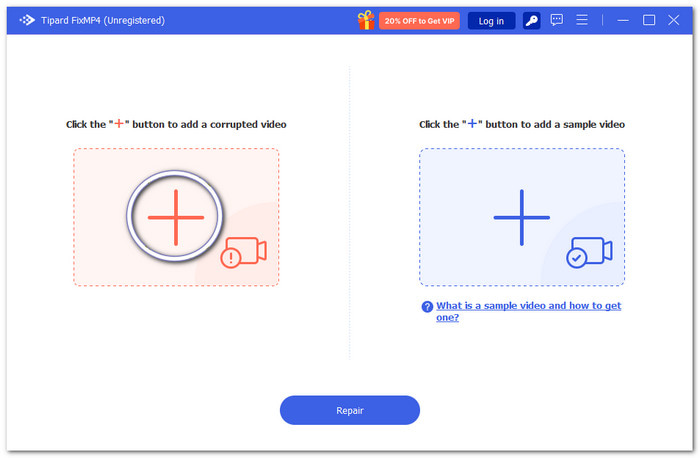
Step 3Then, hit the blue Add button on the right. Add a working video from the same device or source. This gives Tipard FixMP4 a healthy file to use as a guide. It can help match the damaged file's video settings.
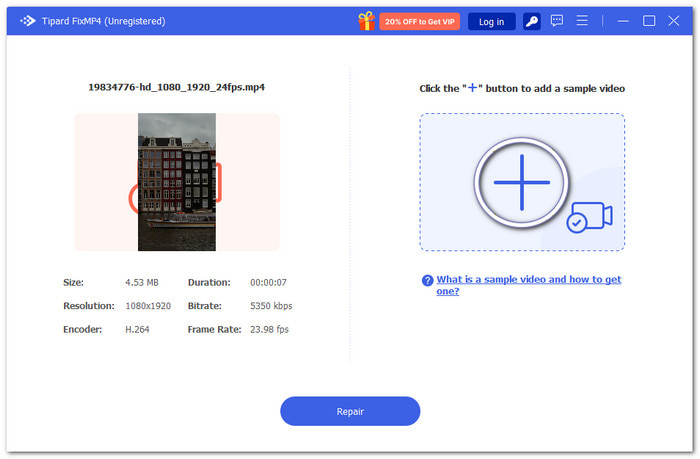
Step 4Lastly, click Repair. Tipard FixMP4 uses its AI technology to repair the video structure. Please wait for the repair to finish. Then, preview the result. If the video plays well, save the repaired file.
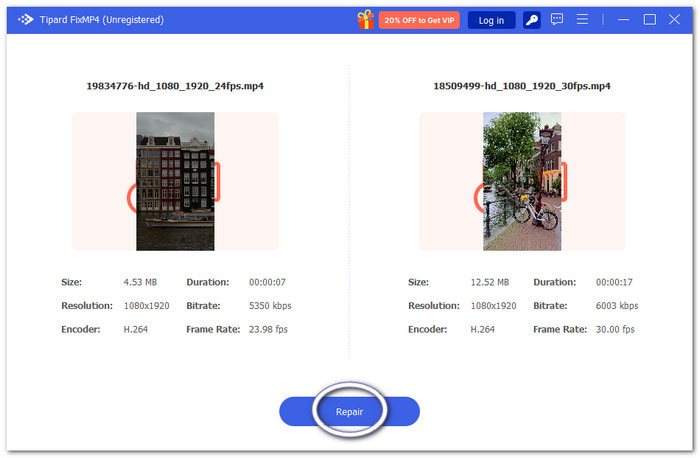
Success Tip: Tipard FixMP4 can reach a repair success rate of up to 99.99% with the right sample file, making it easier to fix frozen videos and restore smooth playback.
Part 6. FAQs of TikTok Videos Not Playing
Why does TikTok say "Video unavailable"?
The video may have been removed. The creator may have set it to private. TikTok may also block the video in your area.
Why are TikTok videos blurry when they play?
TikTok may reduce the video quality when your internet is slow. The video may become clearer after it loads more.
Why does TikTok stop playing when I lock my phone?
TikTok is made for active viewing. Playback may stop when the screen turns off. This is normal for many TikTok videos.
Conclusion
If some TikTok videos still do not play, try the fixes above. We covered simple ways to restore playback. For a local TikTok video not playing, Tipard FixMP4 can repair damaged files. It can help bring them back to life. So, do not give up on that video just yet.

Repair corrupted and broken videos and different types of playback issues
100% Clean & Safe
100% Clean & Safe

More Reading



About the Author


 Tipard FixMP4