Accidentally recording a once-in-a-lifetime moment only to find the file would not play can be devastating. This guide will show you how to fix corrupted video files, covering common causes, signs of damage, practical repair methods, and tips to prevent future corruption, so your memories and projects stay safe.

Part 1. Common Signs of a Corrupted Video
Nobody likes to find a video file that will not play. Stopped recordings, file downloads that were not completed, storage that is malfunctioning, or errors in file transfers can all lead to video file corruption. These problems can also lead to playback errors or even error messages. Knowing what to look for to see if a video file is corrupted can help early in the video repair process.
Here is a list of signs that video files are corrupted:
1. Video does not play:
This occurs when the video file is corrupted, and the media player does not open the video file or provides an error message regarding the corrupt video file.
2. Playback issues:
This tends to occur when the video was recorded or downloaded incompletely and playback freezes, playback skips audio or video, or playback stops before reaching the end of the video file.
3. Video or audio is missing:

This can occur when the video file is corrupt, and the video will not play with audio, or if the video plays but does not have audio.
4. Video playback issues:
The video playback issues may occur when the video is pixelated or is exhibiting strange colors or other visual artifacts that were not present in the original recording, making it necessary to repair glitch videos.
5. The file size is larger than expected or smaller than expected:
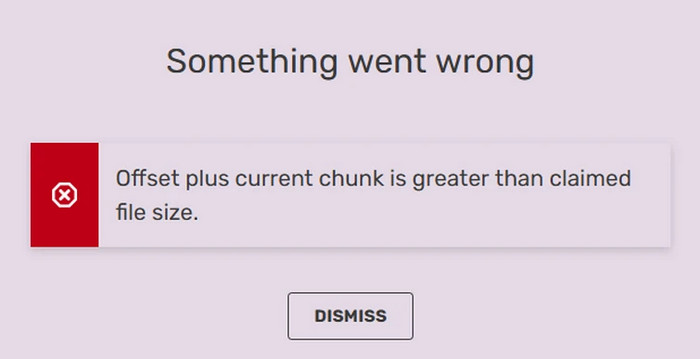
If a video was recorded but the streaming was interrupted or if the video file was corrupted when the video file was transferring, then the size may not be what was expected.
6. Media player error messages:
Messages like Unsupported format, Cannot decode file, and file is corrupted typically suggest that the structure of the video has some internal issues.
Part 2. Why Do Video Files Get Corrupted
Video files can be corrupted for several reasons, which often include interruptions during recording, issues during transfers, or storage issues. Media players may be unable to read a video file if corruption occurs that affects one of the many structured components that video files depend on to store video, audio, and metadata.
The following list details a handful of causes that lead to video file corruption.
1. Interrupted Recording
A recording file will not be saved correctly and may be unusable if it was stopped unexpectedly, such as in the case of a device crash, battery, or device power-off.
2. Damaged Storage Devices
Data corruption can occur with failing USB drives, corrupted SD cards, and bad hard drives.
3. Missing or Corrupted Codecs
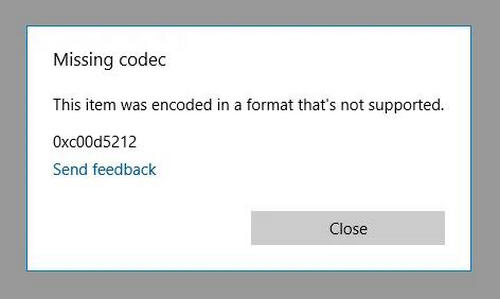
A video may appear corrupted due to the absence of a codec that is necessary for decoding the video file.
4. Incomplete Downloads
Incomplete downloads of Internet videos may lead to corruption.
5. Virus or Malware Infection

Infection with a virus or malware may render a file unretrievable or inaccessible, as it may cause alterations or damage to the file.
6. Software or System Errors
Recording or editing software, as a result of a software bug, may damage video files at the time of editing or recording.
Part 3. Top Methods to Repair Corrupted Videos
Method 1: Using Tipard FixMP4 (Recommended)
Tipard FixMP4 is a video repair tool that has the utmost competence for restoring damaged, corrupted, or unplayable video files. It uses advanced methods to analyze the damaged video files and reconstruct the videos using a healthy sample video file that is made on the same device. It supports video formats like MP4, MOV, AVI, and 3GP, for videos made on smartphones, cameras, drones, and camcorders.
Performance: Tipard FixMP4 is one of the best video repair tools for high-definition videos. The typical time to repair a file is under a few minutes. The success rate is 99.99%. provided that the correct sample video is provided. Users have also reported that the preview videos play without interruptions.

- Uses a healthy sample file to rebuild the damaged video structure.
- Works for corruption caused by download errors, interruptions, or editing mistakes.
- Runs smoothly without requiring high system resources.
- Repairs MP4, MOV, AVI, and 3GP files in resolutions such as 4K, 1080p, and 720p.
- Lets you review the repaired file to ensure the video is restored properly.

Step 1Software Download
Download Tipard FixMP4 and begin the installation of the program on your computer.
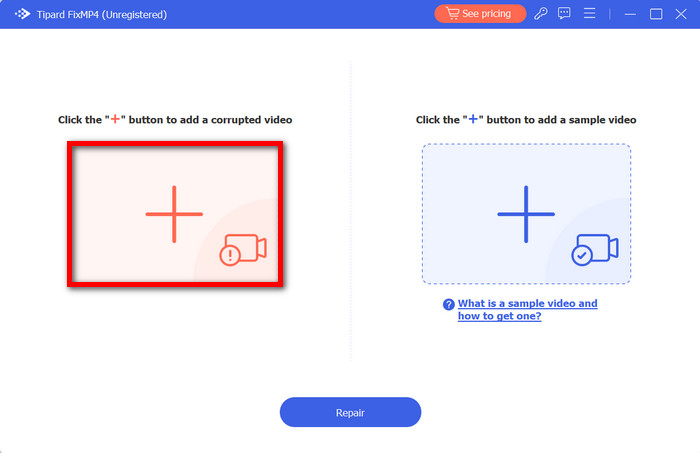
Step 2Add the Corrupted Video File
On the left side of the user interface, you will see a big plus (+) sign. Click it to upload the corrupted video file.
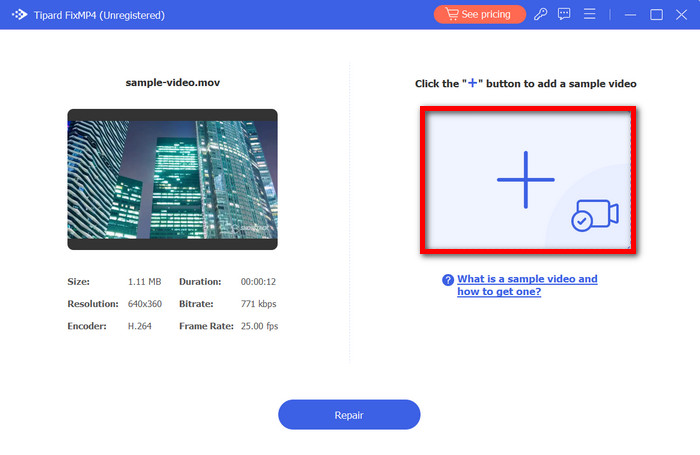
Step 3Adding the Healthy Sample Video
Using the same device, record another video to use as a sample and repeat the process in step 2 to upload it. This time, use the big plus sign to the right of the main screen.
Step 4Begin the Repair Process
Click on the Repair button so the software can begin the analysis and repair process on the corrupted video.
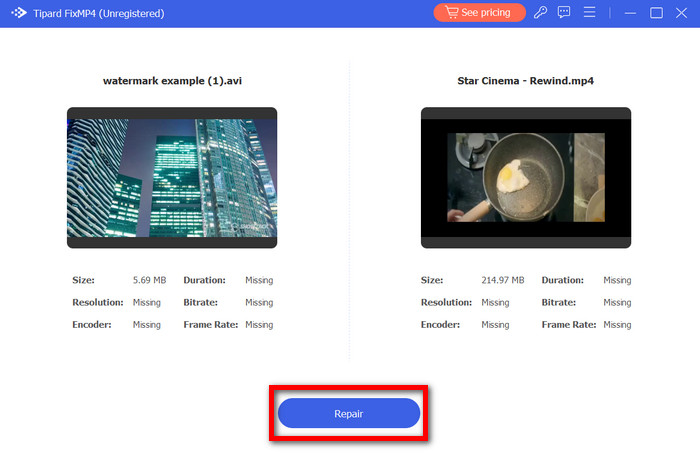
Step 5Check the Repair Preview and Store the Repaired Video
Once the repairing process is done, the Preview option should be clicked to evaluate the outcome. If everything is in order, the Save option should be clicked to export the video file.
Method 2: Using VLC Media Player
VLC Media Player is an open-source video transcoder that may be able to fix corrupted videos through re-encoding. Re-encoding videos can make videos that are unable to be played, viewable again by restoring their video container and file structure. HandBrake is available on Windows, macOS, and Linux and is fairly easy to use.
Performance: VLC is lightweight and fast, for repairing videos that are small and of medium size, almost instantaneously. Heavily corrupted files may be missing their segments; best for minor corruption.
Step 1 Make a copy of the corrupted video file so that the original is not changed.
Step 2 Rename the copy and change the extension from .mp4 to .avi.
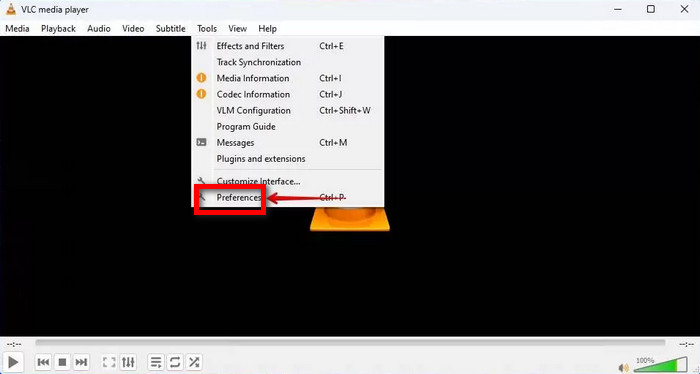
Step 3 Open VLC. Go to Tools then Preferences.
Step 4 In the section for Input / Codecs, set the option of Damaged or incomplete AVI file to Always fix.
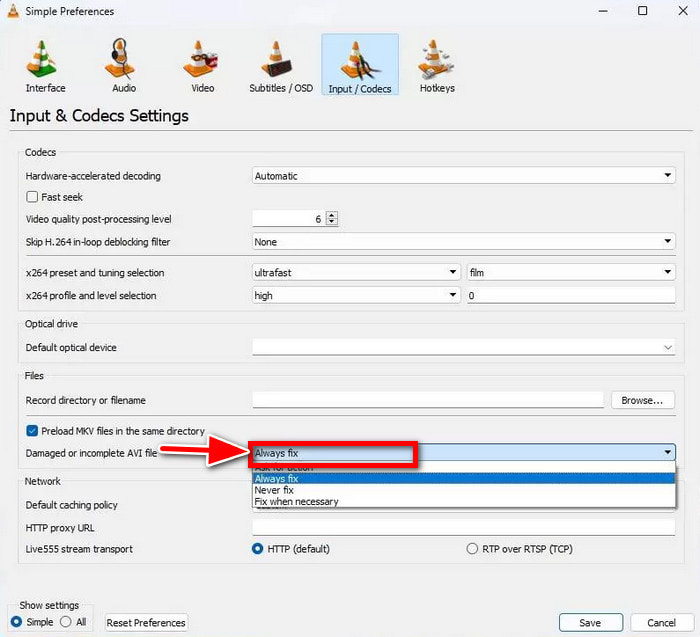
Step 5 Play the AVI file and let VLC try to fix the corrupted parts by repairing them.
Method 3: HandBrake
HandBrake is a free open-source video transcoder that is able to repair corrupted files, to an extent, by re-encoding them. Re-encoding videos may restore segments that are playable by modifying the video's file structure and rebuilding the video container.
Performance: Moderate file corruption is manageable by HandBrake, and the output is usually of good quality. Re-encoding is a time-consuming process that may not be able to resolve issues for files that are severely truncated and take a long time.
Step 1 Go to the official HandBrake website and download the application.
Step 2 Launch HandBrake and load the MP4 file that you want to fix.
Step 3 Choose an appropriate preset that fits your needs in terms of format and quality.
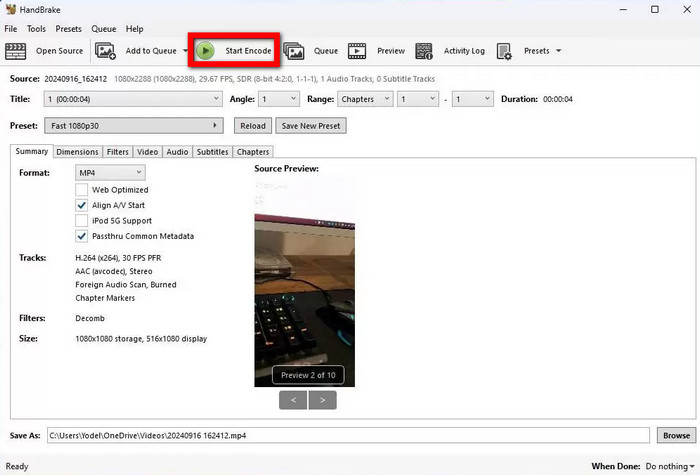
Step 4 To start the re-encoding process, click on Start Encode.
Method 4: Using FFmpeg
FFmpeg is a command-line video encoding and decoding program that can also repair corrupted videos by scanning damaged videos and eliminating corrupted frames, reconstructing playable videos to your desired directory. It is very effective at repairing video files, but a basic understanding of the command line is required to operate this program.
Performance: FFmpeg operates well on larger files with more complex corruptions and is intended for more experienced users. Videos take more time to repair depending on the original resolution, but the final video should be completely playable.
Step 1 Download the files and extract FFmpeg to your desired location.
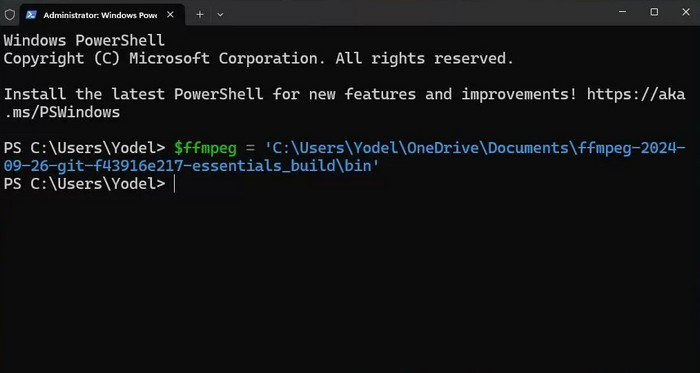
Step 2 Go to the directory of the corrupted video file.
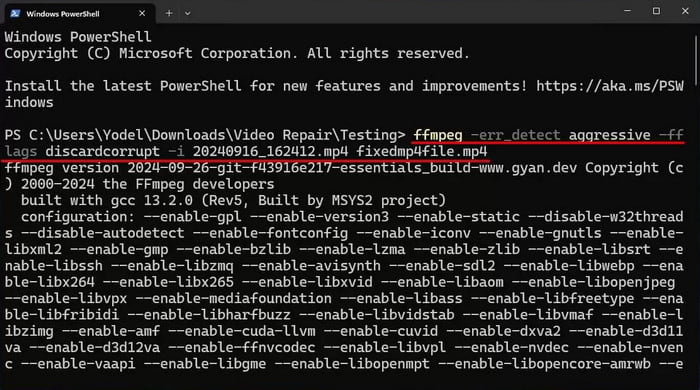
Step 3 Use this command to instruct FFmpeg to repair the video:
ffmpeg -err_detect aggressive -fflags discardcorrupt -i inputfilename.mp4 outputfilename.mp4
Step 4 FFmpeg will print a message describing the video repair process as it takes each piece of valid data and creates a new copy of the video that contains the playable data.
Step 5 The repaired video should now play, so confirm that it is true with the output video.
Part 4. Pro Tips to Prevent Video Corruption in the Future
Video corruption is a headache that should, ideally, be avoided by using preventative techniques. Damaged files can come from a damaged recorder, faulty transfers, or even a corrupted storage device, making it necessary to repair pixelated video. Fortunately, there are easy prevention techniques that will maintain the playable integrity of your videos.
Here are some useful tips to avoid video files from becoming corrupted.
- Do Not Interrupt Recordings: To avoid incomplete video files, make sure to have the device fully charged and enough memory storage before recording.
- Eject Devices the Correct Way: USB drives or SD cards are to be ejected using the safe eject option.
- Choose the Correct Storage Devices: Damaged storage devices are to be replaced, and quality SD cards and drives must be chosen.
- Use Software That Is Up To Date: Using updated media players and codecs helps to provide compatibility with video files.
- Create Backup Copies: Store important videos on another drive or cloud storage to avoid data loss.
Conclusion
Knowing how to repair video files can save valuable memories and important projects. By understanding common causes, spotting signs of corruption, using reliable tools like Tipard FixMP4, and following preventive tips, you can restore damaged videos and keep future recordings safe and playable.
More Reading


About the Author