

Do you want to learn how to convert MOV to MP4 using VLC? Well, VLC's main feature is to play various media files, such as videos and audio. But you must know that it can convert files, giving you the format you need for your videos. In this guide, we will provide a detailed method for effectively transcoding your MOV files to MP4. You will also discover some issues when converting your files. So, to learn everything about the discussion, start reading this tutorial.

Part 1. Can VLC Convert MOV to MP4
Can VLC convert MOV to MP4? The good news is that the program can do so. VLC is not just your everyday media player. With its converter feature, you can ensure that transcoding videos is simple and possible. The best part here is that the process is simple and fast, making it the best free video converter for all users.
Part 2. How to Convert MOV to MP4 on VLC
Want to start converting MOV to MP4 in VLC? Well, converting your video files to your desired format is simple thanks to VLC's user-friendly interface. The best part here is that it offers a fast conversion process, making it a reliable converter for both Windows and Mac users. In addition, VLC supports batch conversion, so you can convert multiple MOV files and save time. You can even improve your footage by using basic editing tools. You can compress the video in VLC, crop, adjust, rotate, adjust video color, and more. Thus, for better results, consider using VLC as your video converter and editor.
You can follow/check the detailed methods below to convert MOV to MP4 using VLC Player on your Mac and Windows.
Step 1 Download VLC Media Player on your desktop. After that, start installing it, then launch it and begin the MOV-to-MP4 conversion process.
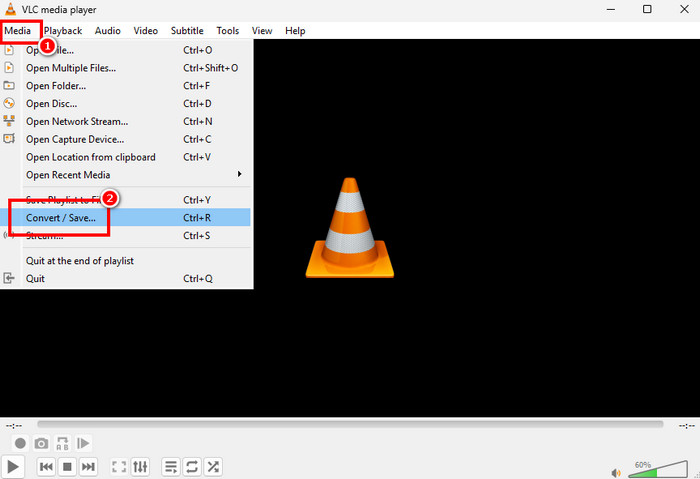
Step 2After launching the program's interface, go to the Media section and click the Convert / Save option. Then a small window will appear on your screen.
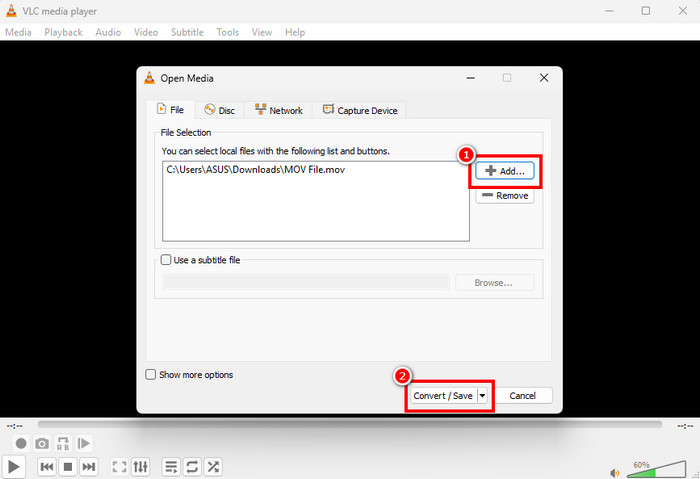
Step 3Next, tick the Add button to add the MOV file you want. Since the converter supports batch conversion, you can add multiple MOV files. After that, tap the Convert / Save button below.
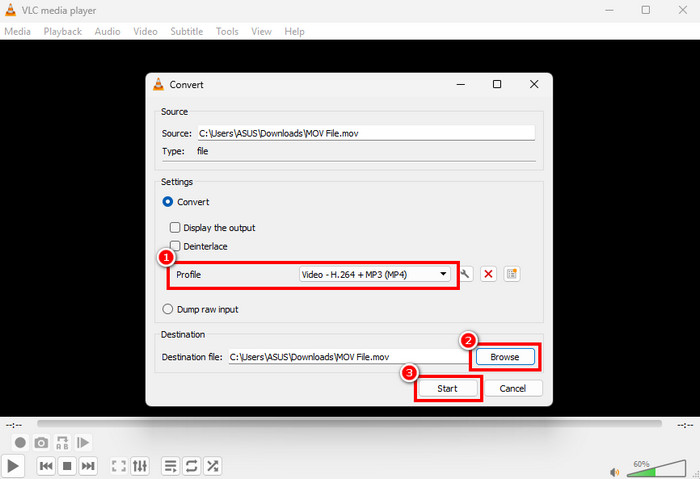
Step 4Finally, you can select the MP4 format in the Profile section. After choosing the format, hit Browse to assign a destination folder. Once done, hit the Start button to proceed with the MOV-to-MP4 conversion process.
Part 3. Common Issues when Converting MPV to MP4 on VLC
After learning the process to convert the MOV file to MP4 on VLC, you can now begin transcoding your files. However, you should also be aware that you might encounter issues during the conversion process. If you want to explore some of the issues, check the details below.
Converted File Has No Audio/Sound
There are times when the converted footage has no audio/sound. This issue occurs when the wrong audio codec is chosen or when the converter fails to properly match the audio stream during conversion. To prevent audio-video sync problems, ensure you have the correct codec installed and enable audio in the profile settings.
Conversion Error
A conversion error or a failed process can also occur. VLC may stop the conversion process if the video file is corrupted or contains unsupported streams. Unusual encoding of large files can cause VLC to crash mid-process. The best solution here is to re-encode the MOV file with a better codec or update VLC to its latest version.
Quality Loss
Sometimes, there is reduced sharpness in the video. Some have lower resolution and pixelation in the converted video file. This might be because VLC Media Player compresses the settings, which lowers the bitrate. To maintain quality, please adjust the profile before the final conversion.
Video/Audio Sync Problem
After the MOV-to-MP4 conversion procedure, the audio may run ahead of or lag behind the video. This is because of mismatched frame rates. If you want to fix the audio delay in VLC, go to Tools > Preferences and adjust the Audio desynchronization compensation.
Part 4. The Best Alternative to VLC for Converting MOV to MP4
Since VLC has issues converting MOV files to MP4, it would be best to look for a better converter. If so, if you need the best alternative to VLC for better conversion, we suggest using Tipard Video Converter Ultimate.
This video converter ensures that you won't encounter any errors during and after the conversion process. It is because the program supports all types of MOV files for input. Plus, it offers various presets and flexible customization options for MP4, helping you achieve the best results. It can also support batch conversion, allowing you to convert numerous files in a single process. What makes it more powerful is that it can give you a super-fast conversion process up to 120× faster and save the video with the best quality. To check its capability, you can use the instructions below.
Step 1Download Tipard Video Converter Ultimate on your Mac and Windows. After the installation, begin the MOV-to-MP4 conversion process.
Step 2From the main interface, navigate to the Converter section and tap the Add Files option to start adding the MOV file from your device.
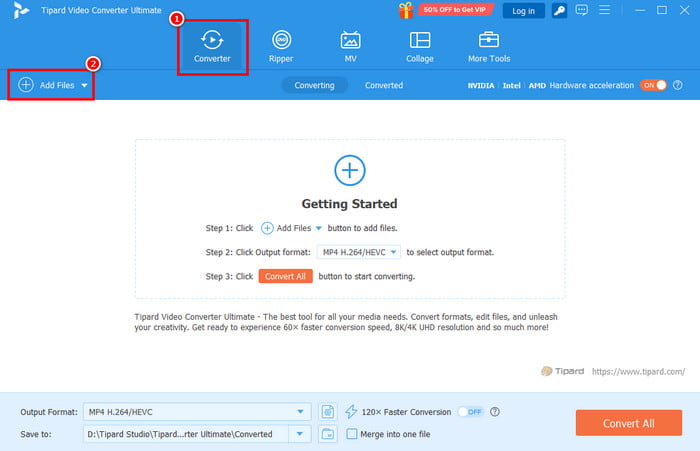
Note that you can add multiple files, as it supports batch conversion.
Step 3After adding the MOV file, go to the Output Format section and start choosing the MP4 format. You can also click and choose your desired quality.
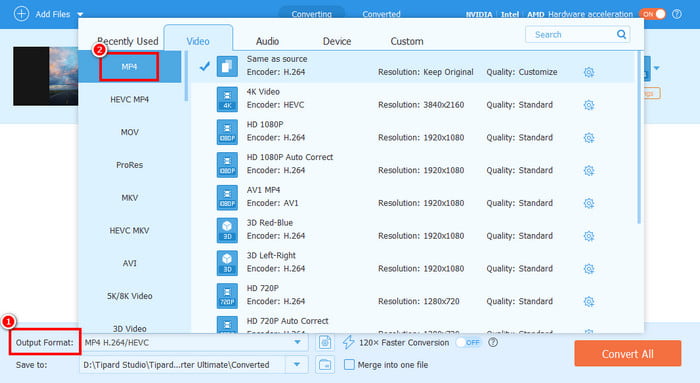
Step 4Finally, begin the MOV-to-MP4 conversion by clicking the Convert All function at the bottom of the interface.
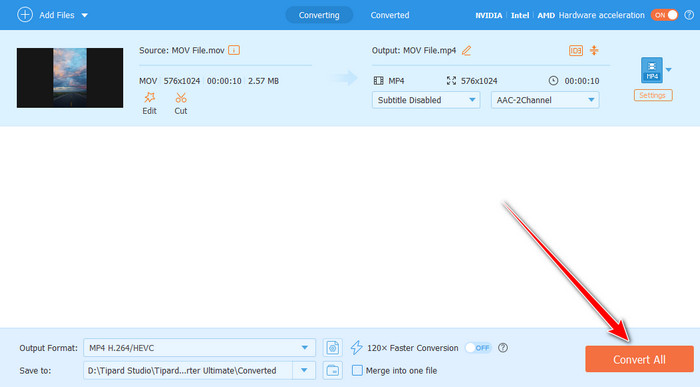
Once done, you can now check and play your converted video on any video player.
With this method, you can now ensure you get the result you need without issue. The program can even offer a faster conversion process and better quality output. So if you need the best VLC replacement, look no further than Tipard Video Converter Ultimate.
Conclusion
To change MOV to MP4 using VLC Media Player, follow the detailed methods provided in this tutorial. With that, you can obtain the result you need after the conversion. Plus, thanks to this post, you even explored some of the common issues you might encounter when using VLC as your MOV-to-MP4 converter. So, if you need the best alternative, you can access Tipard Video Converter Ultimate. This program ensures you won't encounter any issues during or after the conversion. It can even deliver ultra-fast conversion and high-quality output, making it the best converter for Windows and Mac.

All-in-one video toolbox: convert, edit, upscale, enhance, and compress your videos easily
100% Clean & Safe
100% Clean & Safe

More Reading




About the Author

 Click here to join the discussion and share your comments
 Tipard Video Converter Ultimate