

The color of your video depends on the natural lighting of the place where you captured it. It might be warm, bright, dark, cool, etc. However, these colors sometimes exceeded your preferred one. You might need to adjust their colors to fix the color inaccuracy from the video. Adobe Premiere Pro is one of the tools that offers a color correction feature.
Do you want to know the color correction in Premiere Pro? Eyes here! This article will show you the must-know information about the feature.
Part 1. What Is Color Correction in Premiere Pro
The videos on your devices can have different colors based on the ambiance where you took them. The Adobe Premiere color correction is a great help to fix these color inaccuracies. You can also use the feature to ensure that the videos will look natural.
Additionally, you can make them true-to-life and consistent if you have multiple videos. Having different colors in your multiple videos might be different from one another. Color correction is commonly used for post-production for video editing or photography. Besides the color correction, you can also enhance videos, add text, add transitions, and edit audio in Premiere Pro. How to color correct in Premiere Pro? Use the simple steps below.
Step 1 Open Premiere Pro. Then, locate the file you want to color correct. Drag and drop it into the software to import it. Later, click the Color button at the top.
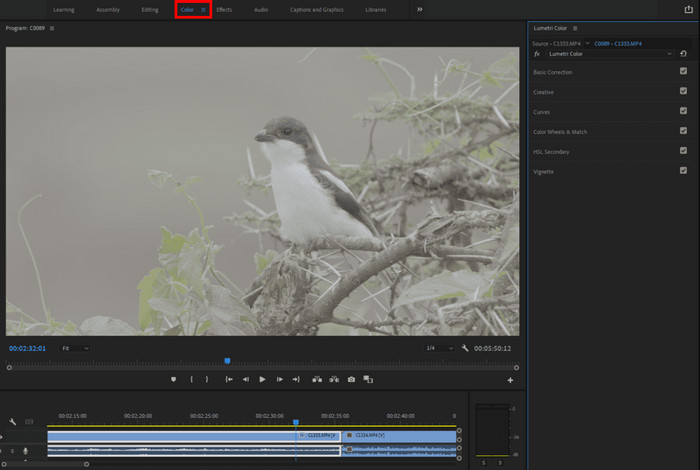
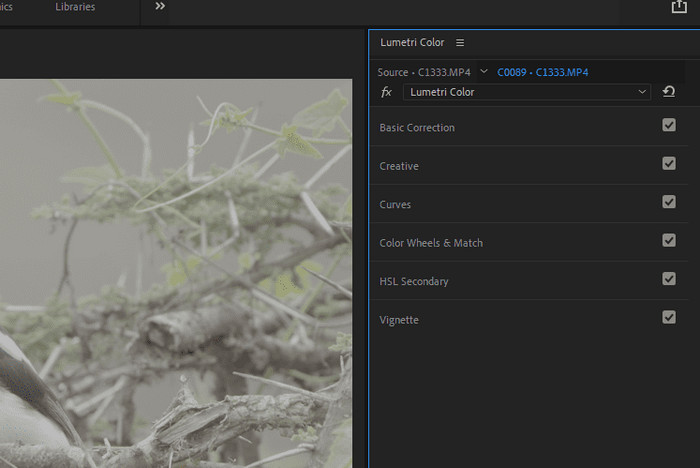
Step 2 Open the Lumetri Color panel. Then, you will see the adjustments you can make. You can select and adjust the Basic Correction, Creative, Curves, Color Wheels & Match, HSL Secondary, and Vignette. Click the Share button afterward to save the video.
Part 2. Premiere Color Correction Workflow
The color correction on Premiere Pro uses the Lumetri Color panel. This feature divides them into two categories, which are primary correction and creative grading. See their full details from the following:
Primary Correction
The goal of primary correction is to correct technical issues with your lighting and camera. It creates a neutral and accurate base image for your videos. In this case, the videos will look balanced. The primary correction of Premiere Pro includes:
- Contrast - It balances the difference between the dark and light areas of your video.
- Saturation - The adjust tool controls how muted or strong the colors from the videos are.
- Highlights and Shadows - It retrieves the dark and bright parts of your videos in detail.
- White Balance - It removes the unwanted colors from your videos, including too much yellow, green, and blue.
- Exposure - It balances the image or videos so it will not be too dark or too bright, which might ruin it.
Creative Grading
The creative grading comes after the use of the primary correction. Unlike primary correction, which fixes the colors on your videos, creative grading changes the visual style of the mentioned file format. It enables you to make a specific mood or cinematic effect that is convenient for bigger projects. However, it requires very advanced skills to achieve better results. Creative grading includes the following:
- It enhances certain colors from the video to add artistic effect, including yellow, blue, and green.
- It can apply color styles to your media files, including LUTs or Look-Up Tables.
- It allows you to make your media files look like warm or cool stones from different scenarios.
- It creates a teal-and-orange look, including cinematic color styles.
All in all, creative grading and primary correction are completely different. Primary correction focuses on fixing colors in your media files. On the other hand, creative grading styles your media files to add artistic effect.
Part 3. Why Premiere Color Correction May Overkill You
The color correction on Premiere Pro is indeed helpful for adjusting the color of your videos. However, some say that this feature might be overkill for you. The reason is that it has very advanced and professional-level color tools. It includes the Lumetri Color panels, color wheels, video scopes, and more. Also, the proper color correction procedure requires several steps to be completed. The only easy method that can be done is when you add media to Premiere Pro because of the drag-and-drop process it supports.
Part 4. Easier Alternatives to Premiere to Color Correct Videos
The color correction in Premiere Pro is great, but it might be lacking for some of you. In this section, the 2 best alternatives to the mentioned tool. See them from the list below.
1. Tipard Video Converter Ultimate
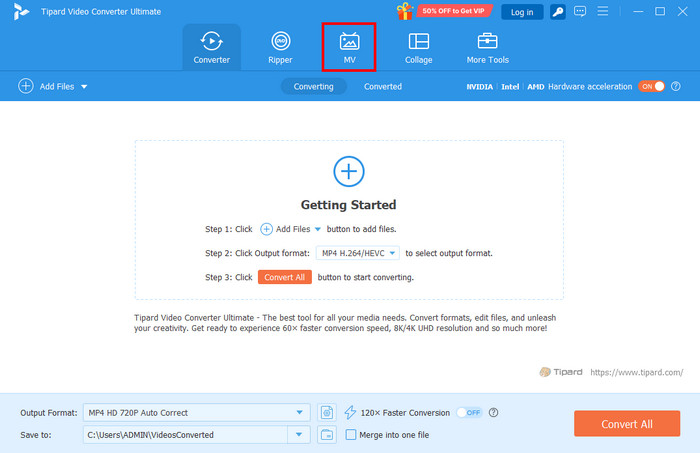
Tipard Video Converter Ultimate is the ultimate alternative to color correction on Premiere. This tool offers AI techniques to correct video color quickly. You can adjust basic effects, including contrast, saturation, hue, and brightness. It can also enhance the resolution, noise, and shakiness of your video. The following are the other features of the tool, including its procedure to color correct your videos.
Key Features:
- It supports batch conversion.
- The tool can quickly decode and convert your videos.
- It offers multiple filters that can be added to your videos.
- It can make basic editing to your videos, including cropping, clipping, rotating, adding a watermark, and more.
- It enables you to rip DVDs to video or audio files.
- It can copy DVD to image, MKV, MPG, and DVD folder losslessly.
- The software does not need or require an internet connection.
- It is not a resource-intensive tool.
- It supports 500+ video or audio formats, such as MOV, AVI, FLAC, WAV, and more.
- It can convert videos or DVDs at 120x faster speed with full quality.
- Some features are not available on its free version.
2. DaVinci Resolve
DaVinci Resolve is considered a professional tool that is all-in-one. The tool is developed by Blackmagic Design. Unlike other tools, Davinci Resolve uses a page-based workflow. It only means that you do not need to switch software when moving to different tasks.
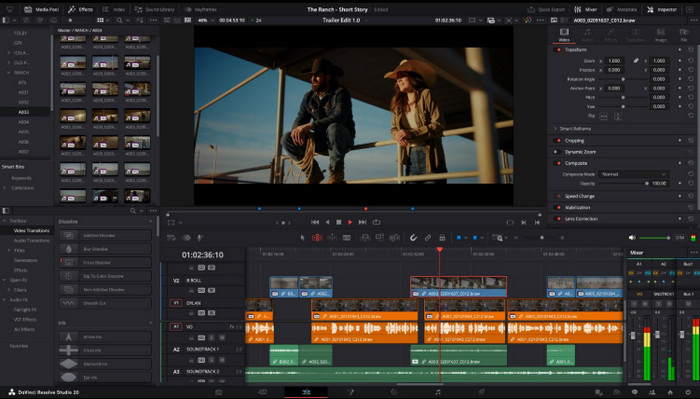
Key Features:
- Supports a node-based color grading system.
- Includes Farlight audio suite.
- Multi-user collaboration.
- Supports wide format and resolution.
- The free version is powerful.
- No need for subscription in multiple tools.
- Cross-platform compatibility.
- Receives regular updates.
- Limited plugin ecosystem from third-party tools.
- It has a heavy installation size.
- Paid version needs tools from AI.
Conclusion
All in all, Adobe Premiere Pro color correction helps you to fix the color of your video. This tool has advanced tools and an interface. If you want a simpler tool, use Tipard Video Converter Ultimate. It offers basic effects and editing for your videos to fix color inaccuracies. Download it on your computer to explore it even more.
More Reading
About the Author


 Tipard Video Converter Ultimate